






Hard Drive Recovery
PandaOffice Drecov delivers secure, deep data recovery for all storage devices. It retrieves various files lost to deletion, formatting, corruption, viruses and more.
TOP 4 Hot Articles
Top 4 hot articles will provide you reliable solutions to find crucial data with Drecov software.


External HDD Data Recovery Software: Complete Guide to Recover Files
This guide explains practical external HDD data recovery methods, including how to use reliable external hdd recovery software to recover deleted, formatted, or inaccessible files from external hard drives safely.
Find a solution that suits your case
Here are file recovery guidelines for all types of files. Just choose the most suitable situation for you to retrieve your data
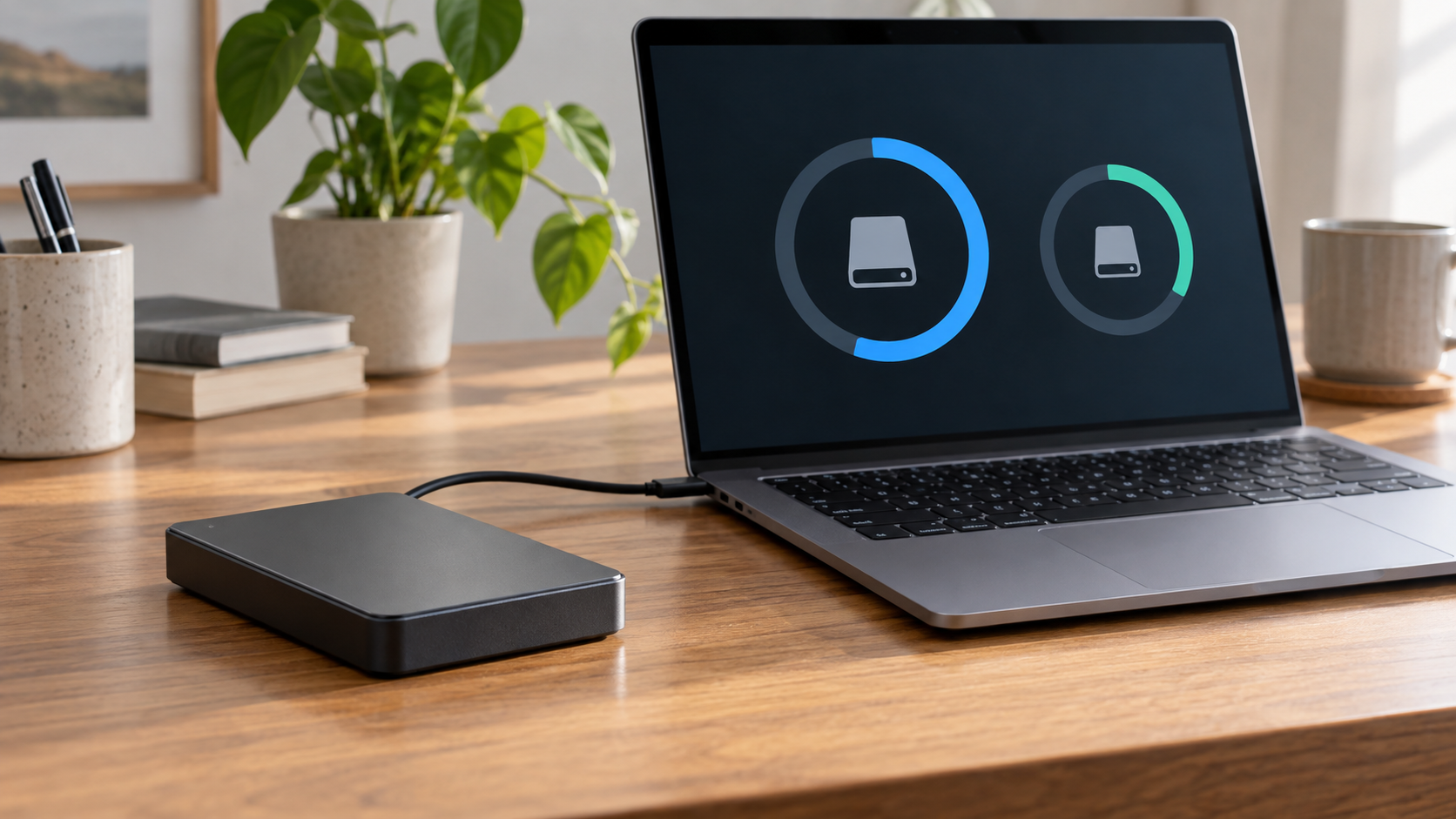

External Hard Drive Shows Wrong Capacity: Protect Files First
Read more →: External Hard Drive Shows Wrong Capacity: Protect Files FirstWrong capacity can indicate a partition-layout problem, enclosure limit, counterfeit flash memory, firmware fault, or failing hardware. Do not resize, initialize, or format the disk. Verify its model in another enclosure and preserve files or a sector image first.
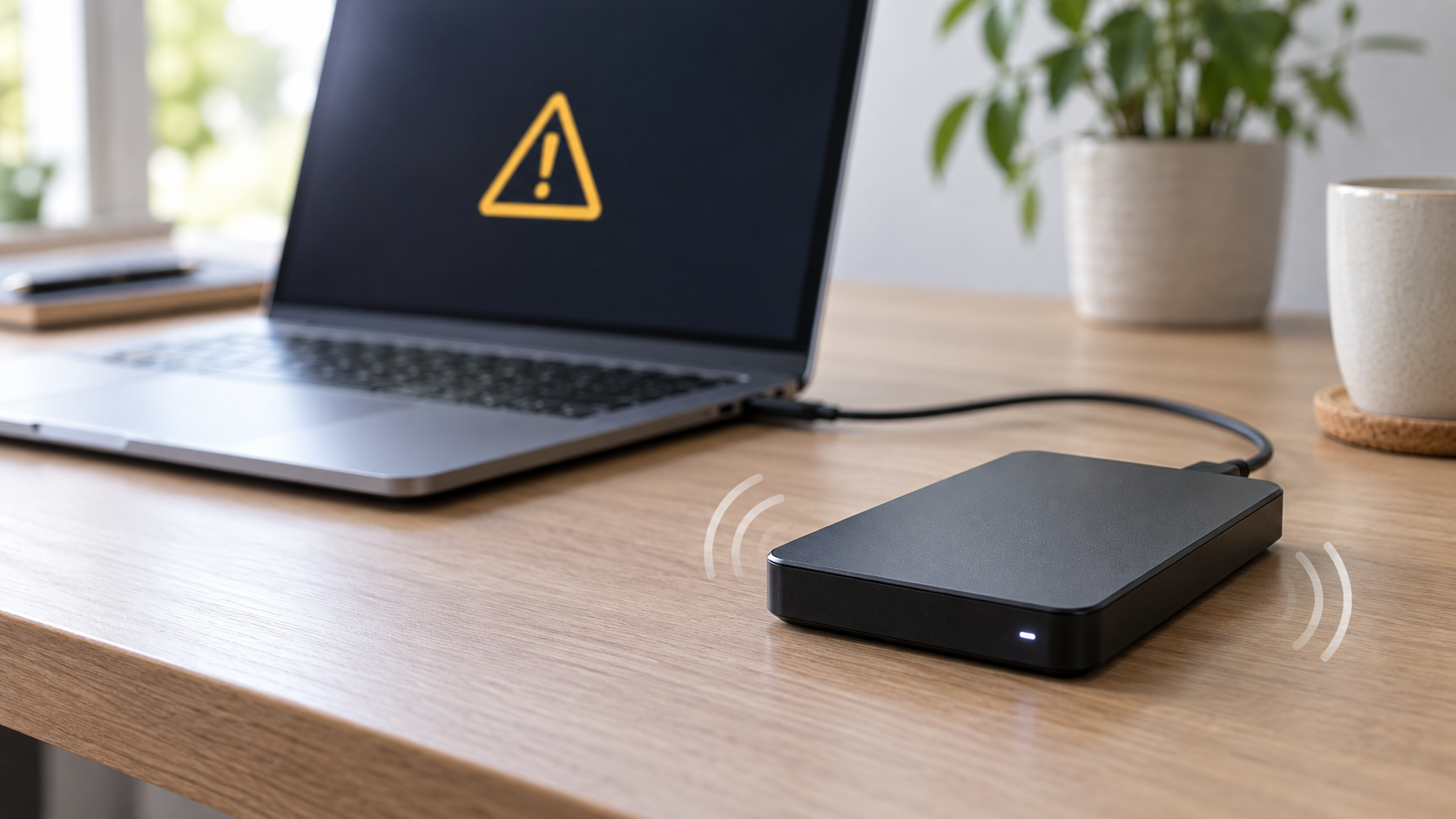
External Hard Drive Beeping: Stop and Protect Your Data
Read more →: External Hard Drive Beeping: Stop and Protect Your DataA beeping external hard drive can indicate insufficient power, a stalled motor, head problems, or enclosure electronics. Stop repeated reconnects and scans. Try the manufacturer-approved power supply or one known-good cable only once; if beeping continues, disconnect it and seek professional recovery for irreplaceable data.
External Drive After Power Loss: Recover Before Repair
Read more →: External Drive After Power Loss: Recover Before RepairAfter a power cut, do not run CHKDSK or accept a format prompt immediately. Reconnect through a reliable port, check for clicking or unstable detection, then copy or recover files to a second disk before file-system repair.
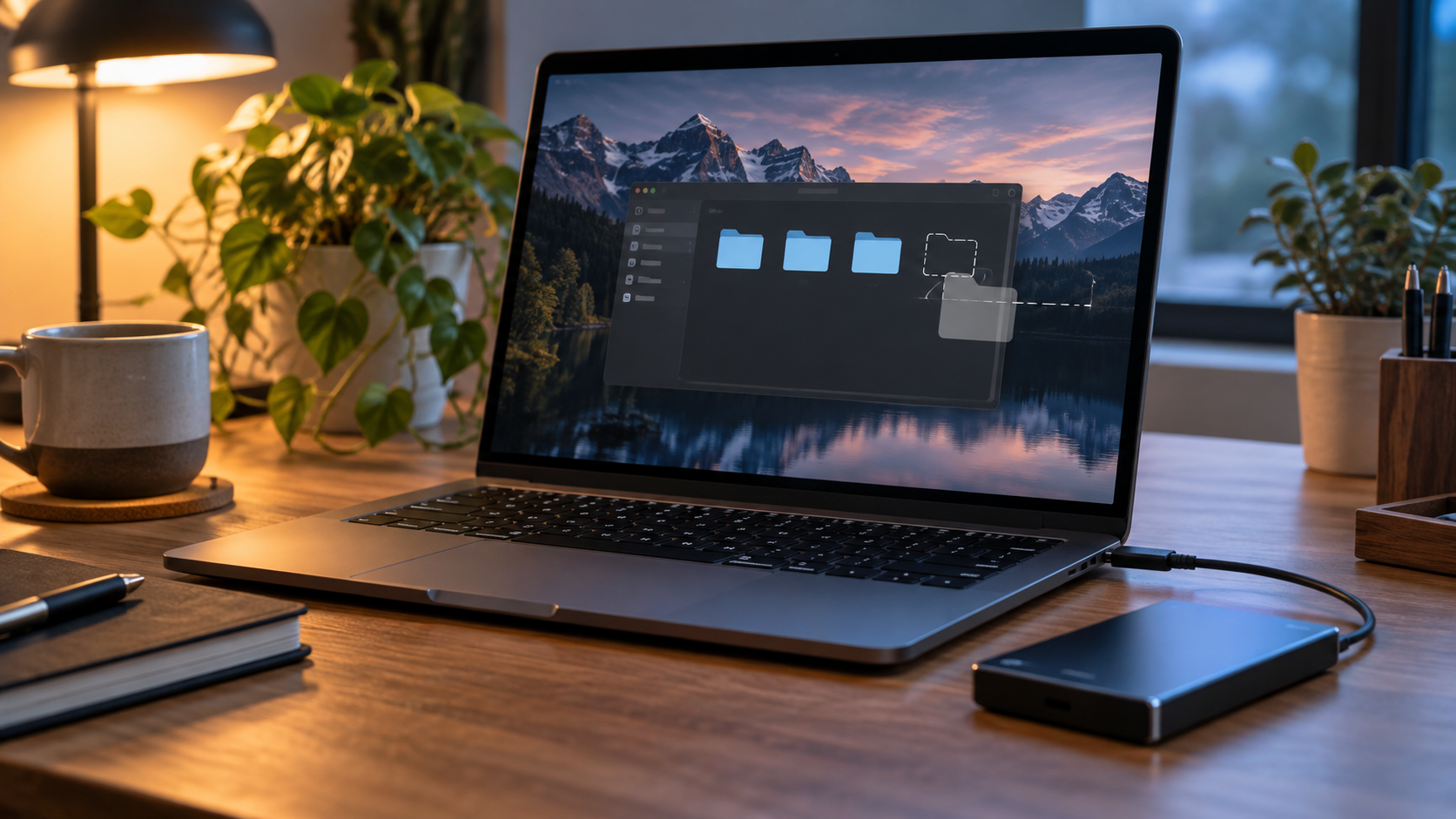
Lost Partition on an External Drive: Recover Before Rebuilding
Read more →: Lost Partition on an External Drive: Recover Before RebuildingIf a used external disk suddenly becomes unallocated, do not create a new partition. Confirm the physical model, stop writing, and recover files or make a sector image on another disk. Rebuild partitions only after opening and verifying the recovered files.
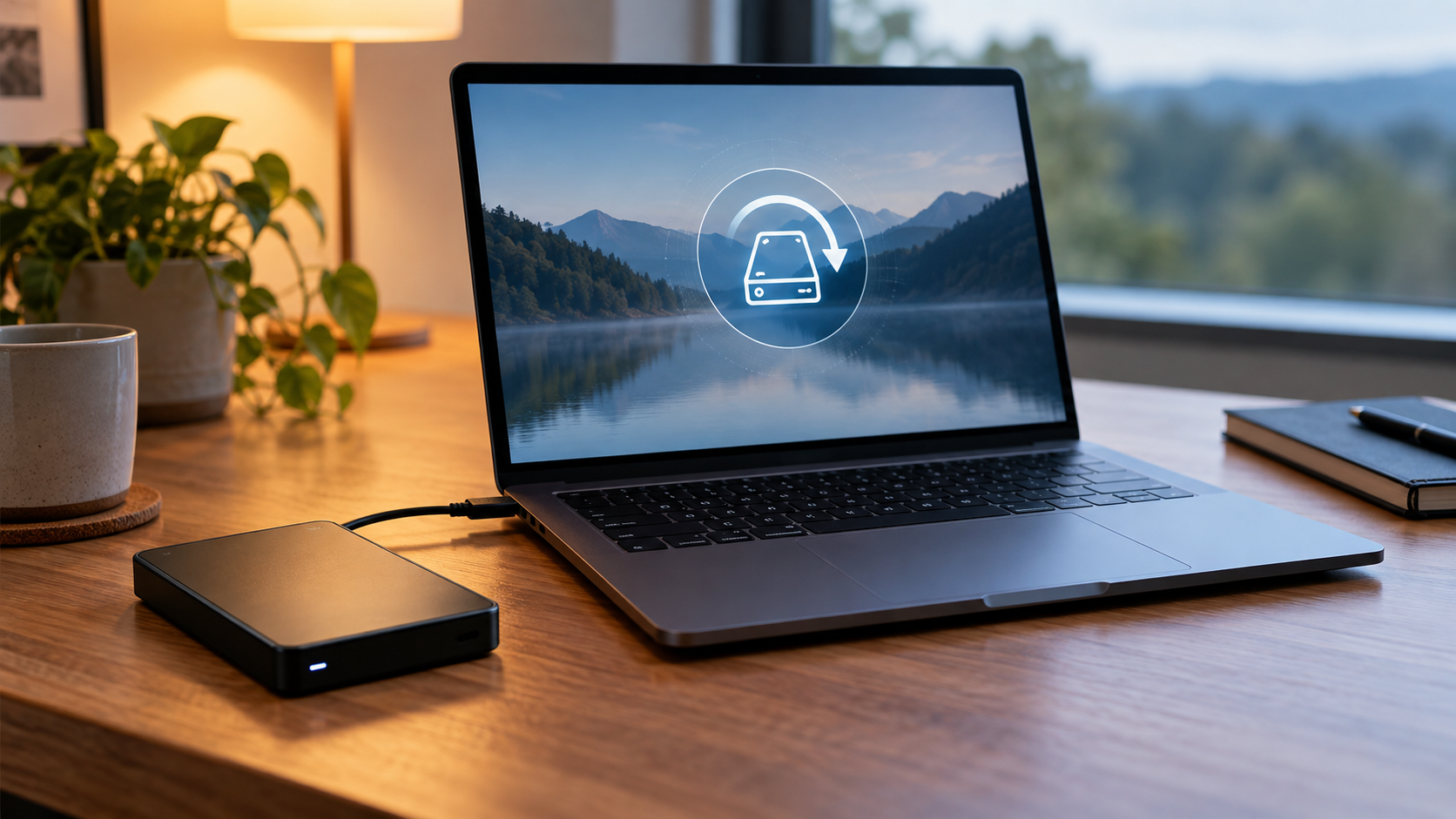
External Hard Drive Not Showing Up: Safe Checks and Recovery
Read more →: External Hard Drive Not Showing Up: Safe Checks and RecoveryTry a second cable, port, and computer; check Disk Management for the physical model and capacity. Do not initialize or format a previously used drive. If it appears stable, copy or recover files to another disk before repairs.
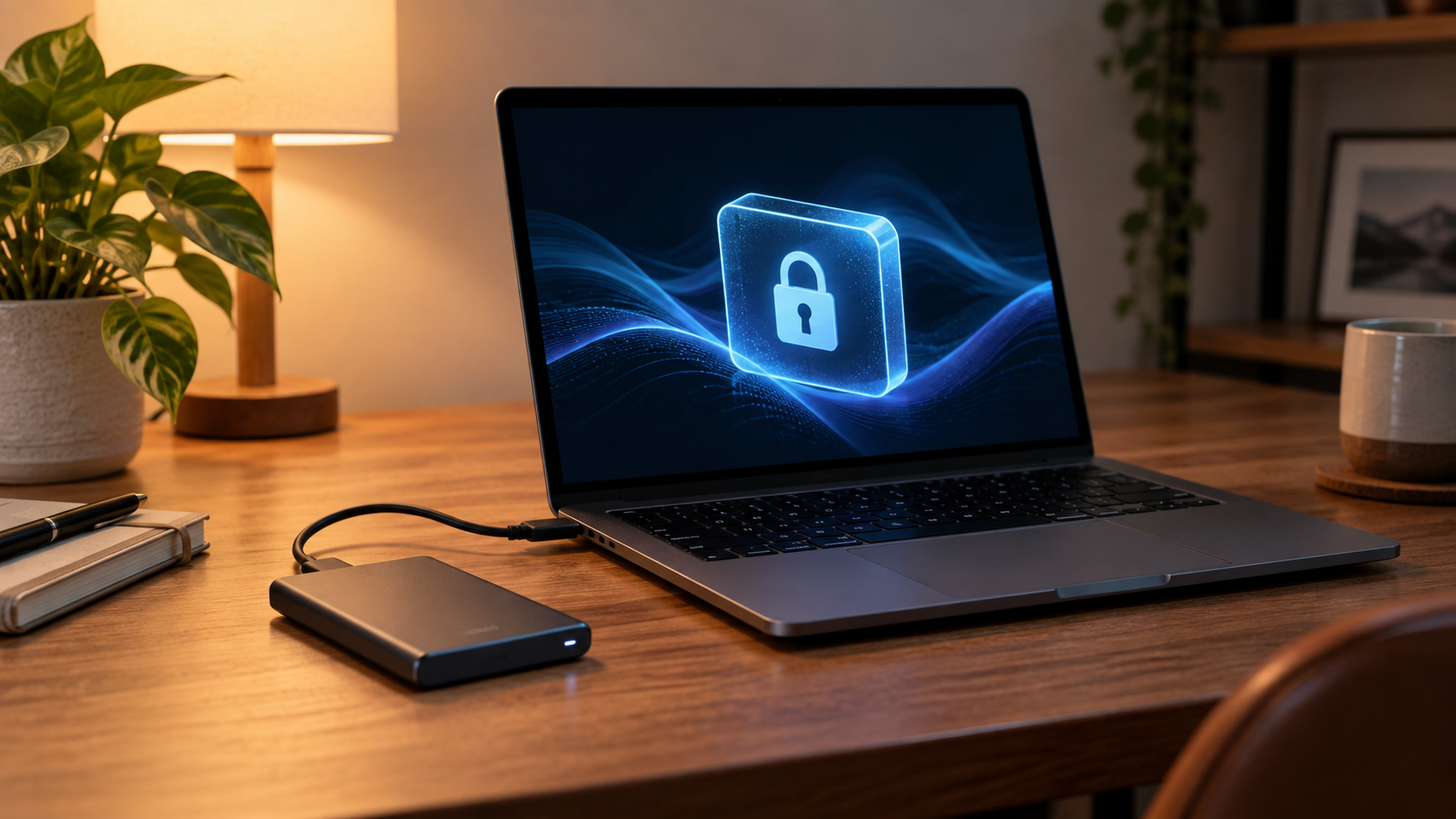
BitLocker Drive Recovery: Find the Key Before Repair
Read more →: BitLocker Drive Recovery: Find the Key Before RepairFind the 48-digit BitLocker recovery key in the Microsoft account, organizational account, printout, or backup before changing the volume. Recovery software cannot decrypt BitLocker without a valid key. Avoid formatting or clearing TPM settings.
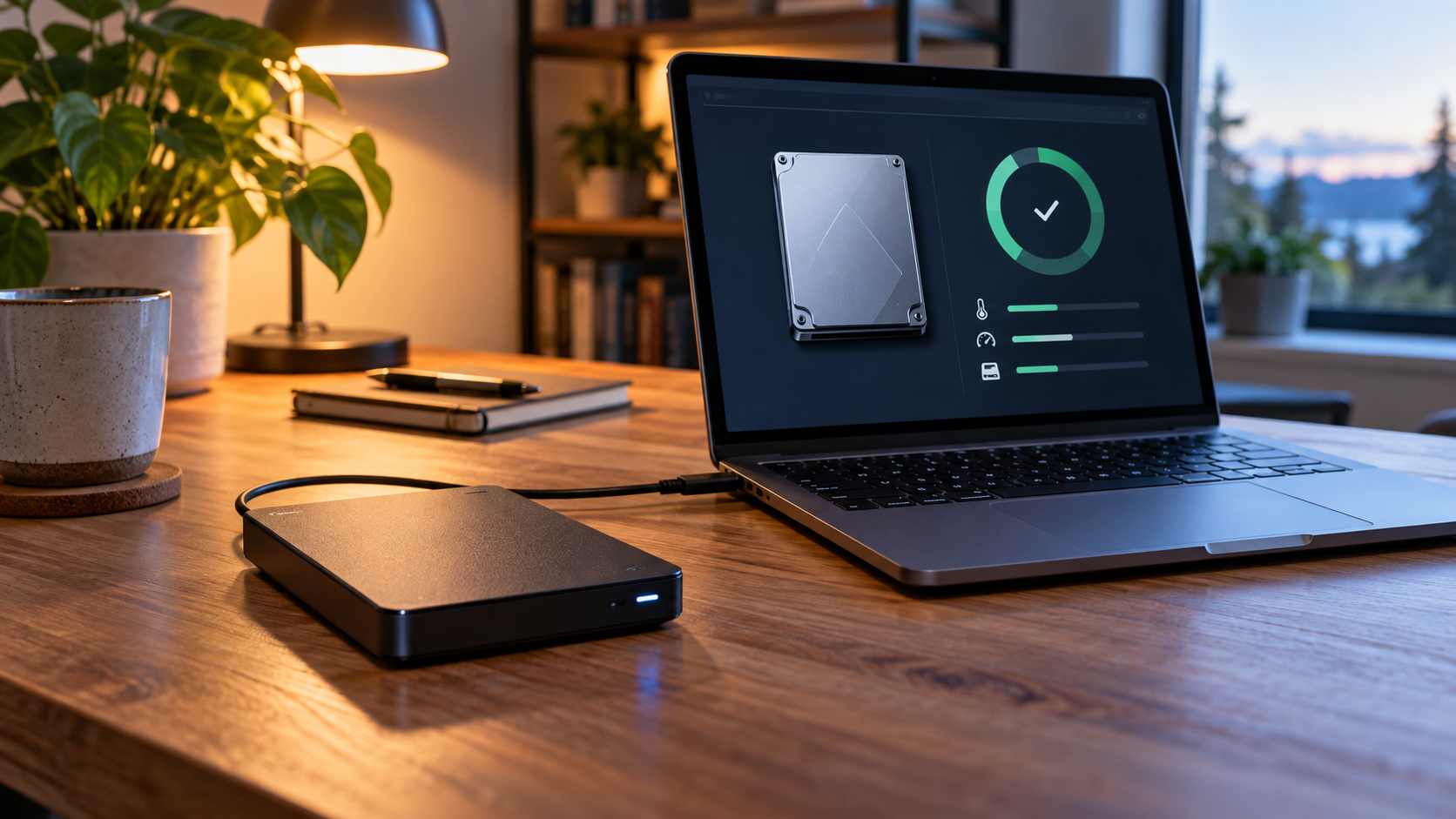
Check Hard Drive Health Without Risking Your Files
Read more →: Check Hard Drive Health Without Risking Your FilesRead SMART status and note reallocated, pending, and uncorrectable sectors, but a healthy indicator does not guarantee safety. If the drive clicks, disconnects, or slows sharply, stop repeated scans and make a backup or seek a specialist.
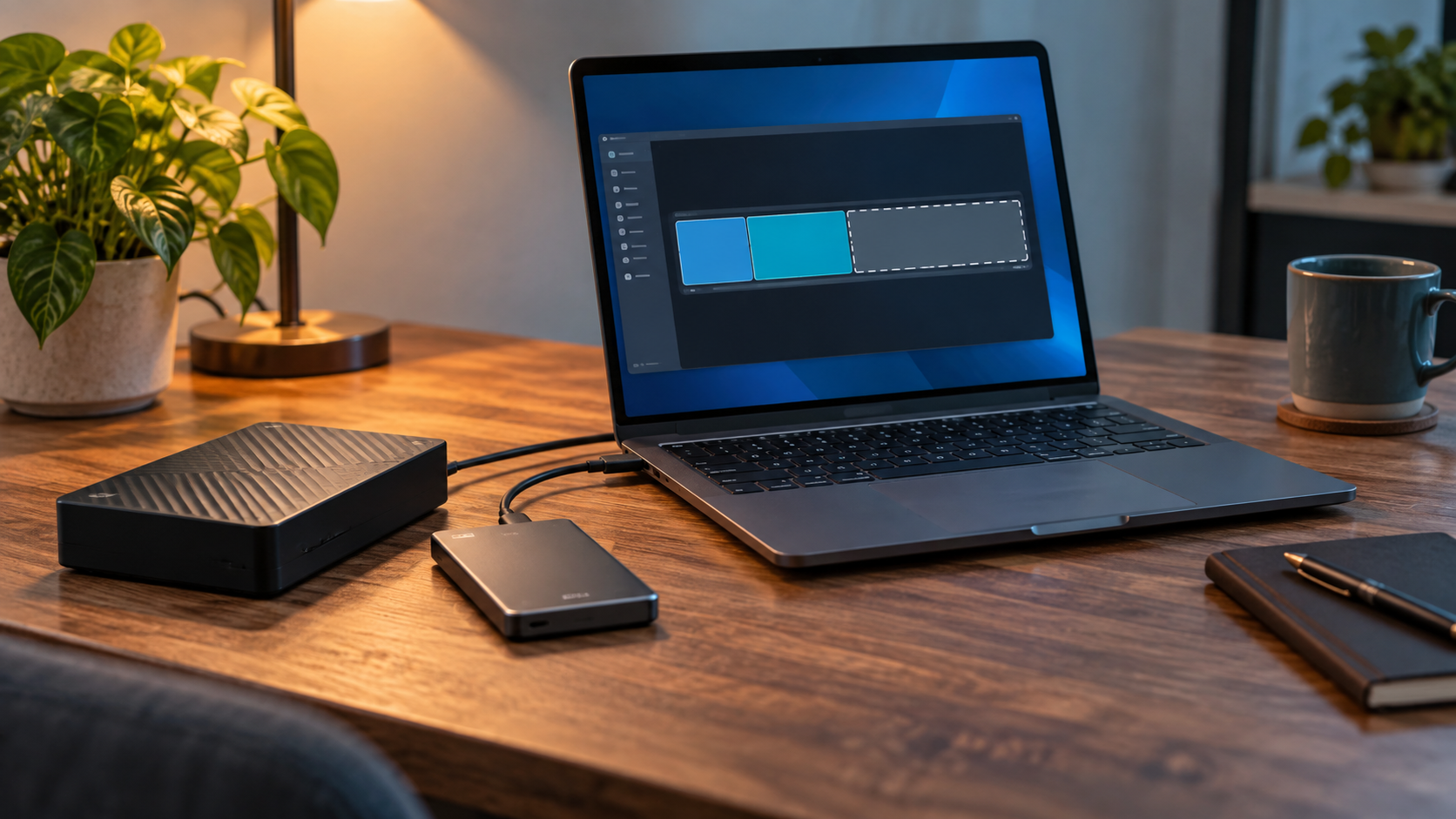
Disk Shows Unallocated Space: Recover Before Formatting
Read more →: Disk Shows Unallocated Space: Recover Before FormattingIf a previously used disk suddenly shows Unallocated, do not create a new volume or format it. Those actions write new partition and file-system metadata. Verify the physical disk, stop writes, recover or image it to another drive, then rebuild storage only after files are safe.


How to Recover Hard Disk Drive Data Safely and Effectively
Read more →: How to Recover Hard Disk Drive Data Safely and EffectivelyThis comprehensive guide explains hard disk recovery fundamentals and demonstrates how to use Drecov to safely restore lost files, formatted partitions, and damaged RAW drives without risking permanent data loss.
Initialize a Disk Without Losing Data: What to Do First
Read more →: Initialize a Disk Without Losing Data: What to Do FirstInitialize only a genuinely new or intentionally blank disk. If an existing drive suddenly appears Not Initialized, initialization writes partition metadata and can complicate recovery; cancel the prompt, verify the model and capacity, and recover or image the disk first.




Copyright © 2025 PandaOffice. All Rights Reserved. The order process, tax issue, and invoicing to end users are conducted by PandaOffice Limited.