







Losing photos from an SD card is a common issue, whether due to accidental deletion, file corruption, or a formatting error. But don’t panic! Your photos are likely still recoverable. This guide provides you with the best methods and tools to recover photos from an SD card quickly and effectively, even in the most challenging situations. Whether you’ve lost family memories, work photos, or important documents, we’ll walk you through the process step-by-step to make sure you can get your data back.
Why Photos Get Lost from SD Cards
Before diving into the recovery process, it’s important to understand why photos are lost from SD cards in the first place. Knowing the cause of data loss can help you choose the best recovery method and avoid future mishaps. Here are the most common reasons for photo loss from SD cards:
- Accidental Deletion: This happens when you accidentally delete files while transferring, cleaning up your SD card, or through a simple mistake.
- Card Corruption: Over time, SD cards can become corrupted due to frequent use, file system errors, or physical damage.
- Improper Ejection: If you remove your SD card without safely ejecting it from your device, it can lead to corruption and data loss.
- Formatting: Formatting the SD card deletes all files, including photos. This is one of the most common reasons for data loss.
- File System Errors: SD cards sometimes pop up error messages such as “SD card not formatted” or “The card needs to be formatted,” blocking your access to photos.
🚩By understanding these causes, you can be more mindful of your SD card usage and act quickly when something goes wrong.
What to Do Immediately After Losing Photos from an SD Card
When you realize you’ve lost your photos, taking quick, careful action can change everything. Follow these steps to maximize your chances of successful recovery:
- Stop Using the SD Card Immediately: As soon as you realize your photos are gone, the most important step you should take is to stop using the SD card immediately. Continuing to use the card can overwrite the deleted files, reducing your chances of recovery.
- Do Not Format the SD Card: While it may seem like a logical step, formatting the card will erase all data and make recovery much more difficult. Avoid this at all costs.
- Do Not Save New Files: Refrain from saving any new data or files to the SD card. Even new photos or documents can overwrite the old ones, making recovery impossible.
- Use Recovery Software or Backups: As soon as you’ve taken the necessary precautions, you can either attempt to recover the lost photos using data recovery software or restore them from a backup if available.
Method 1: Use Data Recovery Software
Data recovery software is one of the most effective ways to recover lost photos from an SD card. Here’s how you can do it step by step:
Step 1: Choose a Data Recovery Tool
Select a reliable data recovery software such as PandaOffice Drecov. This tool effectively retrieves photos that users have inadvertently deleted, and also those lost as a result of SD card corruption or formatting operations.
Step 2: Connect Your SD Card and Launch the Software
- Insert your SD card into a card reader and connect it to your computer.
- Open the data recovery software and select your SD card as the drive to scan.

Step 3: Run a Deep Scan
Choose the “Deep Scan” option for a thorough search. A deep scan will carefully examine all areas of the SD card and identify deleted or lost files. This process may take some time, depending on the size of your SD card and the number of files.

Step 4: Preview and Recover Files
- Once the scan is complete, the software will display a list of recoverable files, including photos, videos, and other media.
- Select the photos you want to recover and preview them if necessary.
- You should save the recovered files to a different location (such as your computer’s hard drive) instead of back to the SD card to avoid overwriting other deleted files.

Step 5: Complete the Recovery
You can save the recovered photos in the folder you select, or you can transfer them to other storage devices like another SD card or a USB drive.
Method 2: Check the Recycle Bin (Windows Only)
If you connected your SD card to a Windows computer and accidentally deleted files from it, you might still find those files in your computer’s Recycle Bin. Here’s how to check:
Steps to Recover from Recycle Bin:
- Open the “Recycle Bin” icon on your desktop.
- Look through the files to see if your deleted photos are there.
- If you find the files you want, right-click them and choose “Restore”.
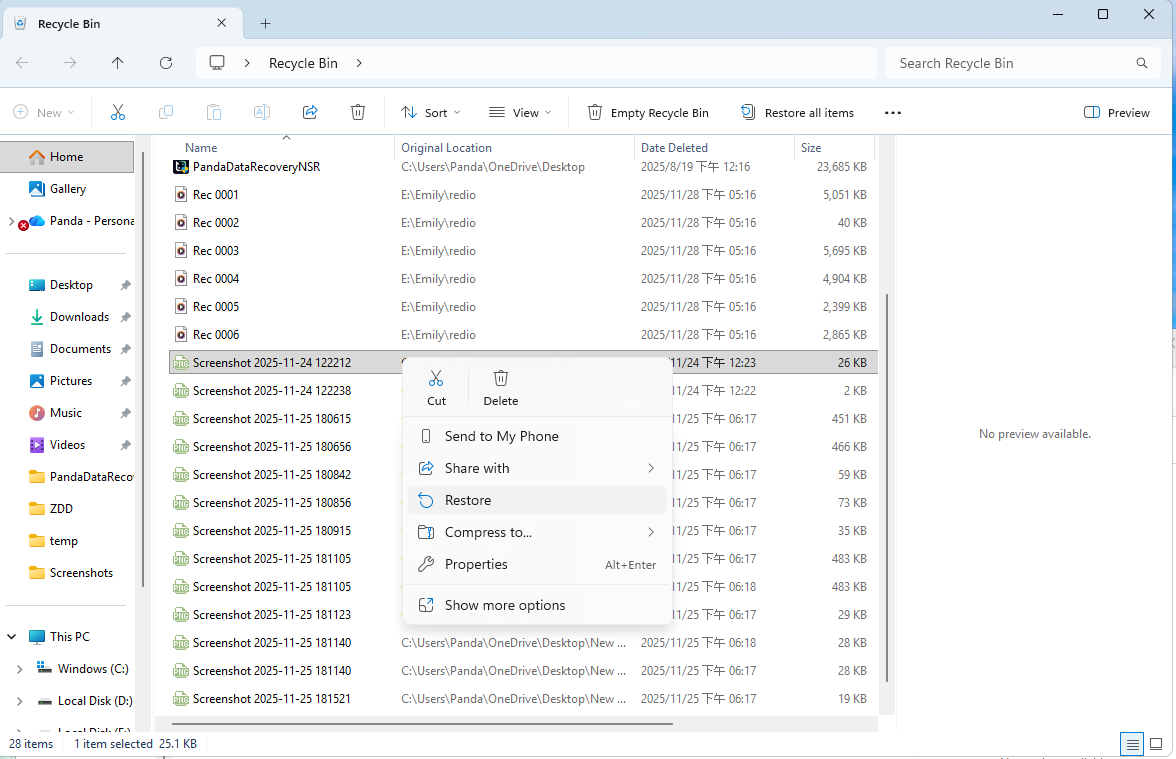
💡This method only works for files deleted from the computer, and only if you haven’t emptied the Recycle Bin since deletion.
Method 3: Unhide Hidden Files
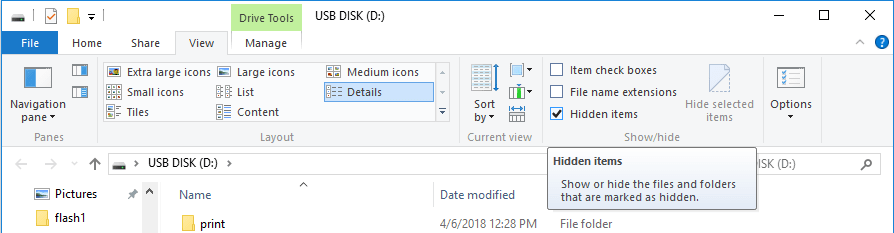
Sometimes, photos on your SD card might be hidden due to a virus infection or other reasons. In such cases, you can show hidden files by adjusting the settings in Windows Explorer.
Steps to Unhide Files:
- Open “This PC”, locate your SD card drive, and click on it.
- On the top menu, click the “View” tab.
- Check the “Hidden items” checkbox to display hidden files and folders.
- Browse through the SD card’s contents to see if any files are hidden and recoverable.
Method 4: Check Your Camera’s Built-In “Restore” Function (For Certain Cameras)
Some mid-to-high-end digital cameras (like certain Canon, Nikon, and Sony models) have a “Restore Image” or “Undo Delete” feature in their playback or settings menu. This function can help you recover recently deleted photos directly from the camera.
Steps to Use the Camera’s Restore Feature:
- Ensure the SD card is still in the camera.
- Access the camera’s menu system and look for options like “Playback Menu” → “Protect/Delete Image” → “Restore Image” or “Undo Delete.”
- If this feature is available, follow the on-screen instructions to see if you can restore recently deleted photos.
📌This feature is not available on all cameras and typically only works for files deleted most recently. It may not be effective if you’ve taken new photos after deleting the files you want to recover.
What Affects the Success of SD Card Photo Recovery?
The success of recovering photos from an SD card can depend on several factors. Here’s what you need to keep in mind to maximize your chances of a successful recovery:
1. Time Factor: The Sooner, The Better
The sooner you attempt to recover your lost photos, the higher the chances of success. When you delete files from an SD card, the card does not immediately erase them from its storage. Instead, it marks the space those files occupied as “available” for new data.
- Key Point: The longer you wait, the more likely it is that new data will overwrite the deleted files, making them impossible to recover.
- Action: As soon as you realize your photos are missing, stop using the SD card immediately. This reduces the risk of overwriting the lost files with new data. If possible, try using recovery software as soon as you notice the issue.
2. Card Condition: Logical vs. Physical Damage
The condition of the SD card plays a significant role in determining recovery success.
- Physically Damaged SD Cards: If your SD card has suffered physical damage (e.g., water damage, bending, or breakage), data recovery software will have very low chances of retrieving your data. In this case, you will likely need to consult a professional data recovery service. These services have advanced tools and techniques to recover data from physically damaged cards, but this can be costly.
- Logically Damaged SD Cards: Logical damage refers to issues like corrupted file systems, accidental formatting, or deleted files. This type of damage is more common, and you can often fix it with data recovery software — the software scans the SD card to find recoverable files.
| SD Card Damage Situation | Price Range | Recovery Time | Important Notes |
|---|---|---|---|
| Minor Physical Damage | $100 – $400 | 1 – 3 days | – This situation usually has a short recovery time and high success rate. – Low cost and doesn’t require complex equipment. |
| Data Loss but Card is Recognizable | $200 – $600 | 2 – 5 days | – Data is lost, but the SD card is still recognized, making recovery easier. – Quick action is needed to avoid overwriting lost data. |
| SD Card Not Recognized | $500 – $1500 | 3 – 7 days | – Recovery is more challenging due to circuit or chip damage.- May require chip or controller replacement during the process. |
| Controller Failure | $600 – $2000 | 4 – 7 days | – Recovery is difficult due to controller failure, requiring specialized equipment. – Success rate depends on the severity of the damage. |
| Severe Physical Damage | $800 – $3000+ | 5 – 10 days | – Burnout and other severe physical damage are the most complex to recover. – Longer recovery time and higher costs. |
| Multiple Damages | $1000 – $4000+ | 7 – 10 days | – Multiple issues need to be repaired simultaneously. – Longer recovery time and higher price, success rate depends on the damage. |
| Expedited Recovery Service | $500 – $2500+ | 1 – 3 days | – Faster recovery service, but success rate may not increase. – Higher cost depending on the type of damage. |
| Data Not Recoverable | $100 – $500 (diagnostic fee) | 1 – 2 days | – If the SD card is severely damaged and cannot be recovered, only diagnostic fees are charged. – Confirm if recovery is worth it to avoid unnecessary costs. |
3. Overwriting: The Danger of New Files
Whether you write new files to the SD card after deleting photos is one of the most critical factors that affects data recovery success.
- Key Point: When you continue using the SD card after losing photos, your device will mark the deleted files’ storage space as “free” and may overwrite the lost data with new files.
This drastically reduces the chances of a successful recovery. - Action:If you’ve saved new files to the SD card after deleting photos, you might struggle to get those photos back — it all comes down to whether the deleted files were overwritten.. That’s why stopping use immediately and attempting recovery as soon as possible is vital.
4. File System Type: FAT32, exFAT, or NTFS
The file system of your SD card can also affect recovery. Most SD cards use either FAT32 or exFAT file systems, both of which are more prone to logical errors, but they are easier to recover data from. NTFS-formatted cards, commonly used in higher-end or larger-capacity storage, may require more specialized tools for recovery.
- Key Point: You will generally have better recovery chances with FAT32 or exFAT formatted SD cards because these file systems are more common, and many data recovery tools are optimized for them.
- Action: If your SD card is NTFS-formatted, ensure that you’re using a recovery software that supports NTFS to maximize your chances.
5. SD Card Brand and Quality
The quality of the SD card itself can play a role in recovery success. Some brands and models are more reliable than others, and certain low-quality or counterfeit cards may fail more easily or become corrupted, making data recovery more difficult.
- Key Point: High-quality, well-known SD card brands (e.g., SanDisk, Kingston, Lexar) are generally more reliable and may offer better recovery results.
- Action: If possible, always use reputable brands for important data storage and make sure to follow proper care practices for your SD card.
Act fast – Stop using the SD card immediately to prevent overwriting.
Assess the damage – If the SD card is physically damaged, seek professional help.
Choose the right software – Use recovery tools suited to your card’s file system and damage type.
Avoid new data – Refrain from adding new files to the SD card until recovery is completed.
FAQs About SD Card Photo Recovery
Yes, you can recover photos from a corrupted SD card using data recovery software like PandaOffice Drecov. The software will scan the SD card for recoverable files, even if the card is corrupted.
Formatting your SD card doesn’t permanently erase the data. By using data recovery software, you can recover photos after formatting the SD card, as long as no new data has been written to it.
To avoid future data loss, make sure to back up your photos regularly, safely eject your SD card from devices, and avoid formatting the card unless necessary.
If your SD card is physically damaged (e.g., broken, water-damaged, or scratched), software recovery tools may not be able to help. In this case, you should consult a professional data recovery service. These services have the necessary tools to recover data from physically damaged SD cards, though it can be more expensive than software recovery.
No, formatting your SD card will erase all the data, making recovery more difficult. Only format the card if you have no intention of recovering any files. If you’re attempting to recover photos, it’s essential that you avoid formatting the SD card, as this will overwrite the deleted data and reduce the chances of recovery.
Conclusion
Losing photos from your SD card doesn’t mean you’ve lost them forever. By using PandaOffice Drecov or other reliable data recovery software, checking your Recycle Bin, or leveraging your camera’s built-in recovery feature, you can recover lost photos. The key is to act quickly, as the sooner you recover, the higher the chances of success.
If your SD card has physical damage, consider seeking professional recovery services. To prevent data loss in the future, regularly back up your files, properly use storage devices, and safely eject your SD card.
Protect your data, avoid losing valuable memories, and take the right steps to recover your lost photos.







