






File Recovery
Pandaoffice Drecov is the best files recovery software to restore deleted, formatted, or corrupted data from HDDs, SSDs, USB drives, and SD cards with deep scanning, preview support, and secure recovery performance.
TOP 4 Hot Articles
Top 4 hot articles will provide you reliable solutions to find crucial data with Drecov software.
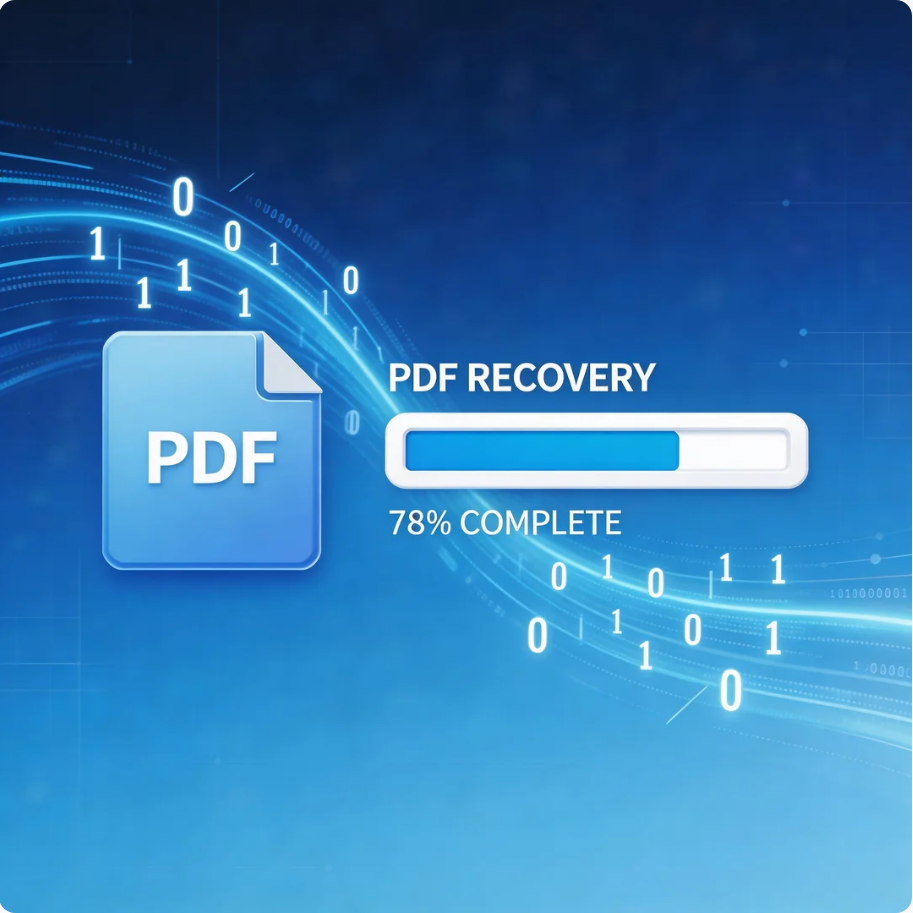

Comprehensive Guide to PDF File Recovery
This guide explains PDF file recovery methods for Windows PC, including built-in tools, backups, cloud storage, and professional software like Pandaoffice Drecov to safely restore lost or corrupted PDF files.
Find a solution that suits your case
Here are file recovery guidelines for all types of files. Just choose the most suitable situation for you to retrieve your data


Files Missing After CHKDSK: Find and Recover Safely
Read more →: Files Missing After CHKDSK: Find and Recover SafelyStop running CHKDSK again after files disappear. Check hidden and protected items, look for FOUND.000 and File*.chk, review Recycle Bin and backups, and copy the affected volume or create an image before reconstructing files to another destination.

Files Missing After Windows System Restore: Recovery Steps
Read more →: Files Missing After Windows System Restore: Recovery StepsSystem Restore normally changes system files, not personal data, so missing files may indicate a profile, sync, or disk issue. Check the correct user profile, Windows.old, OneDrive, File History and Previous Versions, then recover to another drive before further restore attempts.
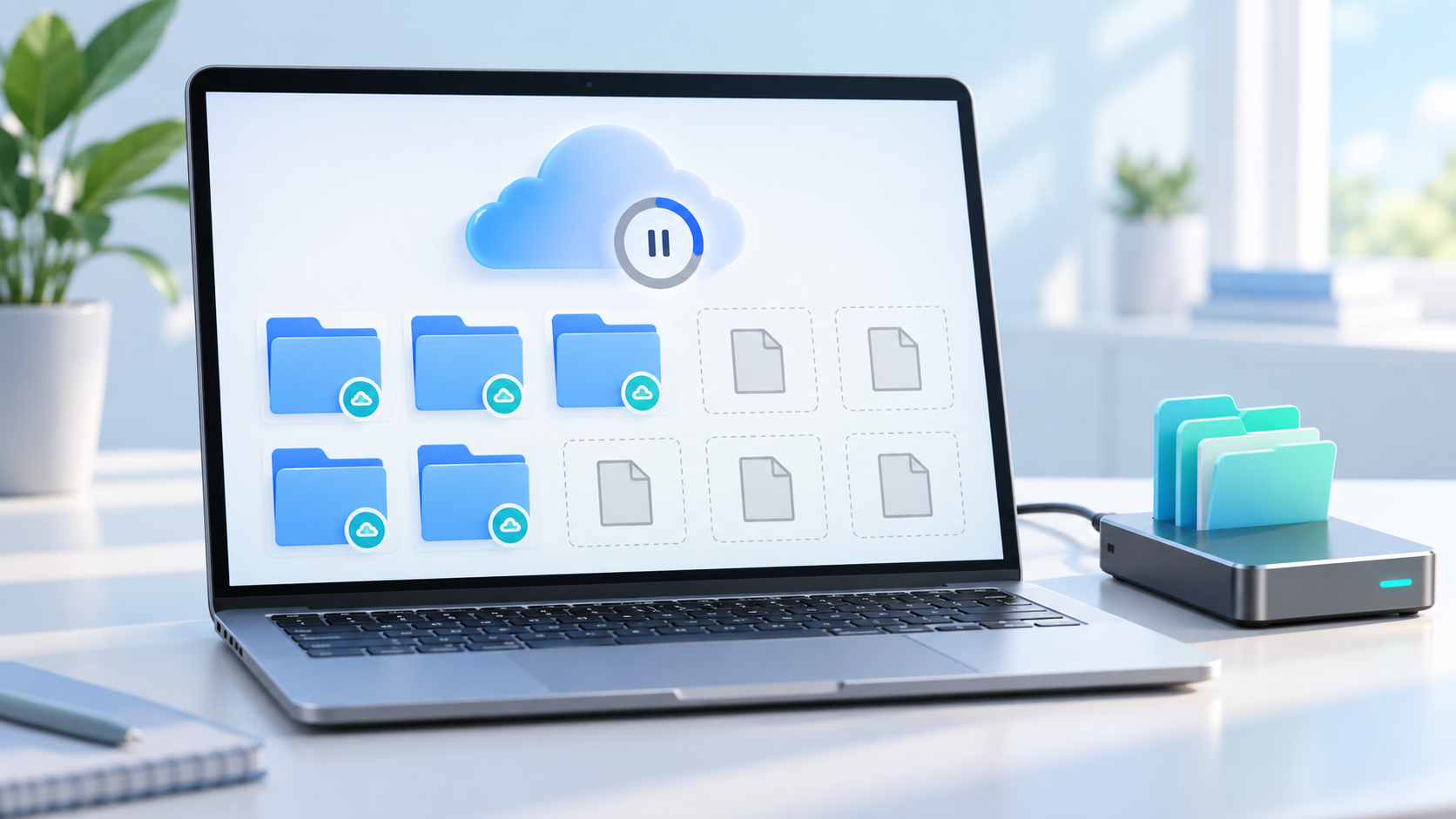
OneDrive Folder Stuck on Sync Pending: Protect Missing Files
Read more →: OneDrive Folder Stuck on Sync Pending: Protect Missing FilesPause synchronization before resetting the client. Confirm the correct account, check OneDrive on the web, Recycle Bin and version history, inspect local Files On-Demand status, and copy good local files outside the sync folder before any unlink or reset.

Recover Files After Emptying Trash on Mac
Read more →: Recover Files After Emptying Trash on MacStop creating files on the Mac volume after emptying Trash. Check Time Machine, iCloud Drive Recently Deleted, app autosave and other backups. If needed, scan the source read-only and restore files to another physical drive rather than the source.

Recover Files From a Deleted Windows User Profile
Read more →: Recover Files From a Deleted Windows User ProfileStop writing to the Windows system volume. Check C:\Users, Windows.old, an administrator profile, File History, Previous Versions and OneDrive before scanning. Preserve folder names and permissions, and recover missing files to another physical disk.

Windows Backup Drive Is Full: Protect Backups Before Cleanup
Read more →: Windows Backup Drive Is Full: Protect Backups Before CleanupDo not delete old backup sets at random when a Windows backup drive is full. Verify which backup job owns the disk, test that recent restore points open, copy irreplaceable archives elsewhere, then use the backup toolʼs retention controls rather than File Explorer deletion.

Recover a Deleted Downloads Folder: Safe Options
Read more →: Recover a Deleted Downloads Folder: Safe OptionsStop saving new downloads to the source drive after deleting the Downloads folder. Check Recycle Bin, browser download history, cloud recycle bins, File History and Previous Versions, then recover missing files to another disk before recreating the folder.
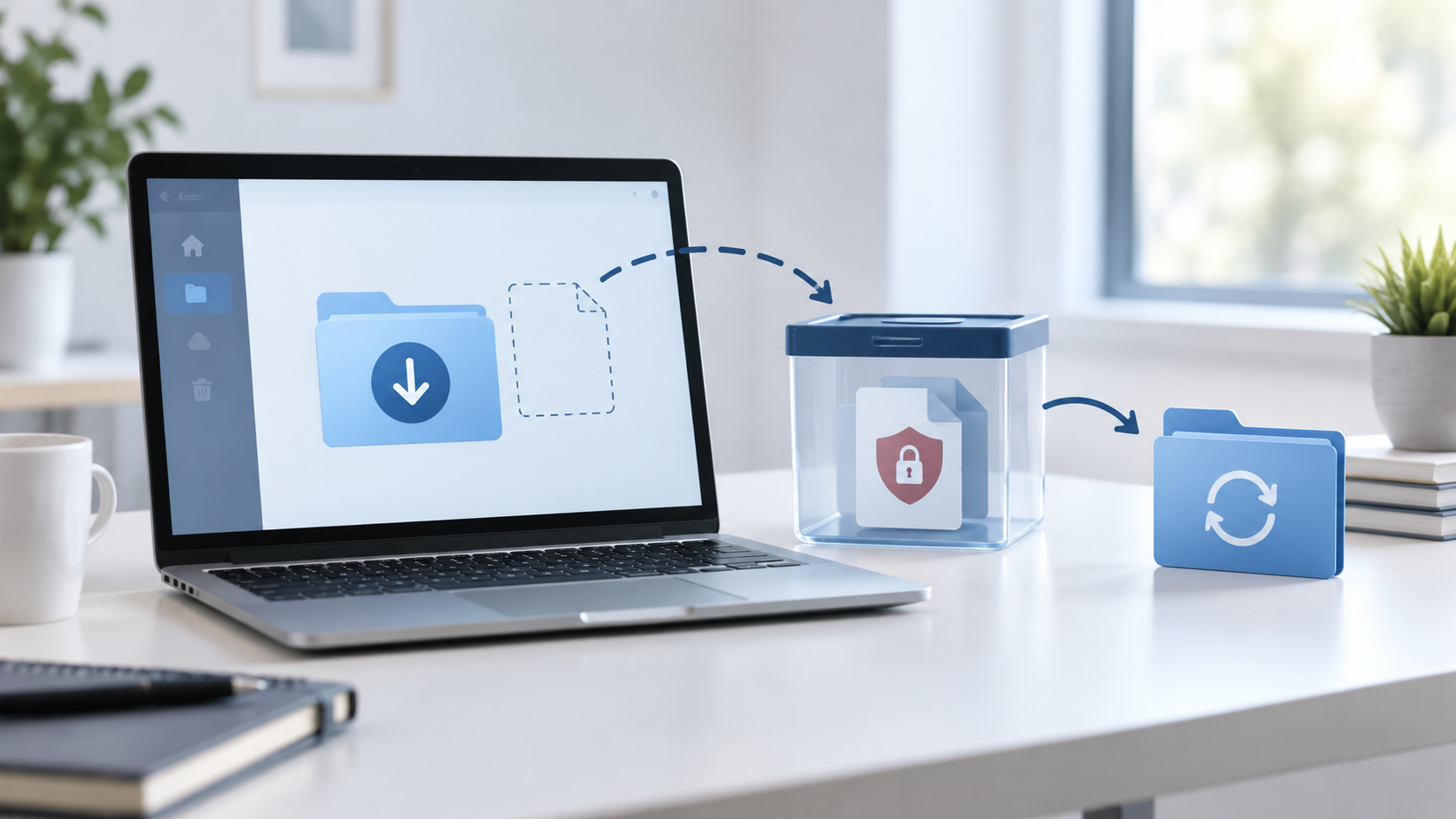
Downloaded File Missing After Antivirus Quarantine: Restore Safely
Read more →: Downloaded File Missing After Antivirus Quarantine: Restore SafelyConfirm the file name, source URL, detection reason, and digital signature before restoring anything from quarantine. Use the antivirus quarantine history, download history, browser folder, and a clean re-download from the official source. Never exclude a whole folder just to recover one file.
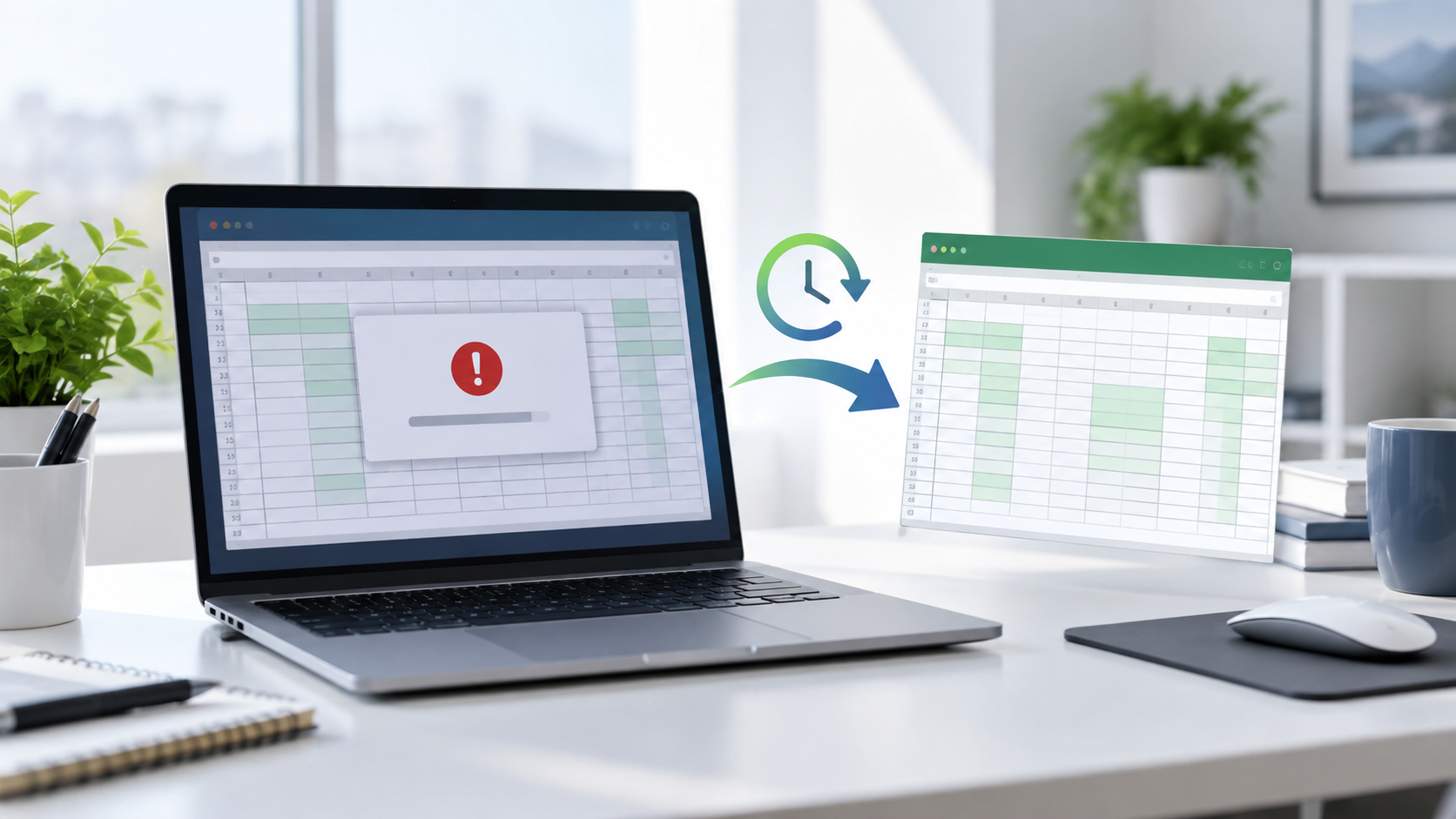
Recover an Unsaved Excel File After a Crash: Safe Steps
Read more →: Recover an Unsaved Excel File After a Crash: Safe StepsAfter a spreadsheet crash, reopen the application once and check Document Recovery, Recover Unsaved Workbooks, AutoRecover, temporary folders, Previous Versions, cloud version history, and email attachments. Save any recovered copy under a new name before editing it.

Stellar Online Video Repair: What the Workflow Can Prove
Read more →: Stellar Online Video Repair: What the Workflow Can ProveEvaluate Stellar’s documented repair workflow without invented tests, prices, or success rates, and protect the original video before uploading or modifying it. The article includes practical verification and stopping points.




Copyright © 2025 PandaOffice. All Rights Reserved. The order process, tax issue, and invoicing to end users are conducted by PandaOffice Limited.