






File Recovery
Pandaoffice Drecov is the best files recovery software to restore deleted, formatted, or corrupted data from HDDs, SSDs, USB drives, and SD cards with deep scanning, preview support, and secure recovery performance.
TOP 4 Hot Articles
Top 4 hot articles will provide you reliable solutions to find crucial data with Drecov software.
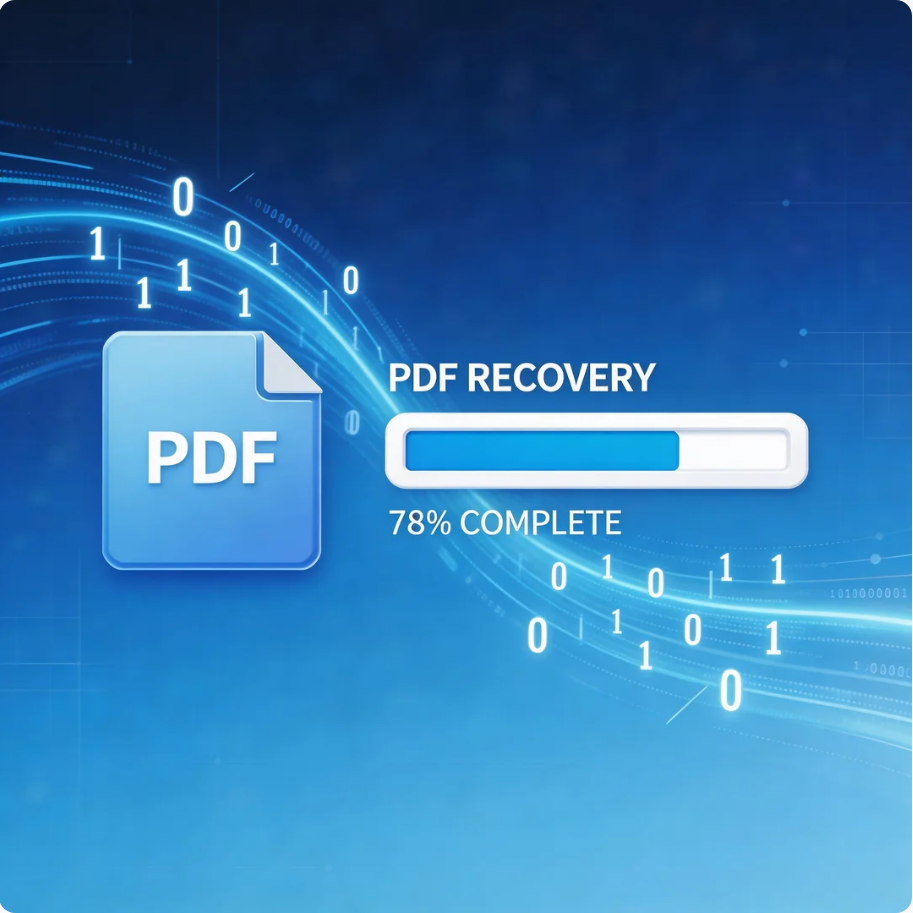

Comprehensive Guide to PDF File Recovery
This guide explains PDF file recovery methods for Windows PC, including built-in tools, backups, cloud storage, and professional software like Pandaoffice Drecov to safely restore lost or corrupted PDF files.


Complete Guide to Microsoft Email Recovery: Restore Deleted Outlook Emails
Learn microsoft email recovery methods to restore access, reset passwords, and manage your microsoft account recovery email safely.
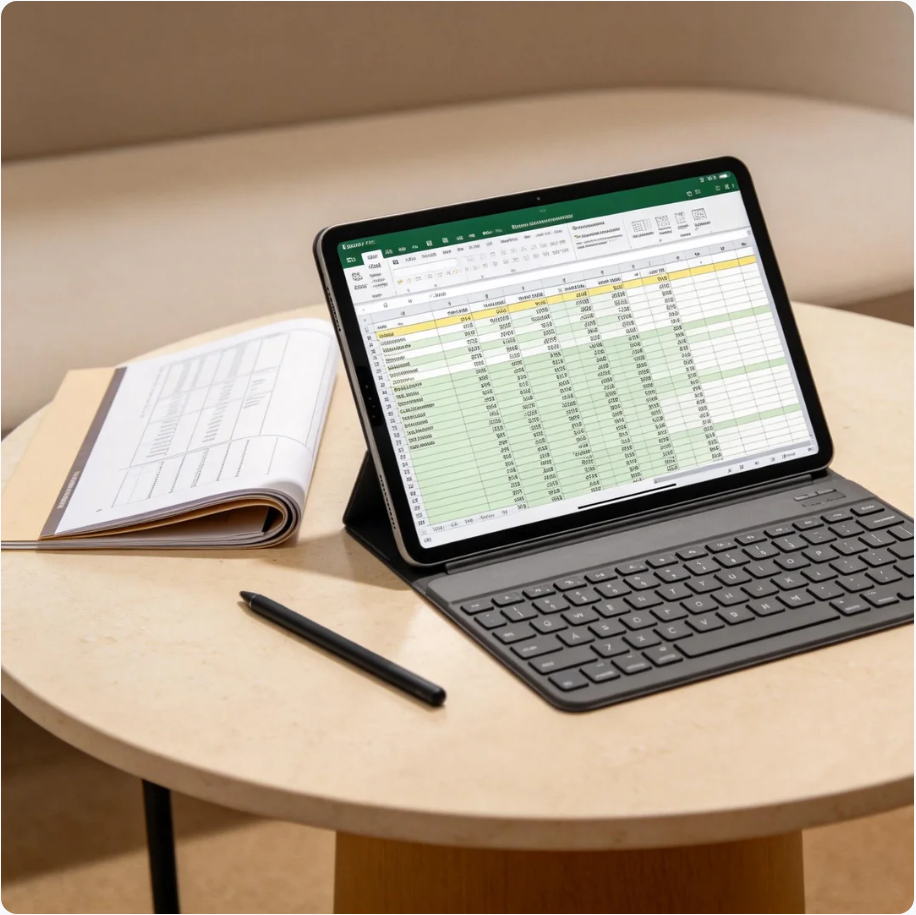

How to Recover a Corrupt Excel File: Complete Guide
Complete guide to Excel corrupt file recovery: repair damaged spreadsheets, restore lost or inaccessible data, and use professional tools like Pandaoffice Drecov when needed.


How to Perform SD Card File Recovery: Complete Guide
This complete guide explains how to recover deleted, formatted, or corrupted SD card files using proven methods and recovery tools. Follow safe steps to maximize SD card file recovery success.
Find a solution that suits your case
Here are file recovery guidelines for all types of files. Just choose the most suitable situation for you to retrieve your data
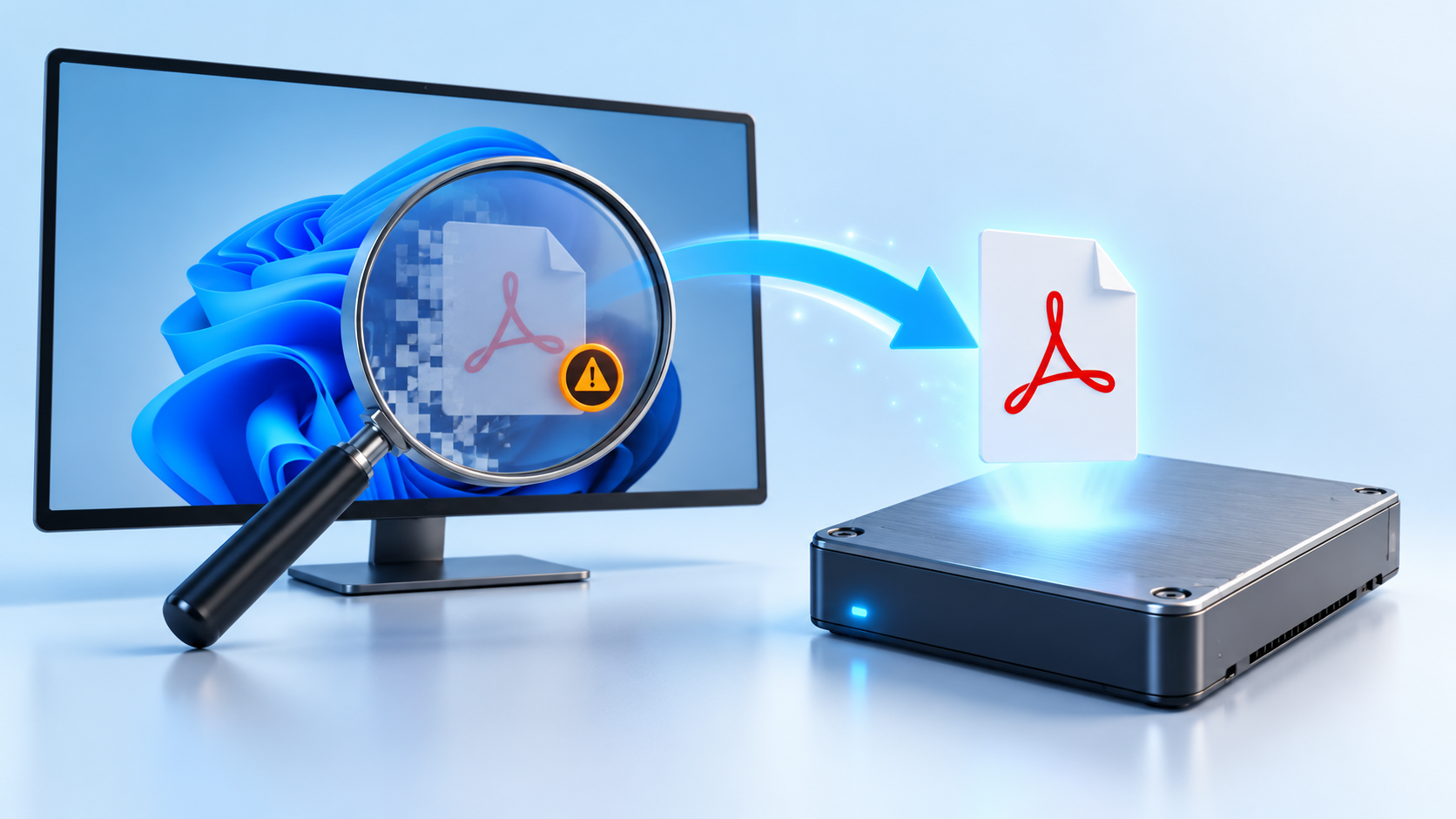

Recover Deleted PDF Files on Windows Safely
Read more →: Recover Deleted PDF Files on Windows Safelyrecover deleted PDF files on Windows: Before changing the disk, determine whether it contains irreplaceable files, whether the hardware is stable, and which devices must read it. Formatting is the final configuration step, not the first response to an error. Quick Answer For the native checks used in this diagnosis, consult the official technical guidance.…

Recover an Unsaved PowerPoint Presentation After a Crash
Read more →: Recover an Unsaved PowerPoint Presentation After a Crashrecover unsaved PowerPoint presentation after crash: Before changing the disk, determine whether it contains irreplaceable files, whether the hardware is stable, and which devices must read it. Formatting is the final configuration step, not the first response to an error. Quick Answer For the native checks used in this diagnosis, consult the official technical guidance.…

OneDrive Files Missing After Unlinking an Account
Read more →: OneDrive Files Missing After Unlinking an AccountPause OneDrive before relinking or resetting it. Check the web recycle bin, Shared and Personal locations, Files On-Demand status, the local OneDrive folder and version history. Copy any available files outside the sync folder before changing the account connection.

Recover a Deleted Outlook PST File Safely
Read more →: Recover a Deleted Outlook PST File SafelyClose Outlook and stop writing to the original drive. Search the Recycle Bin, Documents and AppData Outlook folders, check cloud or File History backups, restore a copy with its original extension, and open or repair only a duplicate after preserving the recovered PST.
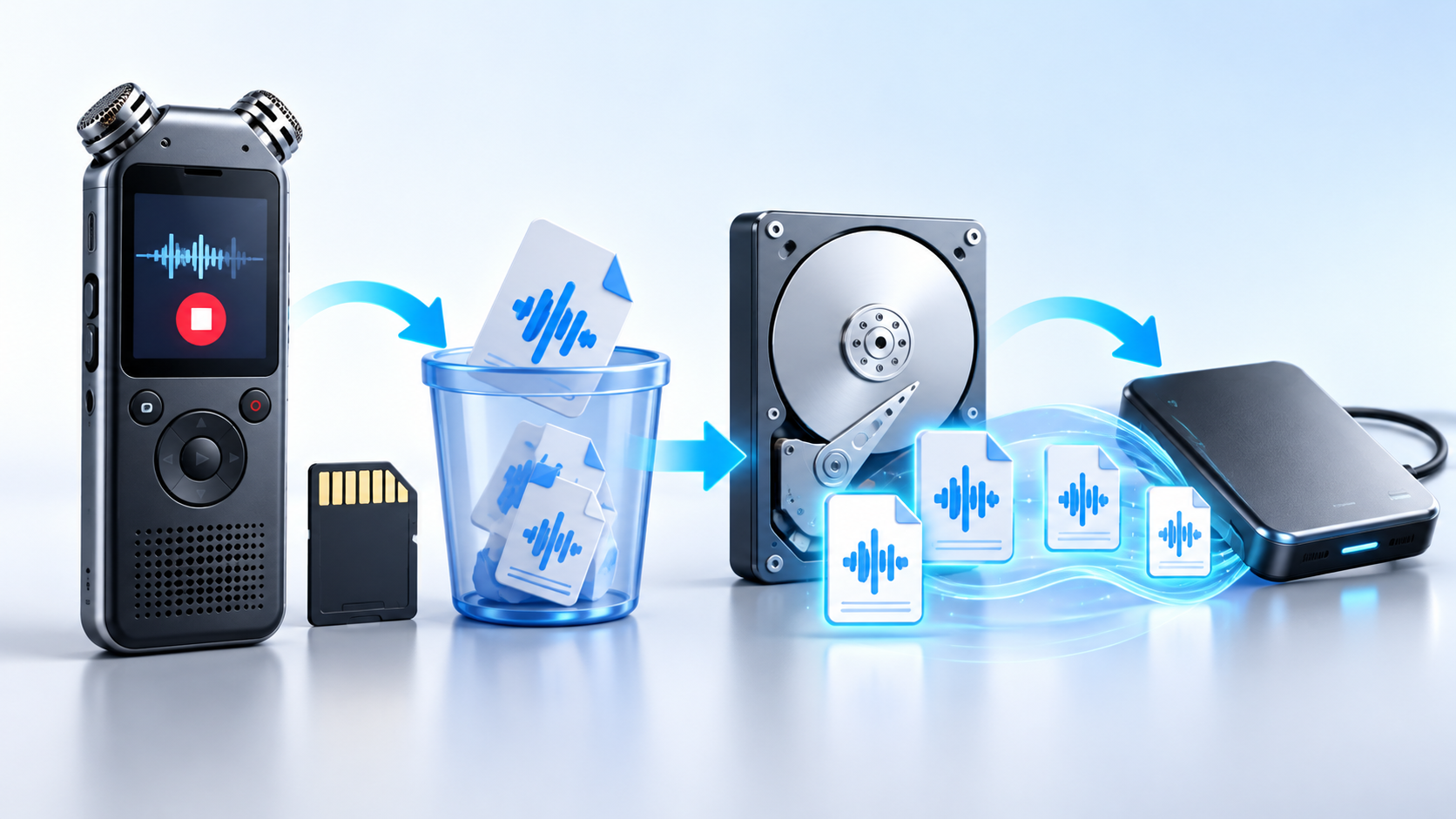
Recover Deleted Voice Recorder Files and Protect Audio
Read more →: Recover Deleted Voice Recorder Files and Protect AudioStop recording immediately because new audio can overwrite deleted clips. Remove the memory card if the recorder supports it, check Trash or Recently Deleted in the companion app, copy the recorder storage or make an image, and recover audio to another disk before testing playback.

Files Hidden After Malware Removal: Reveal and Recover Safely
Read more →: Files Hidden After Malware Removal: Reveal and Recover SafelyDo not repeatedly change attributes until malware is removed. Scan the computer and source drive, enable hidden and protected items, inspect quarantine and shortcut targets, copy verified originals to another disk, then correct attributes only on a duplicate.

Files Deleted by Windows Storage Sense: Recovery Options
Read more →: Files Deleted by Windows Storage Sense: Recovery OptionsStop saving new data to the affected system drive. Check Recycle Bin, Downloads, cloud recycle bins, File History and Previous Versions, review Storage Sense settings to learn what was removed, and recover missing files to another disk before further cleanup.

External Drive Folders Disappeared After Virus Cleanup
Read more →: External Drive Folders Disappeared After Virus CleanupDo not run another cleanup or antivirus repair on the only copy. Check whether folders were quarantined, hidden, or replaced by shortcuts, scan the computer and drive, copy verified files elsewhere, and recover remaining data to a separate disk before changing attributes.

Recover Files From Windows.old After an Upgrade
Read more →: Recover Files From Windows.old After an UpgradeCopy needed files from Windows.old promptly because Windows may remove the folder automatically. Sign in as an administrator, open the old Users profile, copy documents rather than moving them, verify permissions and OneDrive locations, then keep a second backup before cleanup.

NAS Shared Folder Deleted: Restore Snapshots and Backups
Read more →: NAS Shared Folder Deleted: Restore Snapshots and BackupsStop users and sync jobs from writing to the NAS share after deletion. Check the NAS recycle bin, snapshot list, backup version history and client caches, restore first to a separate folder, compare permissions and file counts, then return verified data to production.




Copyright © 2025 PandaOffice. All Rights Reserved. The order process, tax issue, and invoicing to end users are conducted by PandaOffice Limited.