






98.8%
success rate
Data Recovery Made Easy and Reliable
PandaOffice Drecov
Supported computer systems: XP/Win7/Win8/Win10/Win11

Reaching Millions of Users Worldwide
160+
Countries
100+
millions of users
97%
positive review rate
20,000+
Partners
Reasons For Choose
Why Choose PandaOffice Drecov for Data Recovery?
Our Advantages Speak for Themselves
3
X
Recover Files Up to 3X Faster
Optimized scanning technology improves recovery efficiency and can complete file scanning up to three times faster compared to traditional recovery methods.
98.8
%
Up to 98.8% Recovery Success Rate
The software delivers a recovery success rate of up to 99% in supported scenarios, helping users restore important photos, videos, documents, and project files efficiently.
Safe Read-Only Recovery Process
PandaOffice Drecov performs recovery operations without modifying the original storage device, helping protect existing data from additional damage.

Supports Multiple File Types
PandaOffice Drecov can recover photos, videos, documents, emails, archives, audio files, and many other file formats for both personal and business use.

Preview Before Recovery
Users can preview recoverable files before restoring them, making it easier to confirm file quality and select only needed data.

Compatible With Various Storage Devices
The software supports HDDs, SSDs, USB drives, SD cards, memory cards, external hard drives, and other popular storage devices.

Supports Multiple Data Loss Situations
The software helps recover files lost from accidental deletion, formatting, system crashes, virus attacks, partition loss, RAW drives, and corrupted storage devices.

Advanced Deep Scan Technology
PandaOffice Drecov uses intelligent deep scanning algorithms to locate deleted, formatted, and inaccessible files with high recovery accuracy, even after partition loss or system crashes.
Quick Scan
Fast recovery for recently lost data
Deep Scan
Thorough recovery for all lost data

PandaOffice Drecov: All-in-One Data Recovery Solution
Our advanced recovery algorithm can retrieve various types of lost files from any storage device
Supports recovery of lost files from over 2,000 device types
File Types
Supported Devices

Photos
Our software is designed to recover lost photos from all types of storage devices efficiently and reliably.

Videos
Easily restore lost videos from any storage device with our advanced recovery software.

Audio
Our software supports the recovery of deleted or lost audio across a wide range of storage media, including SD cards, USB drives, and hard drives.

Documents
Recover lost document from any storage device quickly and safely with our software.

Emails
Our next-generation software enables seamless email recovery from any storage device, ensuring your file are never lost.

Damaged file
Safeguard your precious file—our software can retrieve damaged file from any storage device with ease and security.

USB Flash Drive
Virus attacks and infected USB flash drives can cause data loss.

Memory Card
Drecov software allows users to recover lost files from various memory cards.

Internal Hard Drive
Drecov software is one of the most useful data recovery programs that helps you recover computer hard drive data easily.

External Hard Drive
Don’t worry if you lost data on your external hard drive. Drecov software can help you recover the data under various circumstances

Camera
Hardware or software issues may occur, resulting in corrupted video files or loss of footage. Drecov software can help you resolve these issues.

Other Types Of Computer Hardware
Don’t worry if you lost data on your external hard drive. Drecov software can help you recover the data under various circumstances
Powerful Features for Complete Recovery
Our data recovery software is packed with advanced features to ensure the highest recovery success rate






Common Data Loss Scenarios
PandaOffice Drecov solves data loss from all these situations

Scene 1
Accidental File Deletion
Users may accidentally delete important files while cleaning storage, organizing folders, or using keyboard shortcuts, even permanently removing them from the Recycle Bin.
Scene 2
Drive or Partition Formatting
Accidentally formatting a hard drive, USB flash drive, SD card, or partition can make files inaccessible, although much of the data may still be recoverable.
Scene 3
System Crash or Blue Screen
Windows crashes, BSOD errors, failed updates, or unexpected shutdowns can corrupt files, damage partitions, or prevent the operating system from booting properly.
Scene 4
Virus Attacks or Device Damage
Malware infections, ransomware, bad sectors, RAW drives, or physical storage device issues may cause files to become unreadable, corrupted, or completely lost.
Scene 1
Accidental File Deletion
Users may accidentally delete important files while cleaning storage, organizing folders, or using keyboard shortcuts, even permanently removing them from the Recycle Bin.
Scene 2
Drive or Partition Formatting
Accidentally formatting a hard drive, USB flash drive, SD card, or partition can make files inaccessible, although much of the data may still be recoverable.
Scene 3
System Crash or Blue Screen
Windows crashes, BSOD errors, failed updates, or unexpected shutdowns can corrupt files, damage partitions, or prevent the operating system from booting properly.
Scene 4
Virus Attacks or Device Damage
Malware infections, ransomware, bad sectors, RAW drives, or physical storage device issues may cause files to become unreadable, corrupted, or completely lost.
Simple 3-Step Recovery Process
No technical expertise required. Just follow these simple steps to get your lost files back quickly and easily.
Step 1.Select Mode
Step 2.Start Scan
Step 3.Recover Data
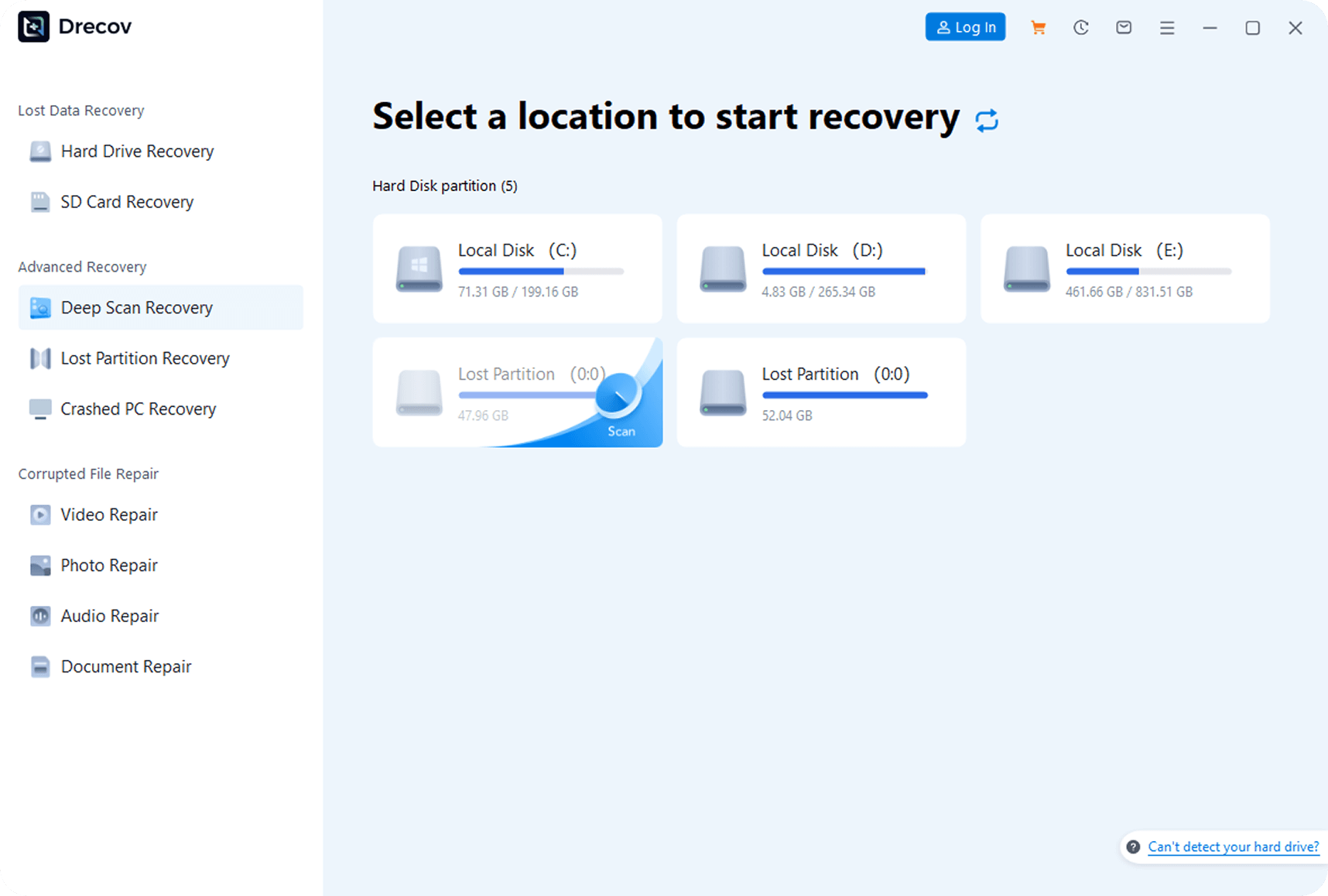
Step 1.Select Mode
After launching the software, choose ‘Quick Scan’ or ‘Deep Scan’ mode, and specify the original storage location (e.g., hard drive partition, USB drive).
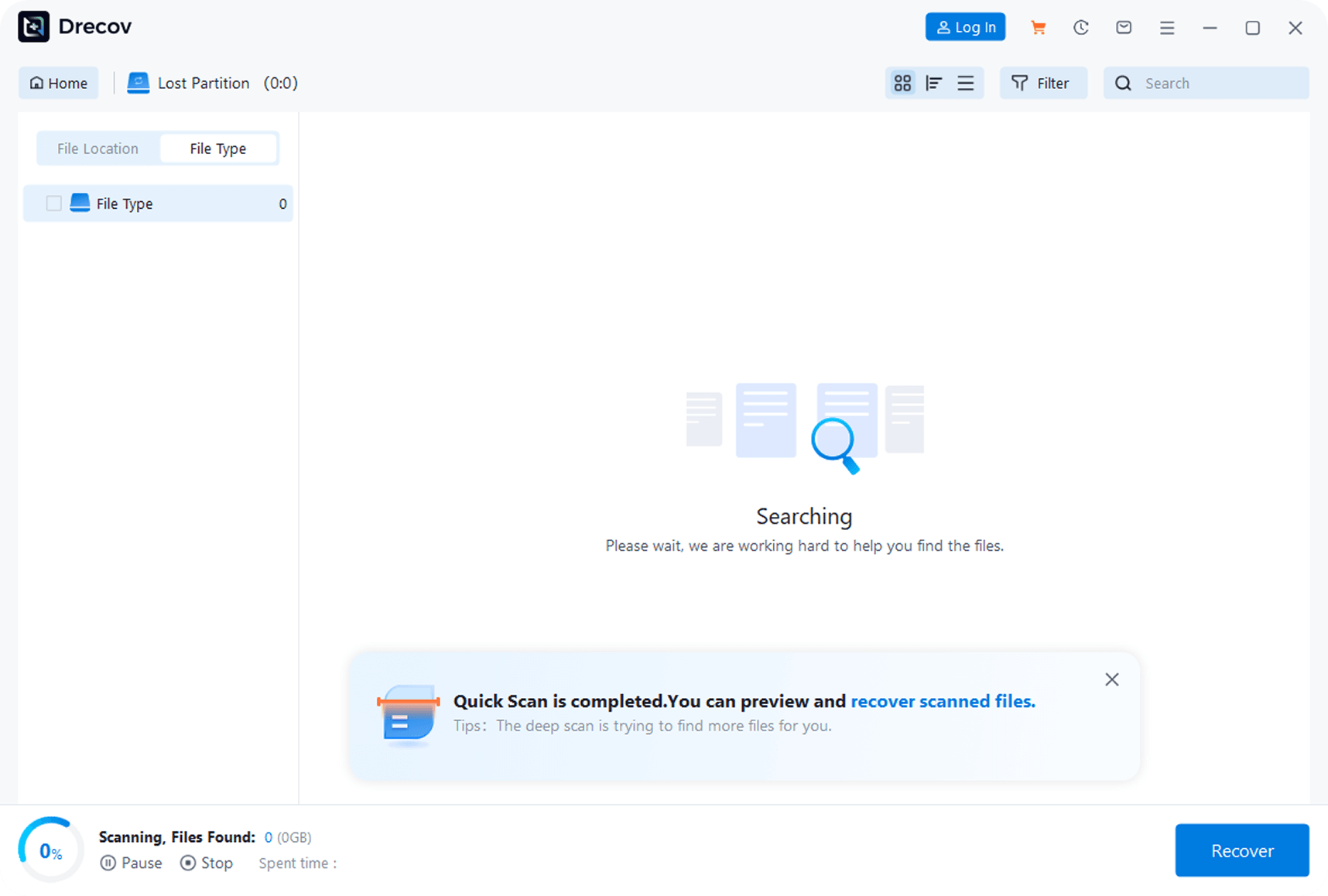
Step 2.Start Scan
Click the ‘Start Scan’ button to fully search for recoverable files in the selected location.
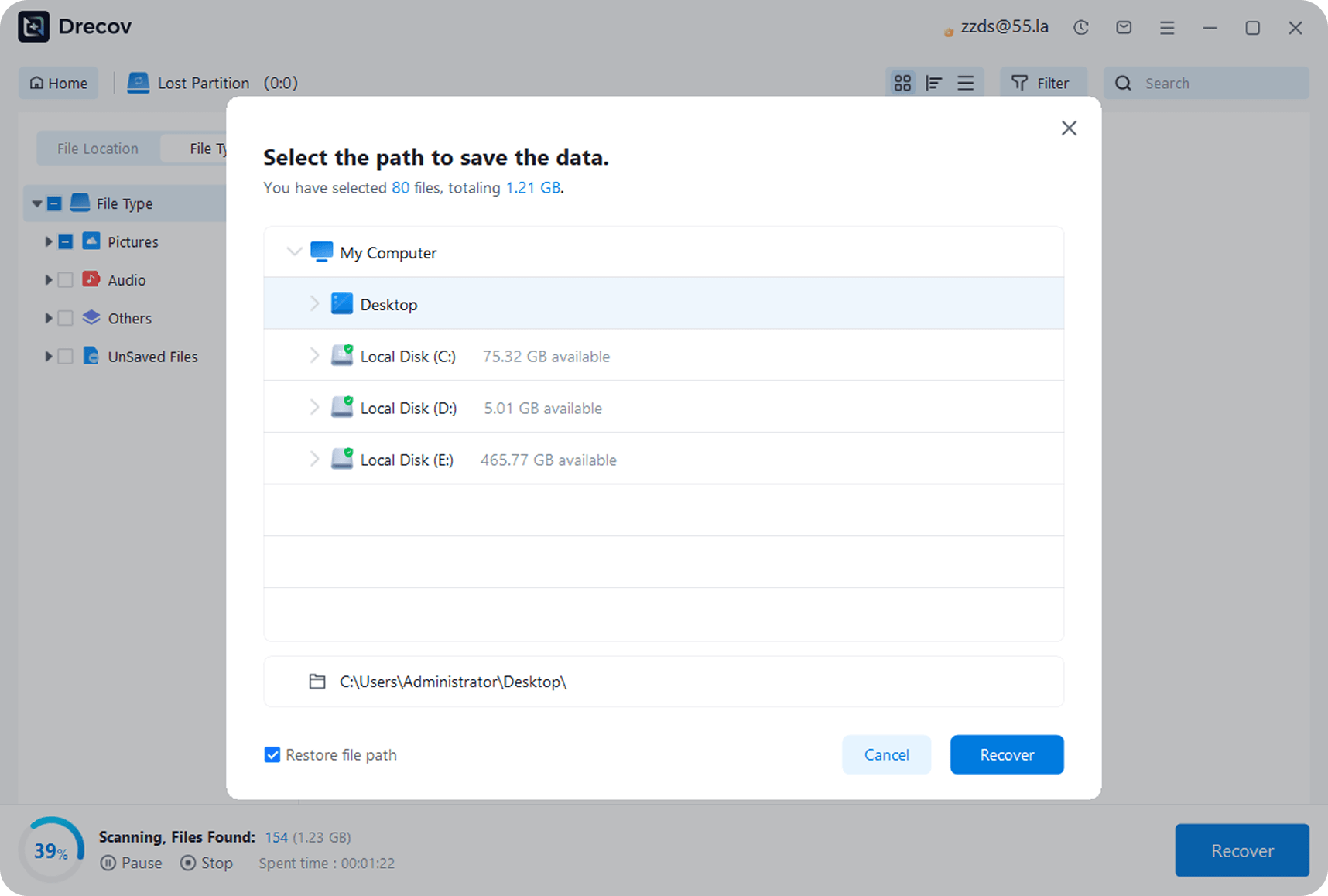
Step 3.Recover Data
After scanning, preview the files, select the needed ones, click ‘Recover,’ and save them to a safe location different from the original (to avoid overwriting).
Trusted by top teams worldwide
Committed to advanced solutions that boost efficiency and drive innovation, trusted by customers worldwide.



User-friendly data recovery solution that is able to scan internal and external drives for damaged or deleted files, retrieving them following a thorough process

Panda Data Recovery is a data recovery software that supports the recovery of computer hard drives, recycle bins, USB drives, SD cards and other devices. It is easy to operate and can recover lost data in three steps.

Drecov is a powerful data recovery solution designed to restore deleted and lost files with ease. Its deep scanning capability helps users recover important data from various storage devices quickly and securely.

PandaOffice Drecov is a lightweight professional data recovery tool for Windows. Built for office workers, students, photography lovers and regular users, it solves common data loss problems.

Pretty impressed with Drecov overall. Wiped my USB drive with work spreadsheets by mistake, this software found nearly every single file within 10 minutes. Simple to navigate, no confusing settings, and the preview feature is such a handy touch.

PandaOffice Drecov made recovering my deleted files simple and stress-free. It found my lost data quickly and the recovery process was smooth. A great tool for anyone who needs data recovery.
Success Stories
PandaOffice Drecov Success Stories
Thousands of users have retrieved formatted data with PandaOffice Drecov

Recovery Scenario: Accidentally Formatted External Hard Drive
I accidentally formatted the external hard drive with my design work—half a year of effort gone. PandaOffice Drecov scanned and got everything back! Simple to use and fast recovery. Thank you so much!

Mike
Designer
Recovery Scenario: Formatted Camera/SD Card
My camera’s memory card prompted formatting, and it had my client’s wedding photos—I panicked. A friend recommended Drecov, and it actually recovered all the photos! So reliable.

Sarah
Photographer
Recovery Scenario: Accidentally Formatted USB Drive
A colleague accidentally formatted my work USB drive, which had lots of important project documents. It scanned and found all files in minutes, with preview too—I easily got back the docs I needed. Super useful!

David
Corporate Employee
Frequently Asked Questions
Find answers to the most common questions about our data recovery software
Yes. Drecov is completely safe to use. It runs in read-only mode, so it never overwrites or alters your original data.
The time depends on the size of the drive and the amount of data. Small drives may take a few minutes, while larger drives could take several hours.
Yes, our software can recover data from formatted drives in most cases, as long as the drive has not been overwritten with new data.
If our software can’t recover your data, we offer a money-back guarantee. For complex cases, we also provide professional data recovery services.
Data Recovery Tutorials
Learn how to recover different types of data with our comprehensive guides and tutorials


Recover Anki Decks: Collection Backups, Review History, and Missing Media
Begin with a distinctive card example and the expected deck name. Also record the profile and device where you last saw the correct information. A deck list that looks empty may reflect the wrong profile or a different account. Therefore, establish the current context before restoring an entire collection and replacing useful recent reviews.

Recover Freeplane Mind Maps: Autosave Copies, Backup Maps, and Linked Files
Record the map’s filename, expected central node, a distinctive branch, and the location where you last saved it. Also note whether the map was new and unsaved or an existing document with later edits. Those cases have different candidate sources. A previously saved map can have backups that an entirely new map never acquired.

Recover Godot Projects: Scenes, Git History, Resources, and Missing Scripts
Record the engine version, expected main scene, a distinctive node, and the last working revision. Also preserve the exact error message. A missing project in the Project Manager, a scene parse error, and an unavailable texture require different investigations. Starting from a concrete symptom helps you choose a useful recovery path without making broad changes…

Ready to Recover Your Data?
Download Drecov now and get back your lost files in just a few clicks



