






USB Recovery
USB data recovery tool to restore deleted or formatted files from USB flash drives. Fast scan, file preview, and safe recovery for Windows users.
TOP 4 Hot Articles
Top 4 hot articles will provide you reliable solutions to find crucial data with Drecov software.


How to Fix USB Flash Memory: 5 Easy Ways to Save Your Data
Don’t let a corrupted drive ruin your day. This comprehensive guide teaches you how to fix USB flash memory using proven techniques like CHKDSK and Diskpart. We also explore professional USB flash memory recovery programs like PandaOffice Drecov to restore lost data and fix USB storage visibility issues, ensuring your important files stay safe and…
Find a solution that suits your case
Here are file recovery guidelines for all types of files. Just choose the most suitable situation for you to retrieve your data

Windows Asks to Scan and Fix a USB Drive: Protect Files First
Read more →: Windows Asks to Scan and Fix a USB Drive: Protect Files FirstDo not accept Scan and Fix before protecting important files. Open the drive read-only if possible, copy priority data to another disk, check a backup, and only then test Windows error checking on a verified copy or expendable media.


USB Drive Is Recognized but Not Accessible: Safe Recovery
Read more →: USB Drive Is Recognized but Not Accessible: Safe RecoveryDo not format an inaccessible USB drive. Verify its capacity and partition state in Disk Management, try one direct port, and copy readable priority files first. If normal access fails, scan read-only and recover to another physical disk.
Recover Files From a Formatted USB Drive Safely
Read more →: Recover Files From a Formatted USB Drive SafelyDo not copy anything back to the formatted USB drive. Confirm whether the format was quick or full, scan the correct physical device read-only, preview representative files, and restore selected results to a separate healthy disk.
USB Drive Disconnects During File Copy: Protect Your Data
Read more →: USB Drive Disconnects During File Copy: Protect Your DataA USB drive that disconnects during copying may have an unstable port, cable, power path, controller, or flash memory. Stop repeated large transfers, try one direct port, copy small priority files first, and save recovered data to another physical disk.
USB Drive Became RAW: Recover Files Before Formatting
Read more →: USB Drive Became RAW: Recover Files Before FormattingDo not format a USB that suddenly appears as RAW. Confirm the expected capacity in Disk Management and test one other port or computer. If the device is stable, scan read-only and recover files to another disk before rebuilding the file system.
USB Drive Shows 0 Bytes: Diagnose and Recover Safely
Read more →: USB Drive Shows 0 Bytes: Diagnose and Recover SafelyA 0-byte USB may have damaged metadata, a controller problem, counterfeit capacity, or severe media failure. Do not format or run repair commands. Test one other port and computer; if capacity remains zero, software recovery may not be possible.
USB Files Disappeared but Space Is Still Used: Recover Safely
Read more →: USB Files Disappeared but Space Is Still Used: Recover SafelyUsed space with missing files can result from hidden attributes, file-system damage, malware, or a changed folder view. Do not copy new files to the USB. Show hidden items, scan the computer safely, and recover remaining files to another disk.
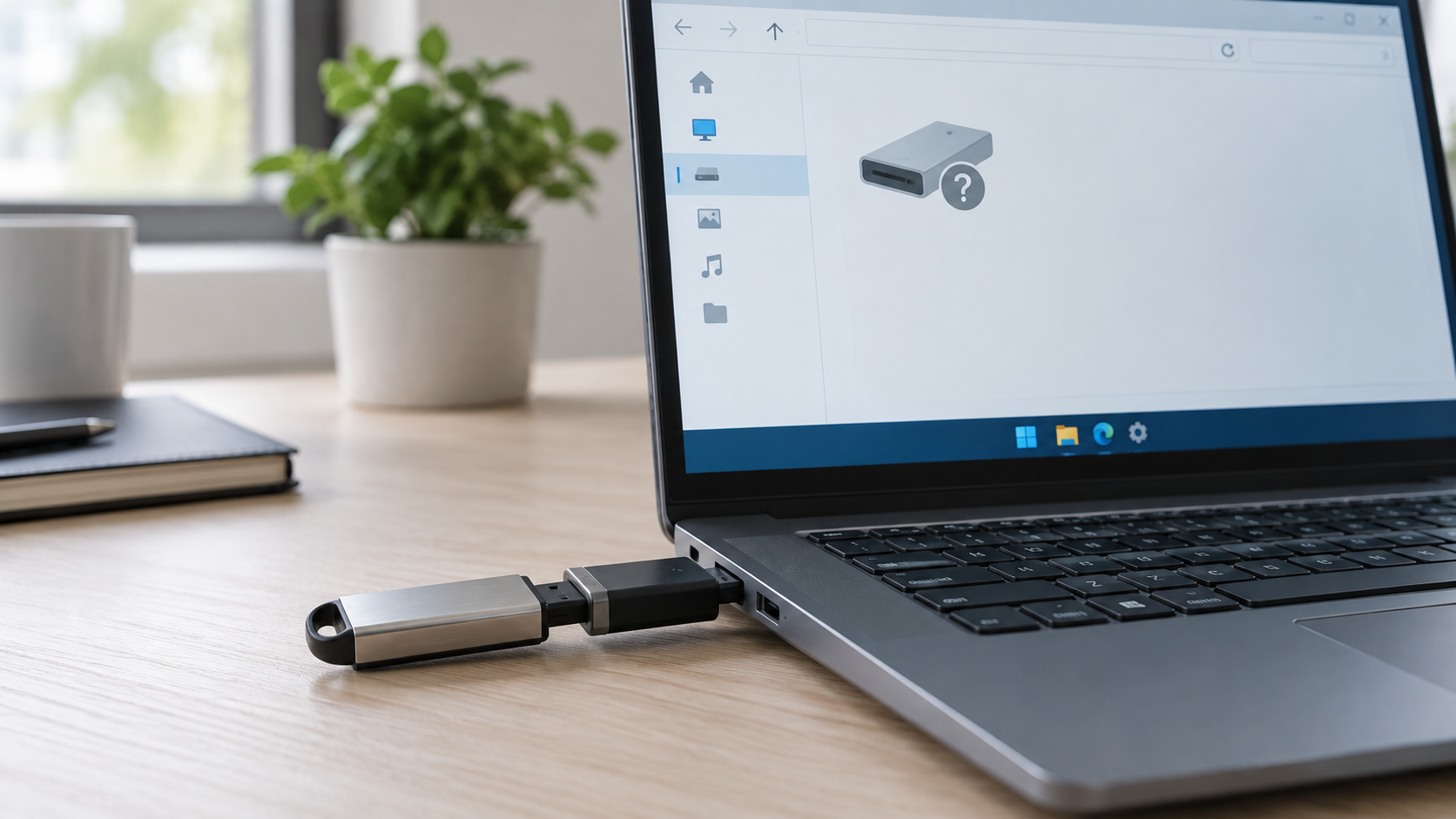
USB Drive Says Please Insert a Disk: Recover Safely
Read more →: USB Drive Says Please Insert a Disk: Recover SafelyDo not format a USB that reports Please insert a disk. Check Disk Management on one other computer and confirm whether the correct capacity appears. If it remains 0 bytes or No Media, the controller or flash memory may have failed and ordinary recovery software may not be able to read it.
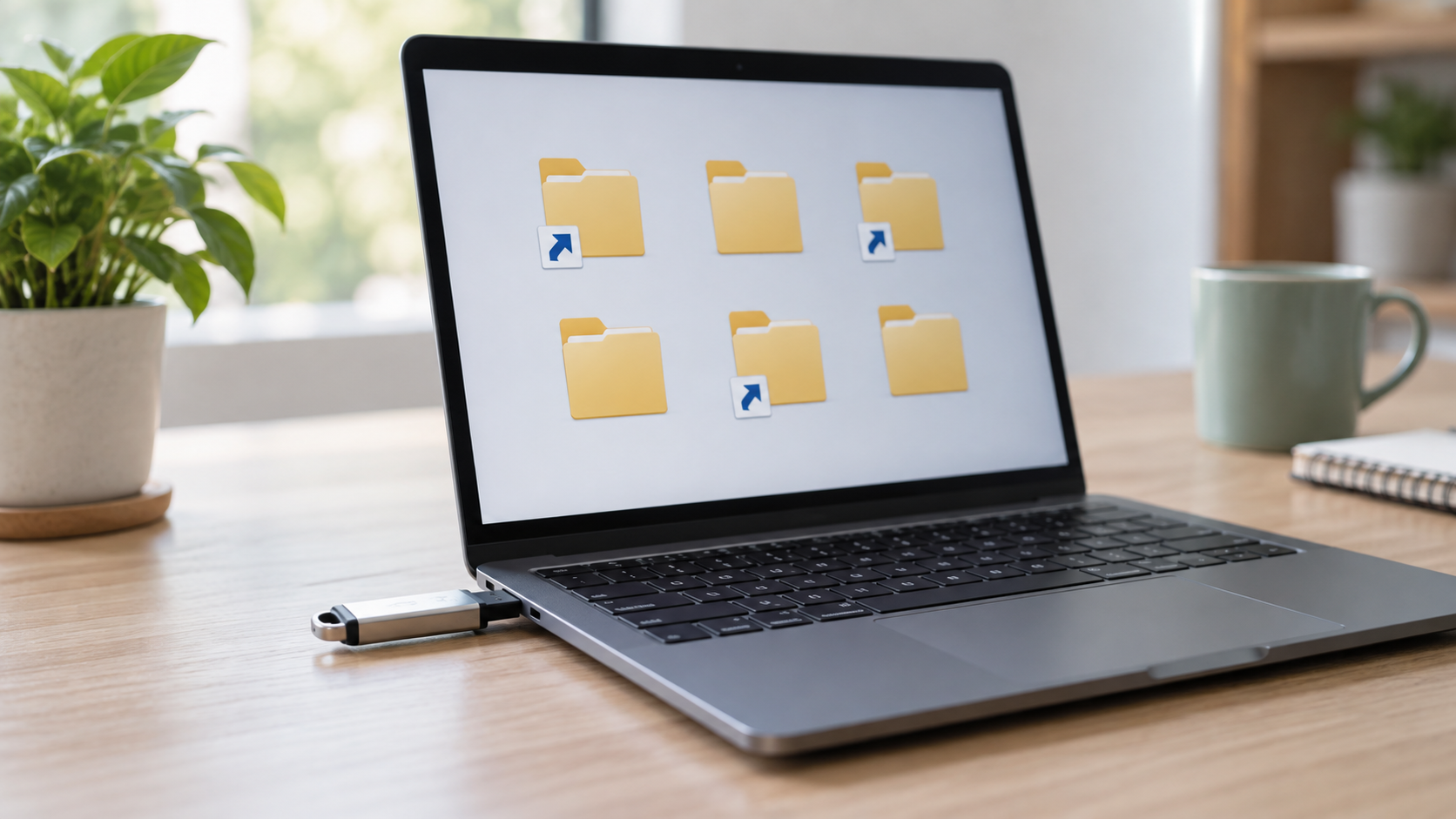
Files Turned Into Shortcuts on USB: Restore Them Safely
Read more →: Files Turned Into Shortcuts on USB: Restore Them SafelyDisconnect the computer from untrusted networks, stop opening shortcut files, and do not save anything new to the USB. Show hidden items, run Microsoft Defender on the computer, and use attrib only after preserving important files. Recover missing originals to a different disk.
USB Drive Shows Two Partitions: Recover and Rebuild Safely
Read more →: USB Drive Shows Two Partitions: Recover and Rebuild SafelyTwo partitions can be normal after making a bootable USB. First identify the physical device and copy or recover any needed files. Only then delete partitions and create a single new volume with the built-in disk tool; this erases existing contents.




Copyright © 2025 PandaOffice. All Rights Reserved. The order process, tax issue, and invoicing to end users are conducted by PandaOffice Limited.