






Hard Drive Recovery
PandaOffice Drecov delivers secure, deep data recovery for all storage devices. It retrieves various files lost to deletion, formatting, corruption, viruses and more.
TOP 4 Hot Articles
Top 4 hot articles will provide you reliable solutions to find crucial data with Drecov software.


External HDD Data Recovery Software: Complete Guide to Recover Files
This guide explains practical external HDD data recovery methods, including how to use reliable external hdd recovery software to recover deleted, formatted, or inaccessible files from external hard drives safely.
Find a solution that suits your case
Here are file recovery guidelines for all types of files. Just choose the most suitable situation for you to retrieve your data
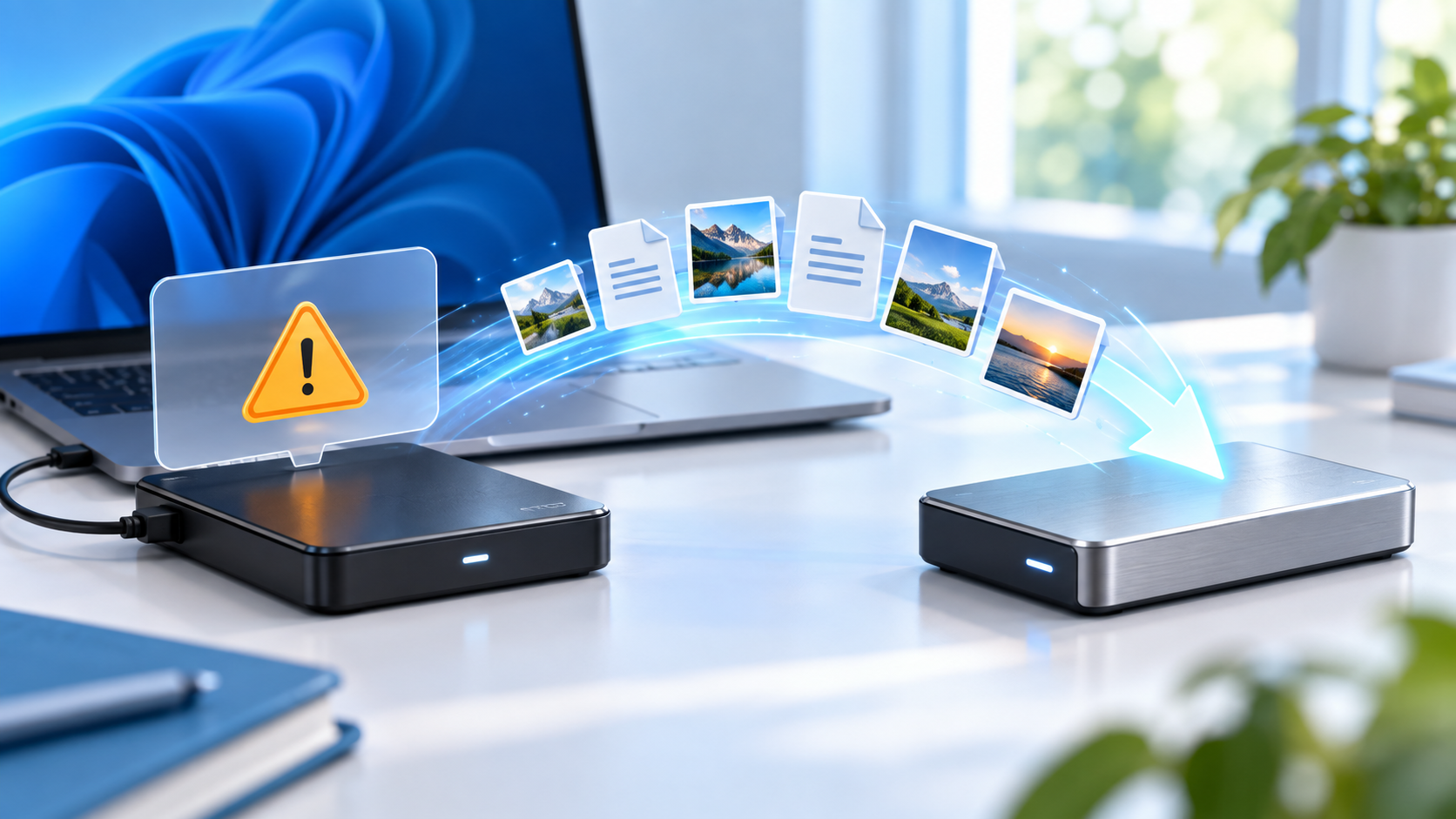

External Hard Drive Asks to Format: Recover Files First
Read more →: External Hard Drive Asks to Format: Recover Files FirstCancel the format prompt and do not initialize or run repair commands on the external disk. Check one cable and direct port, record the reported capacity and file system, copy readable files first, and recover remaining data to a healthy destination.
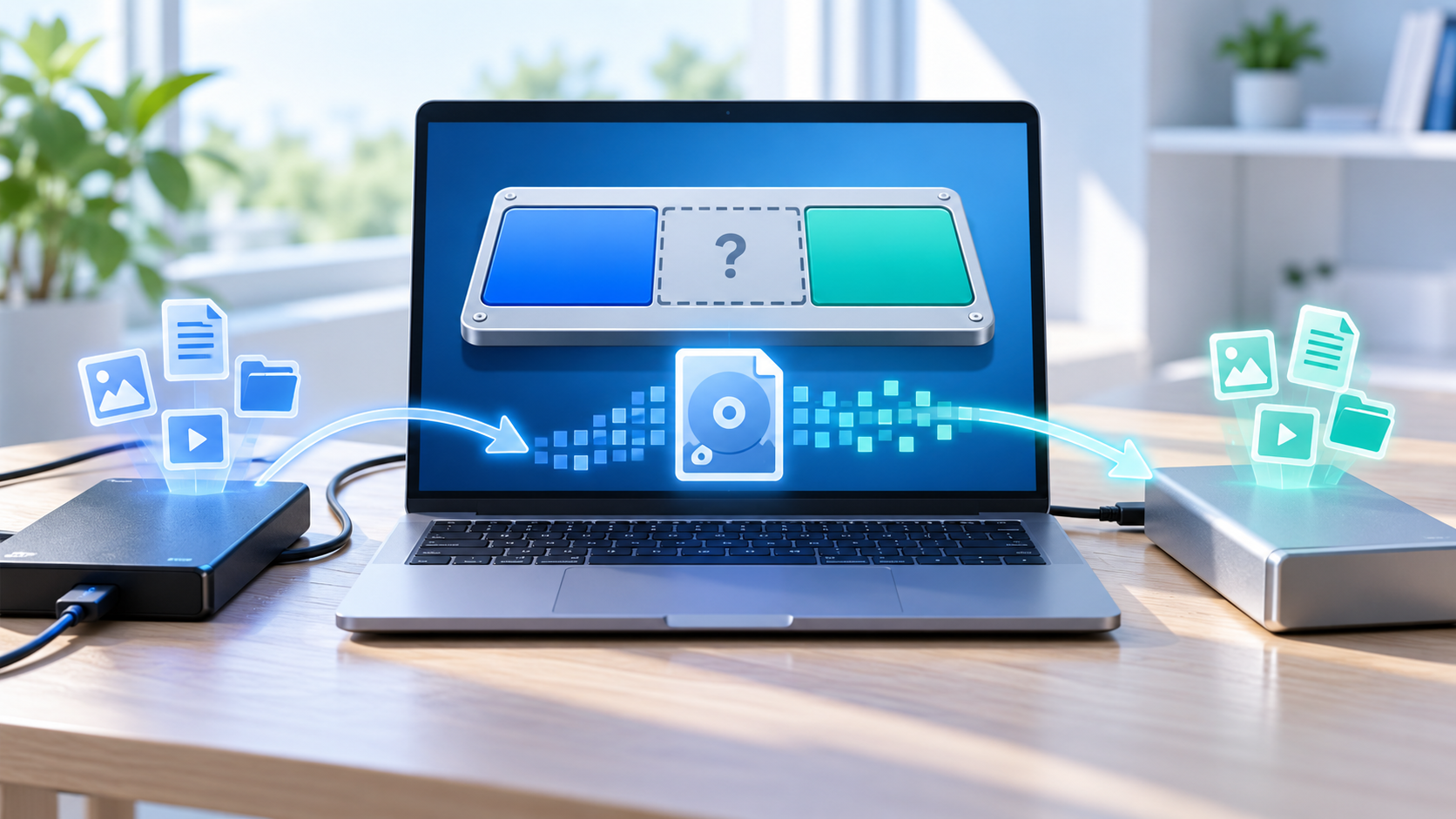
Recover Files From a Deleted Partition Before Rebuilding
Read more →: Recover Files From a Deleted Partition Before RebuildingDo not create a new volume where the partition was deleted. Record the disk size and former layout, make a sector image when practical, search for the lost file system, preview representative files, and recover them to another disk before rebuilding the partition table.
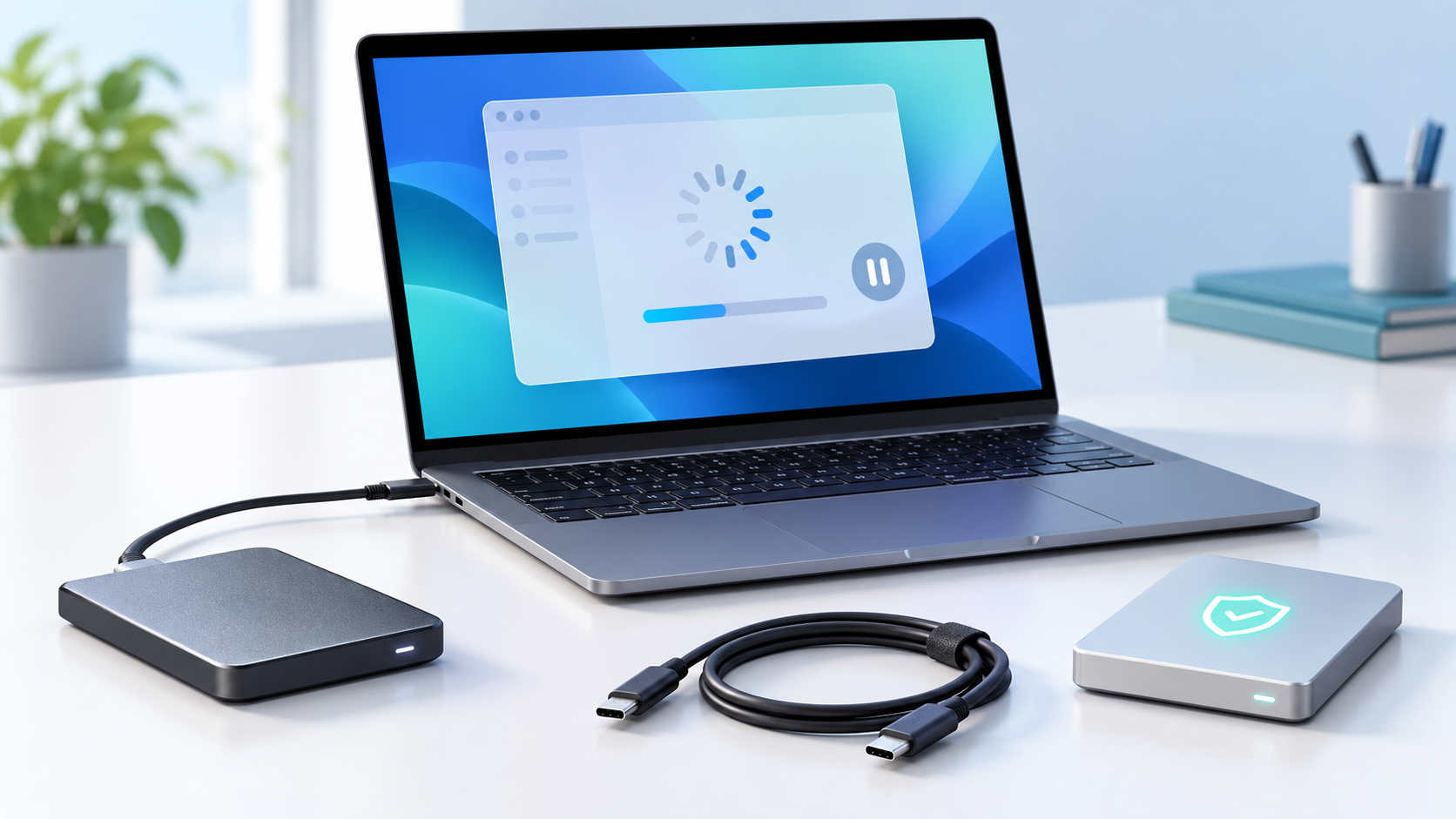
External SSD Freezes the Computer: Stop and Protect Data
Read more →: External SSD Freezes the Computer: Stop and Protect DataStop repeated connections when an external SSD freezes the computer. Test one direct port and known-good cable, observe SMART data once if the system stays stable, and copy small priority files first. If freezing continues, create an image on stable hardware or use a lab.
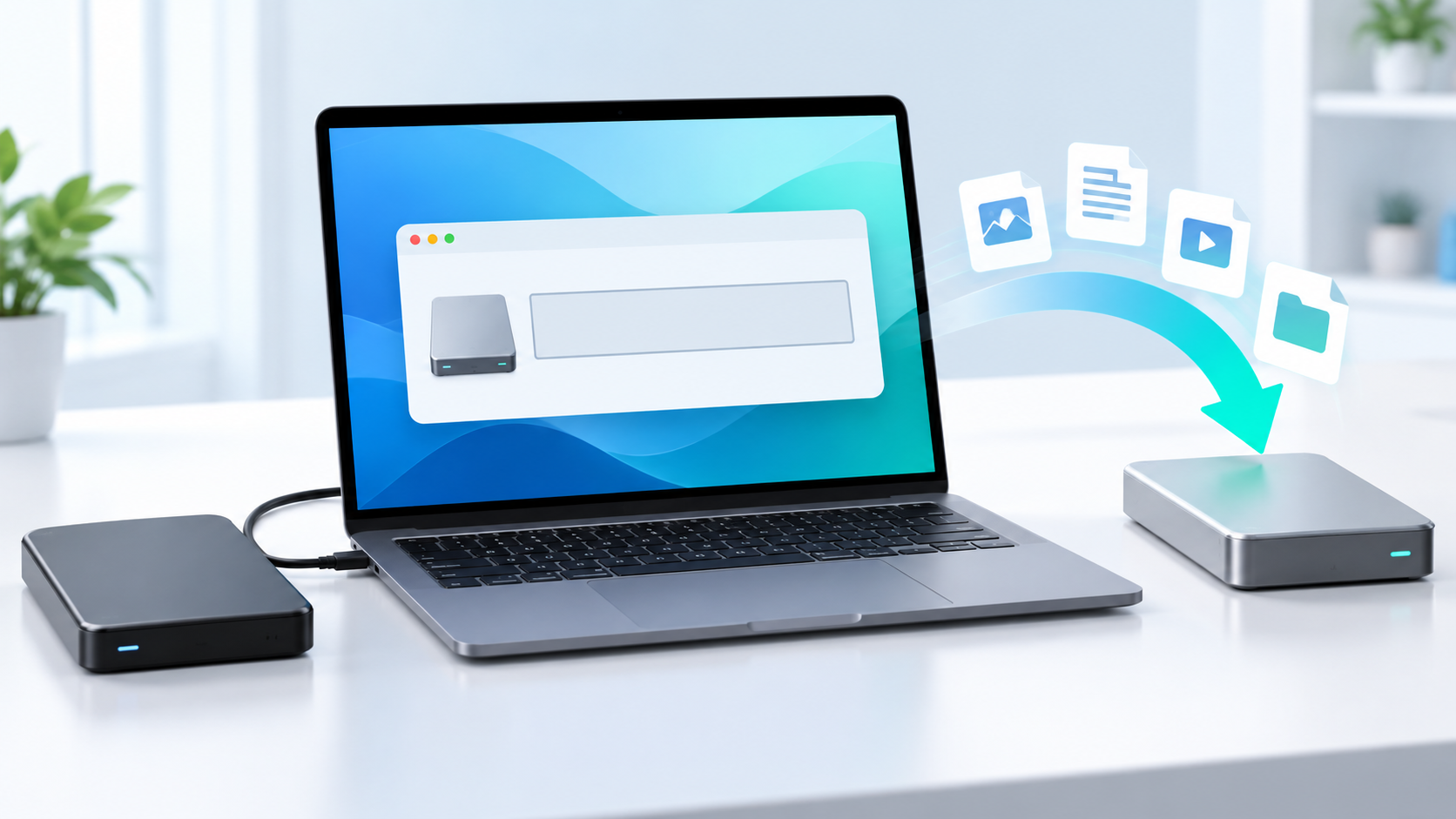
Disk Initialized by Mistake: Recover Before Creating a Volume
Read more →: Disk Initialized by Mistake: Recover Before Creating a VolumeDo not create a partition, volume, or file system after accidental initialization. Record the disk capacity and previous layout, make a sector image when possible, recover files to a healthy destination, and rebuild partitions only after verifying the recovered data.
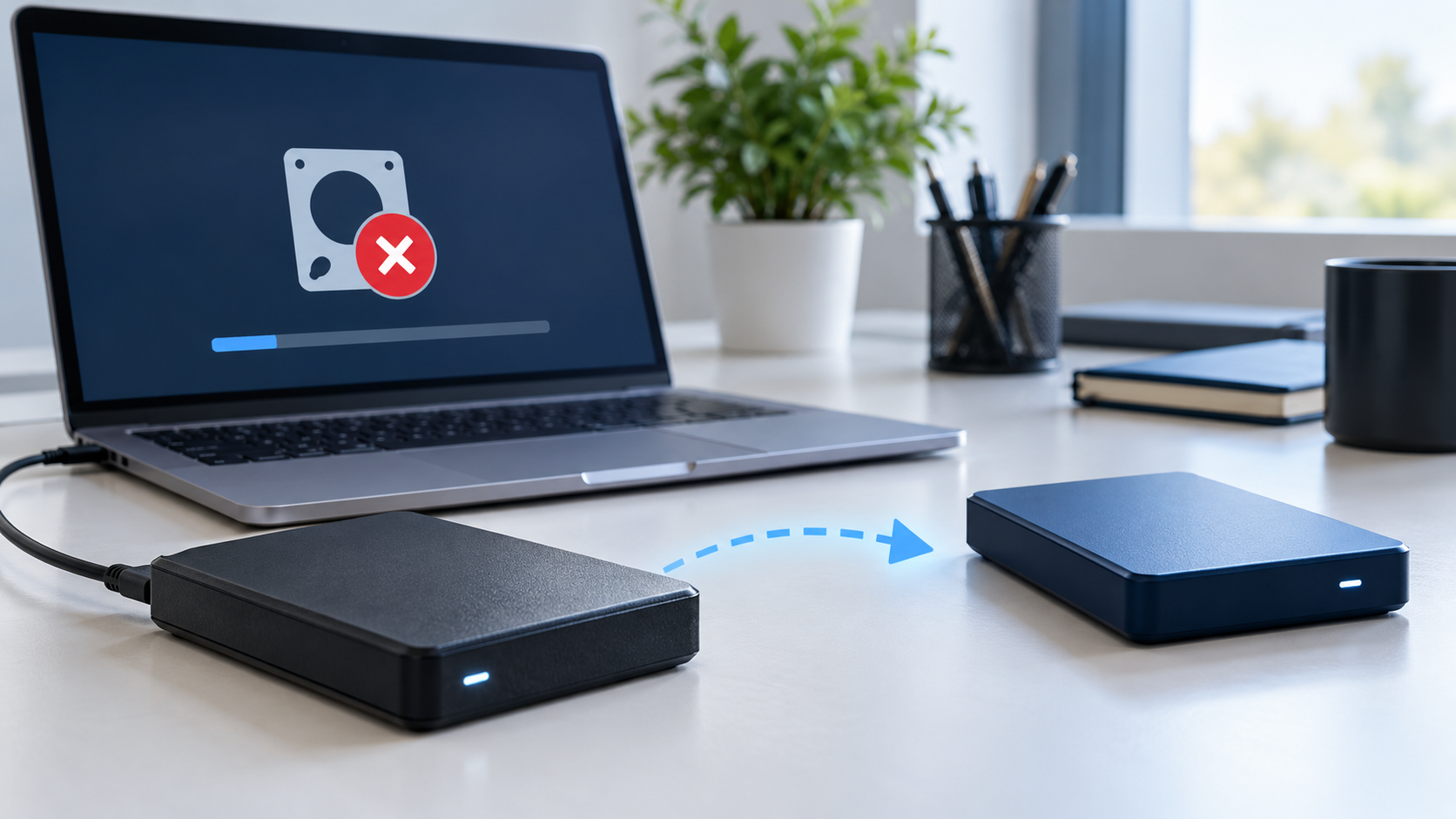
Hard Drive I/O Device Error: Recover Data Before Repair
Read more →: Hard Drive I/O Device Error: Recover Data Before RepairAn I/O device error can indicate a cable problem, unstable power, bad sectors, or failing hardware. Stop repair commands and benchmarks, test one direct connection, copy small priority files first, and create a sector image or use a lab if errors or noises increase.
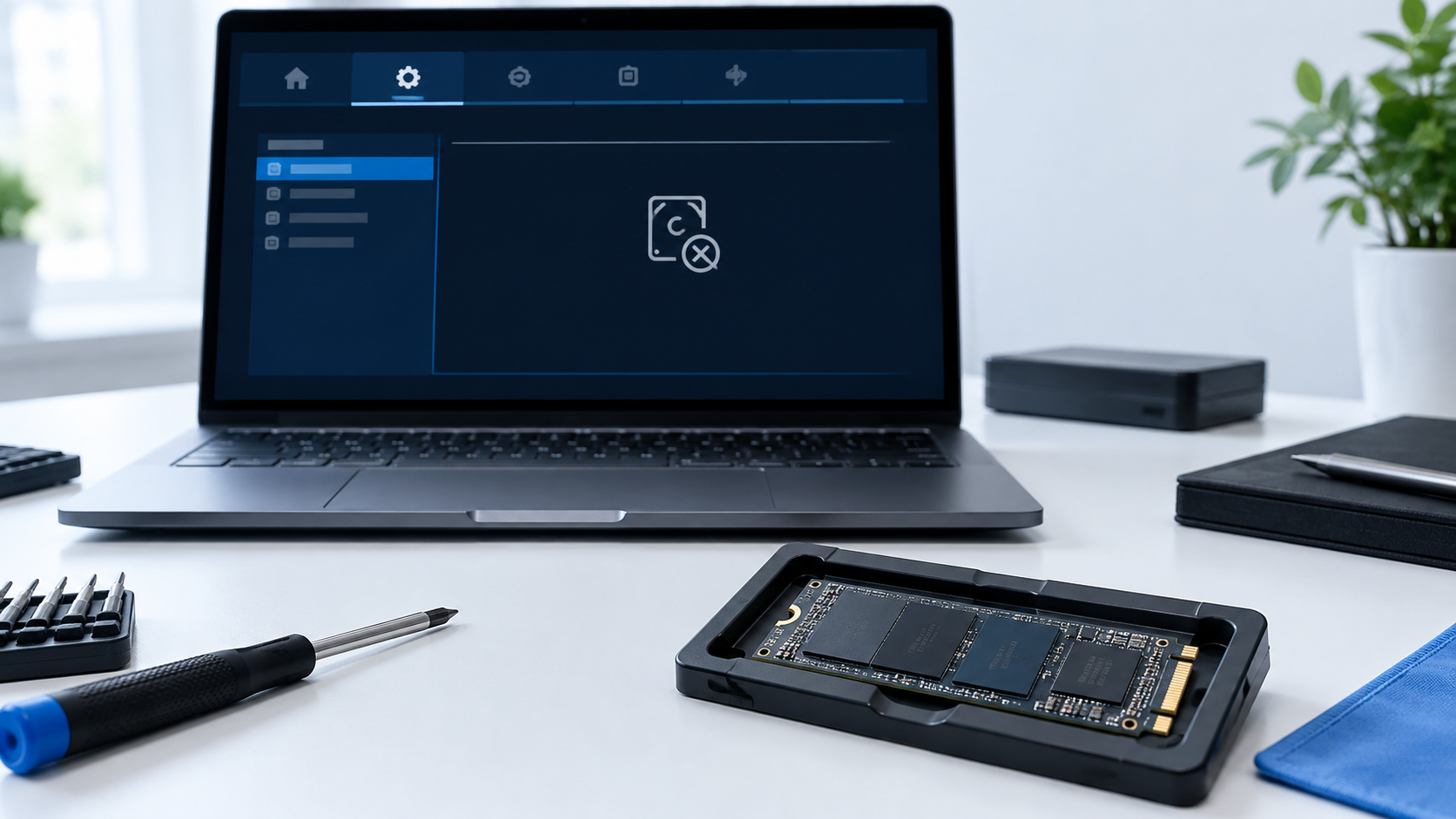
NVMe SSD Not Detected After BIOS Update: Safe Checks
Read more →: NVMe SSD Not Detected After BIOS Update: Safe ChecksAfter a BIOS update, do not initialize an absent NVMe drive. Confirm whether it is detected in firmware, restore storage-mode settings without clearing security data, power down fully, and test the SSD in a compatible enclosure or system before recovery.
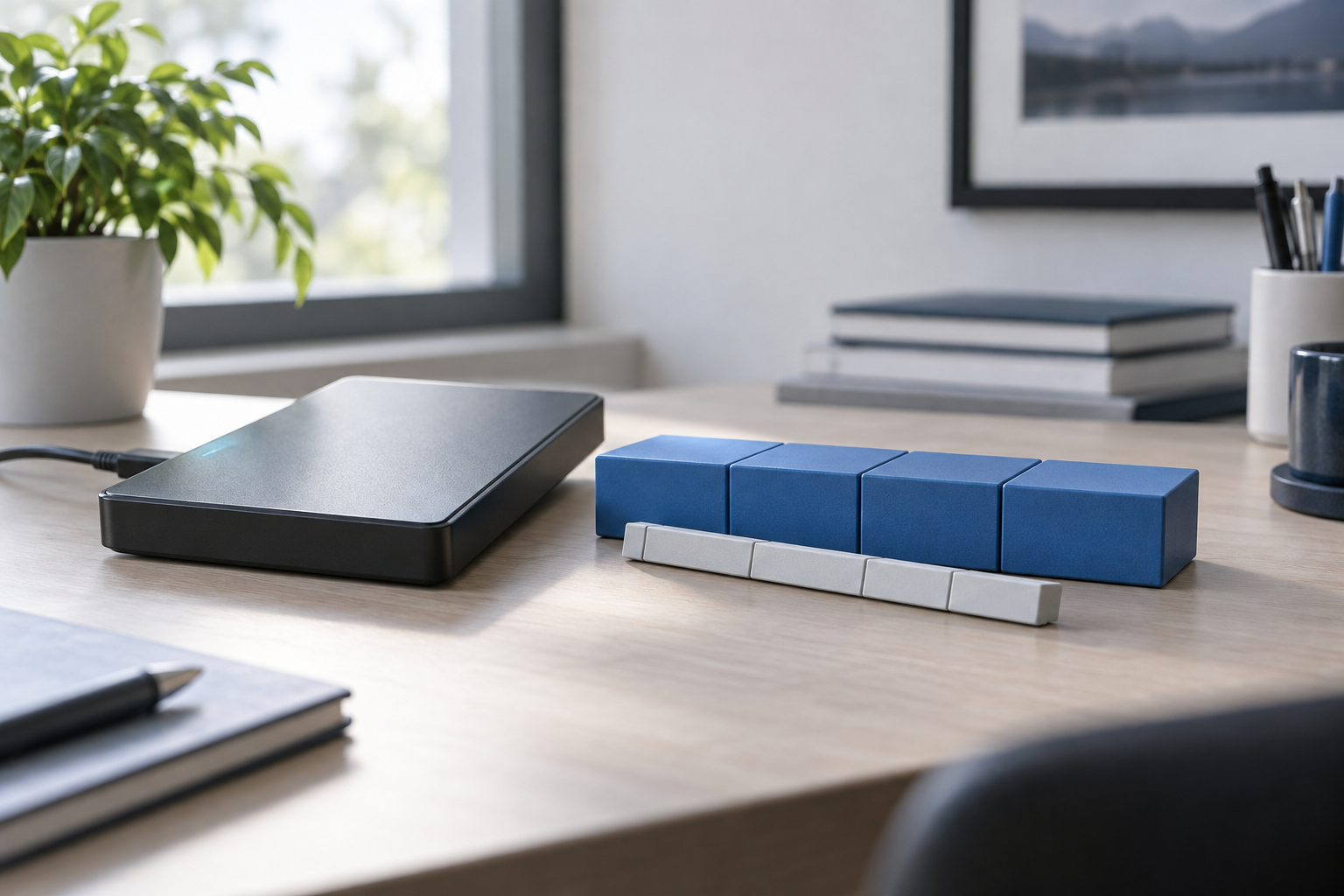

Partition Table Is Corrupted: Recover Before Rebuilding
Read more →: Partition Table Is Corrupted: Recover Before RebuildingDo not initialize the disk or create new partitions when the partition table is damaged. Record the physical disk size and previous layout, make a sector image when possible, and recover important files before attempting to rebuild partition metadata.
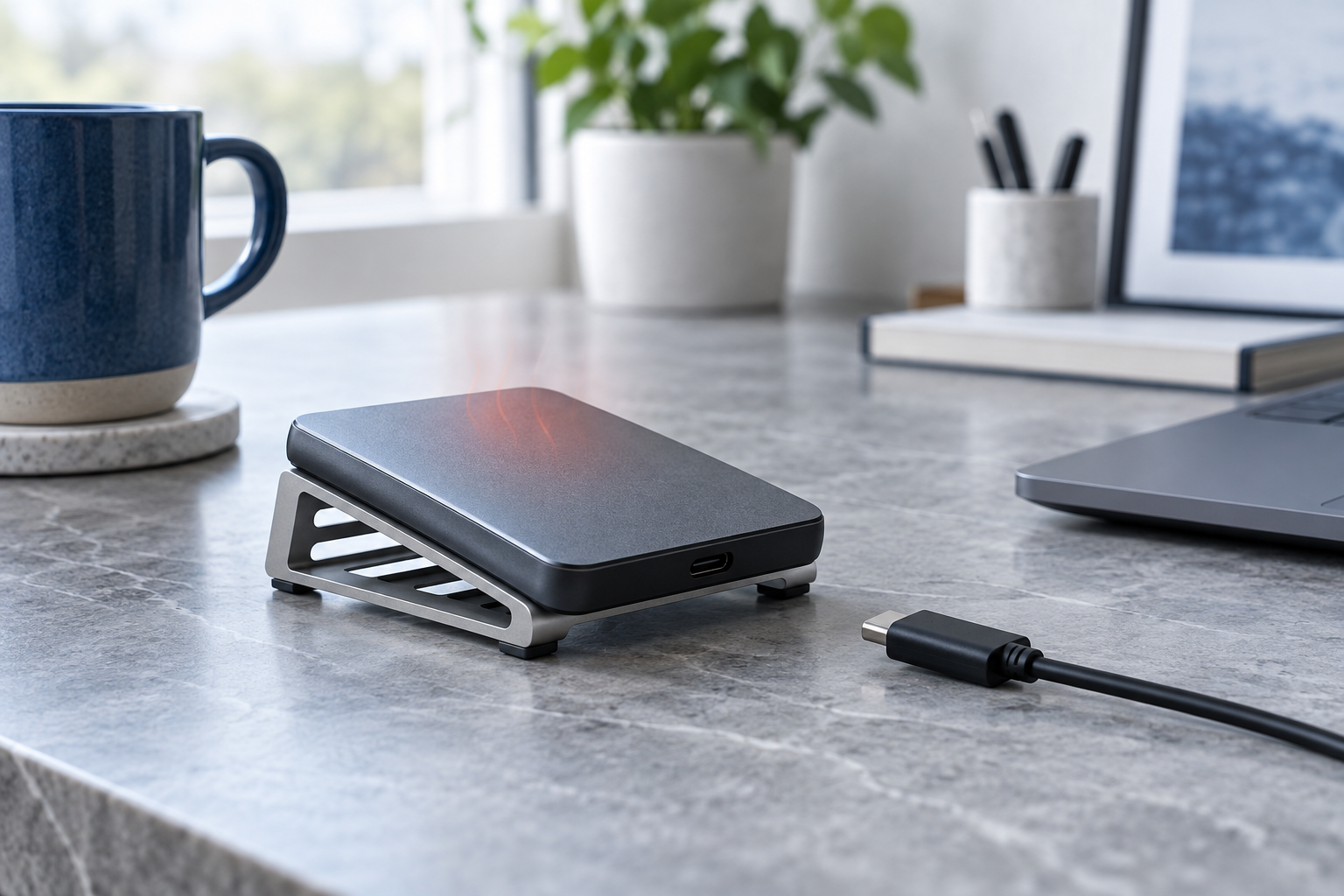
External SSD Is Overheating: Stop and Protect Data
Read more →: External SSD Is Overheating: Stop and Protect DataDisconnect an overheating external SSD and let it cool on a hard ventilated surface. Do not use a freezer or repeated stress tests. After one cool restart, copy priority files in short sessions; stop if heat, disconnects, or read errors return.
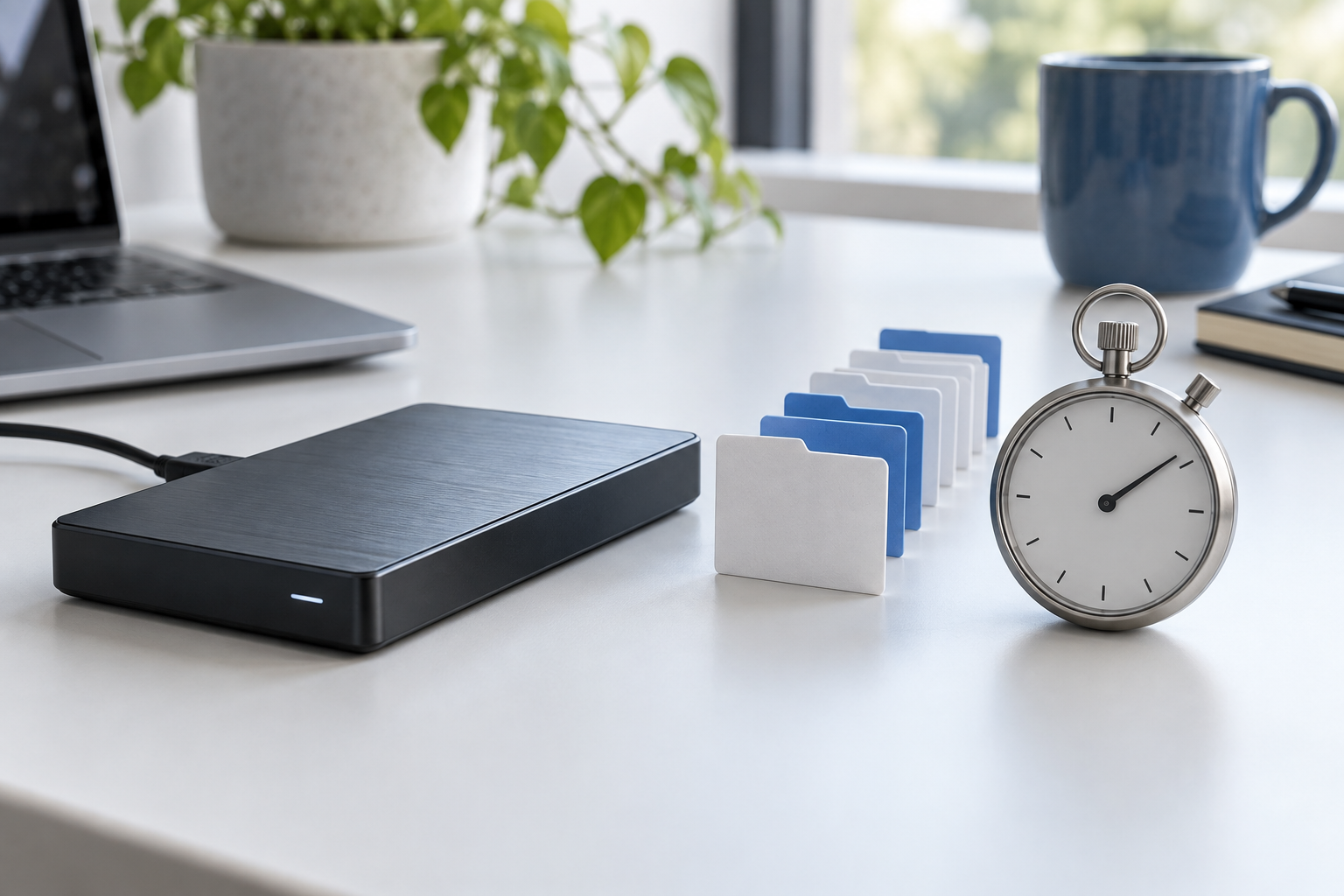
External Hard Drive Is Very Slow: Protect Files Before Failure
Read more →: External Hard Drive Is Very Slow: Protect Files Before FailureA suddenly slow drive may be retrying bad reads or losing its connection. Stop benchmarks and repair commands, check SMART once, copy small irreplaceable files first, and use an image or professional service if read errors or noises increase.
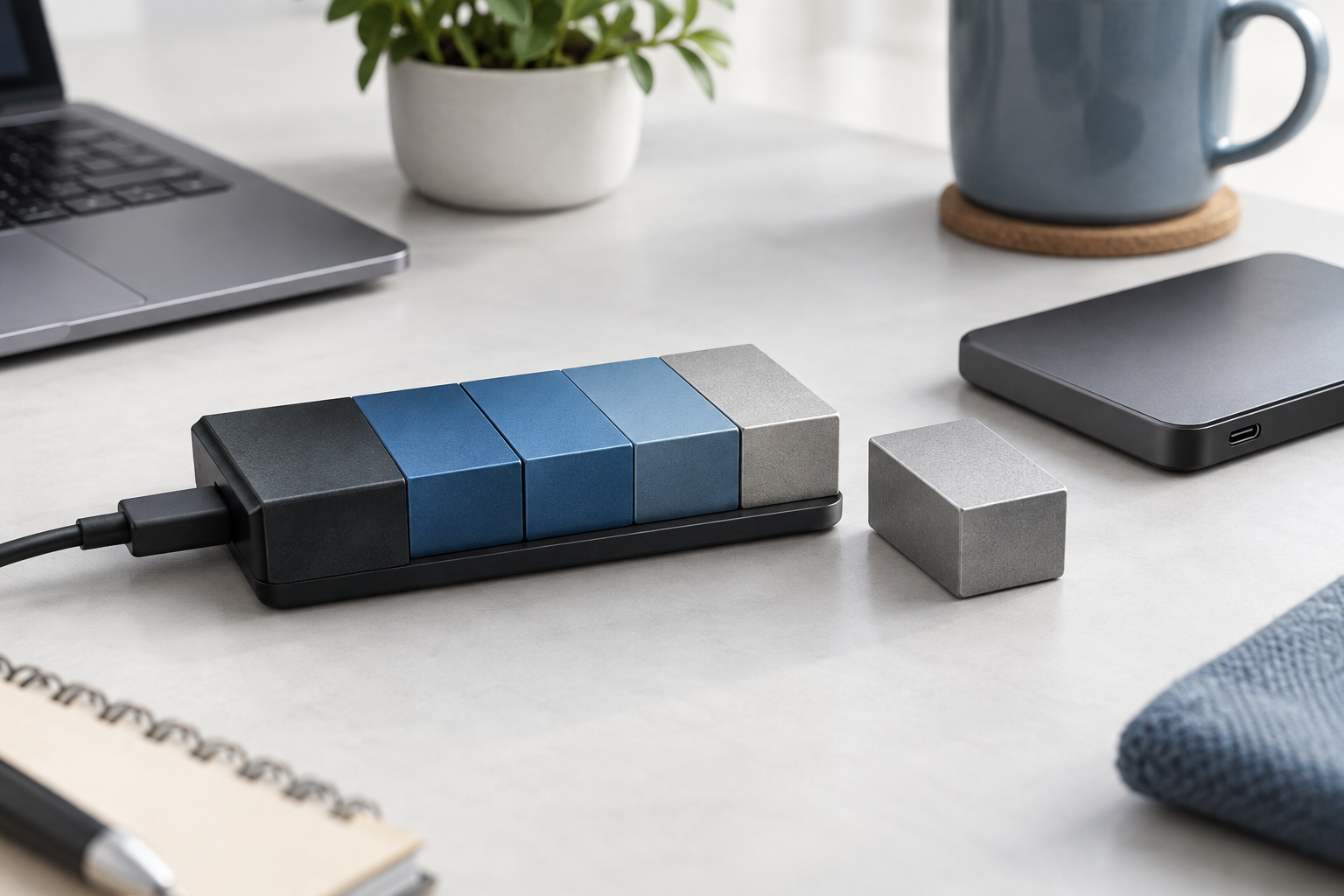
Partition Became Unallocated After Resize: Recover Before Repair
Read more →: Partition Became Unallocated After Resize: Recover Before RepairDo not create a new volume or format the unallocated space after a failed resize. Record the original partition order and capacity, stop writes, and recover important files from the correct physical disk first. Modify the partition map only after recovery and verification.




Copyright © 2025 PandaOffice. All Rights Reserved. The order process, tax issue, and invoicing to end users are conducted by PandaOffice Limited.