






Hard Drive Recovery
PandaOffice Drecov delivers secure, deep data recovery for all storage devices. It retrieves various files lost to deletion, formatting, corruption, viruses and more.
TOP 4 Hot Articles
Top 4 hot articles will provide you reliable solutions to find crucial data with Drecov software.


External HDD Data Recovery Software: Complete Guide to Recover Files
This guide explains practical external HDD data recovery methods, including how to use reliable external hdd recovery software to recover deleted, formatted, or inaccessible files from external hard drives safely.


How to Recover Data from Portable Hard Drive?
This guide shows how to recover data from portable hard drives using Pandaoffice drecov, including deleted, formatted, RAW, and inaccessible files safely.
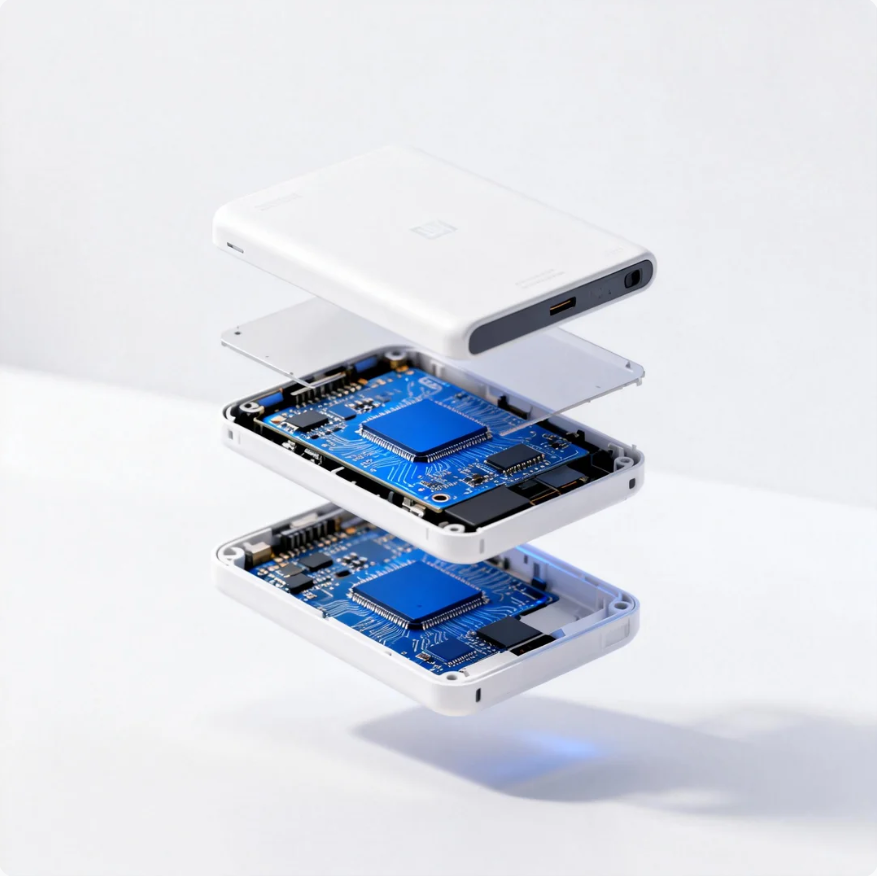

How Can I Recovery Western Digital External Hard Drive?
Learn how to recover files from a Western Digital external hard drive after deletion, formatting, or corruption using safe, effective recovery methods and software.

How Data Recovery from External Hard Drive: A Practical Guide
This article explores data recovery from external hard drive in depth, explaining how data loss occurs, how recovery works, and comparing practical methods—from built-in tools to professional software—so users can recover lost files safely and effectively.
Find a solution that suits your case
Here are file recovery guidelines for all types of files. Just choose the most suitable situation for you to retrieve your data
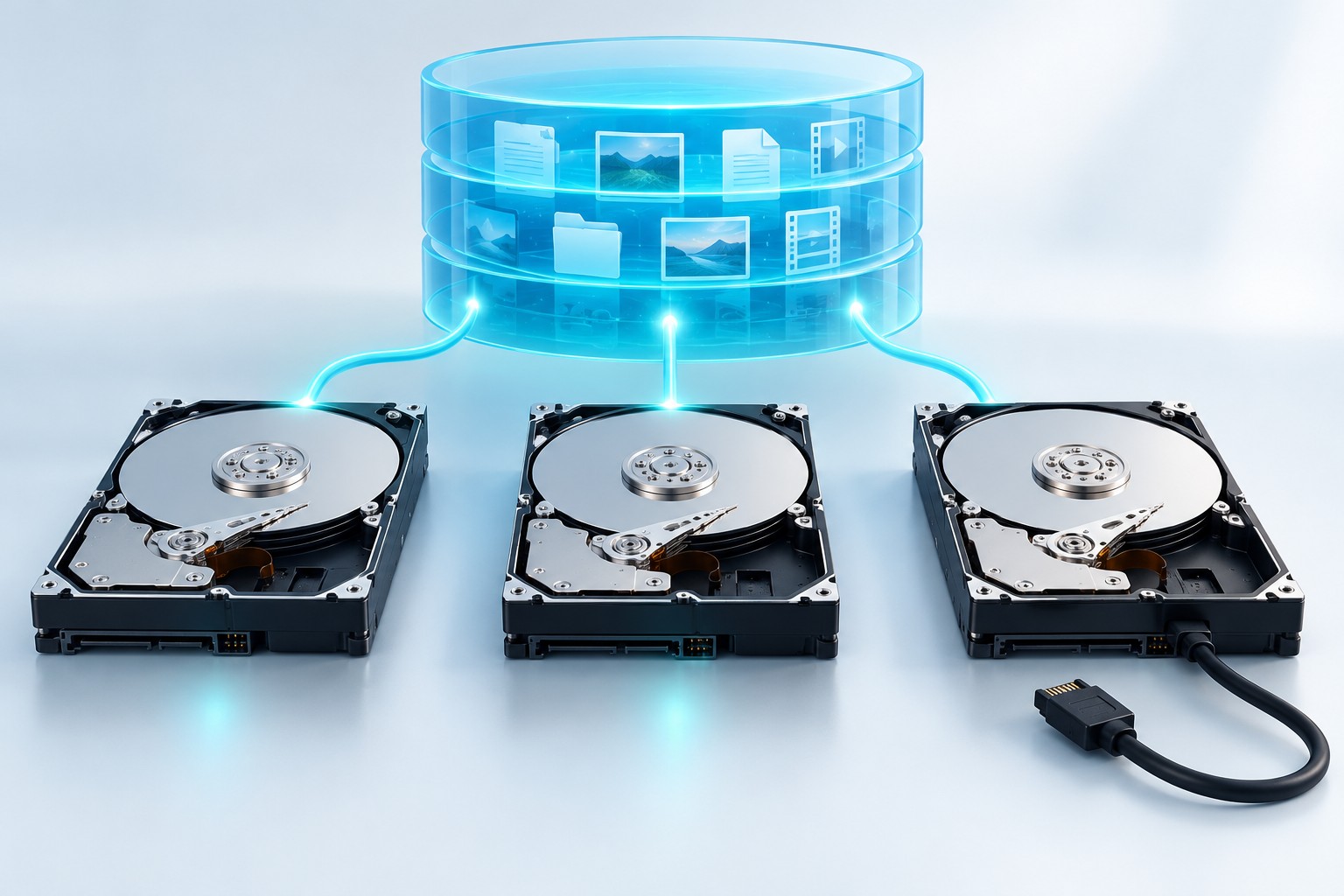

Storage Spaces Incomplete: Recover Files After Disconnect
Read more →: Storage Spaces Incomplete: Recover Files After DisconnectIdentify the missing Storage Spaces member, record pool and virtual-disk states, preserve the complete set, and recover accessible files before destructive changes.
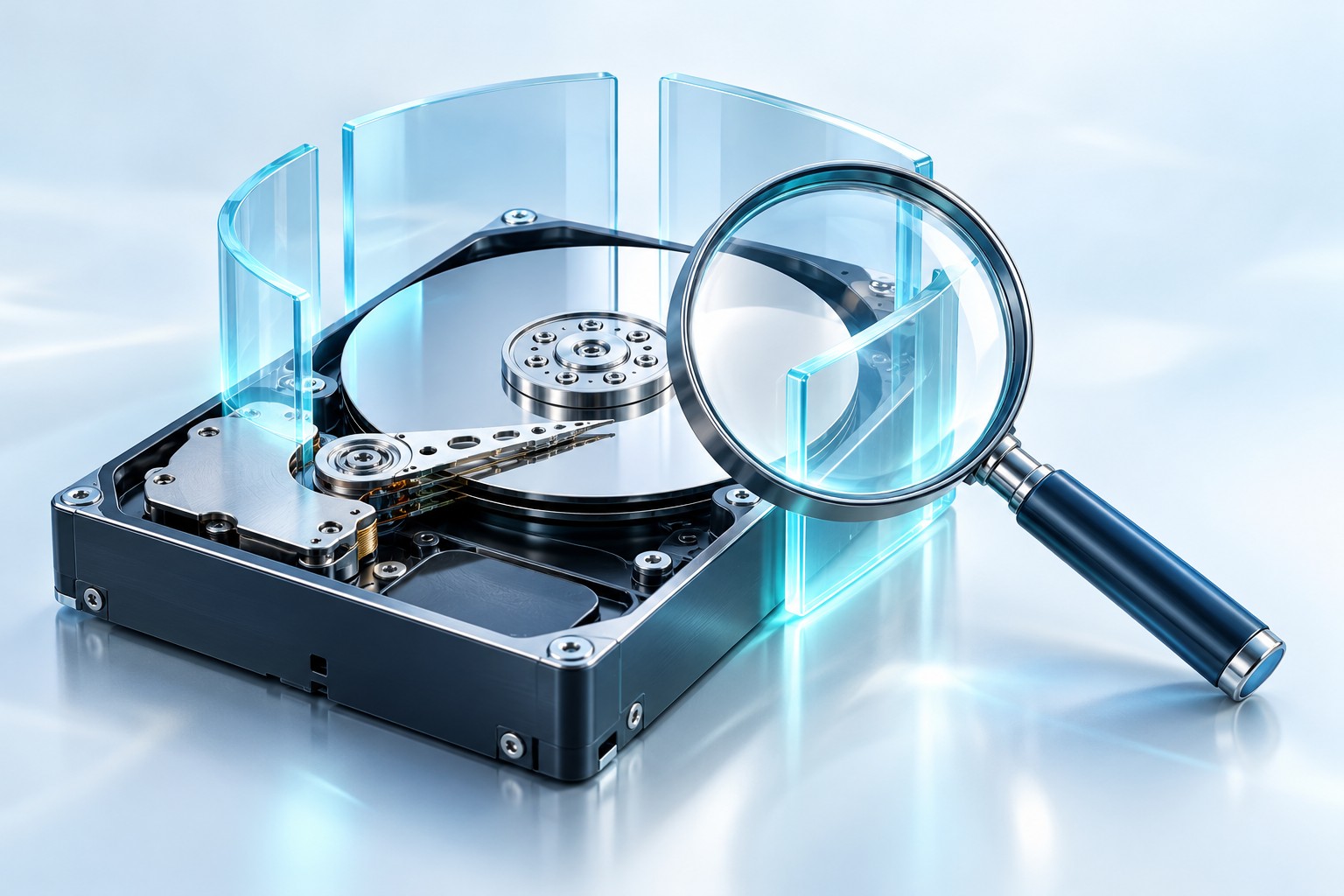
GPT Protective Partition After Enclosure Change: Recover Data
Read more →: GPT Protective Partition After Enclosure Change: Recover DataInvestigate a GPT protective partition after a connection change, preserve the original disk layout, check hardware presentation, and recover files before conversion.
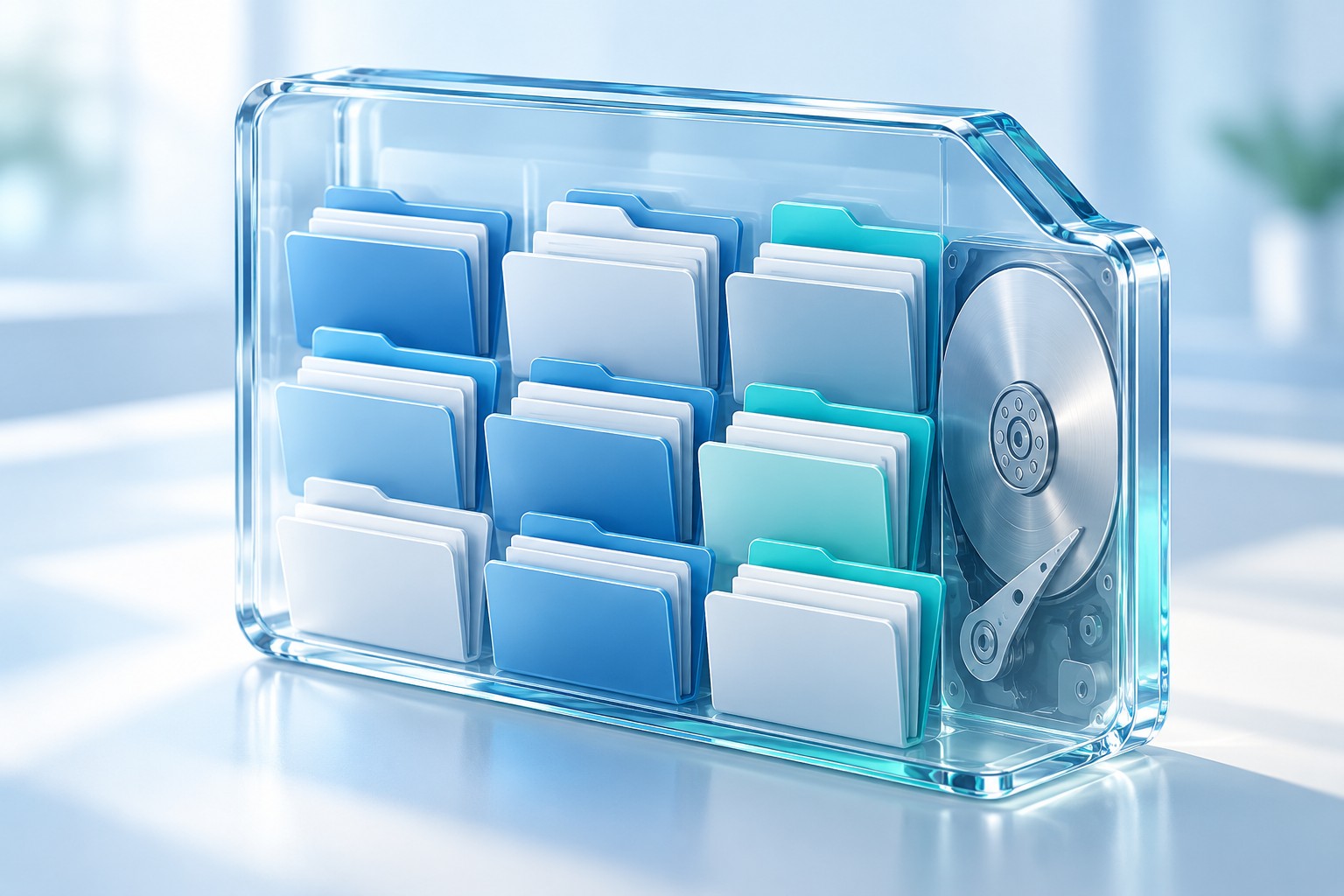
VHDX Will Not Attach: Recover Files Safely
Read more →: VHDX Will Not Attach: Recover Files SafelyPreserve a VHDX and any parent or checkpoint chain, distinguish host and container errors, test a read-only copy, and recover files from a supported accessible volume.
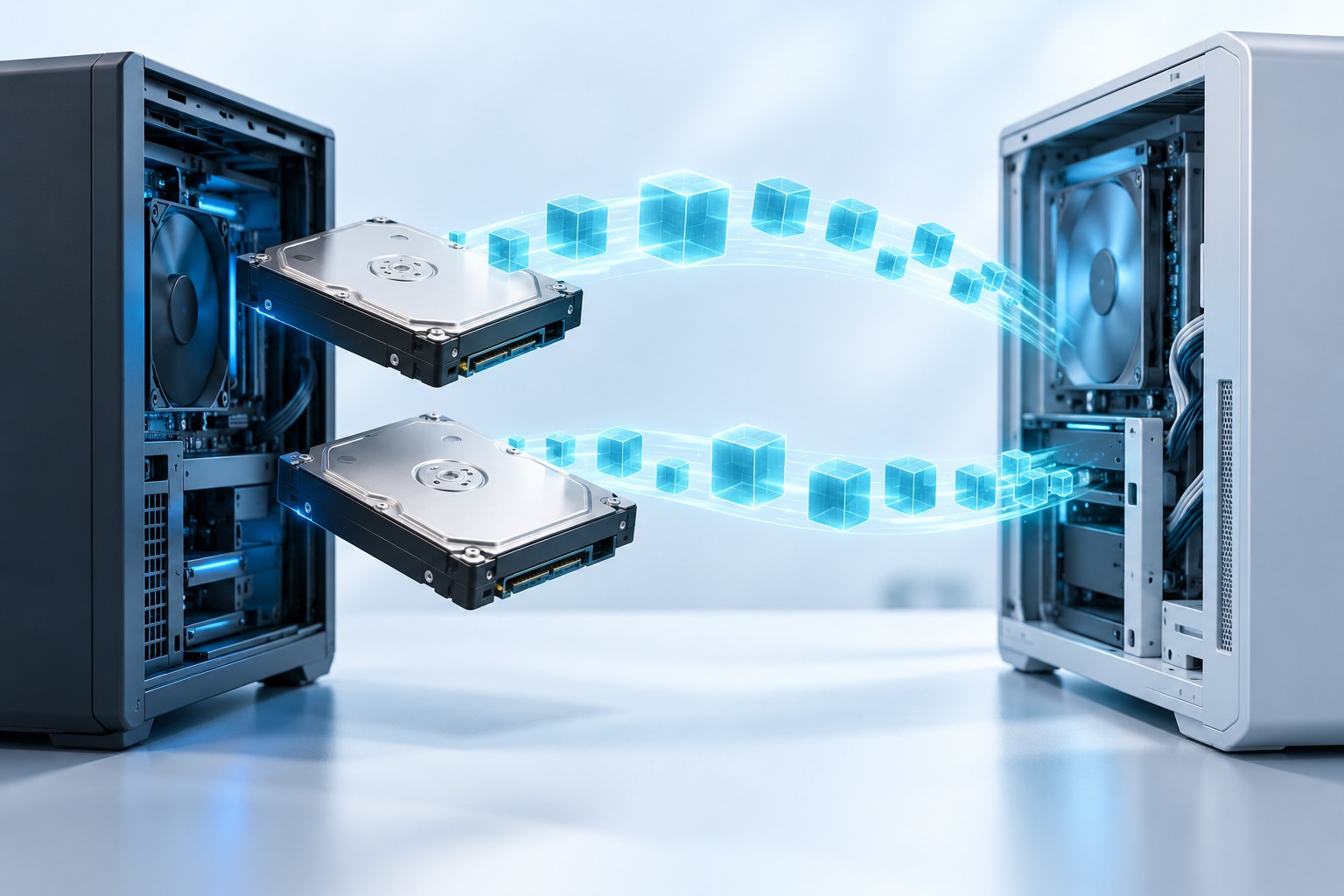
Dynamic Disk Shows Foreign: Recover Data After Moving PCs
Read more →: Dynamic Disk Shows Foreign: Recover Data After Moving PCsIdentify a foreign dynamic disk, preserve all members of a multi-disk volume, assess supported import options, and recover files before destructive conversion.
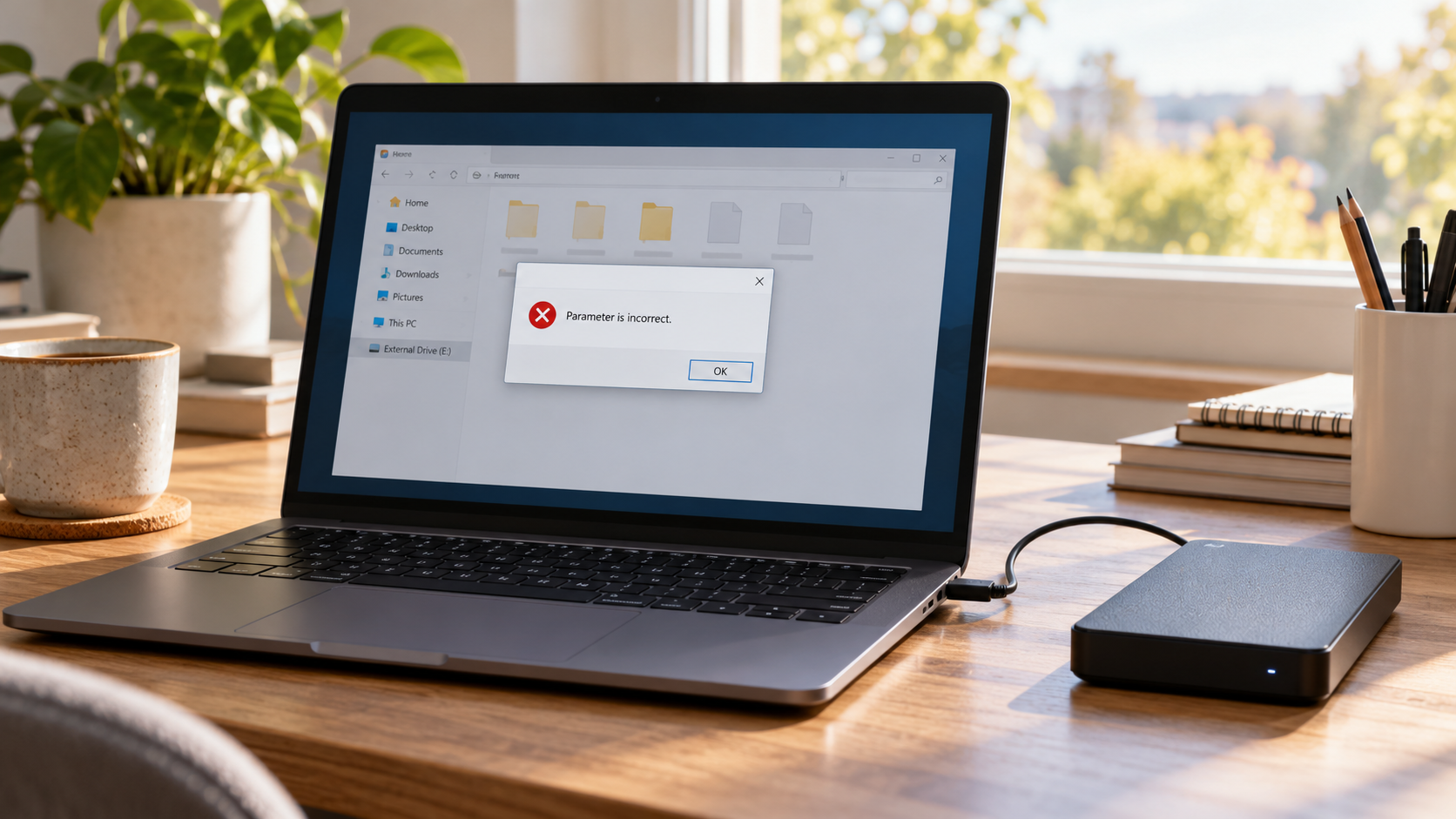

External Hard Drive Says Parameter Is Incorrect: Recover Safely
Read more →: External Hard Drive Says Parameter Is Incorrect: Recover SafelyDo not format the drive or run CHKDSK immediately. Confirm the device by model and capacity, test one known-good cable and port, check Disk Management, and copy any readable files. If the disk stays stable but access fails, image it or scan read-only and recover selected data to another physical disk before repair.
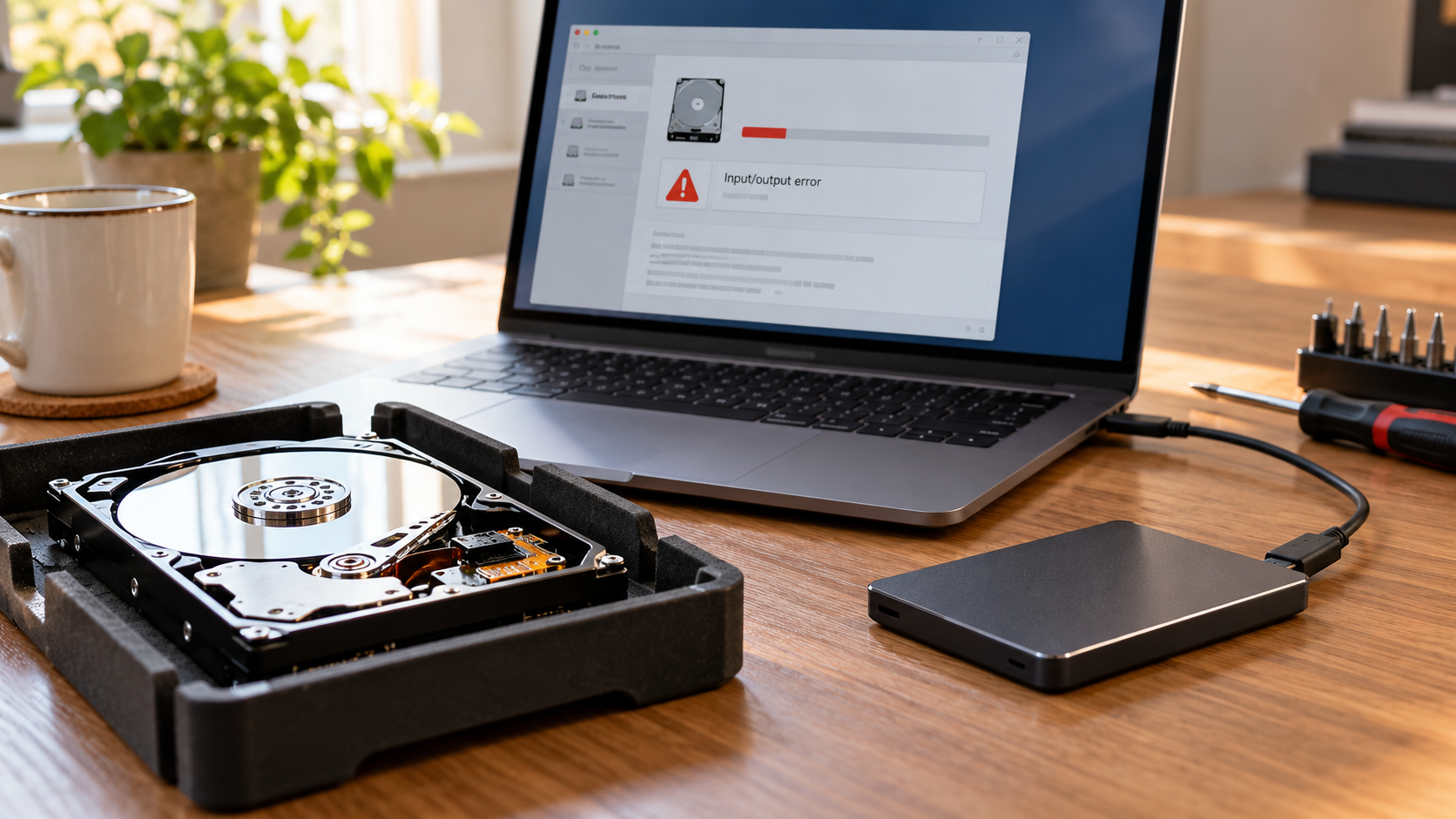
Hard Drive I/O Device Error: Diagnose and Recover Files
Read more →: Hard Drive I/O Device Error: Diagnose and Recover FilesStop repeated access attempts if the drive clicks, disconnects or becomes very slow. Confirm the correct disk, record SMART information when readable, test one stable connection, and copy the most important files first. Image a stable source or use read-only recovery to another disk; use a professional service when hardware symptoms persist.
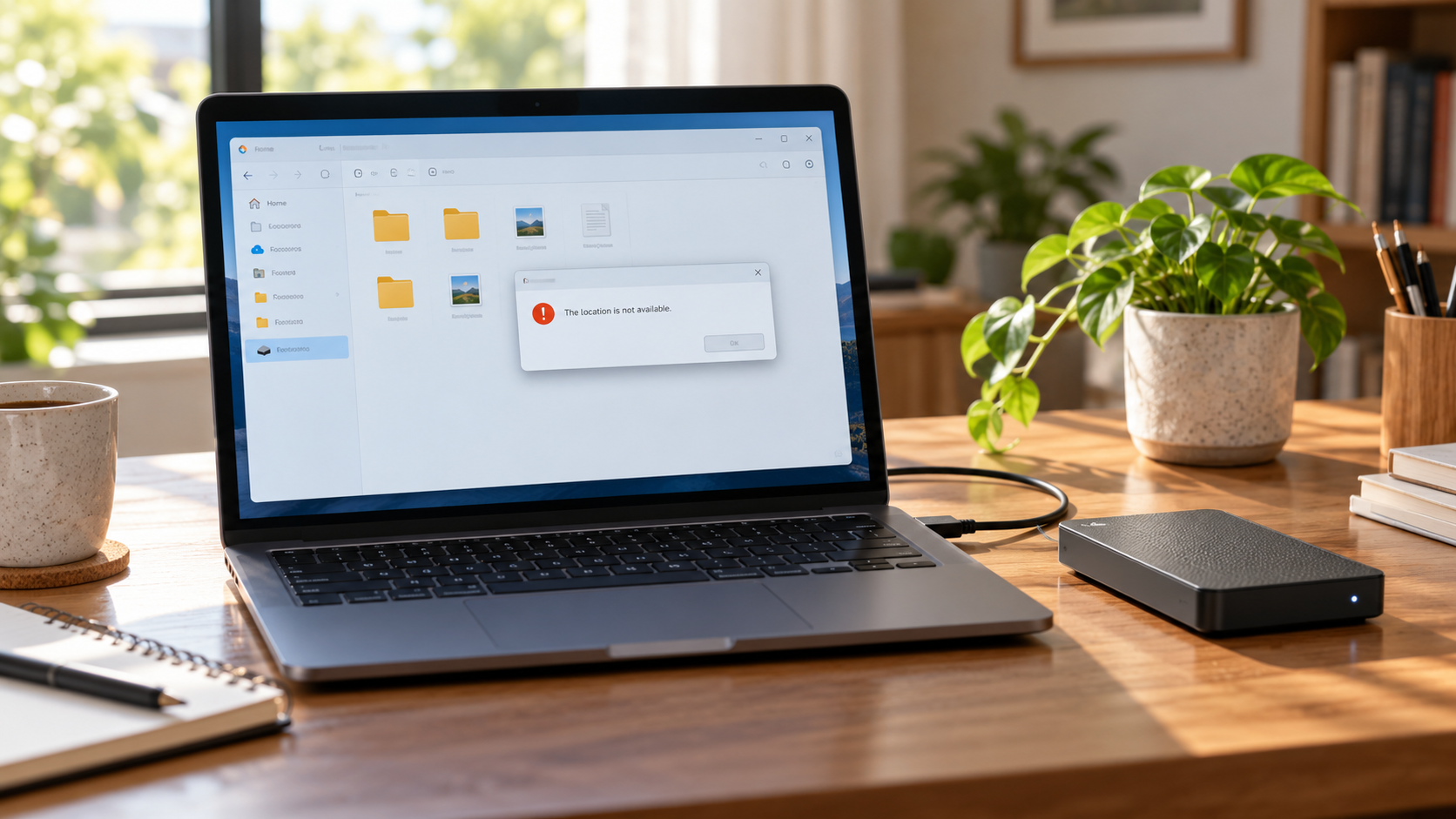
Drive Says Location Is Not Available: Recover Safely
Read more →: Drive Says Location Is Not Available: Recover SafelyDo not format the drive or run CHKDSK. Confirm the correct disk and capacity, test one known-good connection, check the drive letter and permissions once, and copy any readable files. If access remains unavailable, image the stable source or scan it read-only and recover selected data to another physical disk.
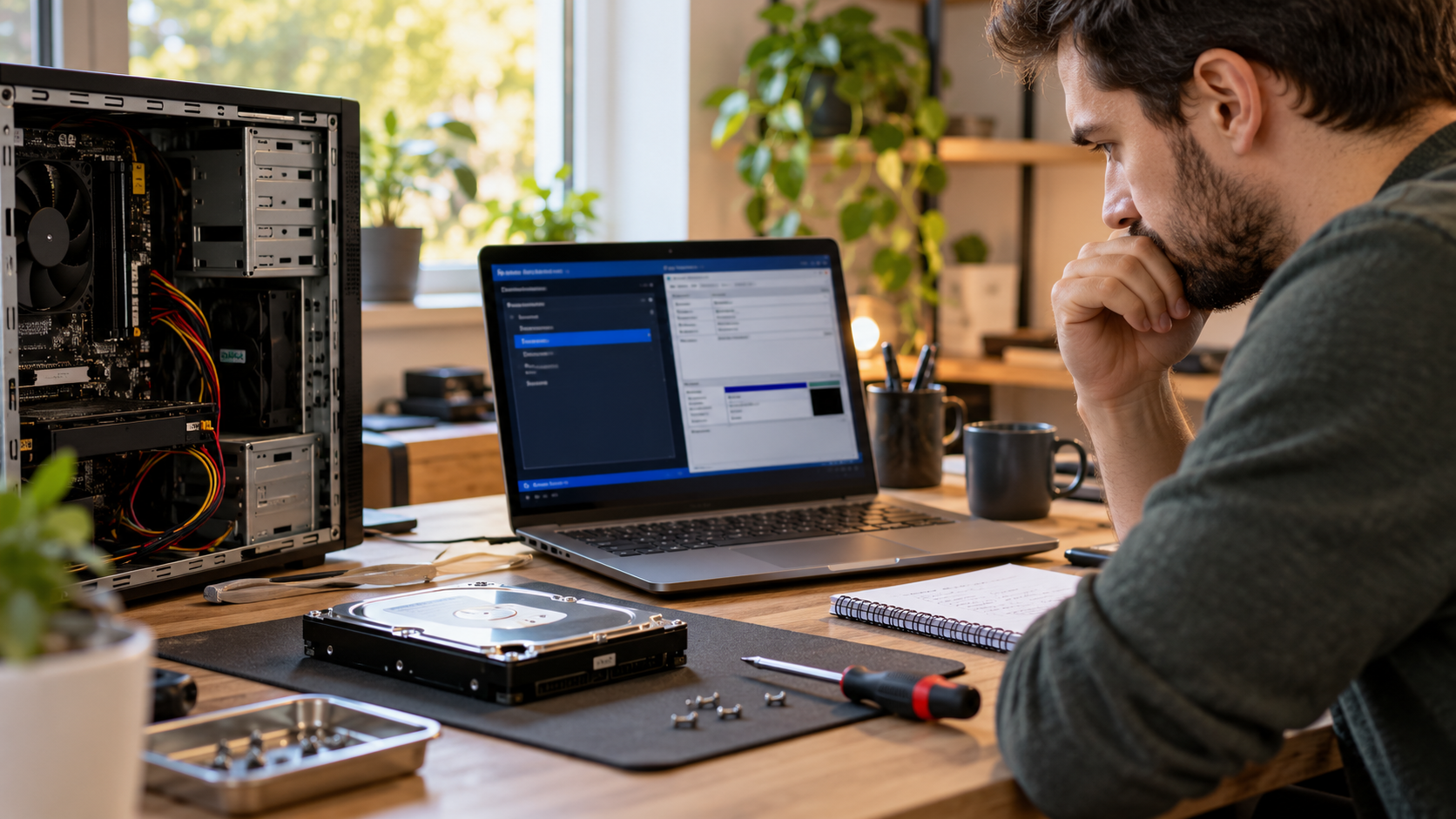
Hard Drive Missing After Changing SATA Mode in BIOS
Read more →: Hard Drive Missing After Changing SATA Mode in BIOSDo not initialize the drive or reinstall Windows. Record the current SATA setting and disk identity, restore only the previously documented controller mode, and check BIOS plus Disk Management. If the disk is visible and stable, copy critical files or image it before further changes, then recover missing data to another physical disk.
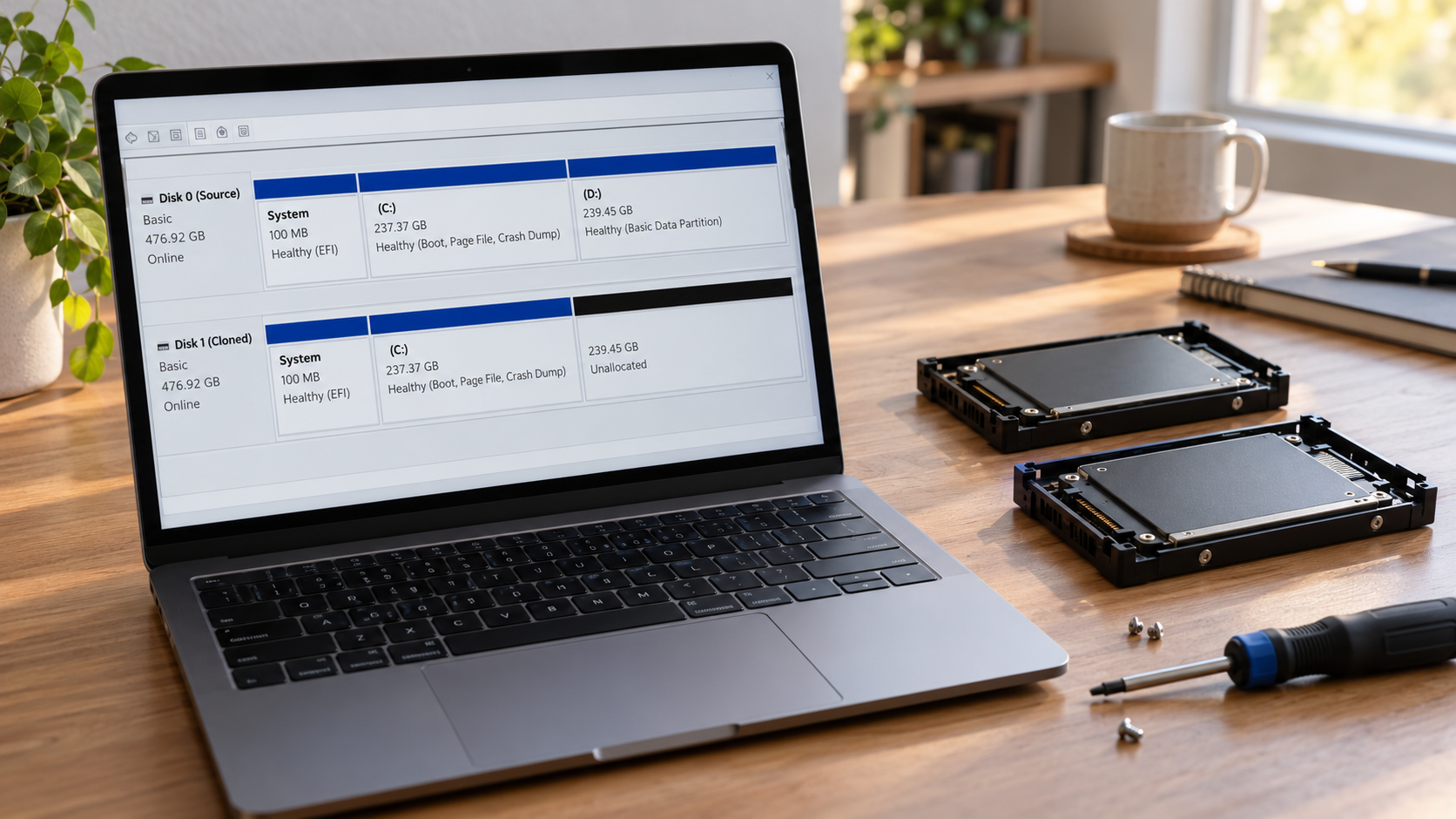

Partition Unallocated After Disk Cloning: Recover Before Extending
Read more →: Partition Unallocated After Disk Cloning: Recover Before ExtendingDo not create a new volume or extend into the unallocated area. Identify source and clone by model and capacity, record both partition maps, and keep the original disk disconnected from writes. If the clone is stable, scan it read-only for the lost partition or files and recover to another disk before changing boundaries.
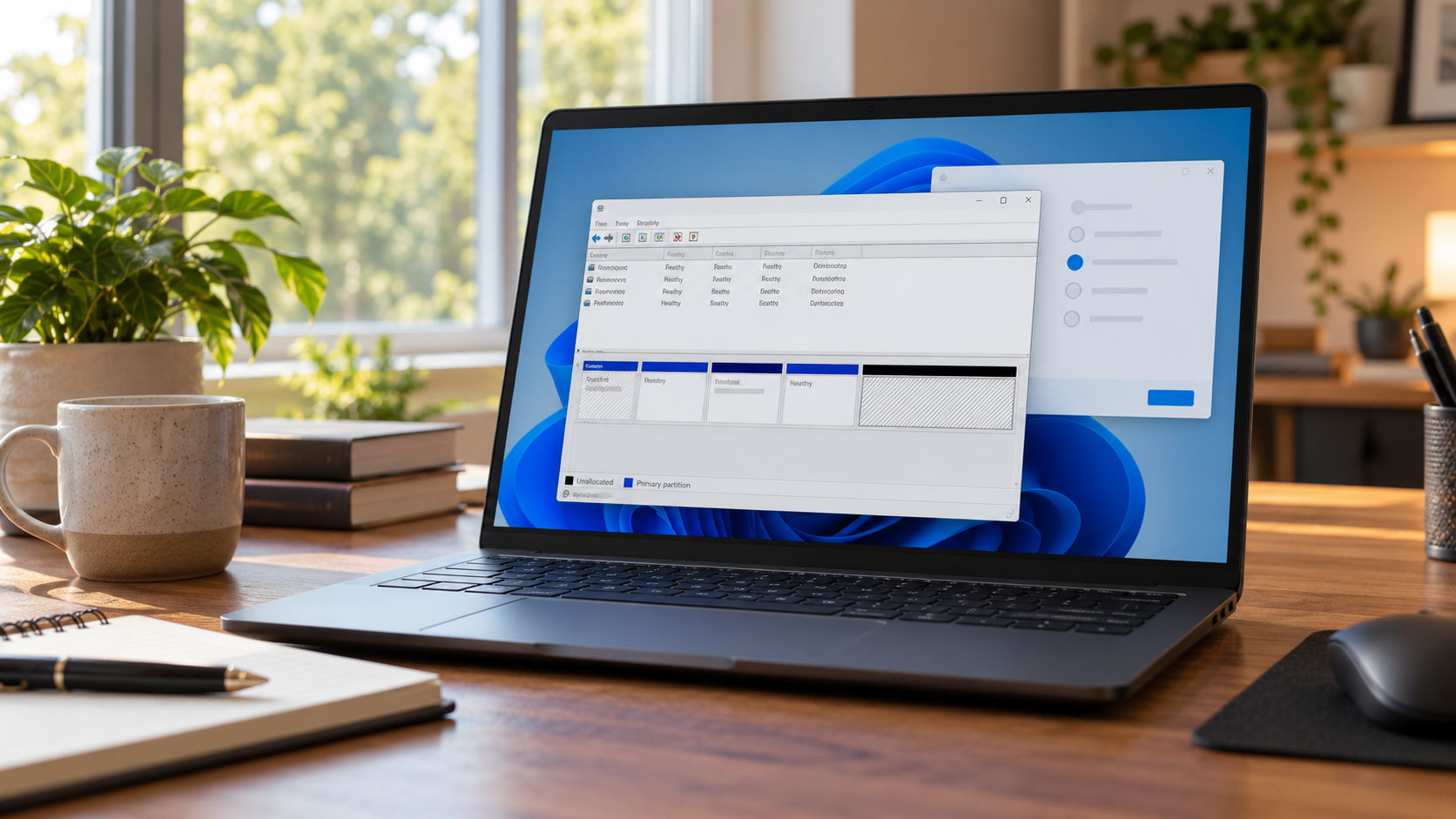
Partition Missing After Reinstalling Windows: Recover First
Read more →: Partition Missing After Reinstalling Windows: Recover FirstStop creating or formatting volumes. Identify the physical disk by model and capacity, record the current partition map, and check whether the old partition only lost its drive letter. Inspect Windows.old and backups, image a stable disk, and recover the lost partition or selected files before changing the layout.




Copyright © 2025 PandaOffice. All Rights Reserved. The order process, tax issue, and invoicing to end users are conducted by PandaOffice Limited.