






Hard Drive Recovery
PandaOffice Drecov delivers secure, deep data recovery for all storage devices. It retrieves various files lost to deletion, formatting, corruption, viruses and more.
TOP 4 Hot Articles
Top 4 hot articles will provide you reliable solutions to find crucial data with Drecov software.


External HDD Data Recovery Software: Complete Guide to Recover Files
This guide explains practical external HDD data recovery methods, including how to use reliable external hdd recovery software to recover deleted, formatted, or inaccessible files from external hard drives safely.
Find a solution that suits your case
Here are file recovery guidelines for all types of files. Just choose the most suitable situation for you to retrieve your data
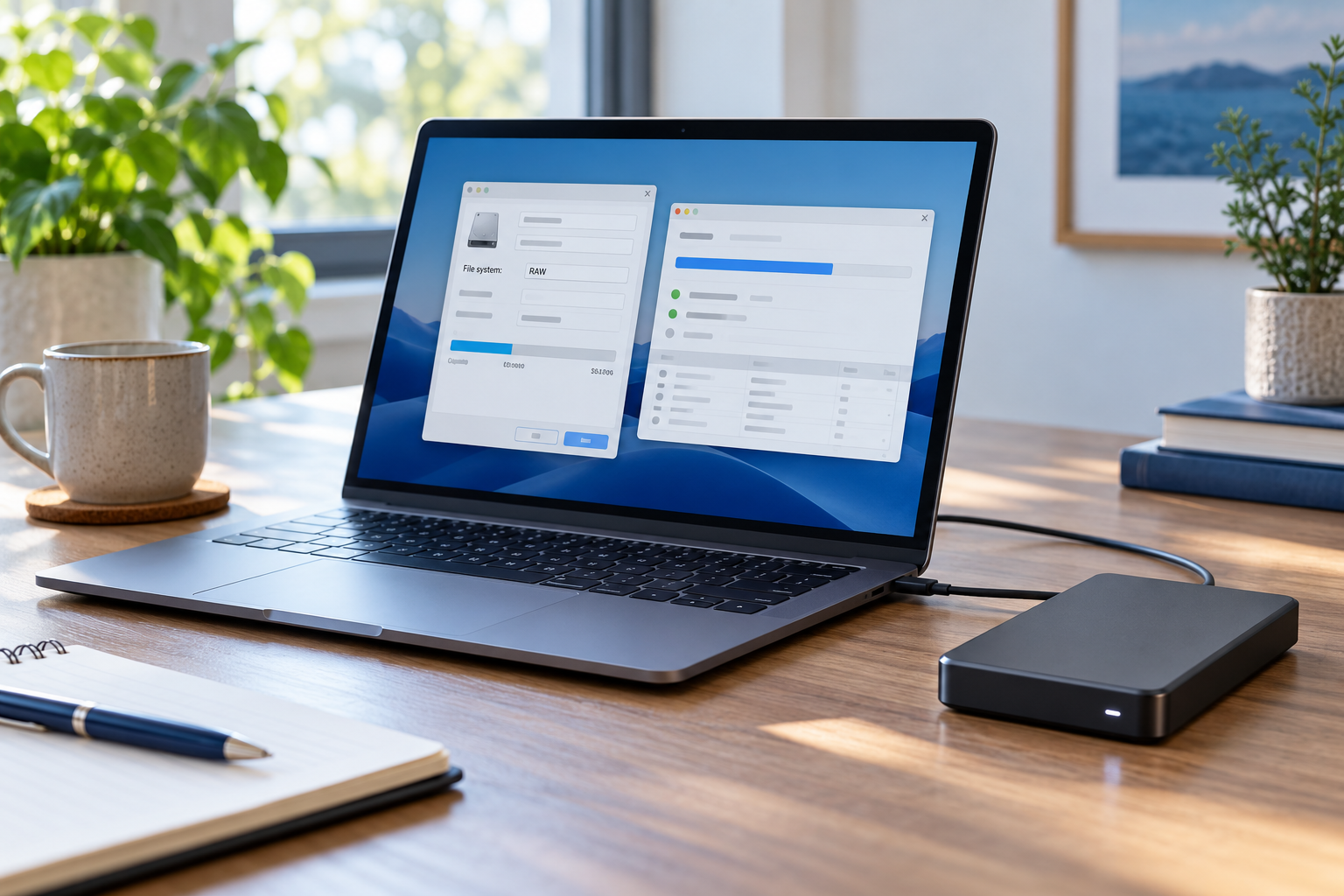

External Hard Drive Shows the Wrong File System: Recover First
Read more →: External Hard Drive Shows the Wrong File System: Recover FirstExternal Hard Drive Shows the Wrong File System: Recover First. Safe checks, free Windows methods and Drecov steps help protect the original.
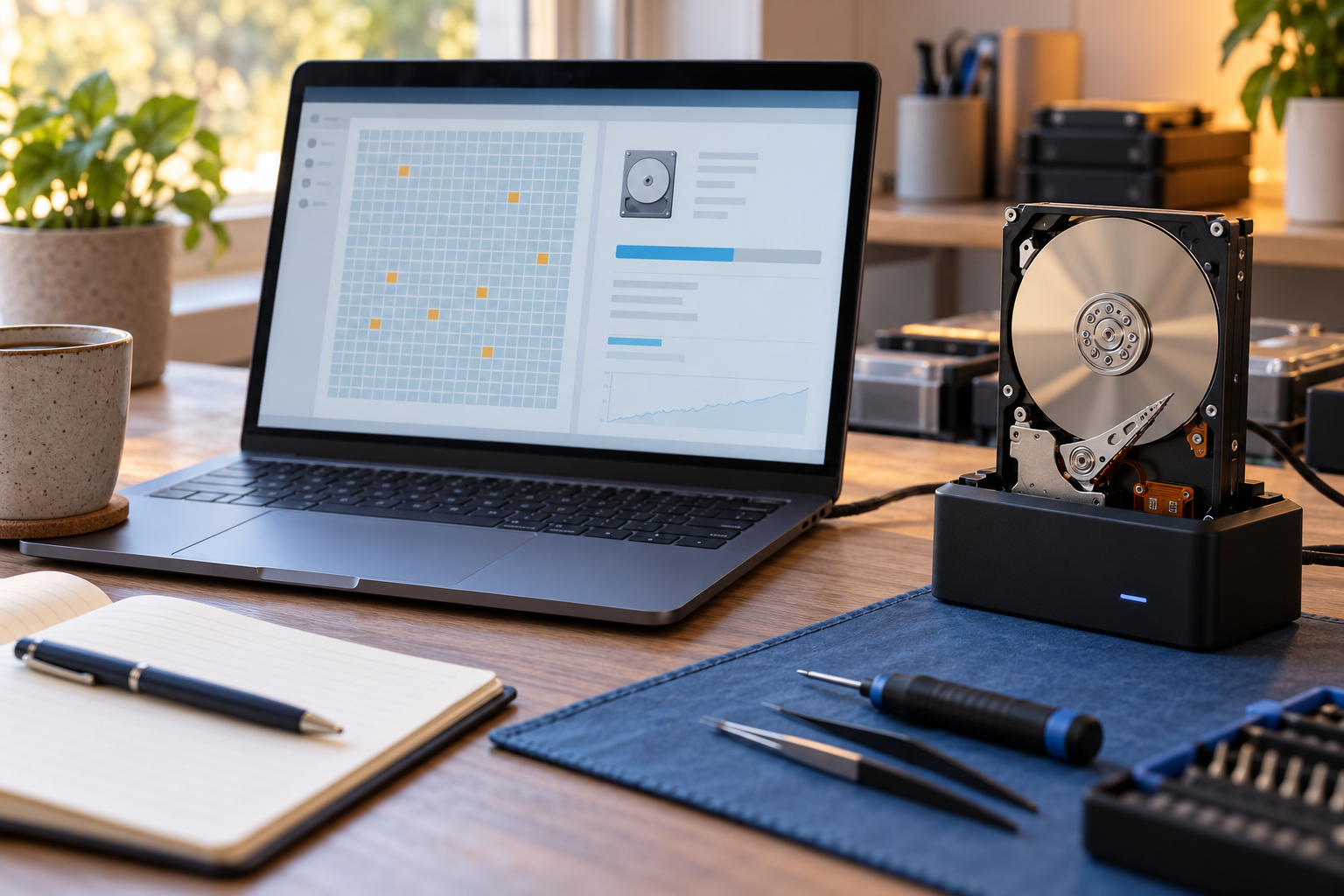
Hard Drive Has Bad Sectors: Image and Recover Data Safely
Read more →: Hard Drive Has Bad Sectors: Image and Recover Data SafelyHard Drive Has Bad Sectors: Image and Recover Data Safely. Safe checks, free Windows methods and Drecov steps help protect the original.
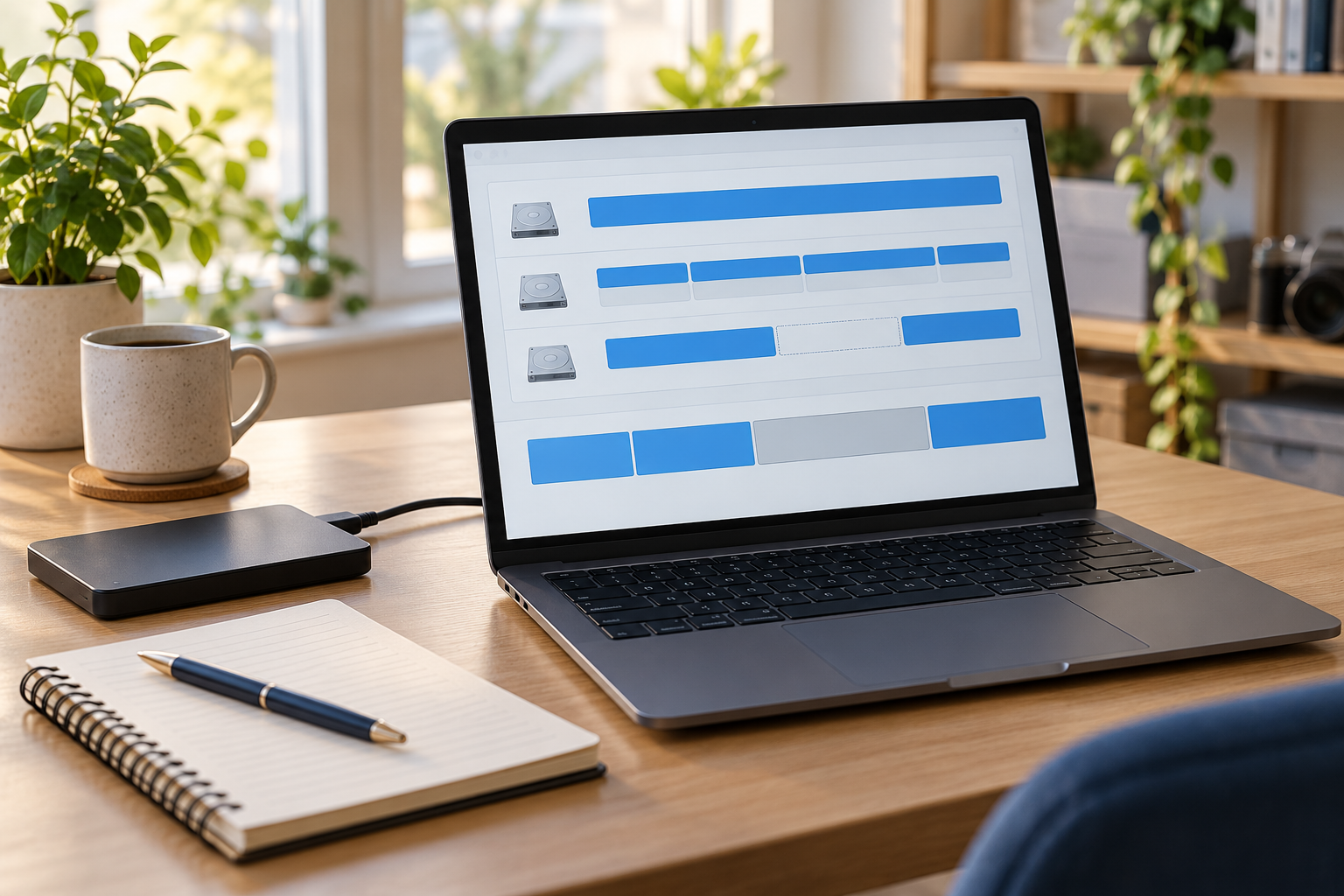
Partition Missing After MBR-to-GPT Conversion: Recover First
Read more →: Partition Missing After MBR-to-GPT Conversion: Recover FirstPartition Missing After MBR-to-GPT Conversion: Recover First. Safe checks, free Windows methods and Drecov steps help protect the original.
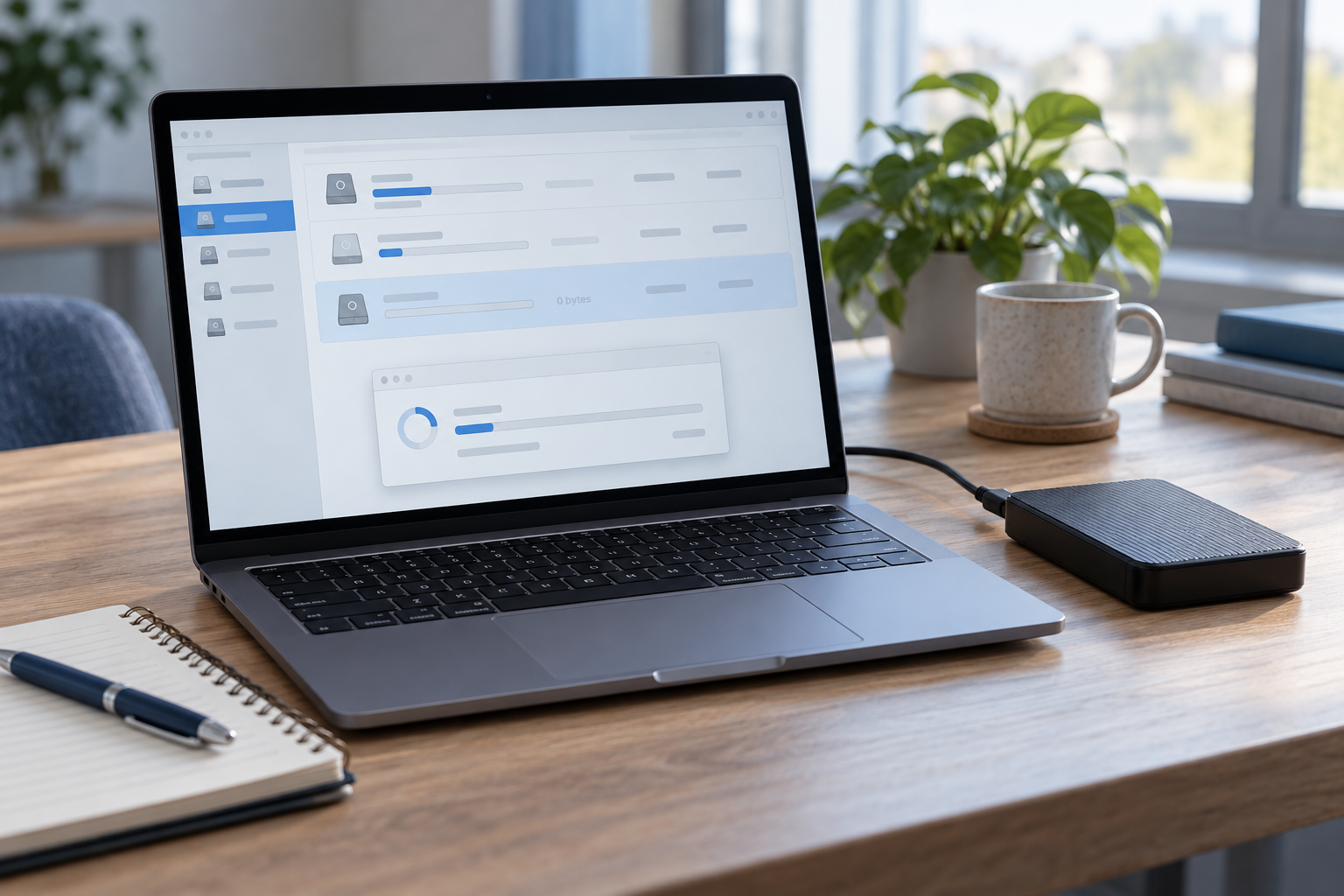
RAW Partition Shows 0 Bytes: Protect and Recover Files
Read more →: RAW Partition Shows 0 Bytes: Protect and Recover FilesRAW Partition Shows 0 Bytes: Protect and Recover Files. Safe checks, free Windows methods and Drecov steps help protect the original.
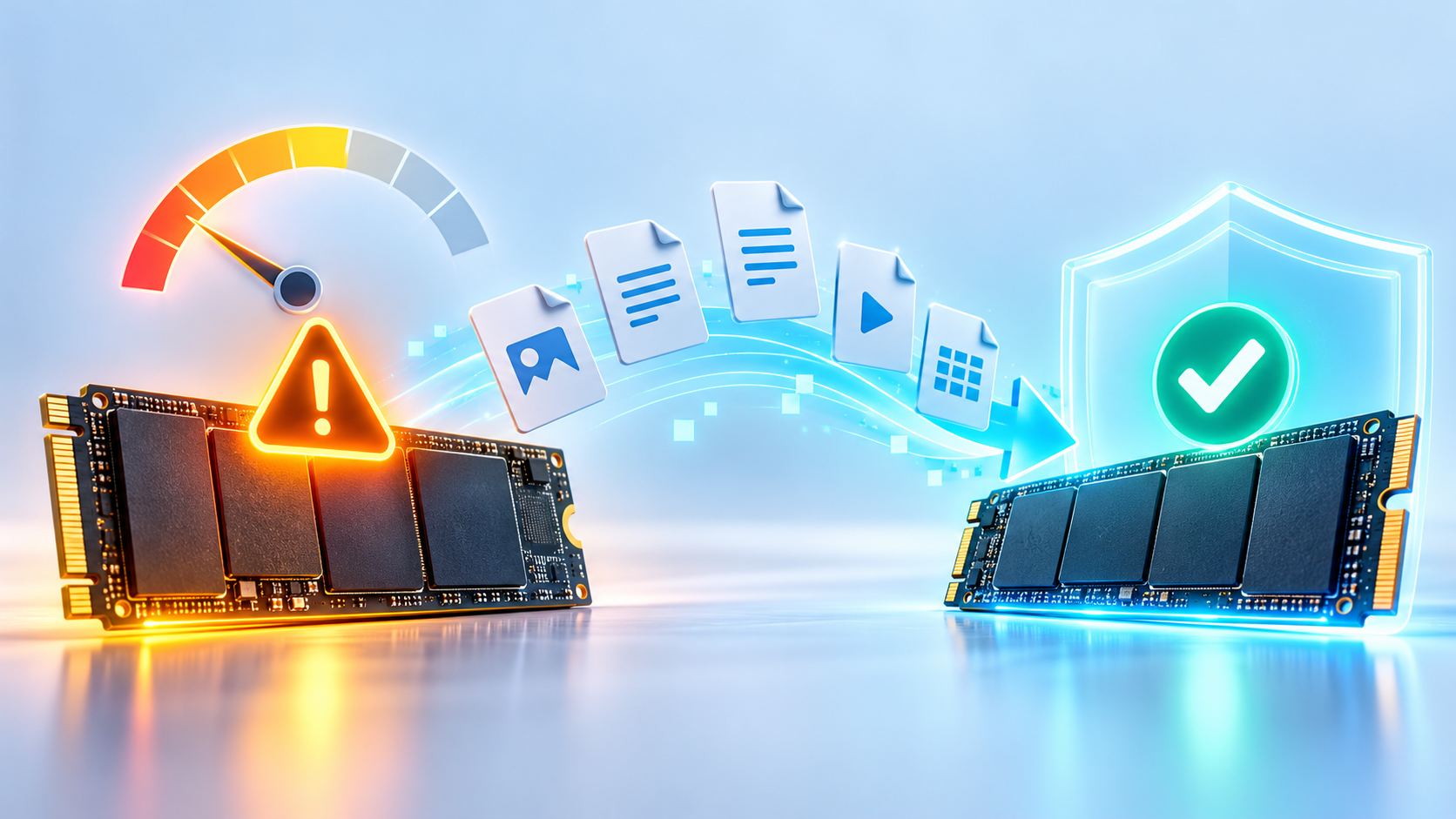

SSD Shows a Critical Warning: Protect and Recover Files
Read more →: SSD Shows a Critical Warning: Protect and Recover FilesSSD shows critical warning in Windows: Before changing the disk, determine whether it contains irreplaceable files, whether the hardware is stable, and which devices must read it. Formatting is the final configuration step, not the first response to an error. Quick Answer For the native checks used in this diagnosis, consult the official technical guidance.…
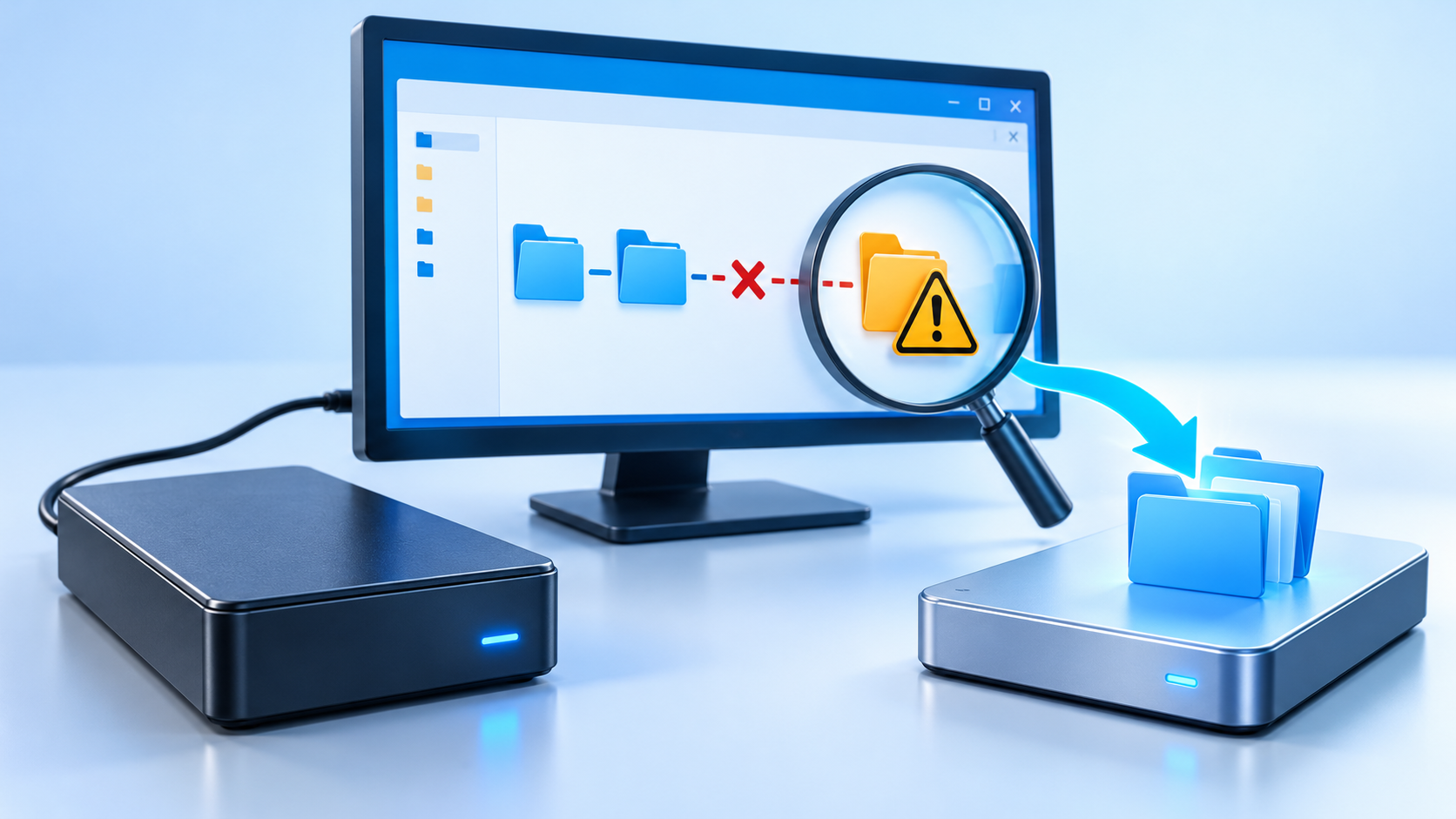
External Hard Drive Says the Directory Name Is Invalid
Read more →: External Hard Drive Says the Directory Name Is Invalidexternal hard drive directory name is invalid: Before changing the disk, determine whether it contains irreplaceable files, whether the hardware is stable, and which devices must read it. Formatting is the final configuration step, not the first response to an error. Quick Answer For the native checks used in this diagnosis, consult the official technical…
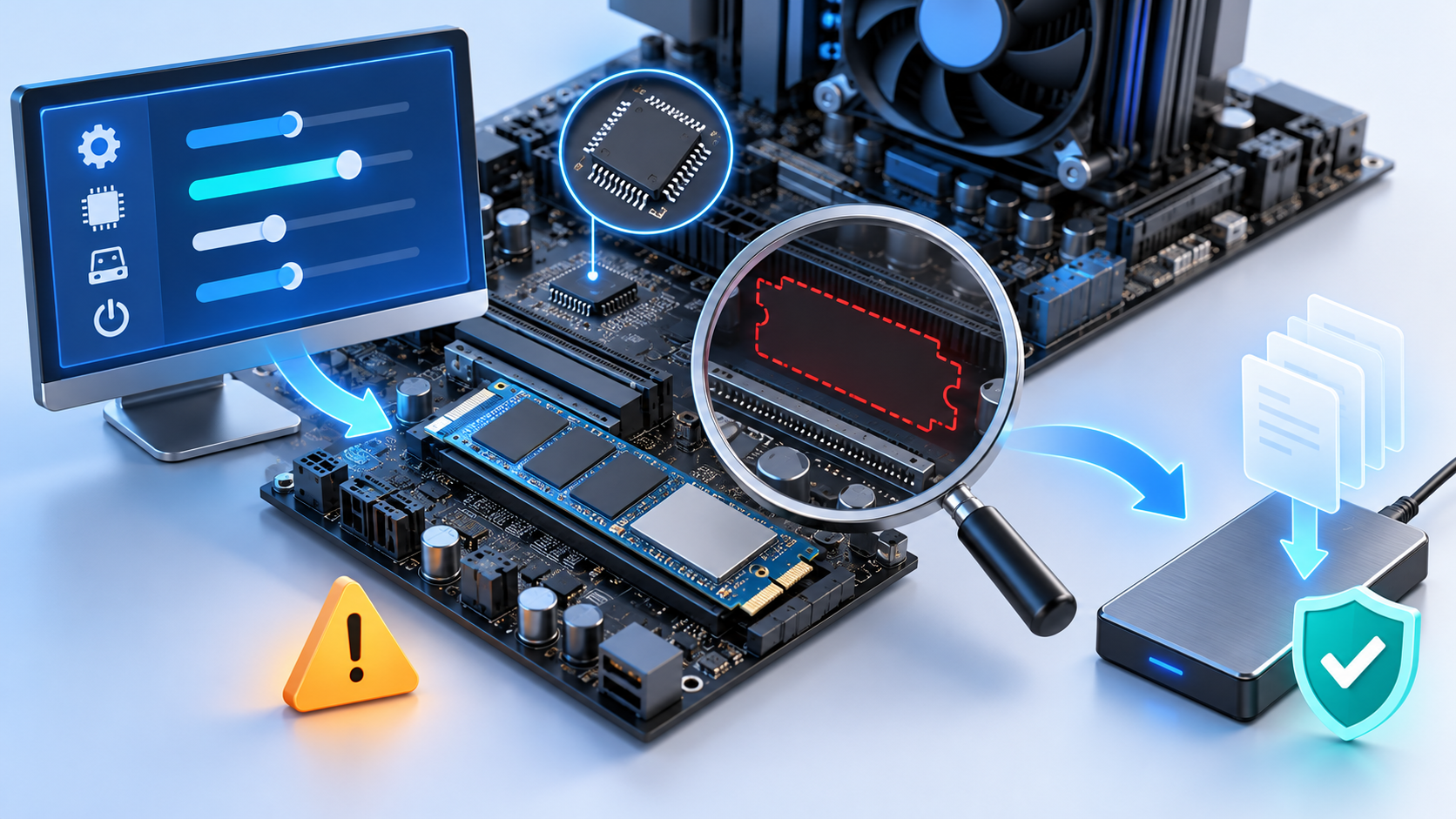
SSD Not Detected After a BIOS Update: Safe Checks
Read more →: SSD Not Detected After a BIOS Update: Safe ChecksDo not initialize or format the SSD. Re-enter BIOS, load the previous storage mode only if documented, check whether the drive appears in the hardware list, reseat power or NVMe connections with power removed, compare the old BIOS settings, and image the SSD before repair if it becomes readable.
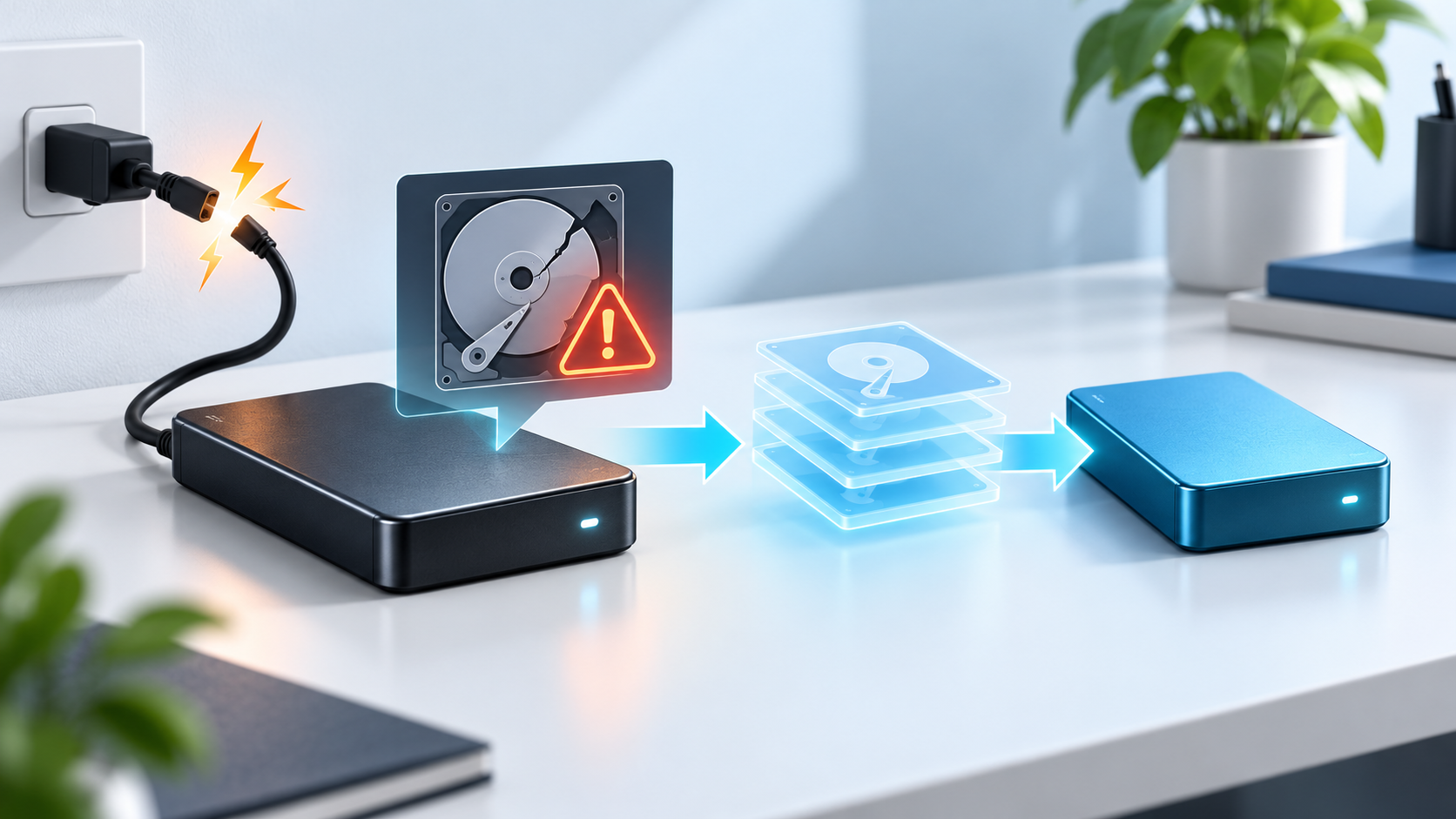
External Hard Drive Shows RAW After Power Loss
Read more →: External Hard Drive Shows RAW After Power LossDo not format or run CHKDSK on a RAW drive before copying data. Disconnect it from unstable power, test one known-good cable and port, check SMART health and Disk Management, image the drive if it remains stable, and recover files to another physical disk.
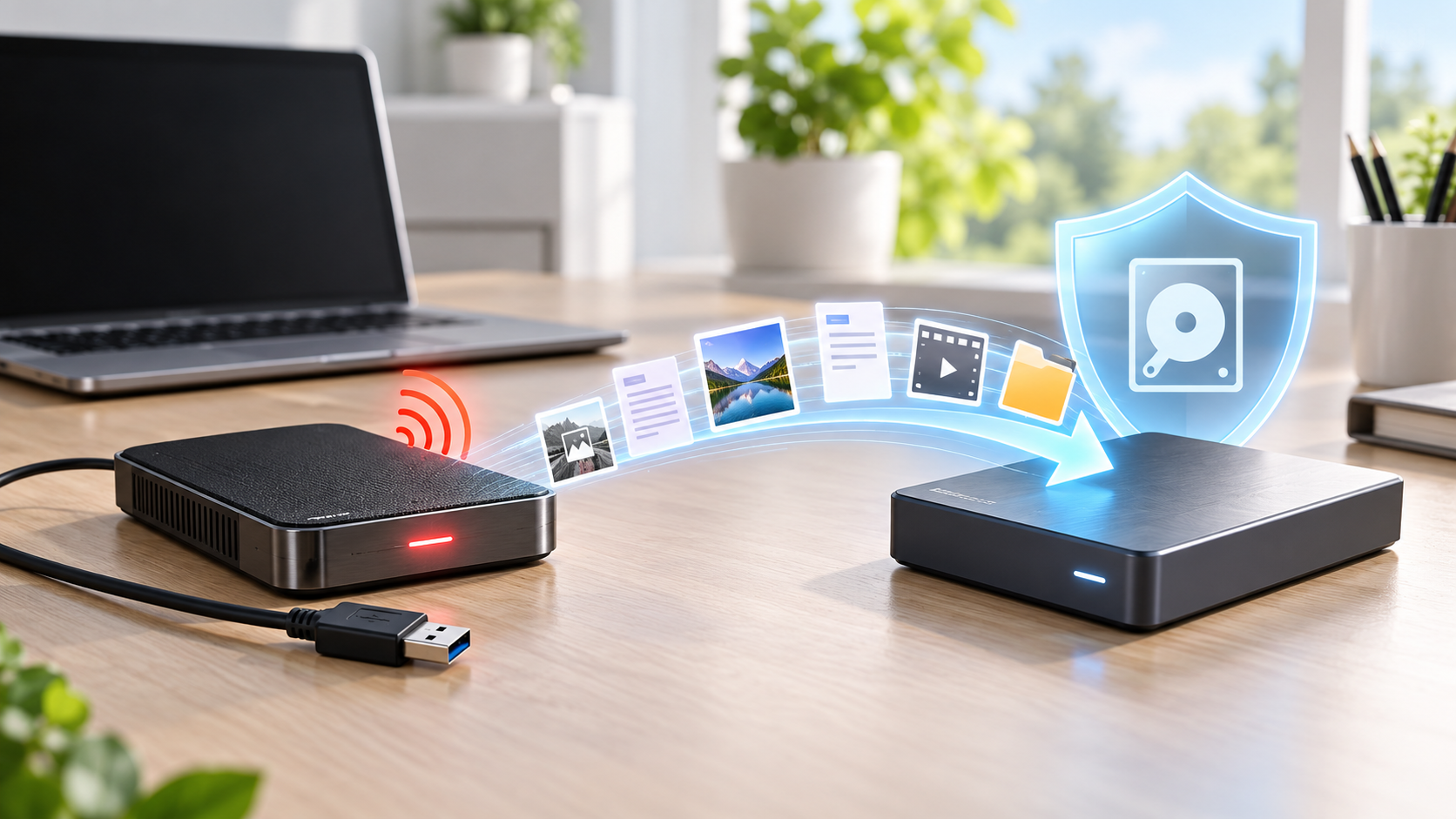
External Hard Drive Beeping: Stop and Protect Data
Read more →: External Hard Drive Beeping: Stop and Protect DataA beeping hard drive can indicate insufficient power or mechanical failure. Stop repeated power cycles, disconnect it, verify the correct power supply and one cable only, and do not run scans if the sound continues. Use a professional lab for irreplaceable data.
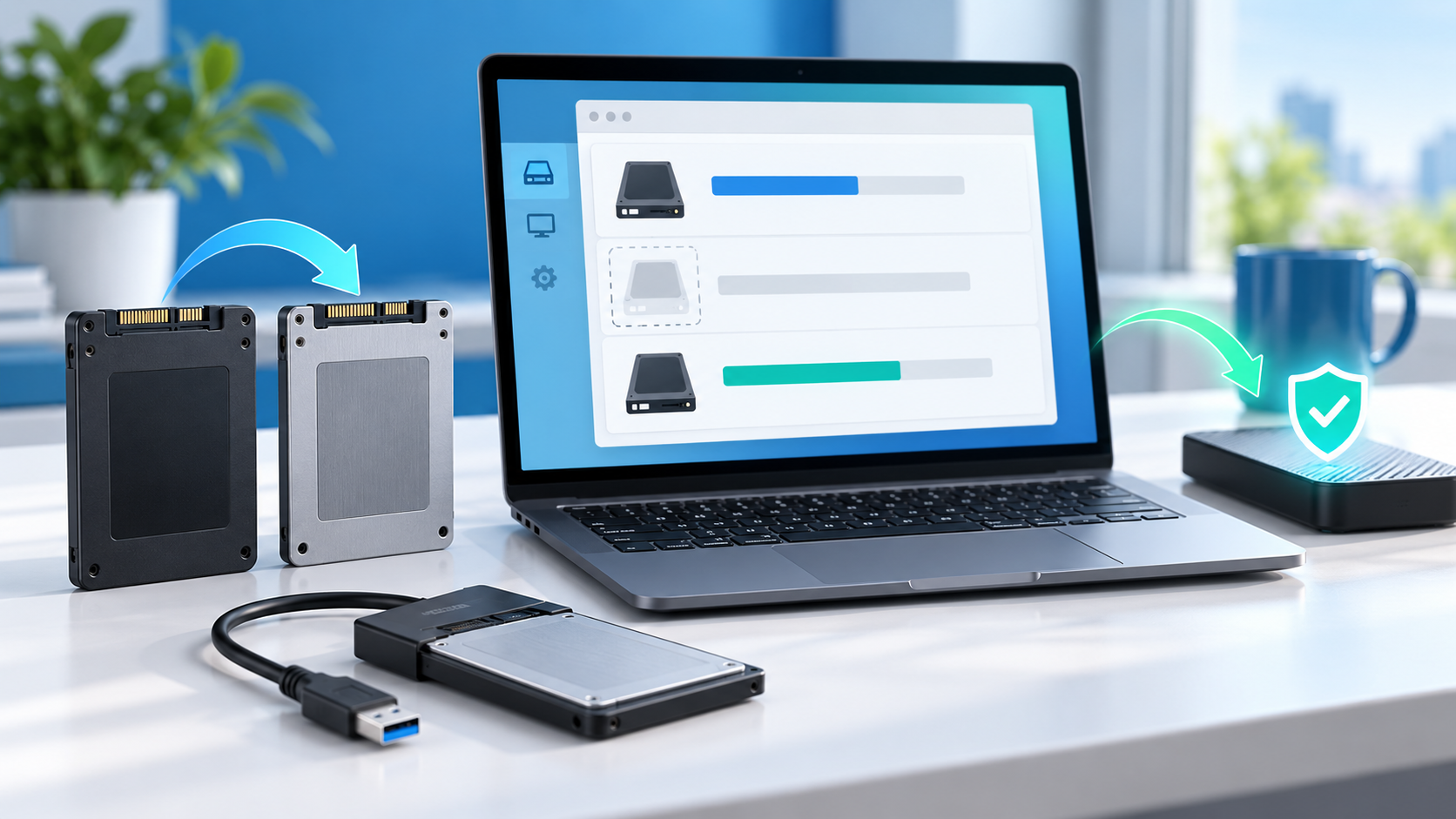
SSD Not Detected After Cloning: Safe Checks and Recovery
Read more →: SSD Not Detected After Cloning: Safe Checks and RecoveryKeep the original SSD untouched after a clone is not detected. Verify power, adapter, firmware mode and capacity in BIOS or Disk Management, test the clone externally before changing boot settings, and recover data from the original or clone to a separate healthy drive.




Copyright © 2025 PandaOffice. All Rights Reserved. The order process, tax issue, and invoicing to end users are conducted by PandaOffice Limited.