






Hard Drive Recovery
PandaOffice Drecov delivers secure, deep data recovery for all storage devices. It retrieves various files lost to deletion, formatting, corruption, viruses and more.
TOP 4 Hot Articles
Top 4 hot articles will provide you reliable solutions to find crucial data with Drecov software.


External HDD Data Recovery Software: Complete Guide to Recover Files
This guide explains practical external HDD data recovery methods, including how to use reliable external hdd recovery software to recover deleted, formatted, or inaccessible files from external hard drives safely.
Find a solution that suits your case
Here are file recovery guidelines for all types of files. Just choose the most suitable situation for you to retrieve your data
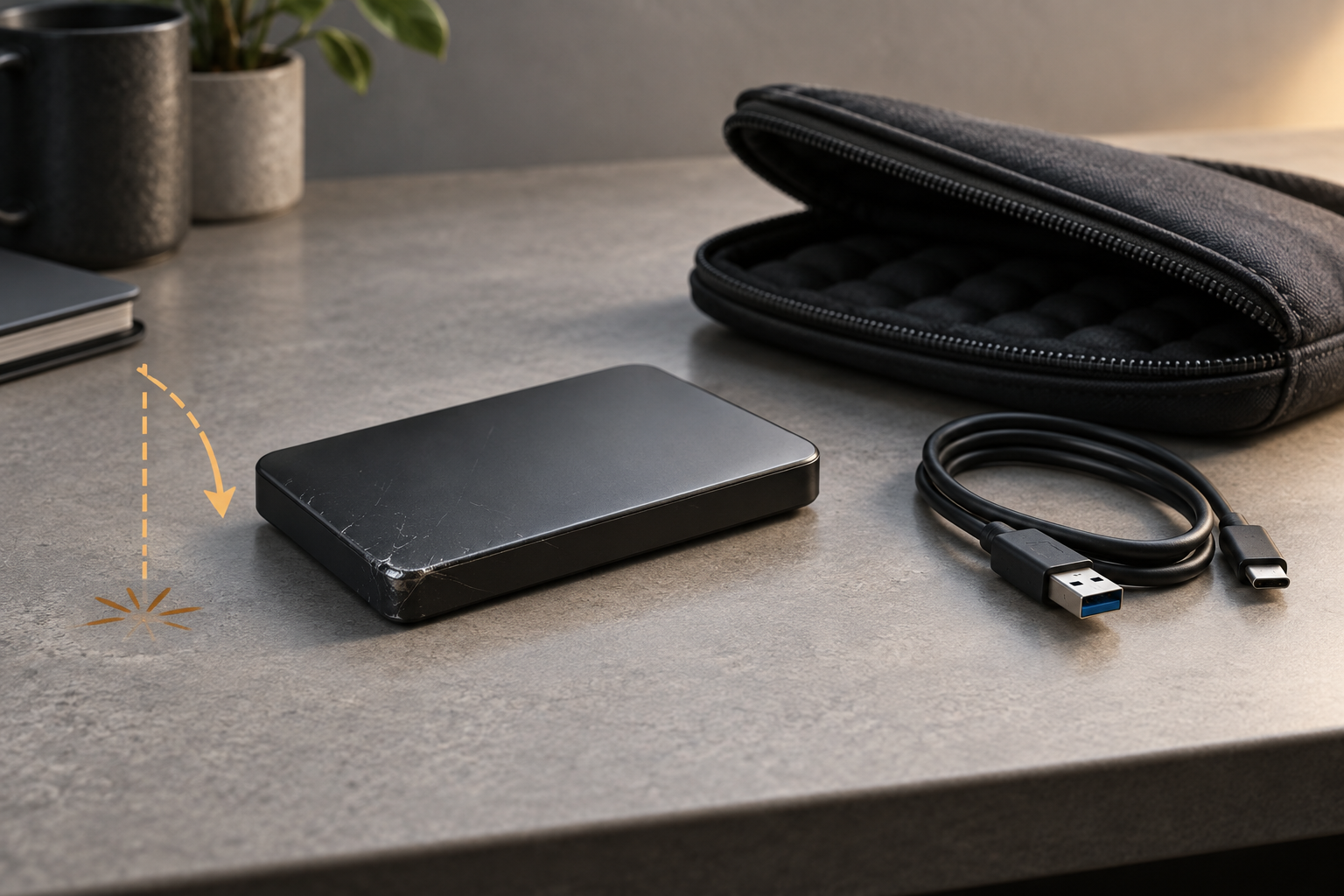

External Hard Drive Clicking After a Drop: Stop and Protect Data
Read more →: External Hard Drive Clicking After a Drop: Stop and Protect DataPower off a clicking drive immediately after a drop. Do not open the enclosure, run repair commands, or repeat scans; impact can cause mechanical contact and every spin-up may increase damage. For irreplaceable data, use a professional recovery lab.
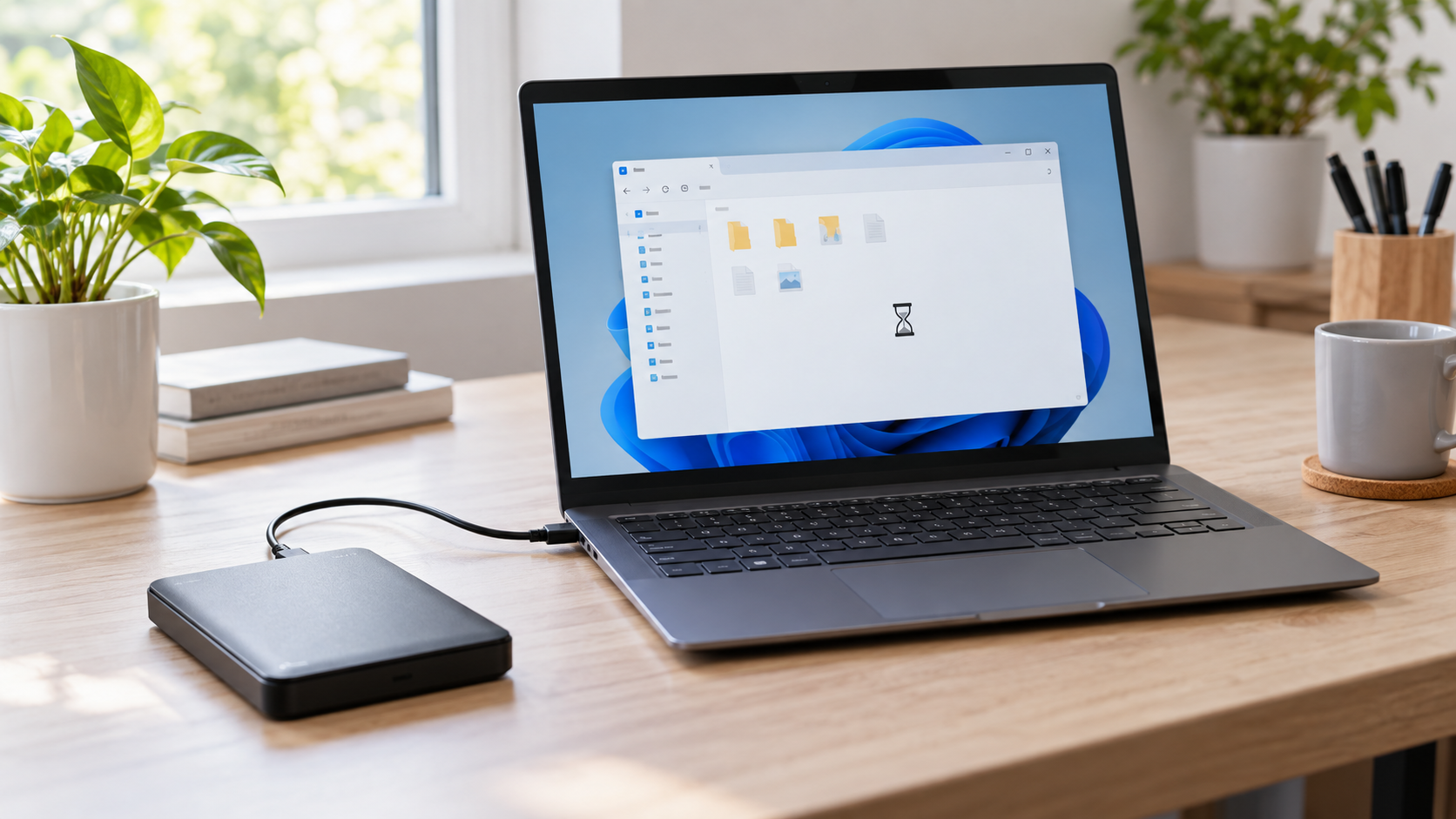

External Drive Freezes File Explorer: Safe Diagnosis and Recovery
Read more →: External Drive Freezes File Explorer: Safe Diagnosis and RecoveryIf File Explorer freezes when the drive is attached, stop opening folders repeatedly. Check whether Disk Management responds and whether the correct capacity is shown. Test one cable and direct port; if the drive disconnects, clicks, overheats, or stalls every read, stop and protect the source.
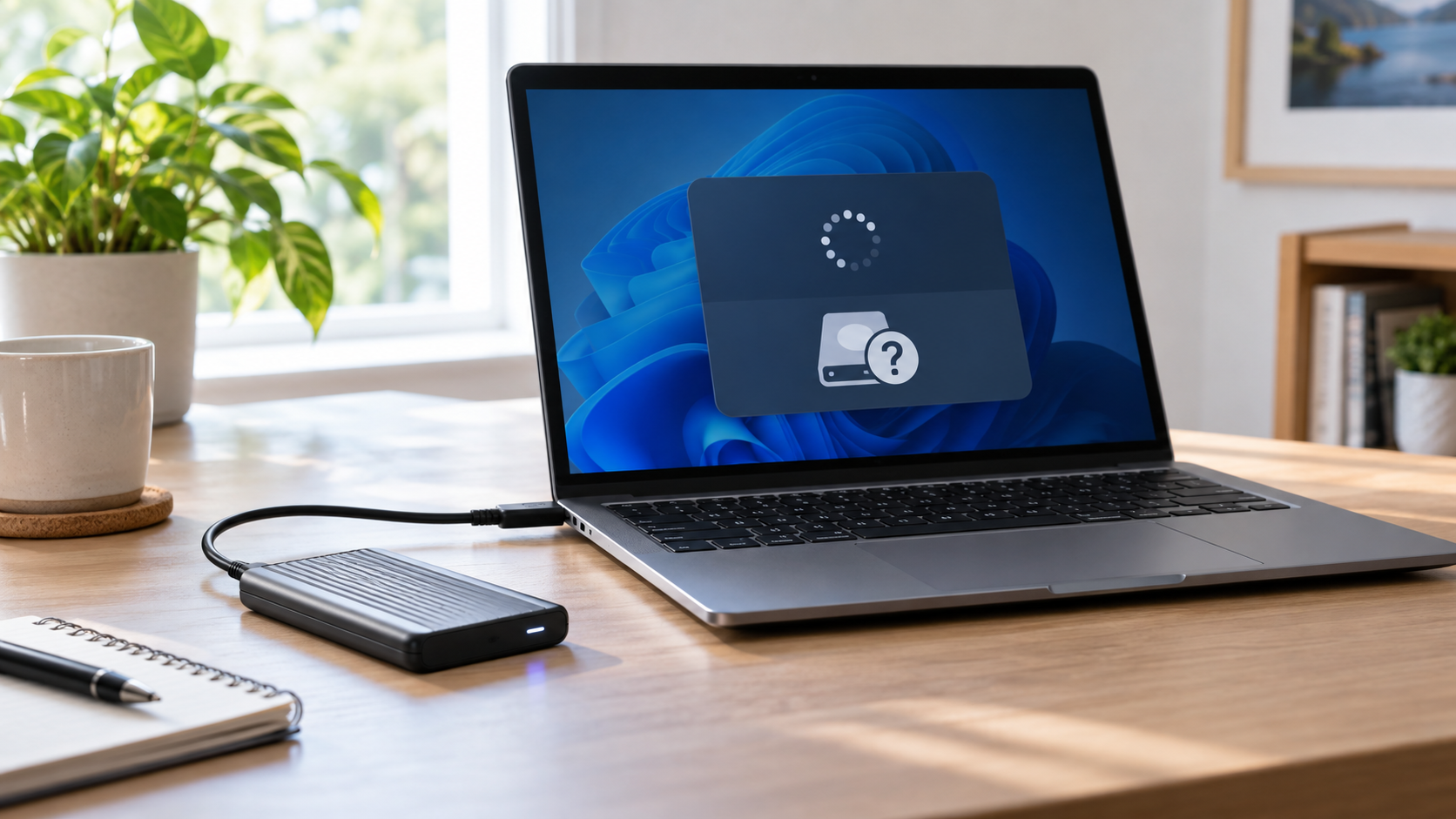
SSD Disappeared After Windows Update: Safe Checks First
Read more →: SSD Disappeared After Windows Update: Safe Checks FirstRestart once, check BIOS or UEFI and Disk Management, and review the storage-controller driver before initializing anything. If the SSD appears with the expected capacity, back up or recover files first. Do not create a new partition merely because Explorer no longer lists the drive.
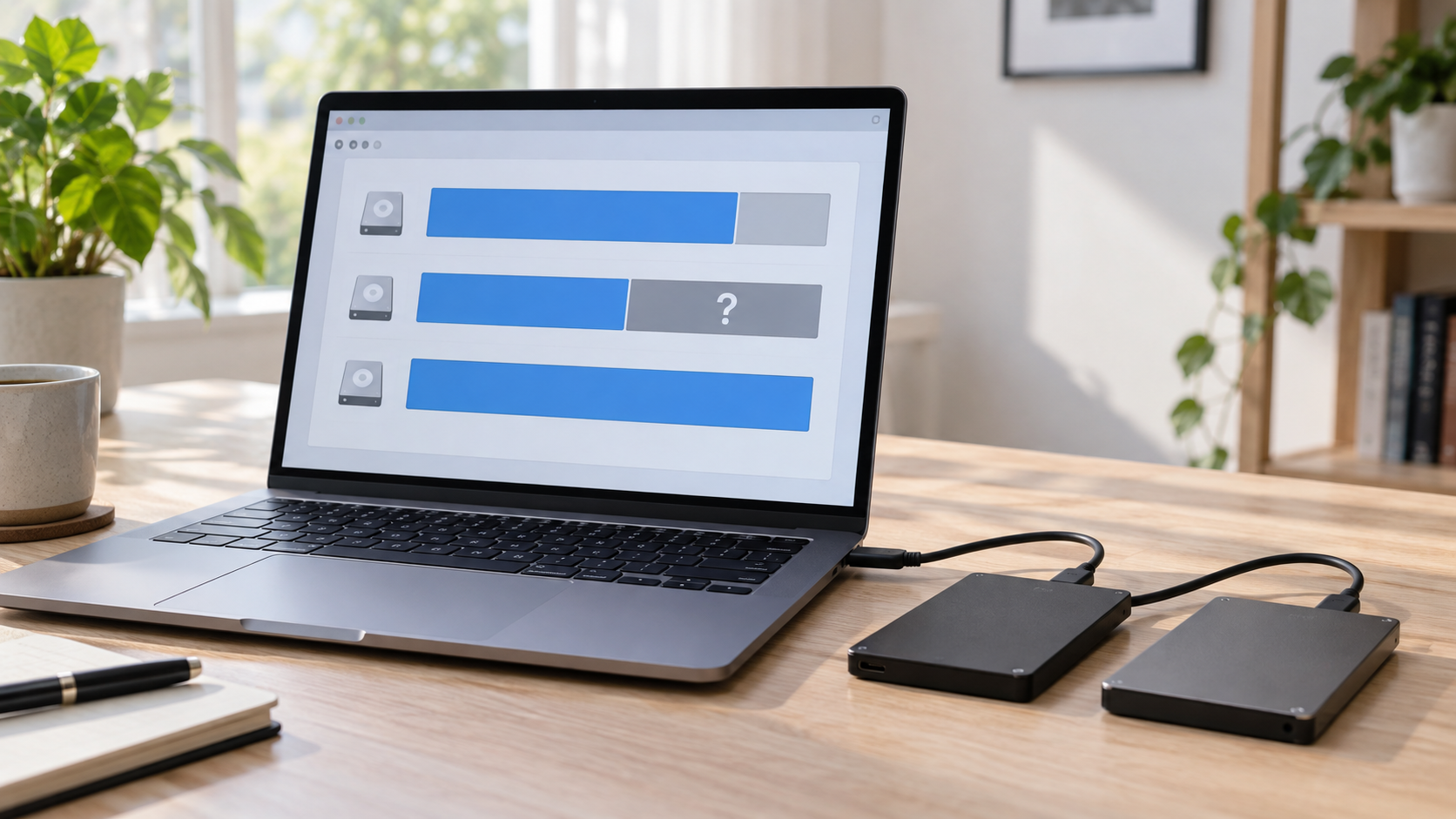
Cloned Drive Shows Unallocated Space: Recover and Repair Safely
Read more →: Cloned Drive Shows Unallocated Space: Recover and Repair SafelyCompare the source and clone by model, capacity, partition style, and file-system state before extending or formatting anything. If expected partitions or files are missing, recover from the untouched source or clone first. Modify only a verified copy after recovery.
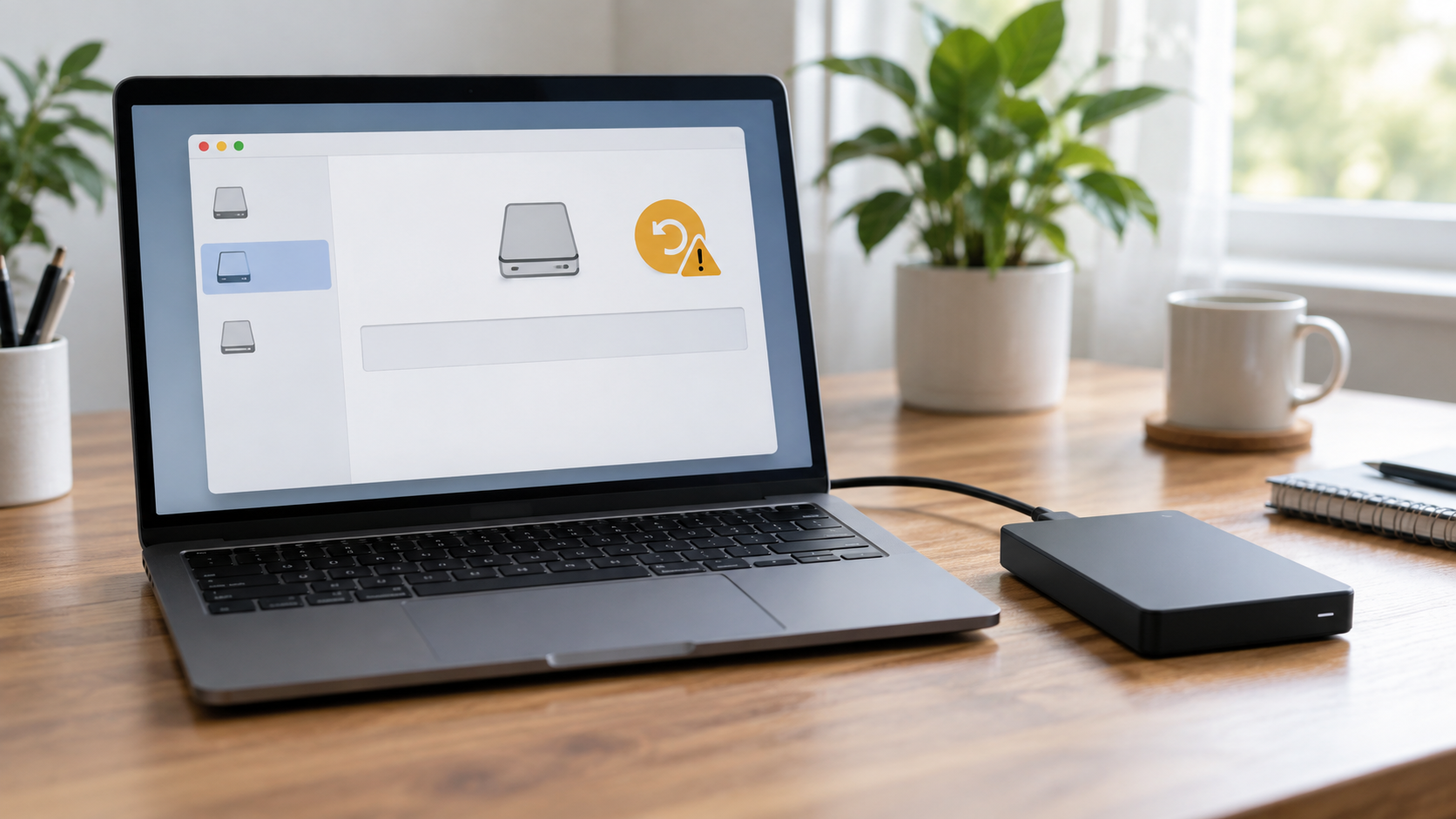
Recover Files After DiskPart Clean: What to Do First
Read more →: Recover Files After DiskPart Clean: What to Do FirstStop using the cleaned disk immediately. DiskPart clean usually removes partition metadata rather than overwriting every file, but creating volumes or formatting can overwrite recoverable structures. Scan the correct physical disk read-only and save recovered files to a different disk.
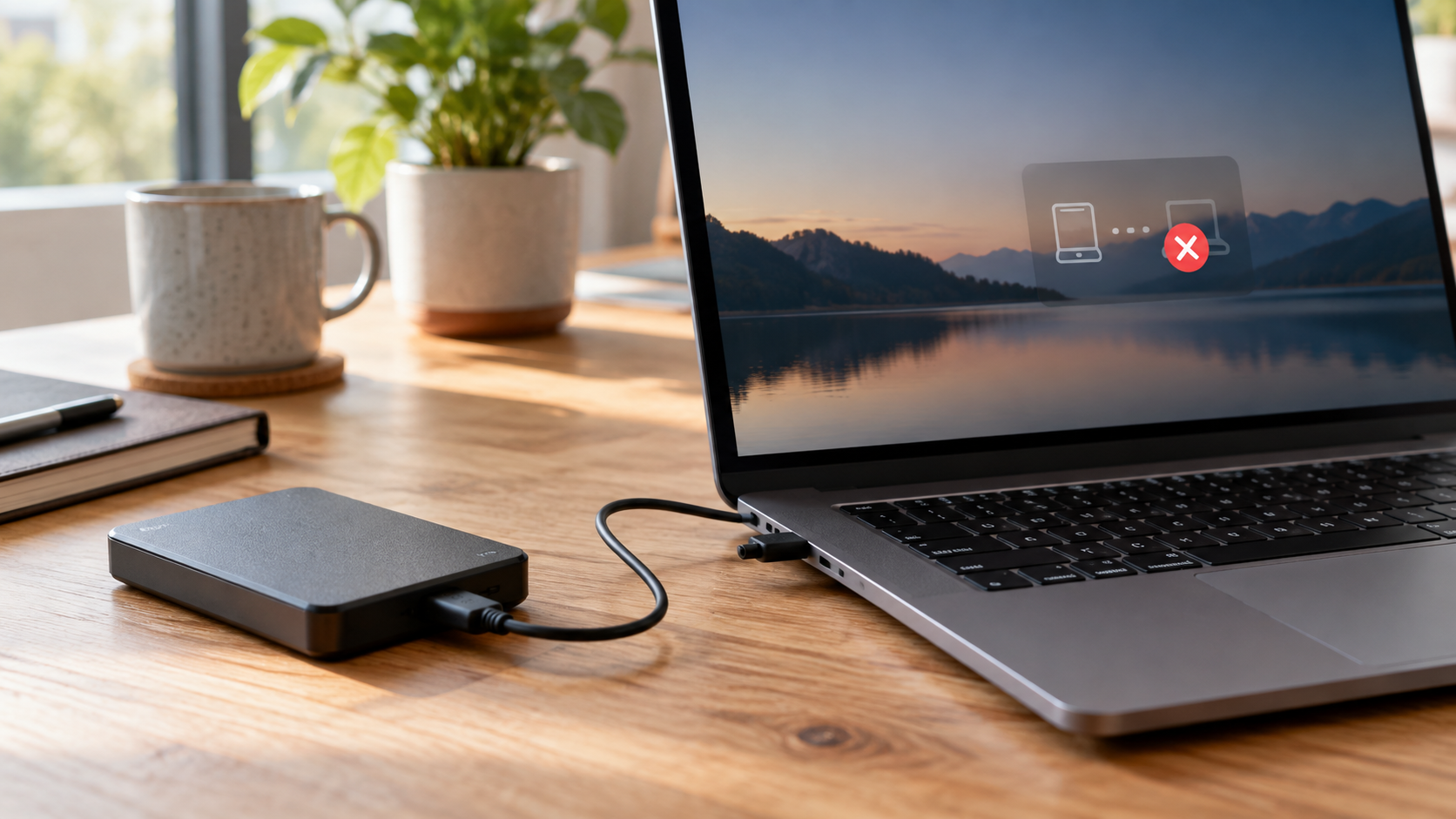
External Hard Drive Keeps Disconnecting: Safe Troubleshooting
Read more →: External Hard Drive Keeps Disconnecting: Safe TroubleshootingRepeated disconnects can come from a bad cable, insufficient USB power, enclosure failure, overheating, or a degrading drive. Stop large transfers, use a short known-good cable and direct powered port, and prioritize a verified backup or image.
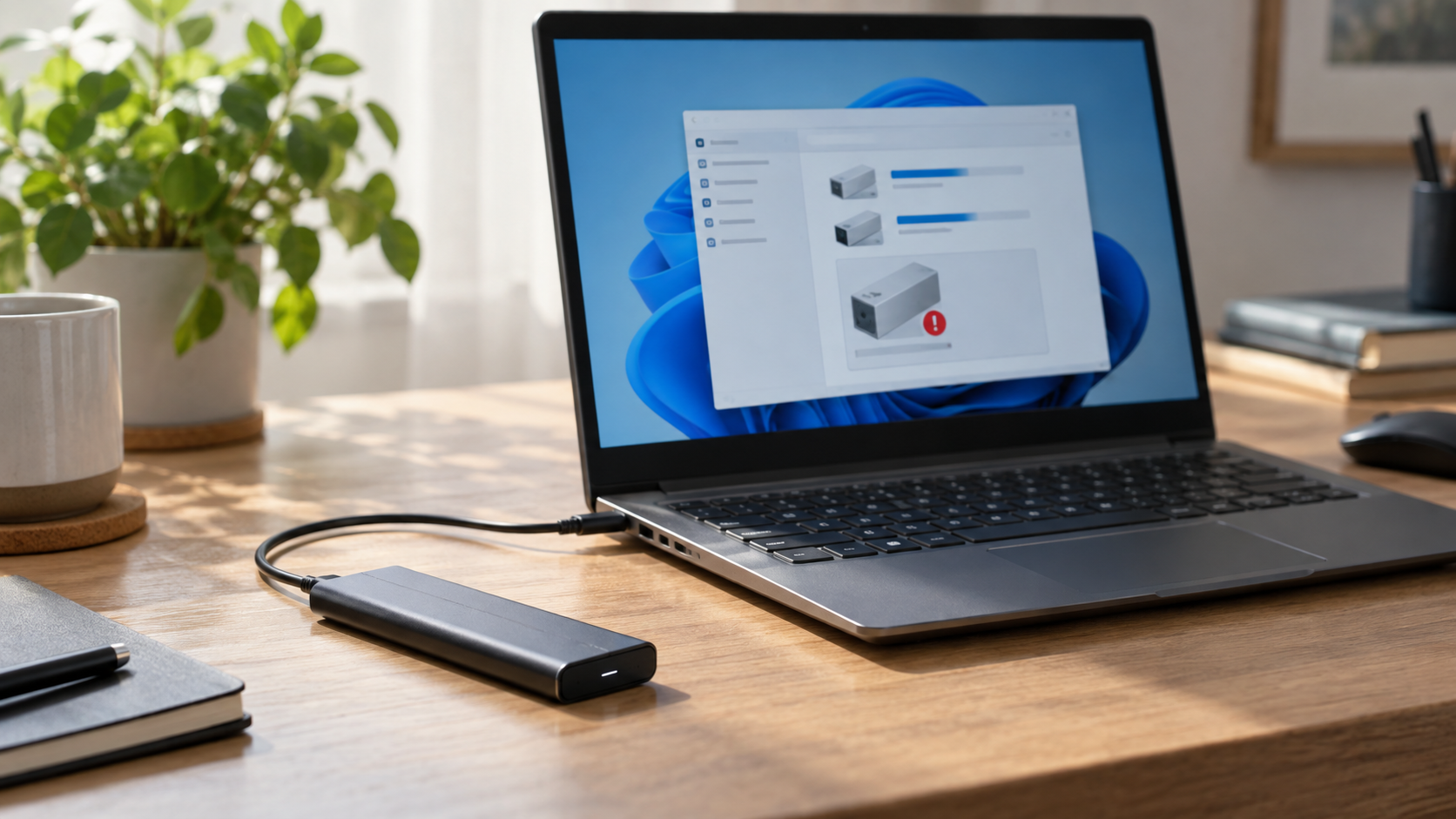
Disk Unknown, Not Initialized: Recover Before Initializing
Read more →: Disk Unknown, Not Initialized: Recover Before InitializingDo not initialize a previously used disk just because Windows labels it Unknown or Not Initialized. Initialization writes partition metadata. Confirm the physical model and capacity, test the connection, and recover or image the disk before creating GPT or MBR structures.
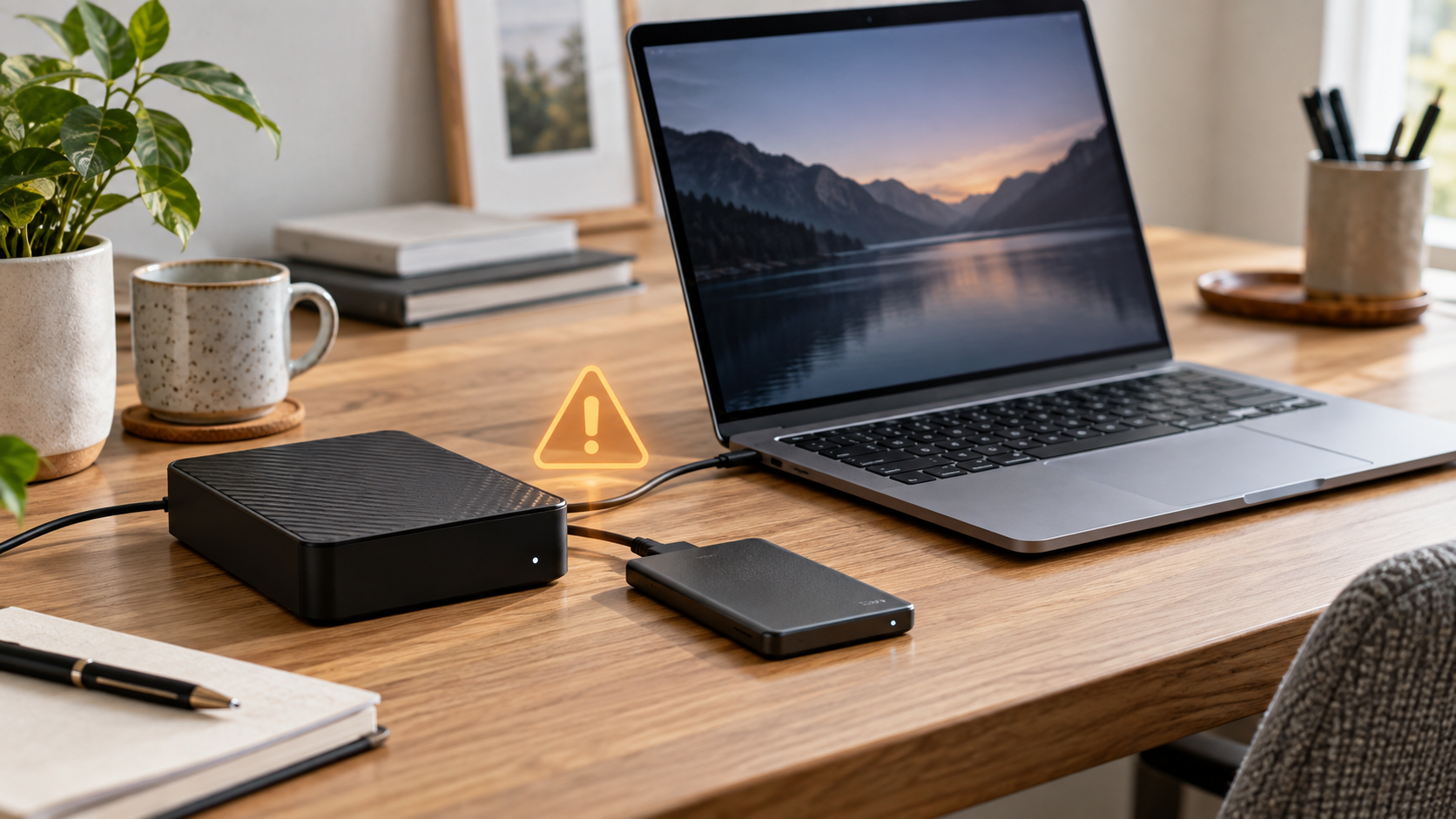
SMART Status Bad: Back Up and Recover Before Failure
Read more →: SMART Status Bad: Back Up and Recover Before FailureA bad SMART status is a warning to minimize use, not a prompt to repair the source. Copy the most valuable readable files first or make a sector image to another disk. Stop if the drive clicks, disconnects, overheats, or slows sharply.
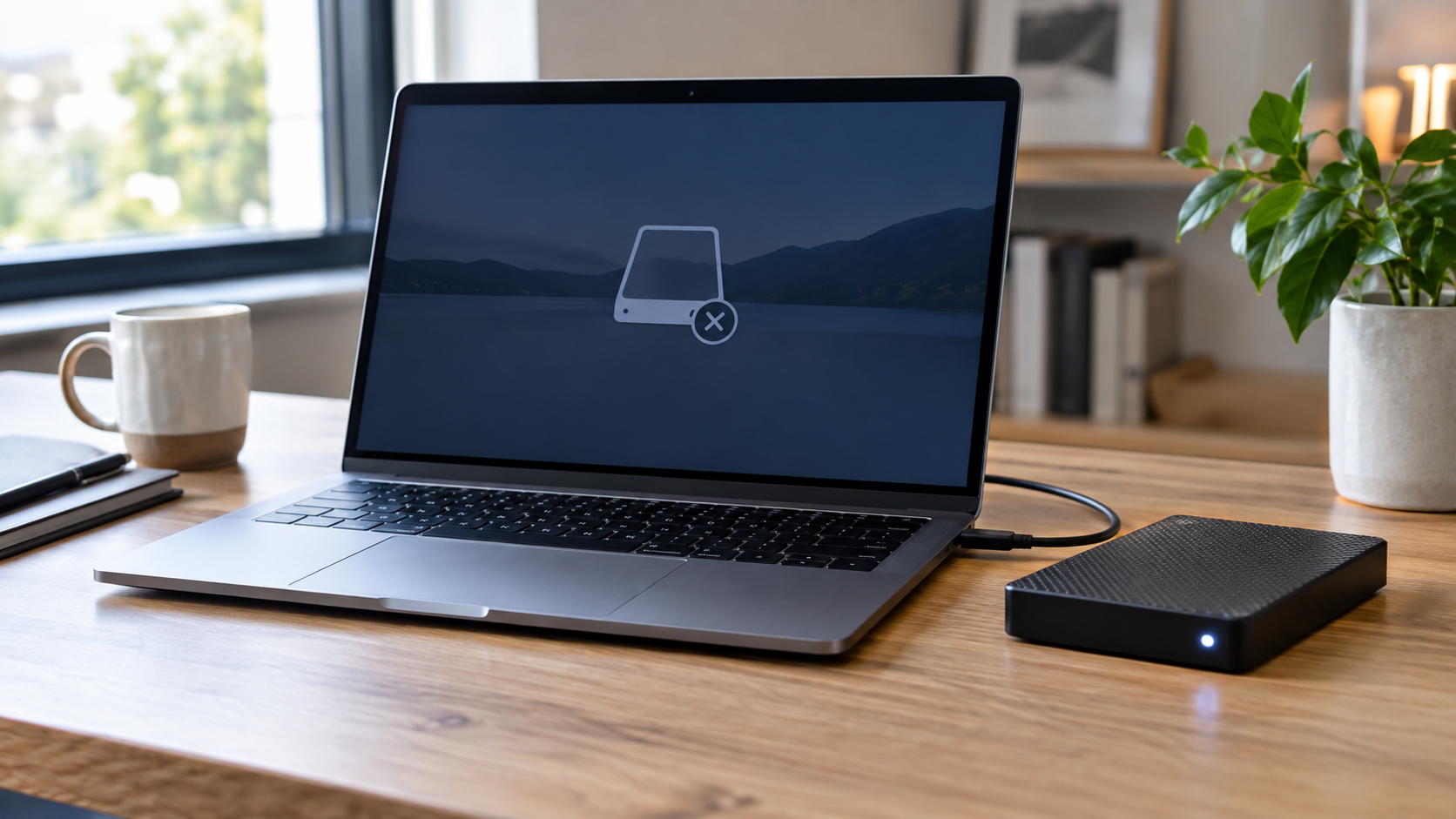
Hard Drive Spins but Is Not Detected: Safe Diagnosis
Read more →: Hard Drive Spins but Is Not Detected: Safe DiagnosisSpinning only proves that power reaches the drive; it does not confirm readable heads, firmware, bridge electronics, or stable media. Test power, cable, enclosure, and another computer once. Stop if it clicks, repeats spin-up, or reports the wrong capacity.
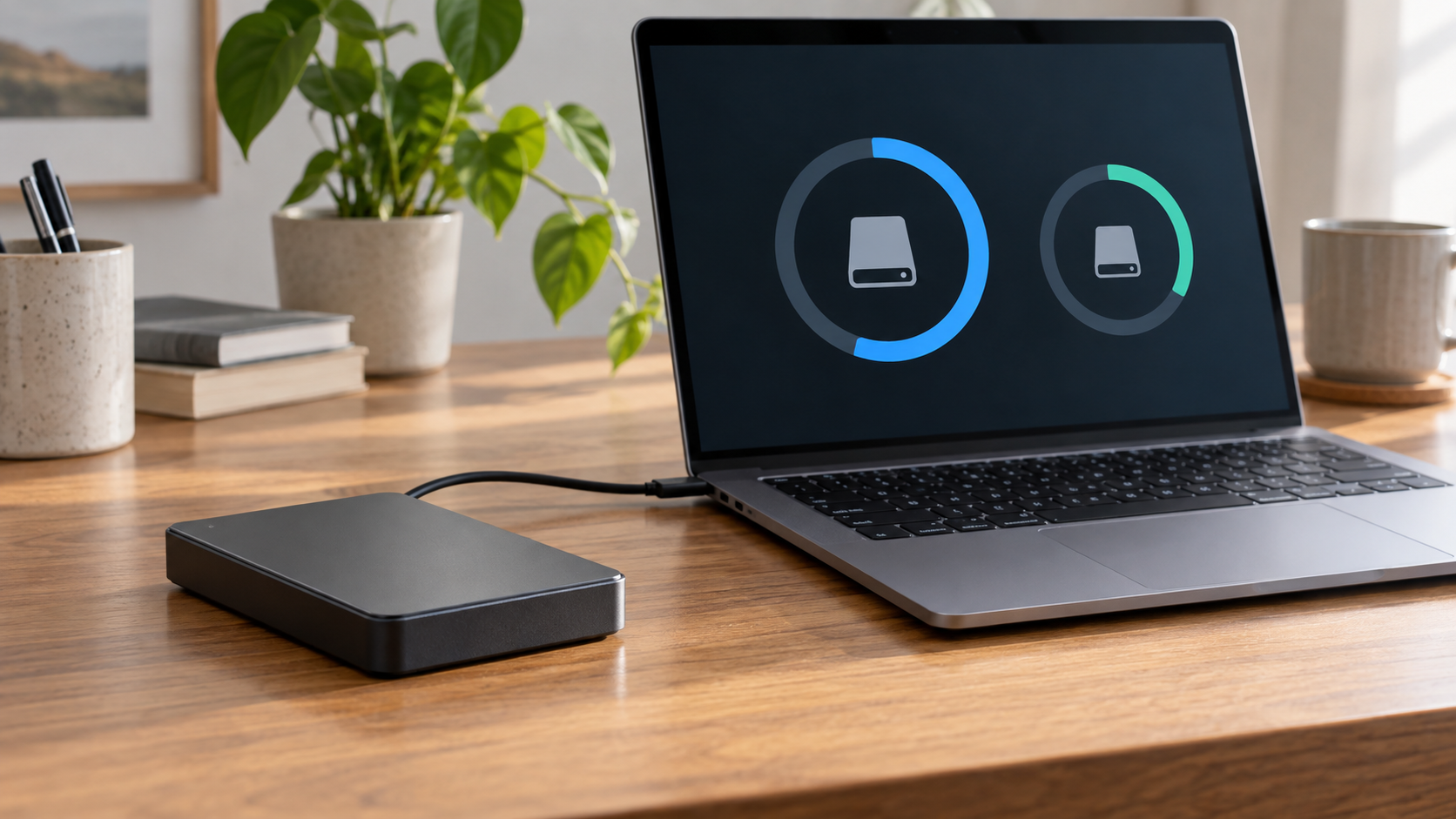
External Hard Drive Shows Wrong Capacity: Protect Files First
Read more →: External Hard Drive Shows Wrong Capacity: Protect Files FirstWrong capacity can indicate a partition-layout problem, enclosure limit, counterfeit flash memory, firmware fault, or failing hardware. Do not resize, initialize, or format the disk. Verify its model in another enclosure and preserve files or a sector image first.




Copyright © 2025 PandaOffice. All Rights Reserved. The order process, tax issue, and invoicing to end users are conducted by PandaOffice Limited.