






File Recovery
Pandaoffice Drecov is the best files recovery software to restore deleted, formatted, or corrupted data from HDDs, SSDs, USB drives, and SD cards with deep scanning, preview support, and secure recovery performance.
TOP 4 Hot Articles
Top 4 hot articles will provide you reliable solutions to find crucial data with Drecov software.
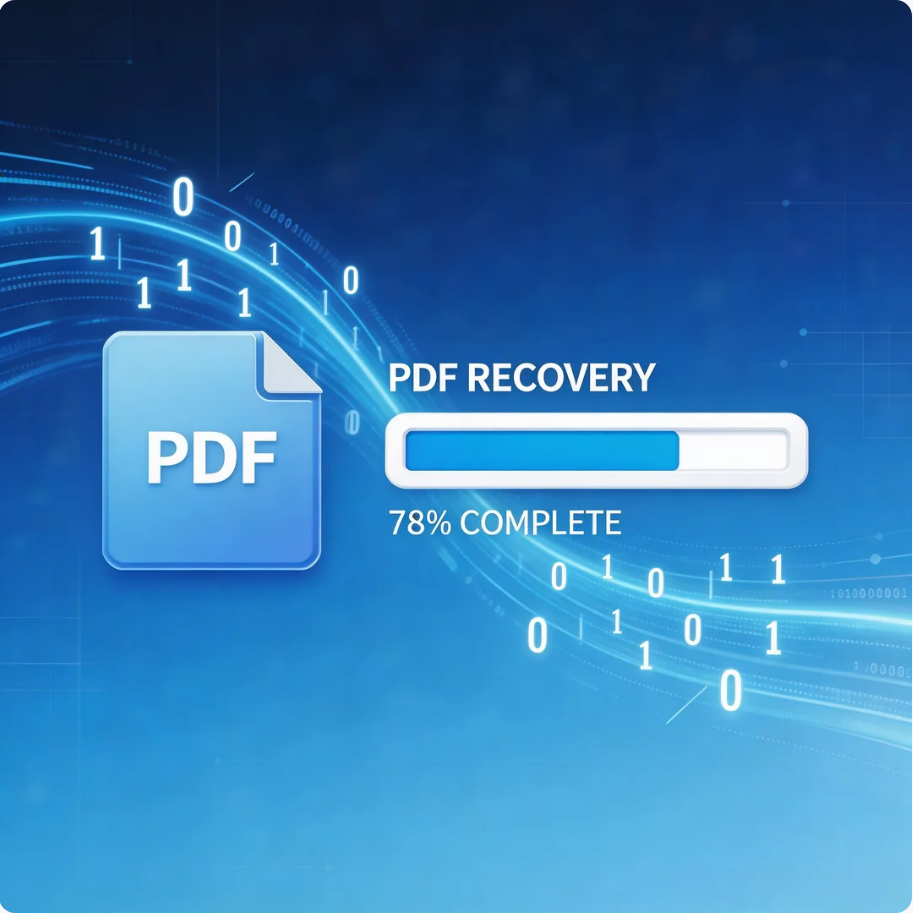

Comprehensive Guide to PDF File Recovery
This guide explains PDF file recovery methods for Windows PC, including built-in tools, backups, cloud storage, and professional software like Pandaoffice Drecov to safely restore lost or corrupted PDF files.
Find a solution that suits your case
Here are file recovery guidelines for all types of files. Just choose the most suitable situation for you to retrieve your data


PowerPoint Found a Problem With Content: Recovery Steps
Read more →: PowerPoint Found a Problem With Content: Recovery StepsDo not approve repairs on the only PPTX. Duplicate the presentation, unblock the copy if Windows marks it as downloaded, use PowerPoint repair and compare AutoRecover or cloud versions. Recover an earlier PPTX to another folder when needed, then verify slide order, notes, images, fonts and media before replacing the original.
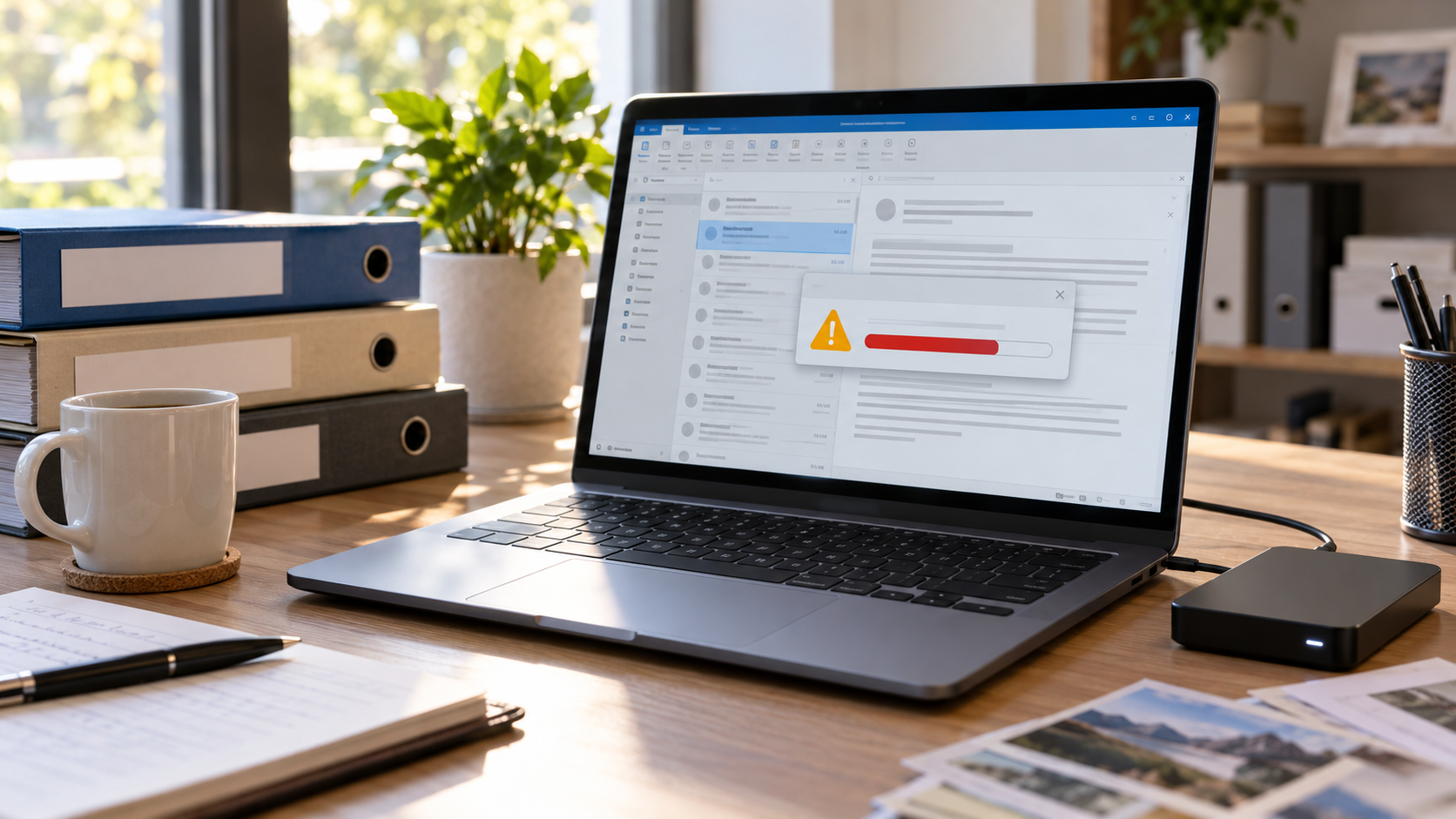
Outlook PST Reached Its Size Limit: Protect and Recover Mail
Read more →: Outlook PST Reached Its Size Limit: Protect and Recover MailStop importing and sending mail to the affected PST. Copy the data file, confirm its size and free disk space, then use Outlook cleanup or archive only after a verified backup exists. Check server mail and backups first; repair a copy with SCANPST and recover an earlier PST elsewhere if folders or messages are missing.
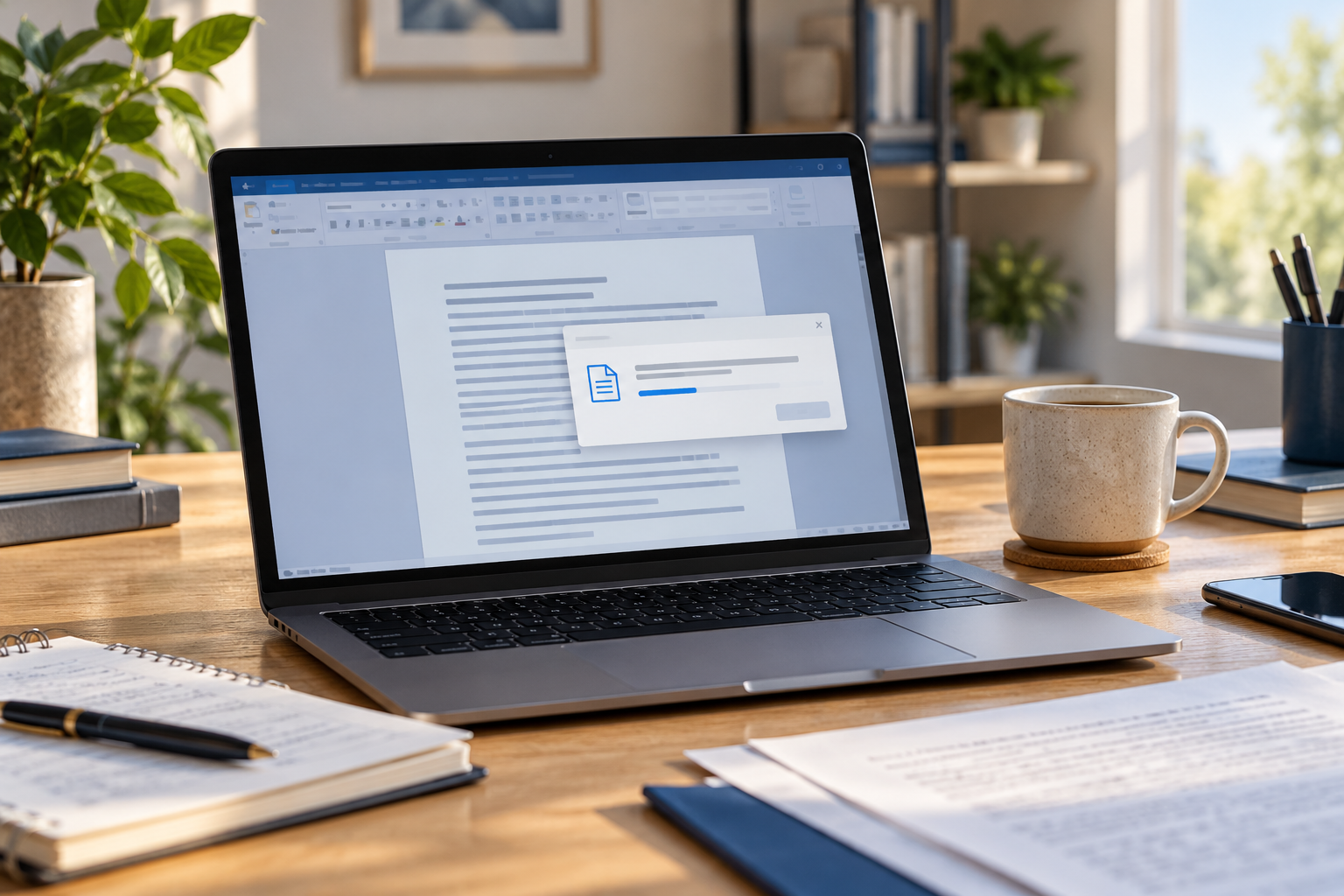

Word Says It Found Unreadable Content: Recover Safely
Read more →: Word Says It Found Unreadable Content: Recover SafelyStop repeated repair attempts and keep the original unchanged. Duplicate the DOCX, try Word’s Open and Repair on the copy, then Recover Text, version history and Previous Versions. If the file itself is missing or truncated, scan the stable source read-only and recover candidates to another folder before verifying text, tables, images and comments.

Excel File Overwritten by a Sync Conflict: Restore a Version
Read more →: Excel File Overwritten by a Sync Conflict: Restore a VersionPause synchronization and preserve the current workbook plus every conflicted copy. Use cloud version history, Excel AutoRecover and Windows Previous Versions before scanning the disk. Restore each candidate under a new name, then verify formulas, links, charts, macros and hidden sheets before replacing anything.

PowerPoint Linked Images Missing After Moving the File
Read more →: PowerPoint Linked Images Missing After Moving the FileDo not resave over the only presentation. Copy the PPTX and its asset folders together, inspect the original link paths, and compare version history or backups. Recover missing source images to a separate folder, relink a copy of the presentation, and verify every slide in Slide Show view.
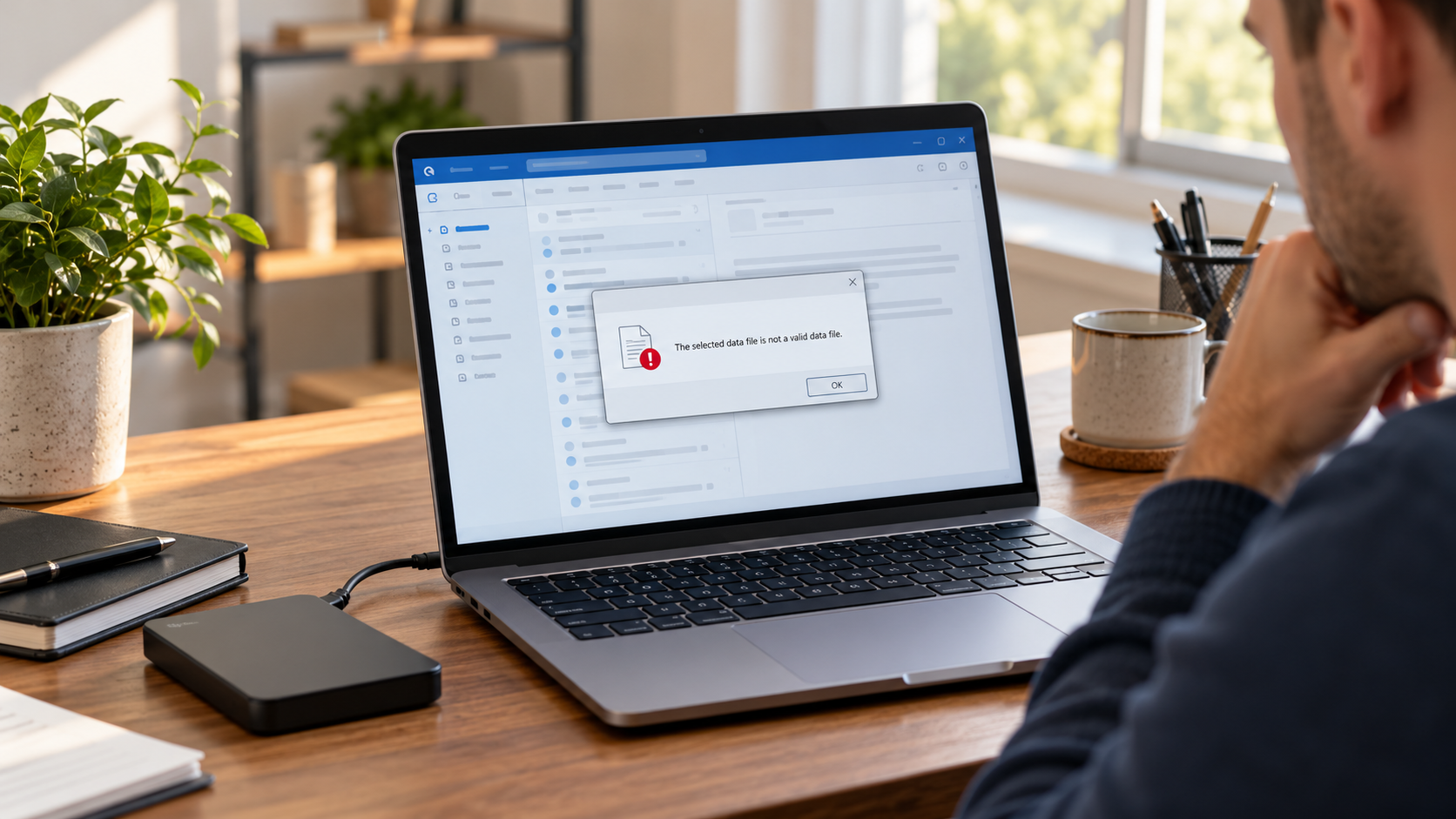
Outlook Says the PST Is Not an Outlook Data File
Read more →: Outlook Says the PST Is Not an Outlook Data FileDo not run repair against the only PST. Confirm that the file is a PST rather than an OST, copy it, record its size, and use SCANPST only on the copy. Check backups and Previous Versions, recover a missing earlier PST to another disk, then open the repaired copy in a separate Outlook profile.

Files Missing After Quick Format on Windows: Recovery Steps
Read more →: Files Missing After Quick Format on Windows: Recovery StepsFiles Missing After Quick Format on Windows: Recovery Steps. Safe checks, free Windows methods and Drecov steps help protect the original.

Outlook OST Missing After Recreating a Profile: Safe Checks
Read more →: Outlook OST Missing After Recreating a Profile: Safe ChecksOutlook OST Missing After Recreating a Profile: Safe Checks. Safe checks, free Windows methods and Drecov steps help protect the original.
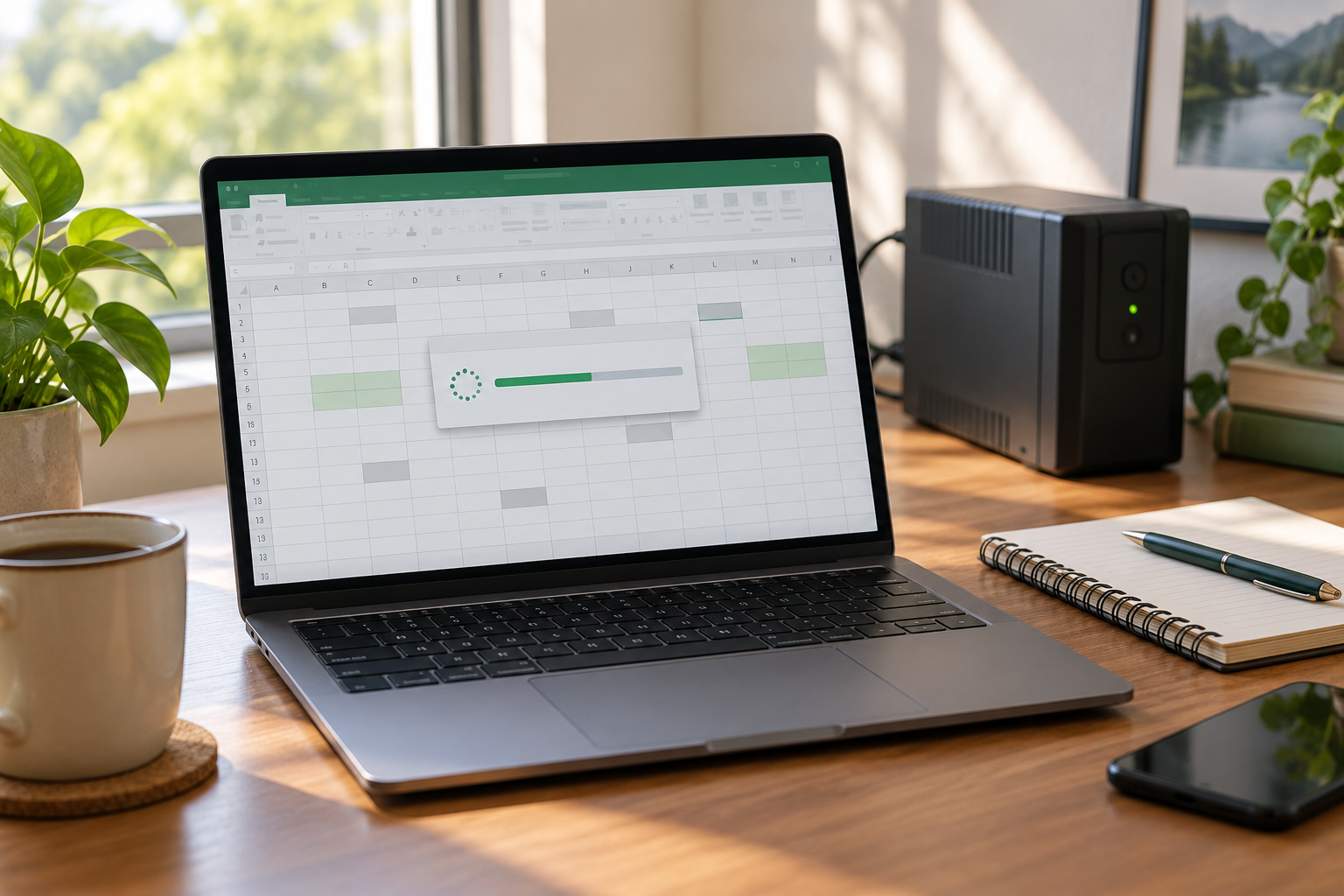
Excel File Corrupted After a Power Outage: Recover It Safely
Read more →: Excel File Corrupted After a Power Outage: Recover It SafelyExcel File Corrupted After a Power Outage: Recover It Safely. Safe checks, free Windows methods and Drecov steps help protect the original.

PowerPoint Opens With Missing Slides: Recovery Steps
Read more →: PowerPoint Opens With Missing Slides: Recovery StepsPowerPoint Opens With Missing Slides: Recovery Steps. Safe checks, free Windows methods and Drecov steps help protect the original.




Copyright © 2025 PandaOffice. All Rights Reserved. The order process, tax issue, and invoicing to end users are conducted by PandaOffice Limited.