






File Recovery
Pandaoffice Drecov is the best files recovery software to restore deleted, formatted, or corrupted data from HDDs, SSDs, USB drives, and SD cards with deep scanning, preview support, and secure recovery performance.
TOP 4 Hot Articles
Top 4 hot articles will provide you reliable solutions to find crucial data with Drecov software.
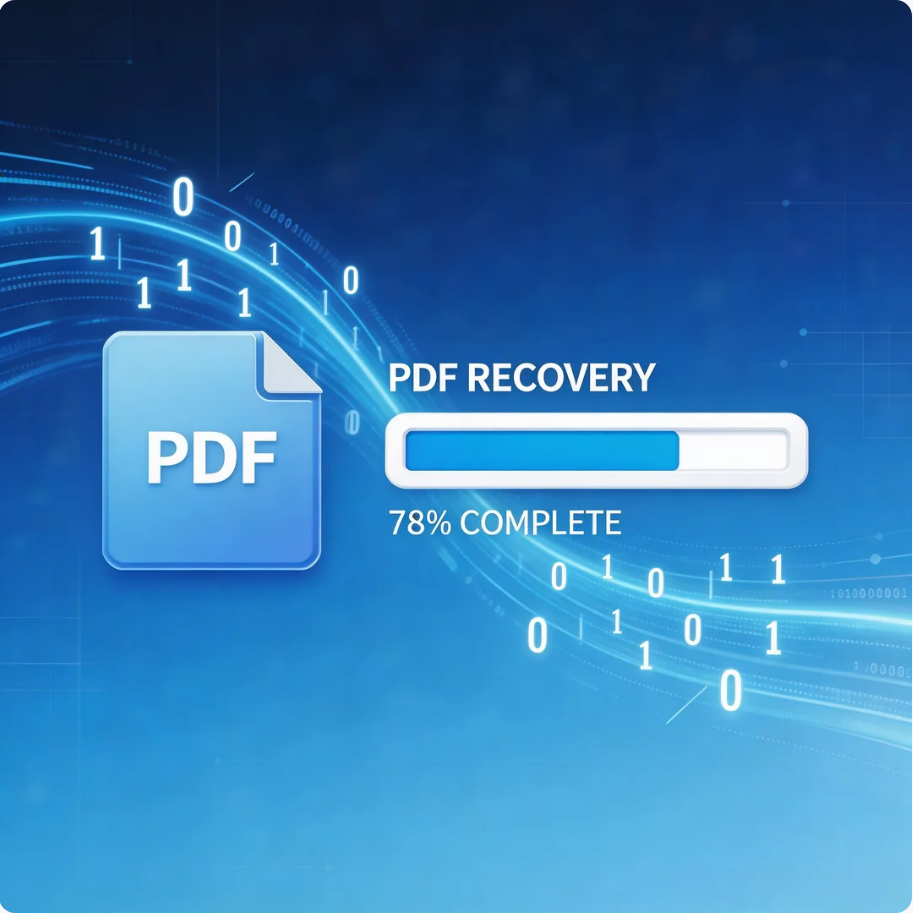

Comprehensive Guide to PDF File Recovery
This guide explains PDF file recovery methods for Windows PC, including built-in tools, backups, cloud storage, and professional software like Pandaoffice Drecov to safely restore lost or corrupted PDF files.
Find a solution that suits your case
Here are file recovery guidelines for all types of files. Just choose the most suitable situation for you to retrieve your data


EFS Files After Windows Reinstall: Recover Access
Read more →: EFS Files After Windows Reinstall: Recover AccessIdentify EFS encryption, locate a legitimate certificate and private key or recovery agent, preserve the original profile, and avoid confusing file recovery with decryption.

Open Word ASD and WBK Files: Recover Your Document
Read more →: Open Word ASD and WBK Files: Recover Your DocumentFind Word AutoRecover and backup copies, distinguish ASD from WBK, open candidates safely, and verify the recovered document before replacing the original.

Excel Removed Records: Recover Missing Formulas and Sheets
Read more →: Excel Removed Records: Recover Missing Formulas and SheetsRead Excel’s repair log, identify missing formulas or worksheet content, restore a healthier workbook, and validate calculations before using repaired data.

PowerPoint Cannot Play Media: Recover Missing Videos
Read more →: PowerPoint Cannot Play Media: Recover Missing VideosDetermine whether a PowerPoint video is embedded, linked, missing, or incompatible; preserve originals and recover a working presentation without losing media.

Outlook Lost and Found After SCANPST: Recover Mail
Read more →: Outlook Lost and Found After SCANPST: Recover MailPreserve the original PST and SCANPST backup, inspect Lost and Found, copy recovered items to a new archive, and check missing messages and attachments.
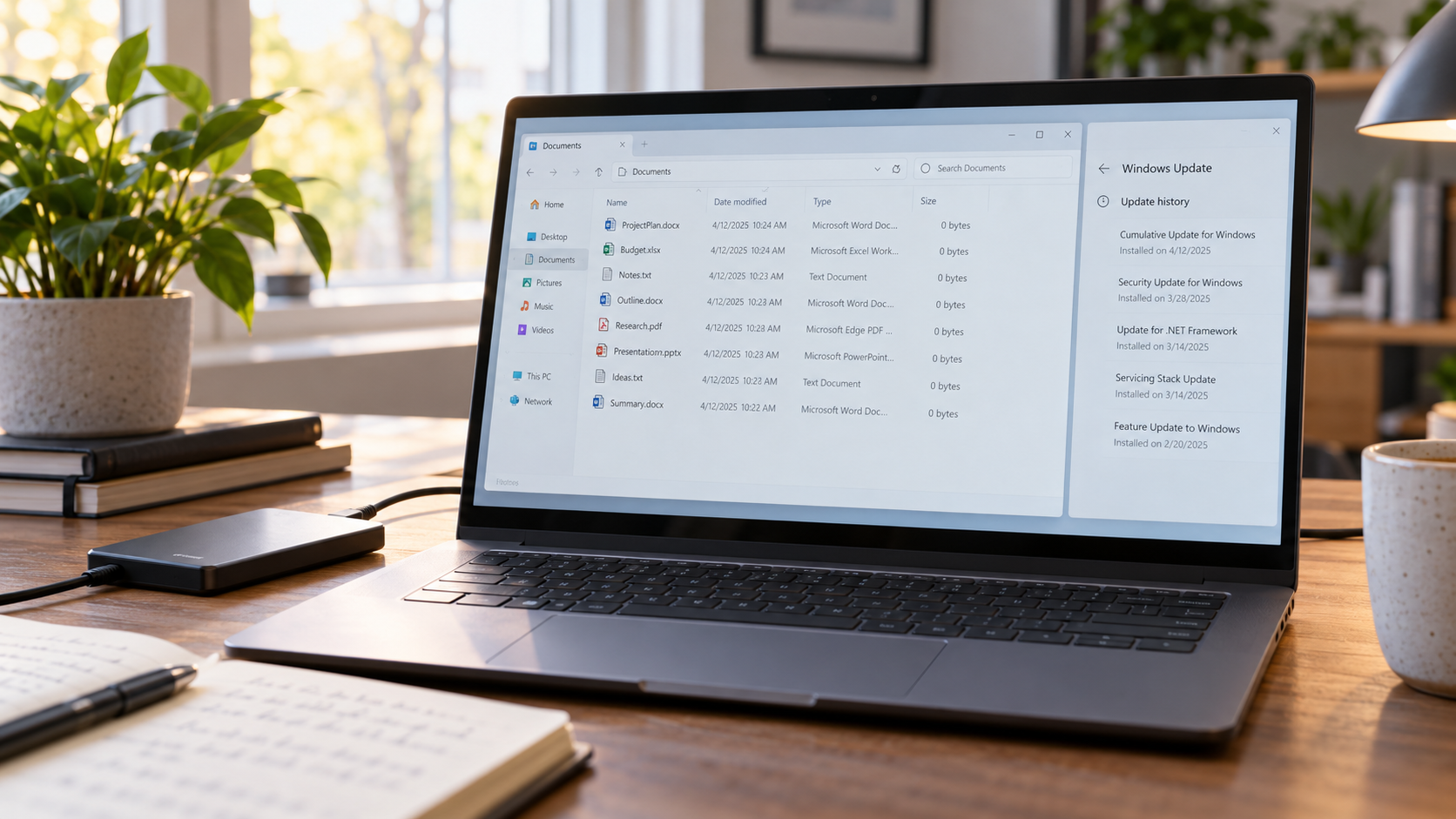

Files Show 0 Bytes After a Windows Update: Recovery Steps
Read more →: Files Show 0 Bytes After a Windows Update: Recovery StepsDo not open and resave zero-byte files or continue downloading to the affected drive. Compare file paths, timestamps and copies in Windows.old, another user profile, cloud version history, File History and backups. If valid copies are absent, scan the stable source read-only and recover earlier versions to another physical disk.

PowerPoint Found a Problem With Content: Recovery Steps
Read more →: PowerPoint Found a Problem With Content: Recovery StepsDo not approve repairs on the only PPTX. Duplicate the presentation, unblock the copy if Windows marks it as downloaded, use PowerPoint repair and compare AutoRecover or cloud versions. Recover an earlier PPTX to another folder when needed, then verify slide order, notes, images, fonts and media before replacing the original.
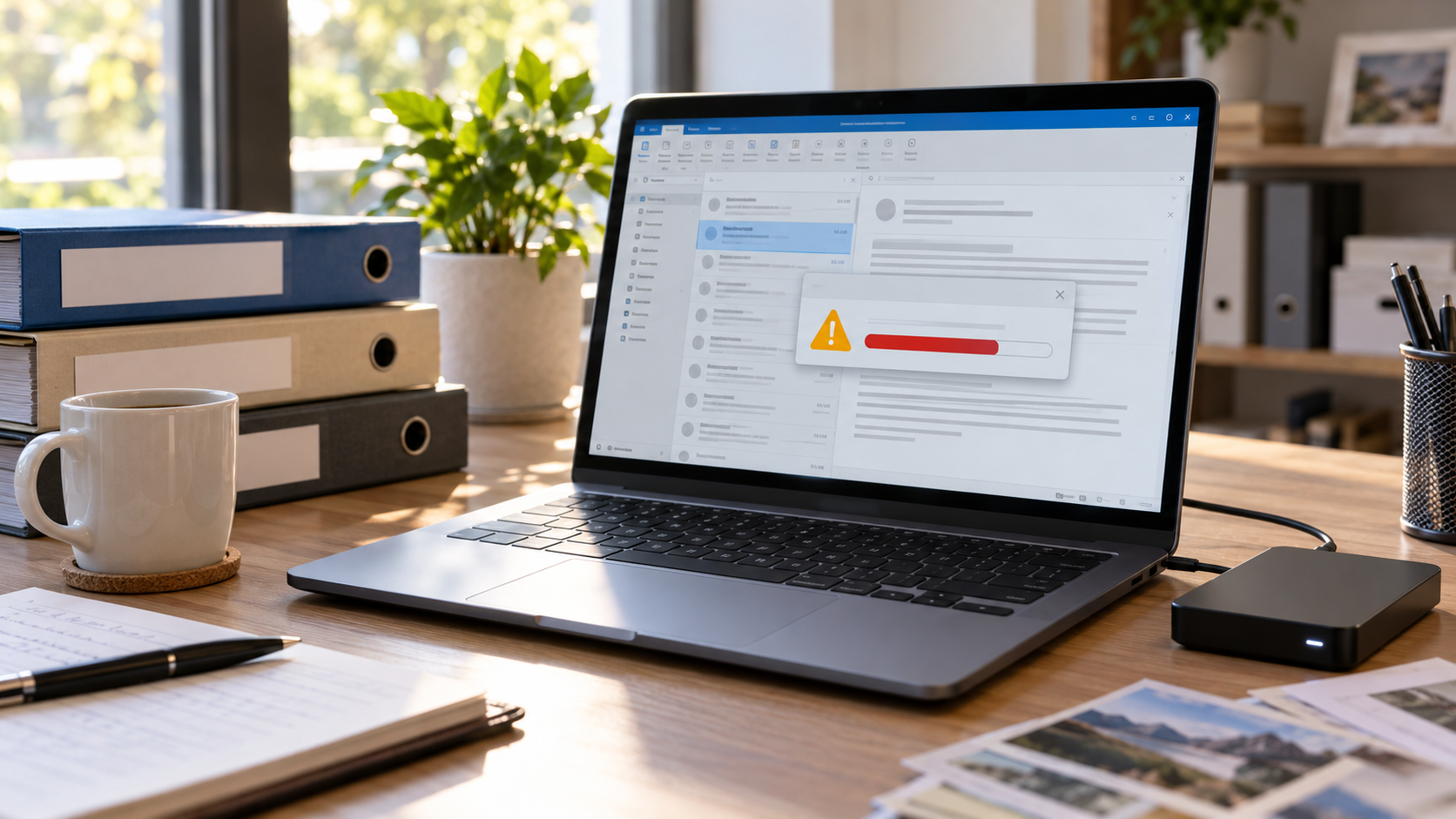
Outlook PST Reached Its Size Limit: Protect and Recover Mail
Read more →: Outlook PST Reached Its Size Limit: Protect and Recover MailStop importing and sending mail to the affected PST. Copy the data file, confirm its size and free disk space, then use Outlook cleanup or archive only after a verified backup exists. Check server mail and backups first; repair a copy with SCANPST and recover an earlier PST elsewhere if folders or messages are missing.
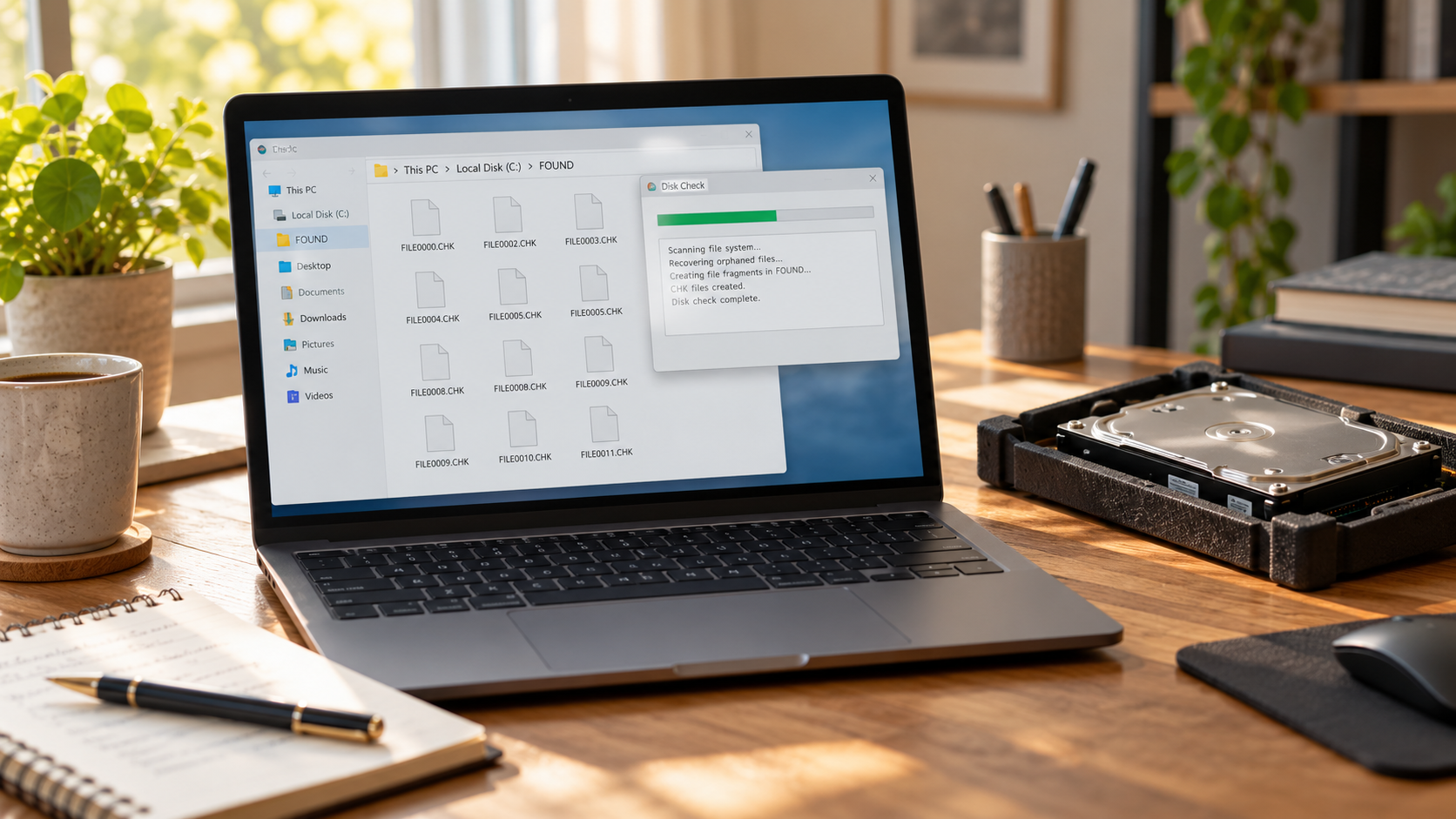
CHKDSK Created CHK Files: Recover the Original Files
Read more →: CHKDSK Created CHK Files: Recover the Original FilesDo not rename or delete the CHK files and do not run CHKDSK again. Copy FOUND.000 and the affected source, check File History and backups, then inspect CHK signatures on the copy. Recover original files from a disk image when possible and verify file type, content, dates and names before reorganizing them.
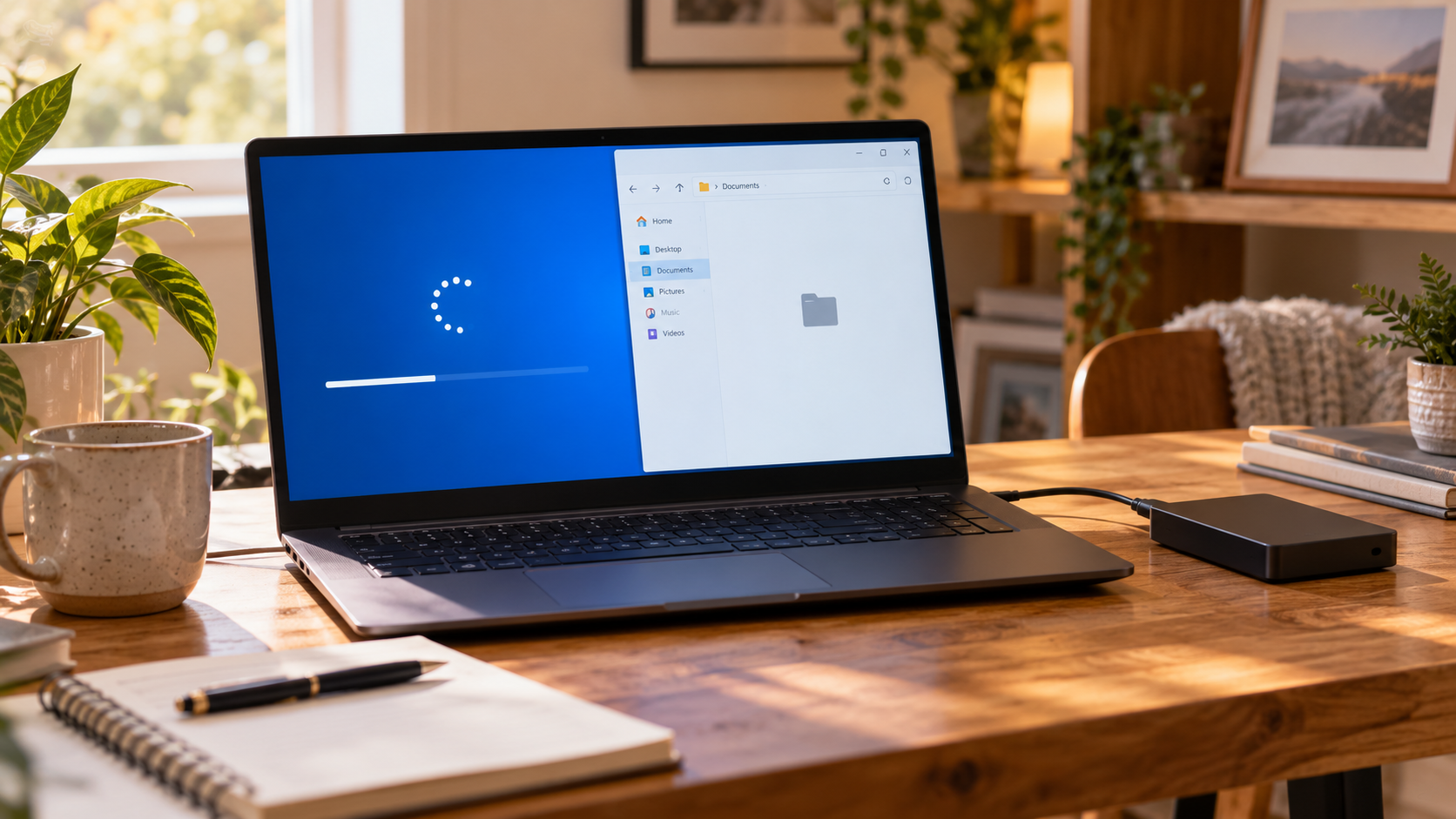
Files Missing After Windows Reset: Recovery Options
Read more →: Files Missing After Windows Reset: Recovery OptionsStop installing apps and downloading files to the affected drive. Check Windows.old, the correct user profile, cloud synchronization, File History and verified backups. If files are still missing, scan the affected volume from a healthy Windows environment and recover selected data to another physical disk before continuing setup.




Copyright © 2025 PandaOffice. All Rights Reserved. The order process, tax issue, and invoicing to end users are conducted by PandaOffice Limited.