






Recover SD Card Data in Common Loss Scenarios
Explore common data loss scenarios and learn when recovery software may help. Results depend on the condition of the card and whether data has been overwritten.

Accidental File Deletion
Accidentally deleting important files or mistakenly performing a ‘delete all’ operation is the most common cause of data loss.

Unexpected Formatting
Mistakenly formatting the SD card, or being forced to format it after the device prompts ‘needs formatting,’ resulting in all data being erased.

SD Card Damage
File system errors can make an SD card inaccessible. If the card is physically damaged or cannot be detected, consider a professional data recovery service.

Unexpected Power Off
A sudden power outage or accidental removal of the SD card during data transfer may cause file corruption or directory structure errors.

Virus Attack
Infection by viruses or malware may lead to files being hidden, encrypted, or deleted, resulting in data loss.

File System Errors
Errors in file systems such as FAT32 and exFAT cause damage to the file directory, making data inaccessible normally.
How to Recover Data from an SD Card
Stop using the SD card to avoid overwriting lost files. Do not format it or run repair tools before recovering important data. Save recovered files to a different drive.

Connect and Scan
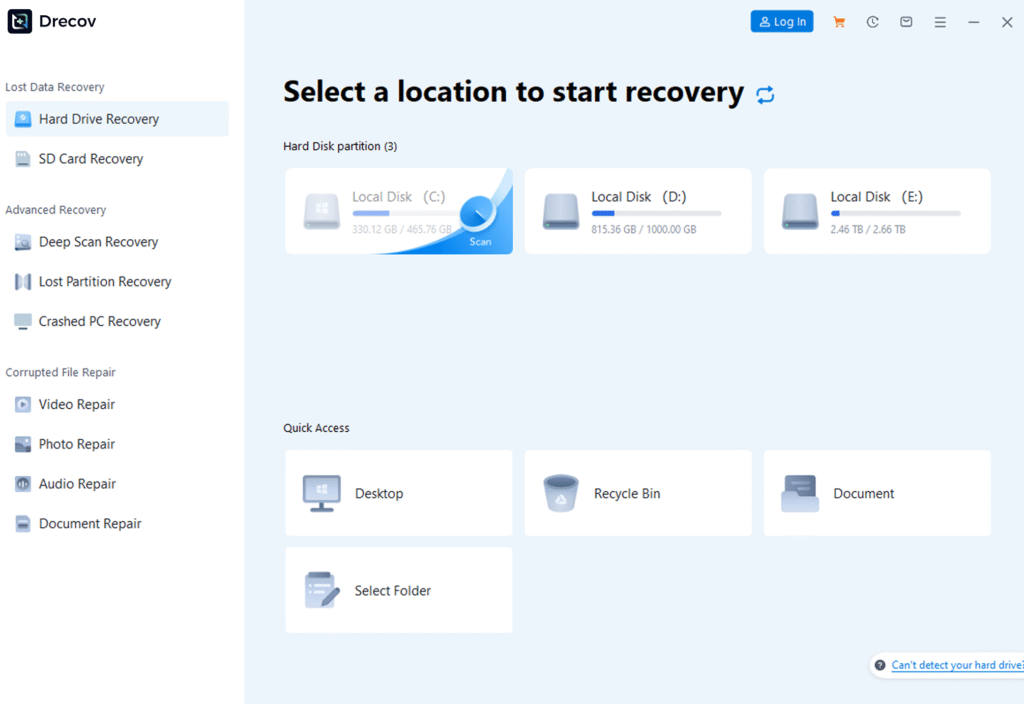
Connect the SD card requiring data recovery to your computer. Launch PandaOffice Drecov, select the SD Card Recovery mode, then choose your SD card to start the scan.

Preview and Select Files
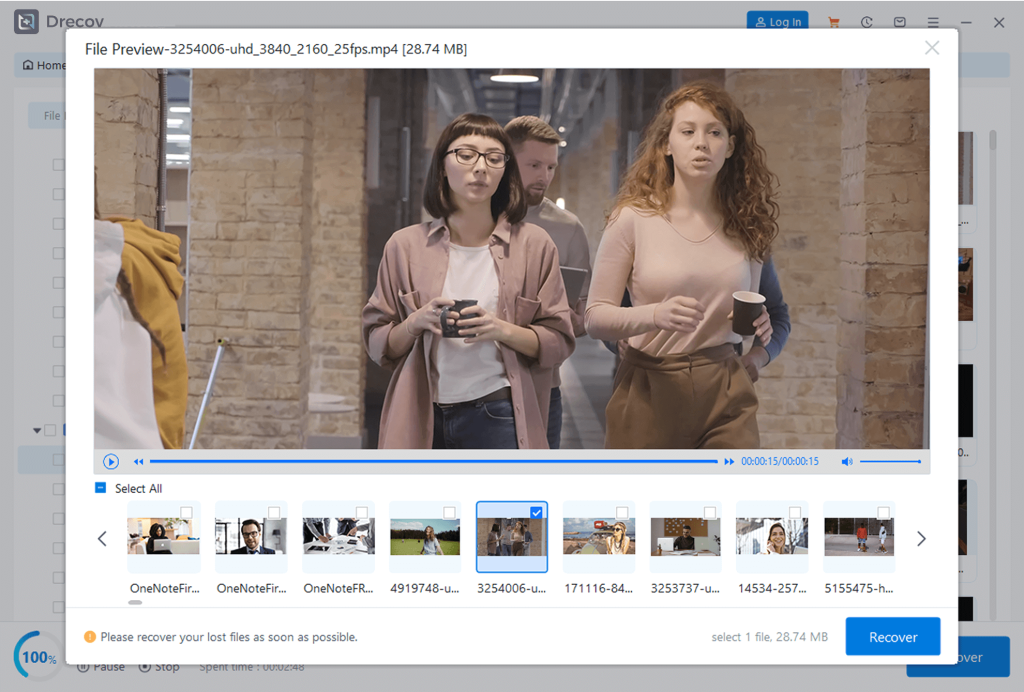
After scanning, the software will list all recoverable files. You can filter by file type, path, or time, preview photos and documents, and select the files you need to recover.
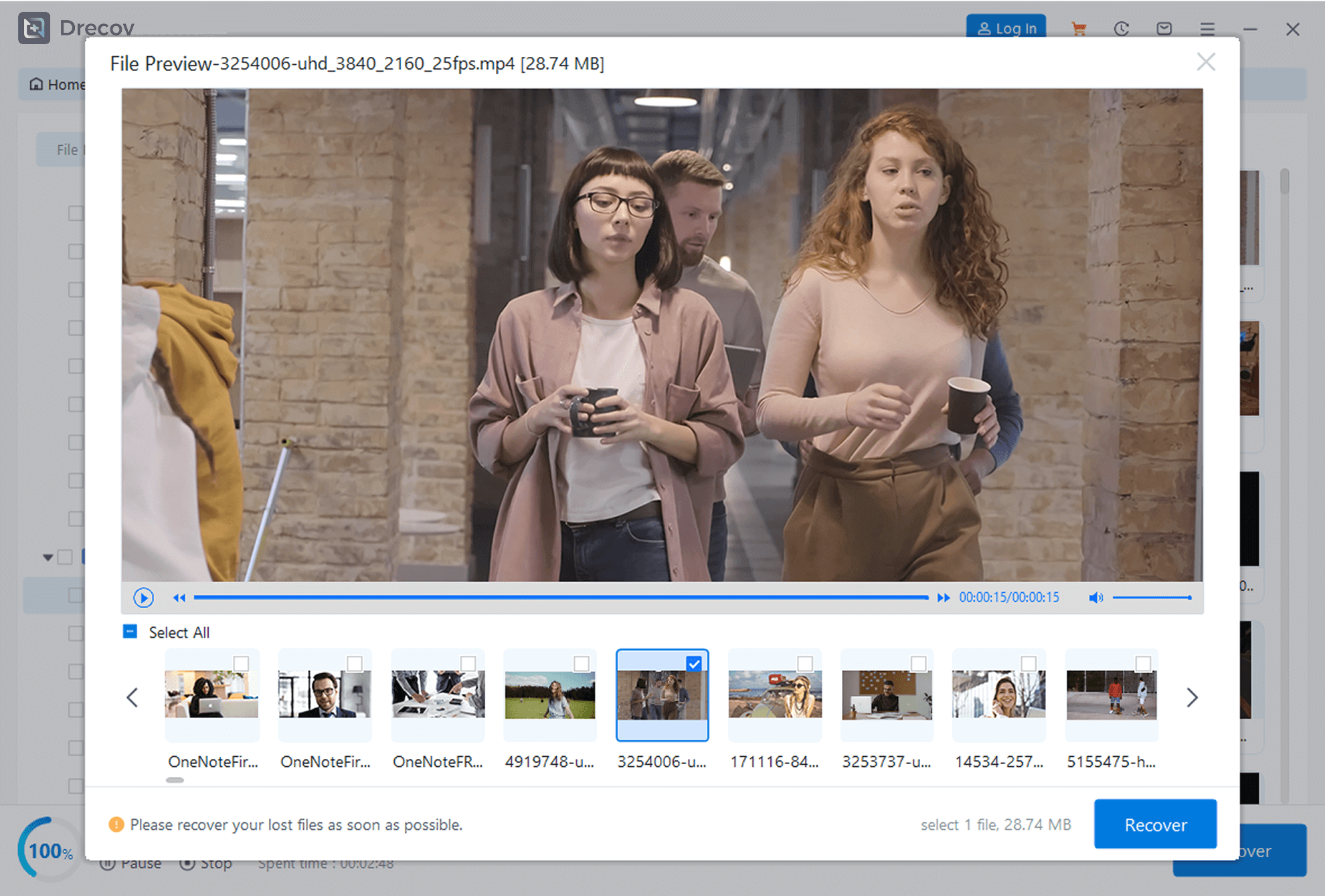

Recover and Save
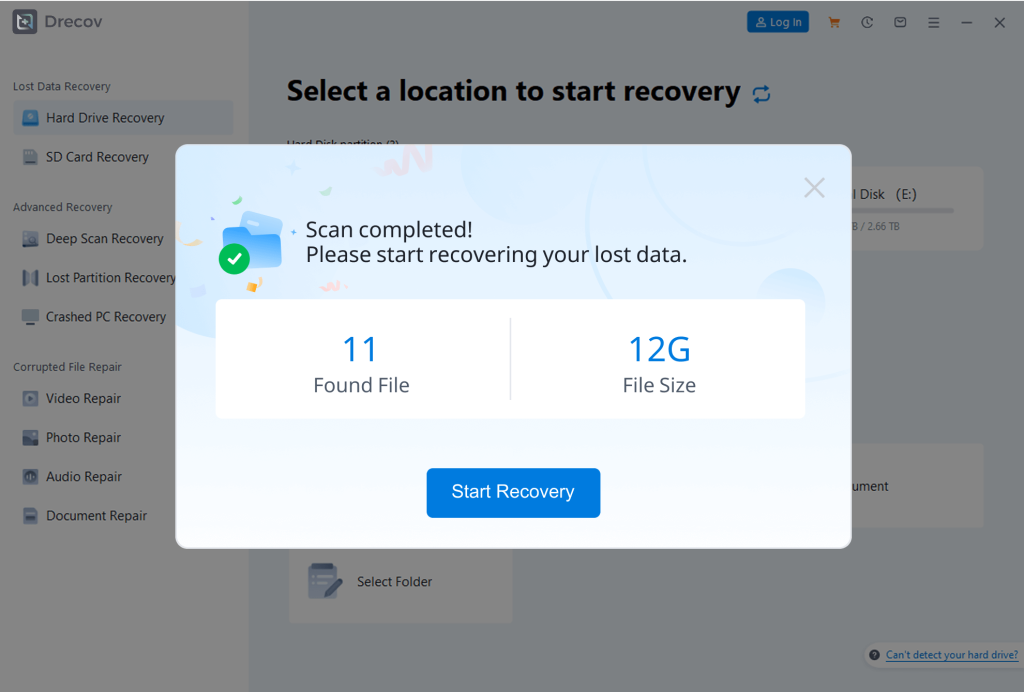
Choose a storage location different from the source SD card as the save path, then click the ‘Recover’ button. After recovery is complete, you can find the recovered files in the specified location.
Supported SD Cards and File Types
PandaOffice Drecov supports recovery for various devices and file types to meet your diverse needs.
PandaOffice Drecov supports recovery for various devices and file types to meet your diverse needs.
Supported File Types
Supported Devices
Images
JPG, PNG, RAW…
Videos
MP4, MOV, AVI…
Audios
MP3, WAV, FLAC…
Documents
DOC, PDF, XLS…
Compressed Files
ZIP, RAR, 7Z…
Other Files
More formats supported
Camera SD Cards
DSLR, mirrorless, and more
Phone Memory Cards
Android phones and devices
Camcorder SD Cards
Home and professional camcorders
Game Console Cards
PS, Switch, and other consoles
Tablet Memory Cards
Various tablet devices
Common SD Card Problem Guide
Answers to questions you may encounter when using SD cards and during data recovery
ALL Questions
Formatting
Accidental Deletion
Other Issues
Damage
Do not format the card or save new files to it. If your computer detects the card, scan it and save recoverable files to a different drive. Formatting may fix some file system issues after recovery, but it cannot repair physical damage.
Back up important files first. Check the speed requirements for your device and recording settings, then try a compatible card and reader. If the card disconnects or remains unusually slow, consider replacing it.
Hidden files or file system errors may explain the discrepancy. Stop saving new files to the card. Check for hidden files in your file manager, and recover important missing data before deleting files, formatting, or running repair tools.
Try a different compatible card reader, USB port, or computer. Recovery software generally needs the computer to detect the card. If it remains undetected or is physically damaged, consider a professional data recovery service.
The issue is the file system—FAT32 doesn’t support files over 4GB. Solution: Right-click the SD card on your computer, select “Format,” and change the file system to exFAT (compatible with Windows and Mac, no single-file size limit). Back up existing data first, then format—you’ll be able to transfer large files afterward.
A file system error may trigger a format prompt. Files may still be recoverable after formatting if data has not been overwritten, but recovery is not guaranteed. Stop using the card and scan it as soon as possible.
If the card contains important files, recover or back them up before formatting. Formatting can make recovery more difficult. After the files are safely stored elsewhere, format the card if needed using a file system compatible with your device.
A quick format may leave data recoverable, while a full format can reduce recovery chances and may overwrite data depending on the tool and operating system. Stop using the card and scan it as soon as possible.
A formatted card may be reused if it is healthy and compatible with the device, but formatting cannot repair physical damage. Back up important data and replace the card if errors persist.
Check the write-protect switch on the SD card or adapter, if present. Try another reader or device. Back up important files before attempting repair or formatting.
Stop using the SD card to avoid overwriting the deleted photos. Connect the card to your computer, scan it with PandaOffice Drecov, preview supported files, and save the photos to a different drive.
Deleted videos may be recoverable if they have not been overwritten. Stop using the card and connect it to a computer with a compatible reader. If Android encrypted the card or used it as internal storage, recovery may require the original device and its encryption keys.
Recovery may be possible if deleted data has not been overwritten, but it is not guaranteed. Stop using the card and scan it; results depend on the card and the way the files were deleted.
Enable write protection when not using the card, regularly back up files, and use apps with delete confirmation prompts.
Some files may be recoverable, but new data might have overwritten parts of the old data. Use a recovery tool to scan for remaining recoverable files.
Possible reasons include a dirty contact pin, physical damage, outdated device drivers, or incompatible file systems.
It might be a fake card or a corrupted file system. Test with genuine capacity checking tools or reformat (after data recovery).
Back up important files first. Try a different compatible reader, USB port, or computer. Repeated slowdowns or disconnections may indicate a failing card; consider professional help if the data is important.
Yes, but ensure the file system is compatible (FAT32/exFAT). Back up data before switching between devices to avoid corruption.
Check for loose connections, damaged pins, or software conflicts. Try the card on another device or reader to diagnose the issue.
Stop using a physically damaged card. For important files, contact a professional data recovery service rather than repeatedly inserting the card or attempting repairs.
A cracked card may not work, but data might be recoverable with professional help. Don’t attempt to use it to avoid further damage.
Chemical damage is complex. Consult professional recovery services as DIY methods may worsen the situation.
Stop using the card if its contacts are corroded. For important files, consider a professional recovery service; repeated insertion or cleaning may cause further damage.
If the device’s slot is broken, repair the device or use an external card reader to access the SD card.
User Reviews
See how other users experienced recovering SD card data with our solution.
Ready to Recover Your Data?
Download Drecov now and get back your lost files in just a few clicks



