Complete Instructions for PandaOffice Drecov
Learn how to use PandaOffice Drecov to safely recover lost files, easily restore data from multiple devices, and protect your important documents.
This page currently has no content.
Introduction
PandaOffice Drecov is a comprehensive and professional data recovery software designed to safeguard digital assets on both personal PCs and enterprise servers. Whether you are facing a sudden OS crash, virus attack, partition loss, or hard drive corruption, Drecov provides a powerful shield against permanent data loss. From accidental deletion to complex disk formatting, our technology ensures your files are never truly gone.
This User Manual includes detailed instructions on how to use the program and all the features in this product. Any more questions or problems when using this product, please contact our 24 hours Tech Support by emailing your issues to [support@pandaoffice.com].
Precision Recovery
Time is critical during data emergencies. PandaOffice Drecov streamlines the rescue process by supporting a wide array of data loss scenarios, allowing users to bypass lengthy full-disk scans. By focusing on specific high-risk areas, you can perform:
- Desktop Recovery: Instantly retrieve files lost or disappeared from your primary workspace.
- Recycle Bin Recovery: Restore items even after the Recycle Bin has been emptied or bypassed.
- Selected Folder Recovery: Pinpoint specific directory paths to find exactly what you need without delay.
- Deleted File Recovery: Effortlessly recover files lost to accidental deletion or permanent “Shift + Delete” commands.
- External Media Recovery: Salvage data from digital cameras, memory cards, and USB flash drives with high precision.
- Comprehensive Drive Recovery: Restore lost partitions and files from internal HDDs/SSDs or crashed systems.
- OneDrive Recovery: Specialized support to retrieve lost or unsynced files from your cloud-integrated folders.
- Scan Result Management: Load previous scan results to resume your recovery instantly and avoid redundant processing.
Safe, Simple, and Stress-Free
We prioritize the integrity of your hardware. During the entire recovery process, Drecov operates in a read-only mode, ensuring zero damage to your original data. Designed with a user-centric interface, it turns urgent data rescue into a simple “three-click” process—no prior technical experience required.
System Requirements
Make sure you are running any one of the listed operating systems:
- Microsoft Windows 11 Home China, 64-bit
- Microsoft Windows 11 Pro, 64-bit
- Microsoft Windows 10 Home China, 64-bit
- Microsoft Windows 10 Pro, 64-bit
- Microsoft Windows 10 Enterprise G, 64-bit
- Microsoft Windows 7 Ultimate, 64-bit
- Microsoft Windows 7 Home Basic, 64-bit
Supported File System
PandaOffice Drecov supports these file systems:
- FAT12
- FAT16
- FAT32
- NTFS
- exFAT
Supported File Types
PandaOffice Drecov can recover more than 3,000 file types and formats, including documents, photos, videos, audio files, emails, databases, archives, design files, and more. Common supported formats are listed below.
| File Category | Supported Formats |
|---|---|
| Documents & Office Files | PDF, DOCX, XLSX, PPTX, DOC, XLS, PPT, RTF, WPS, ODT, ODS, ODP, VSD, XLTX, XLSB, XMIND, CHM, WPD, P65, SXW, KEY, ONE |
| E-books | AZW3, EPUB, MOBI |
| Pictures & Images | JPG, JPEG, TIF, CR2, NEF, DNG, ARW, ORF, SR2, RAW, PEF, MEF, BMP, GIF, PNG, HEIC, ICO, JNB, EMF, ICC, ANI, WMF, CUR, SVG, AVIF, J2K, JP2, JXL |
| Videos | AVI, WMV, ASF, MP4, M4P, MOV, 3GP, 3G2, MKV, WEBM, FLV, FLA, SWF, M4V, MPG, DIVX, M2TS, MTS, OGV, VOB |
| Audio Files & Audiobooks | MP3, WAV, WMA, MID, FLAC, M4B, MKA, OPUS |
| Archives & Disk Images | ZIP, RAR, 7Z, GZ, JAR, CAB, ISO, APK, DMG, VHDX |
| Emails & Personal Data | DBX, MSG, PST, EML, EMLX, MBOX, OST |
| Databases & Structured Data | XML, ACCDB, MDB, AVRO, ORC, PARQUET |
| Design, CAD & 3D Files | AI, CDR, DWG, DXF, MB, PSD, DGN, MAX, ODG, SLDPRT, BLEND, FBX, INDD, XD |
| Fonts | TTF, EOT, OTF, WOFF, WOFF2 |
| Code, Configuration & Log Files | HTML, BAT, CPP, INI, LOG, PY, YAML |
| System & Application Files | EXE, DLL, SYS |
Note: Some less common formats listed above have been successfully recovered in sample-based FAT32 recovery tests. Actual recovery results may vary depending on file integrity, overwriting, storage condition, and the selected scan mode.
Supported Storage Media
PandaOffice Drecov supports almost all storage devices that can be recognized by Windows, such as hard drive, external disk, SSD, USB drive, RAID, memory card, digital camera, camcorder, CD/DVD and other storage media.
Supported Languages
- English
- Chinese (Traditional)
- Spanish
- French
- German
- Japanese
- Italian
- Dutch
- Portuguese
- Polish
- Arabic
Registration & Login
PandaOffice Drecov allows you to scan and preview data stored on your computer or storage devices for free. To recover and save lost or deleted files, you must first register and upgrade your account.
Log In for Existing Users
If you are already a user of any PandaOffice products, you do not need a new account.
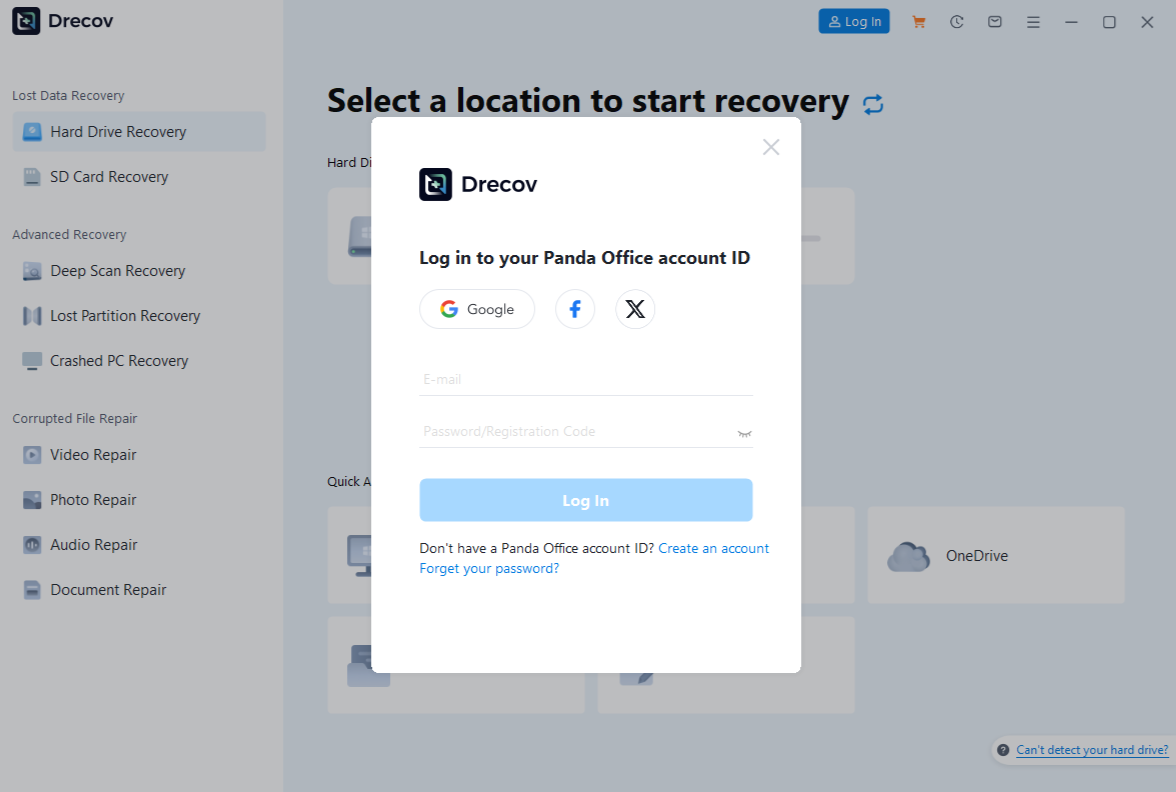
- Step 1: Open Drecov and click Log In.
- Step 2: Enter your existing Panda Office ID and password to sync your subscription.
Create a New Account
If you are a new user, follow these steps to register:
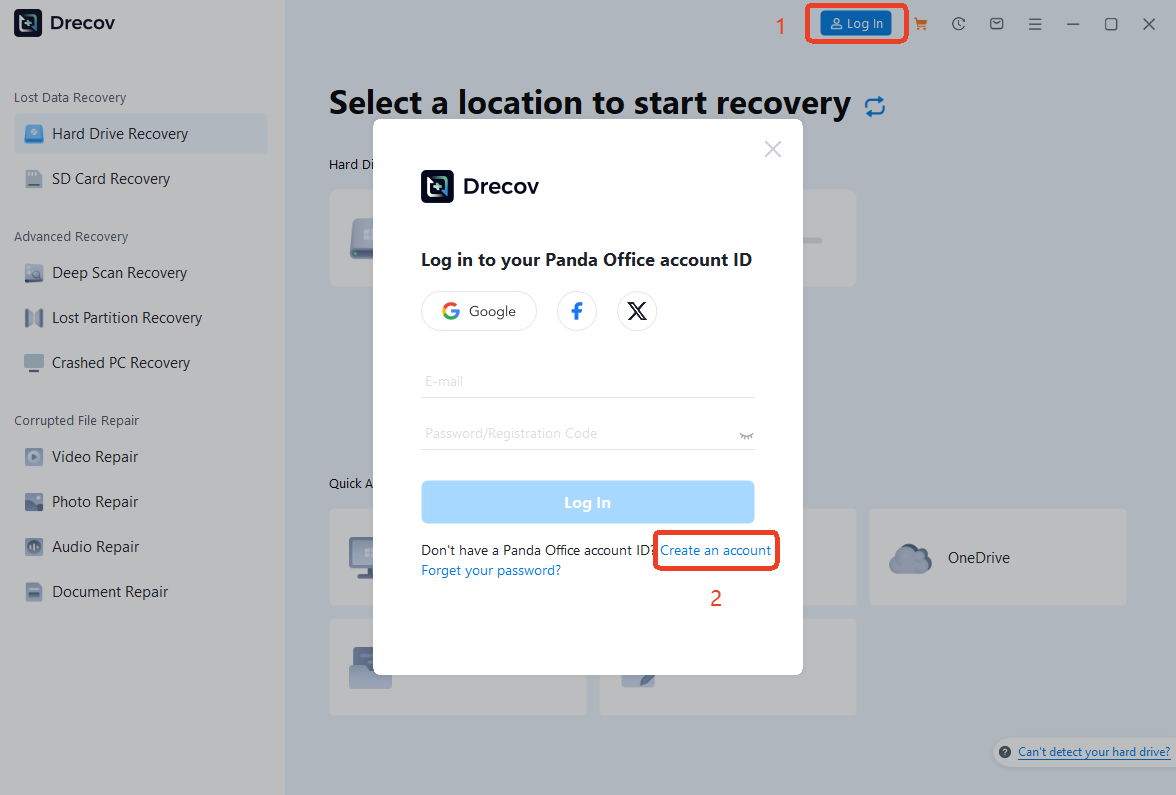
- Step 1: Click Log In > Create an Account to open the registration page.
- Step 2: Input your Email, Password, and Name.
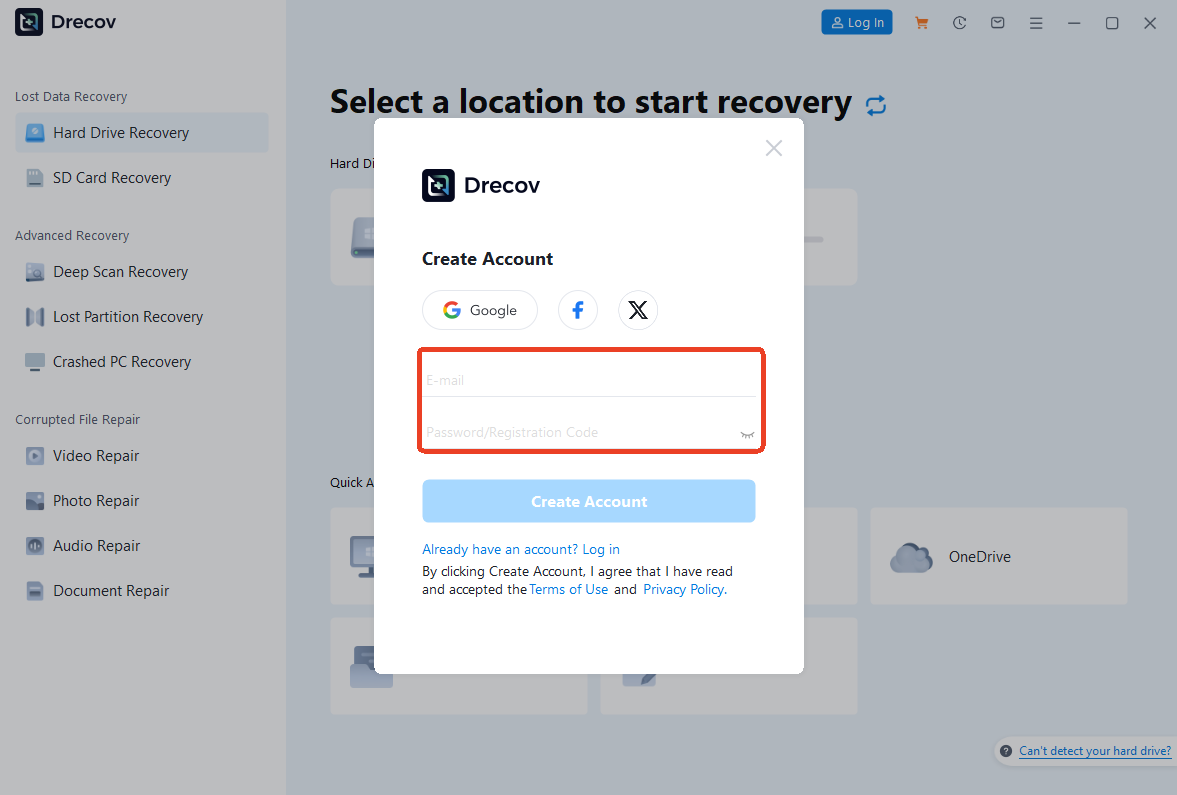
- Step 3: Click Create Account to finish the process. You can now use this ID across all PandaOffice platforms.
Account & Security
Manage your Panda Office ID settings to ensure data security and account flexibility.
Retrieve Forgotten Credentials
Cannot find your account ID or password after a purchase?
- Step 1: Check your payment email. Log in to the email address used for your payment (e.g., PayPal, Stripe, or Credit Card).
- Step 2: Search for “PandaOffice”. Look for an automated system email. Check your “Spam” or “Promotions” folder if it’s not in your inbox.
- Step 3: Access your info. This email contains your Panda Office ID and Initial Password required to activate your product.
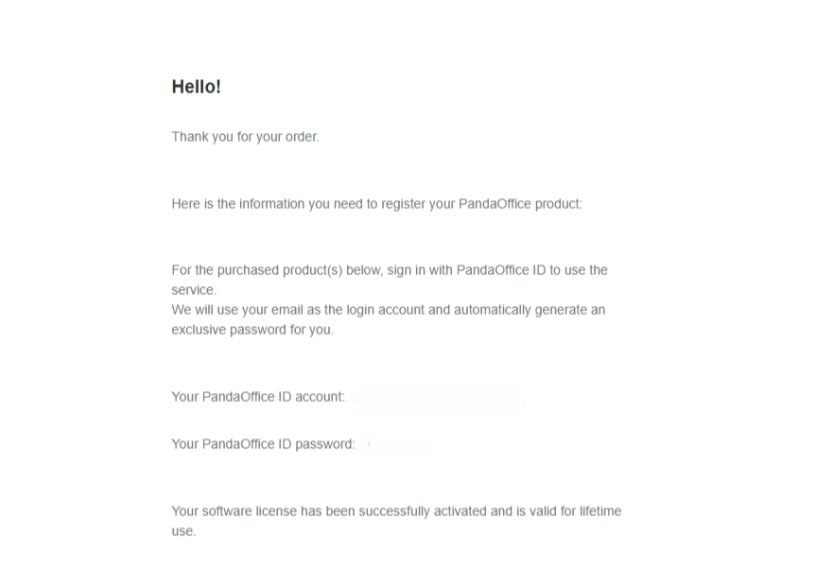
Retrieve or Reset Password
If you forget your password, don’t worry. You can retrieve it quickly:
- Step 1: On the Log in interface, click Forgot your Password? link.
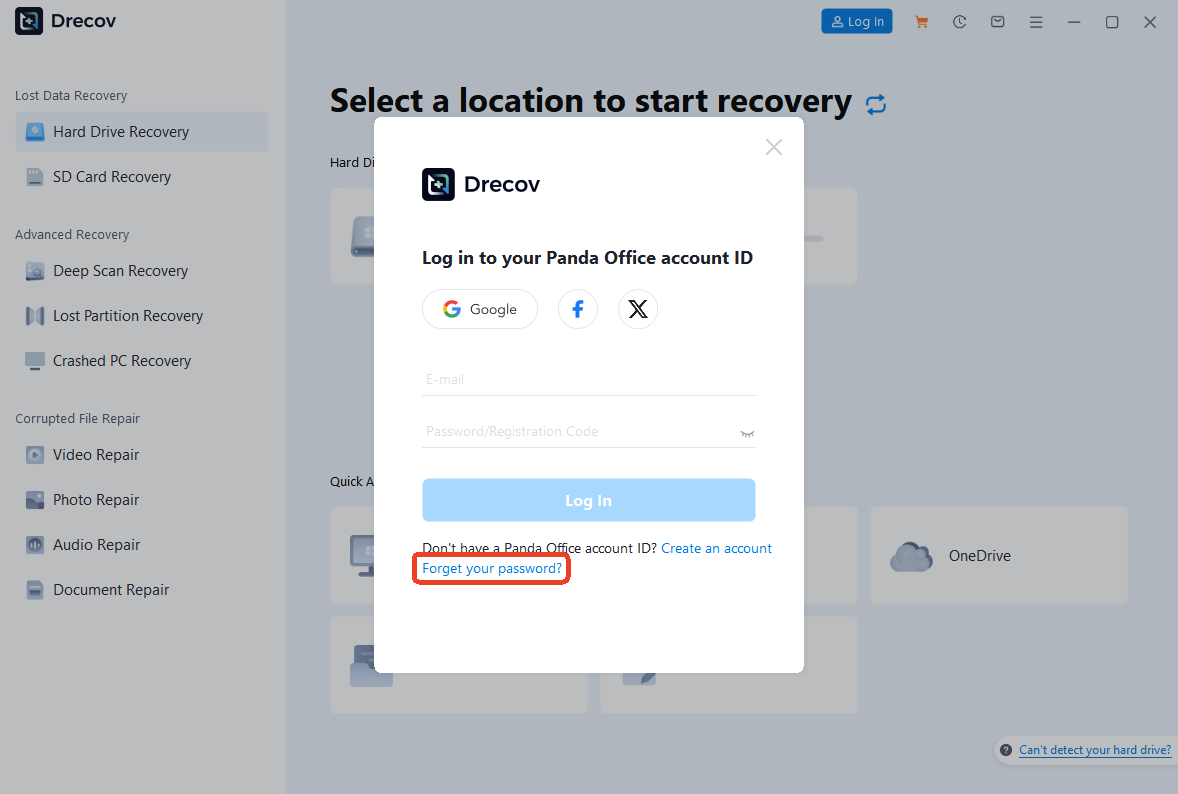
- Step 2: Enter your registered email address and click Reset password.
- Step 3: Log in to your linked email account and check your email for the code, enter it on the page, and set a new password.
Change Your Password
We recommend updating your password regularly to enhance account security. If you are already logged in:
- Step 1: Go to the User Center and click on your Profile Icon in the top-right corner.
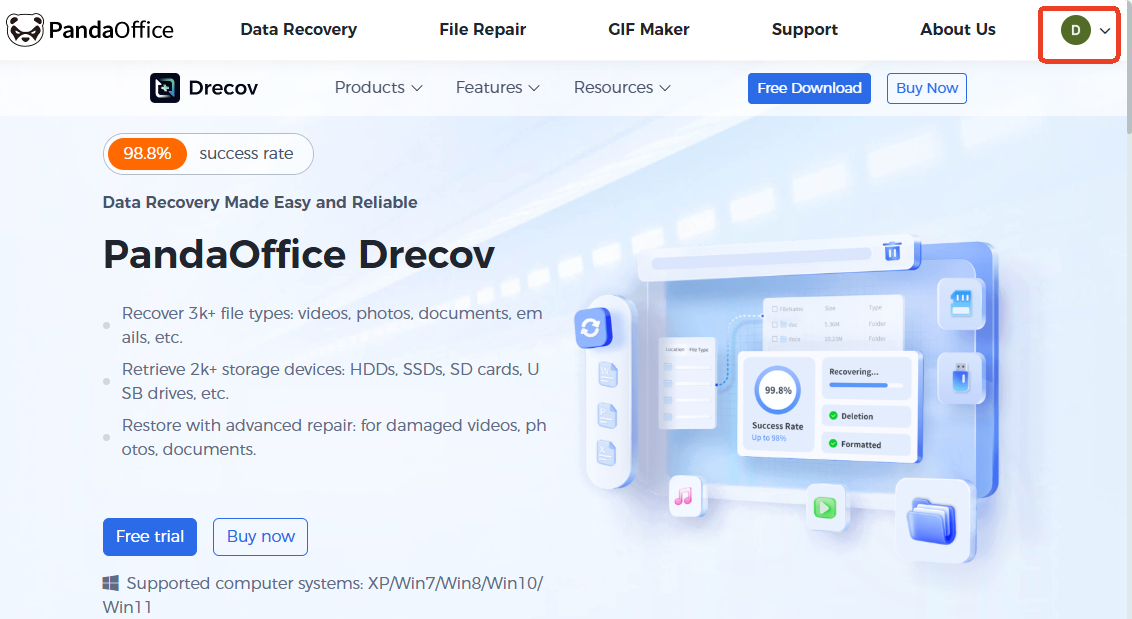
- Step 2: Navigate to Account and click on Profile.
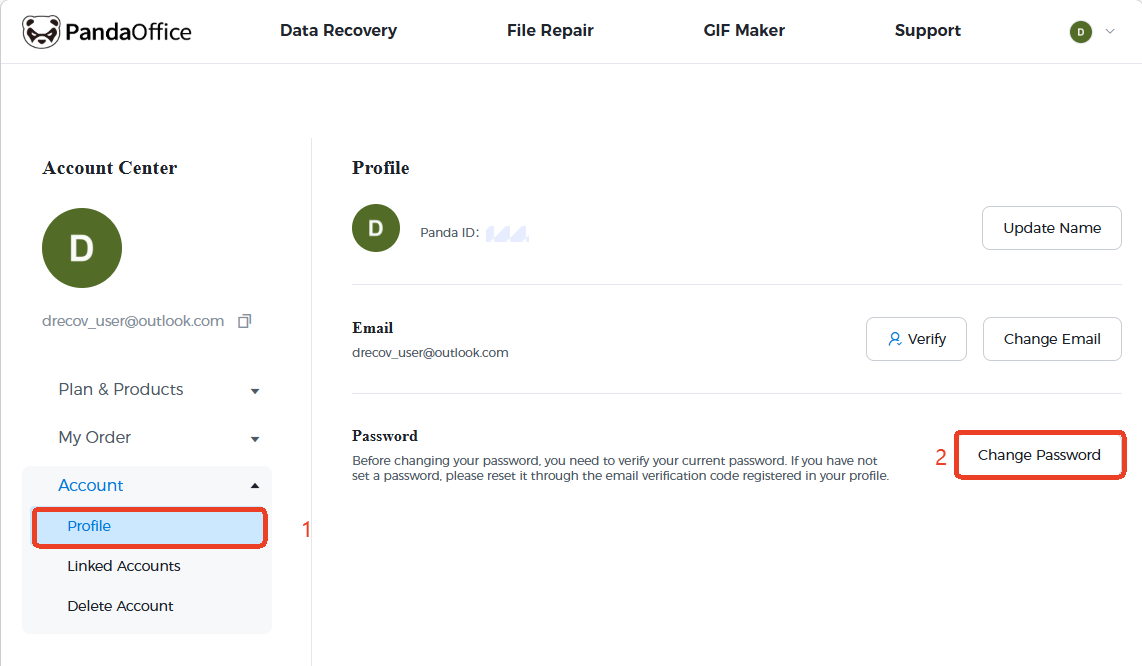
- Step 3: Select Change Password. You will be asked to enter your current password followed by your new password.
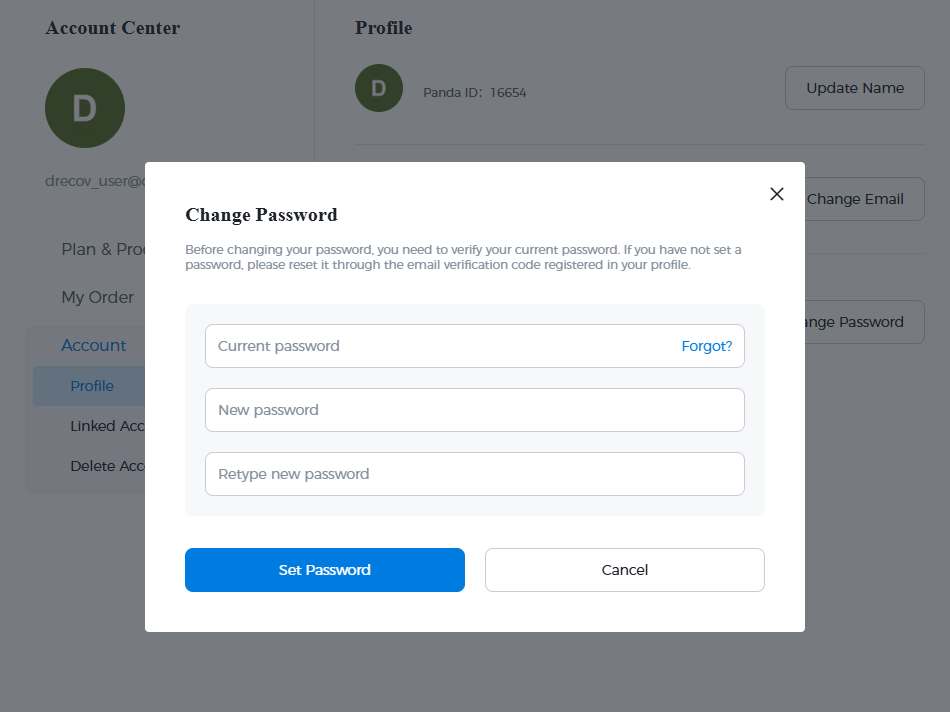
- Step 4: Click Save Changes to apply the update.
Manage Profile & Linked Accounts
To keep your account accessible and flexible, you can update your primary contact information or connect third-party social accounts for easier login.
Update Your Email Address
If you need to change the email associated with your Panda Office ID, follow these steps:
- Step 1: Go to the Account Center and select Profile from the sidebar.
- Step 2: Click the Change Email button.
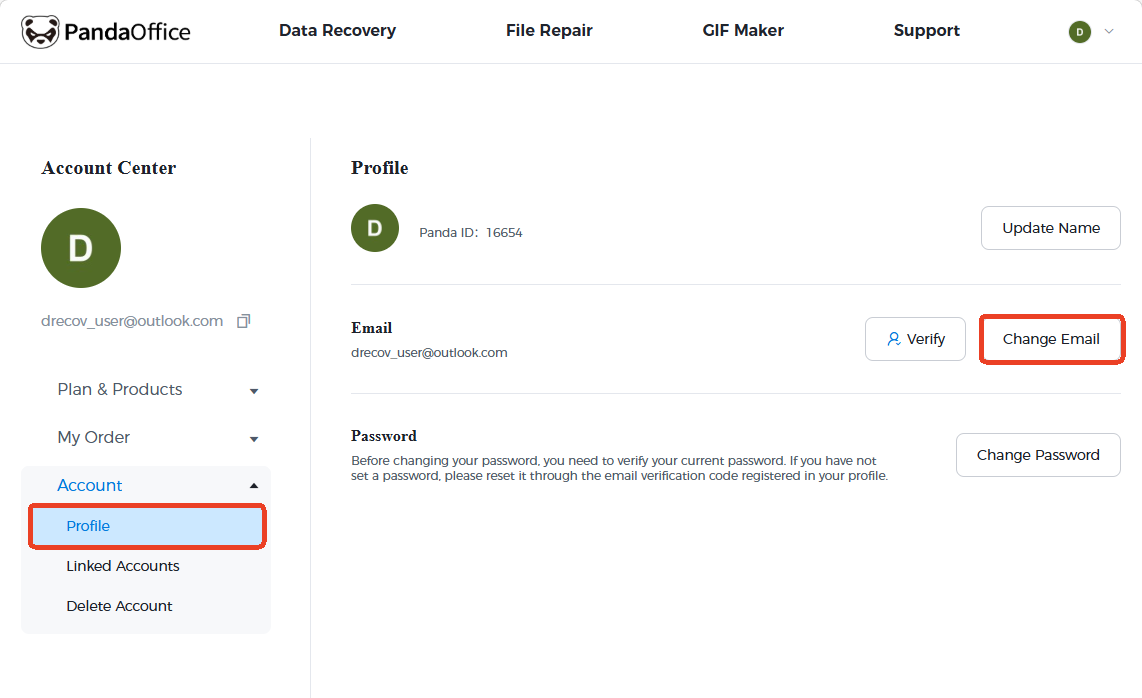
- Step 3: In the pop-up window, enter your new email address and click Send Email to receive a verification code.
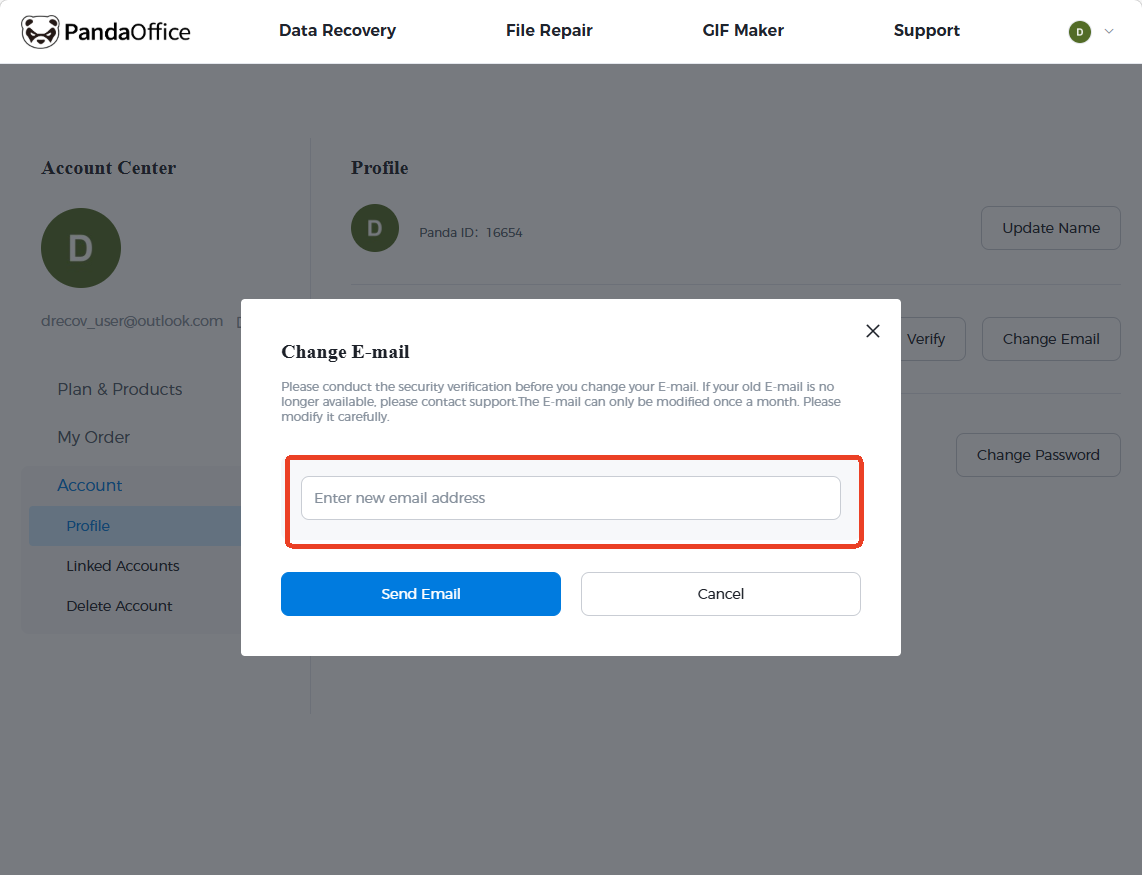
Note: For security, you must conduct a security verification before changing your email. Additionally, your email can only be modified once a month.
Link Third-Party Accounts
For a faster login experience, you can bind your Panda Office ID to your social media accounts:
- Step 1: In the Account Center, click on the Linked Accounts tab under the Account menu.
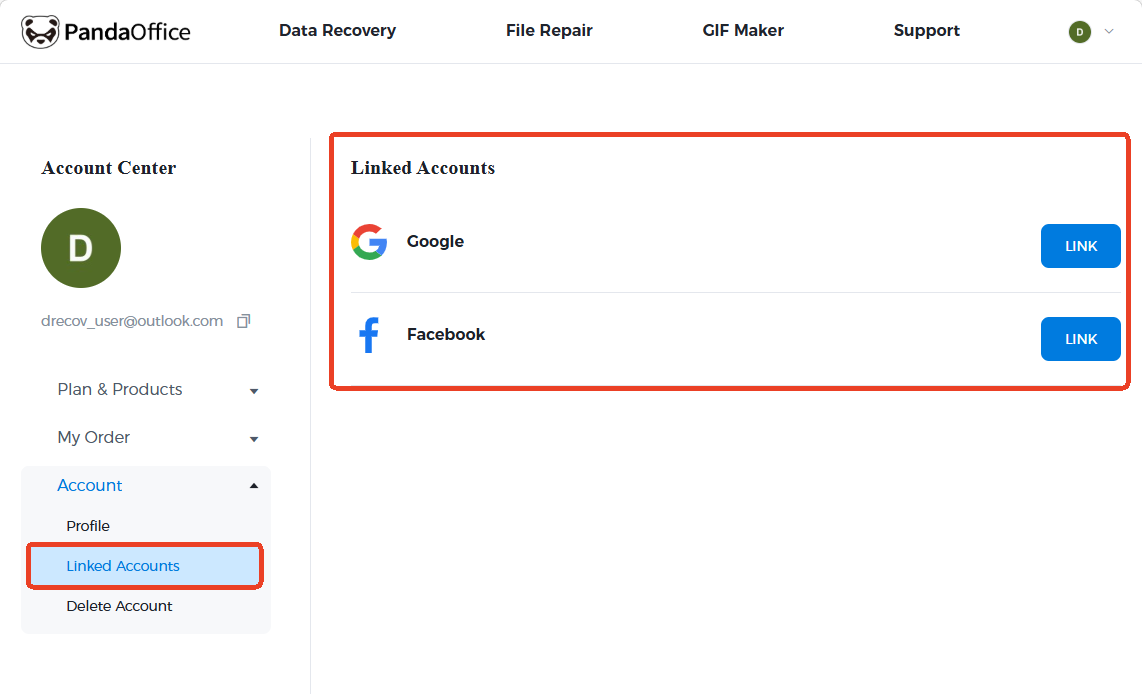
- Step 2: You will see options for Google and Facebook.
- Step 3: Click the LINK button next to your preferred platform to authorize the connection.
Once linked, you can use these platforms to log in directly without manually entering your Panda Office ID and password.
Account Deletion
If you wish to permanently close your account, you can do so through the Account Center. Please note that this action is permanent and cannot be undone.
- Step 1: Log in to your account and navigate to the Account Center.
- Step 2: On the left-hand sidebar, click on the Account dropdown menu.
- Step 3: Select Delete Account from the list of options.
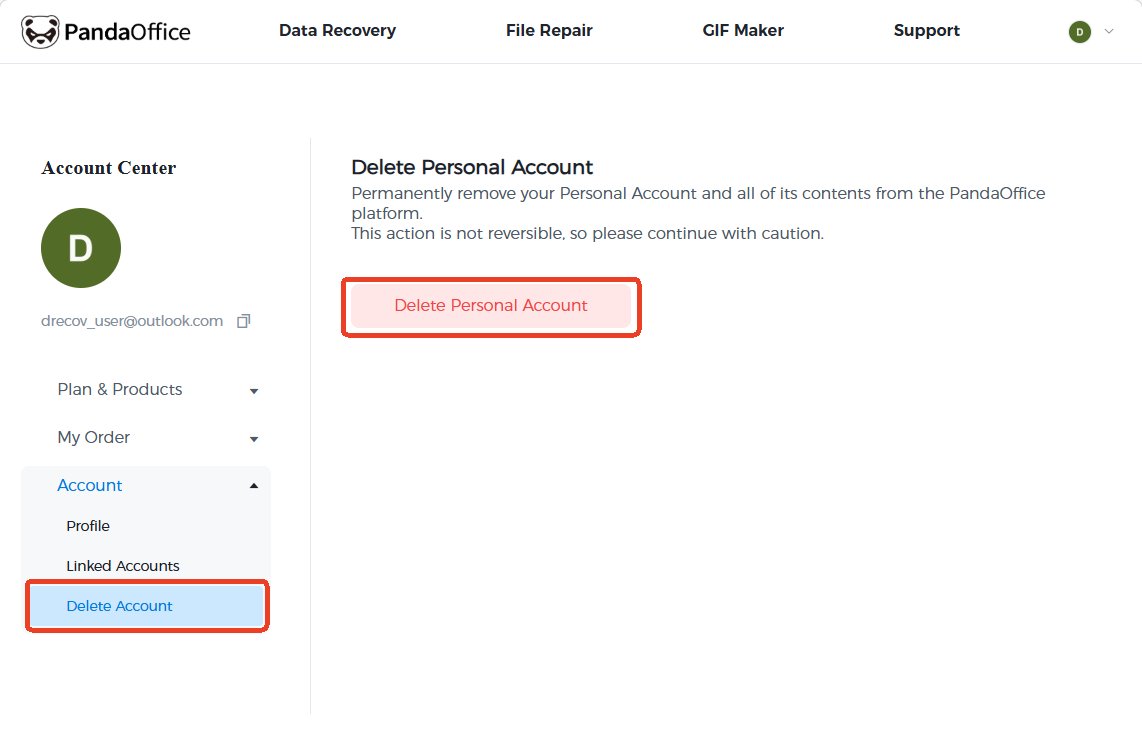
- Step 4: Carefully read the warning message. Deleting your account will permanently remove your Personal Account and all associated contents from the Panda Office platform.
- Step 5: If you are certain, click the red Delete Personal Account button to finalize the process.
Warning: This action is not reversible. Once the account is deleted, all data, subscription details, and history will be lost.
PandaOffice Drecov has an official online store for each of you: Drecov – The best professional security software. You can go to this page from the software in multiple ways.
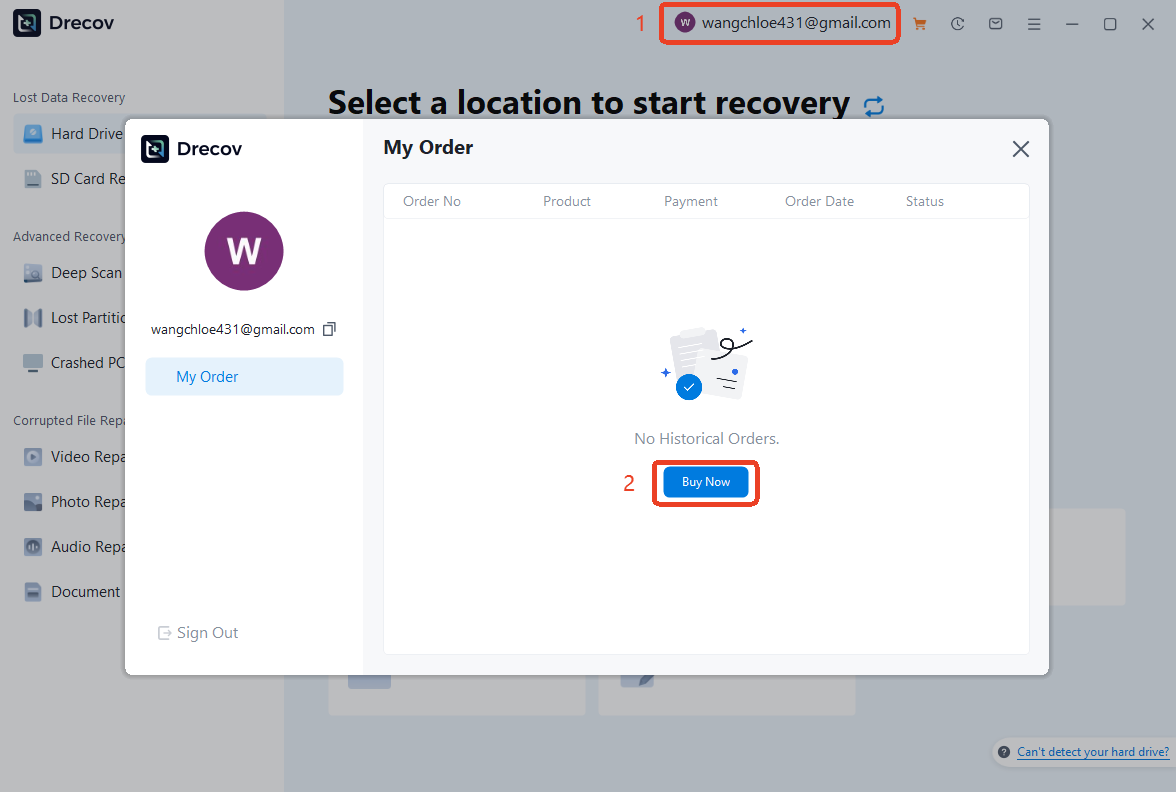
Method 1: Via Account Center
After logging into your account, clicking on your account will display a “My Order” window. Click the “Buy Now” button to access the purchase page. You can select the plan per your need.
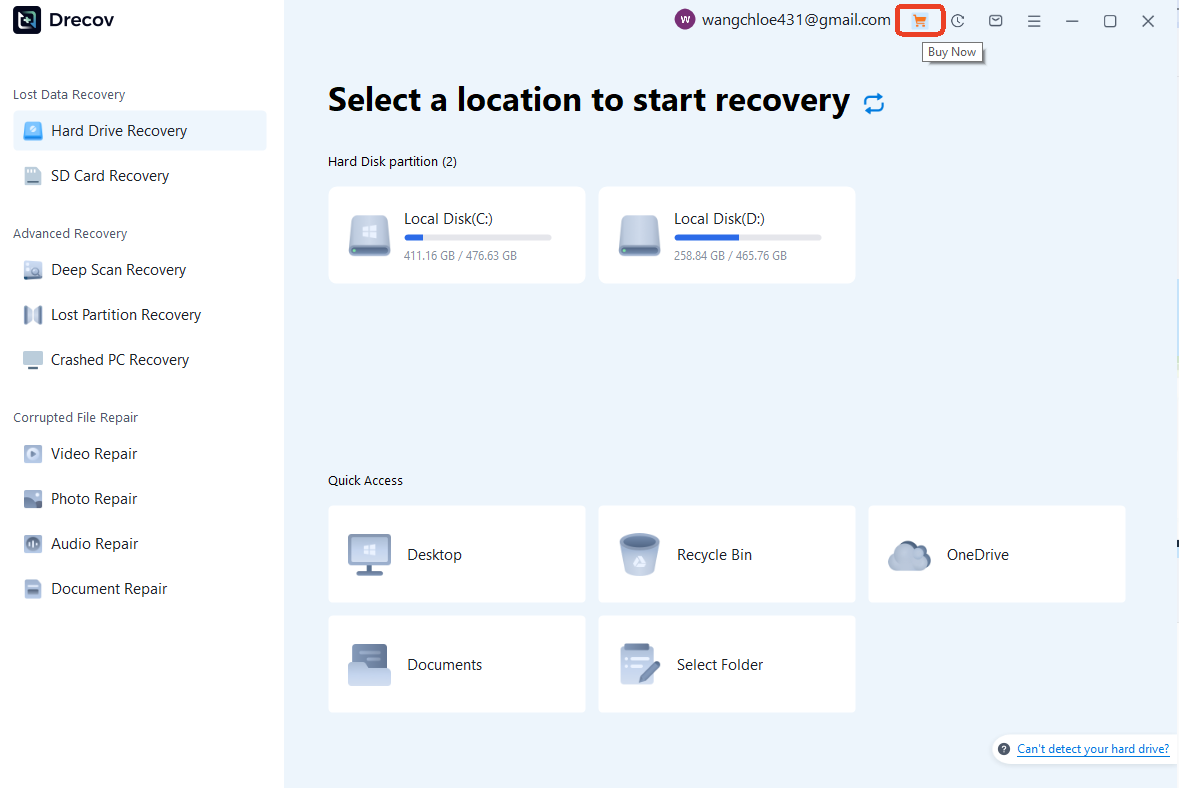
Method 2: Via the Shopping Cart
If you are logged in, simply click the Cart Icon in the upper-right corner of the main interface. This will take you directly to the pricing page to browse available packages.
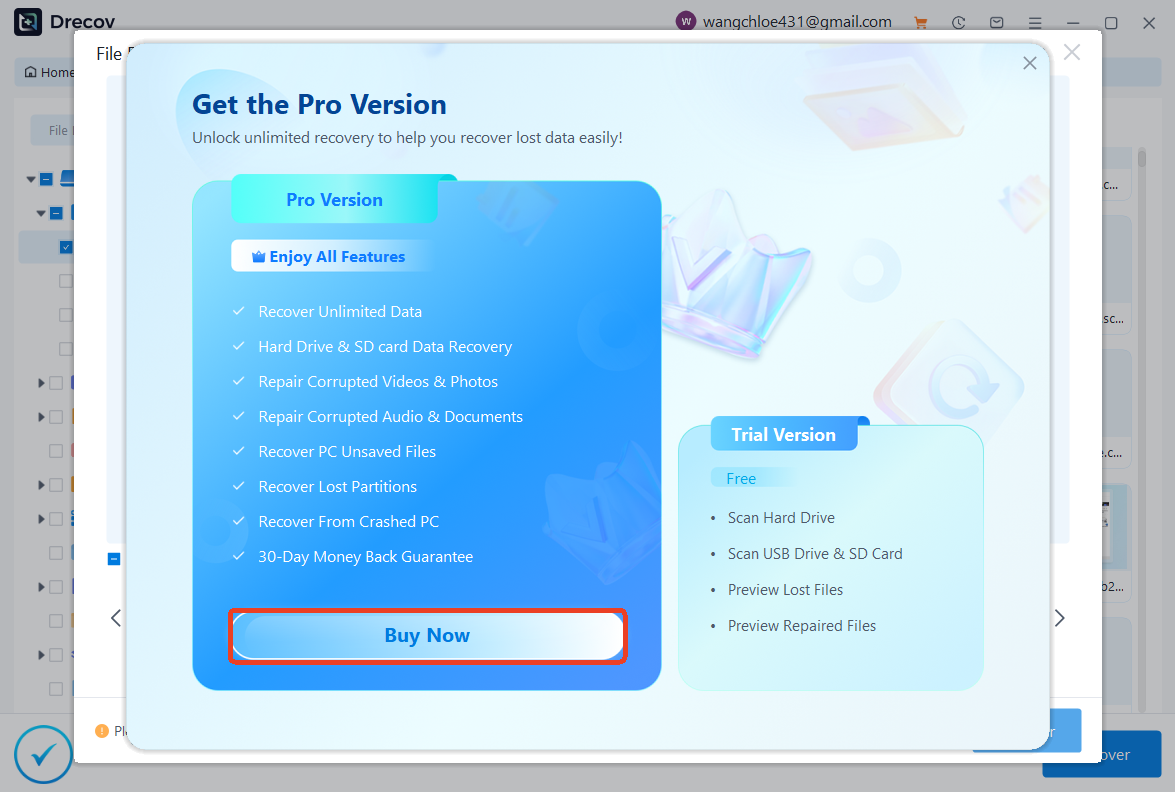
Method 3: During the Recovery Process
Once you have scanned and found your desired files, clicking the Recover button will trigger a pop-up window if you do not yet have an active license. Click Buy Now from this prompt to upgrade instantly.
Master the PandaOffice Drecov dashboard to streamline your data recovery workflow.
Home Screen Features
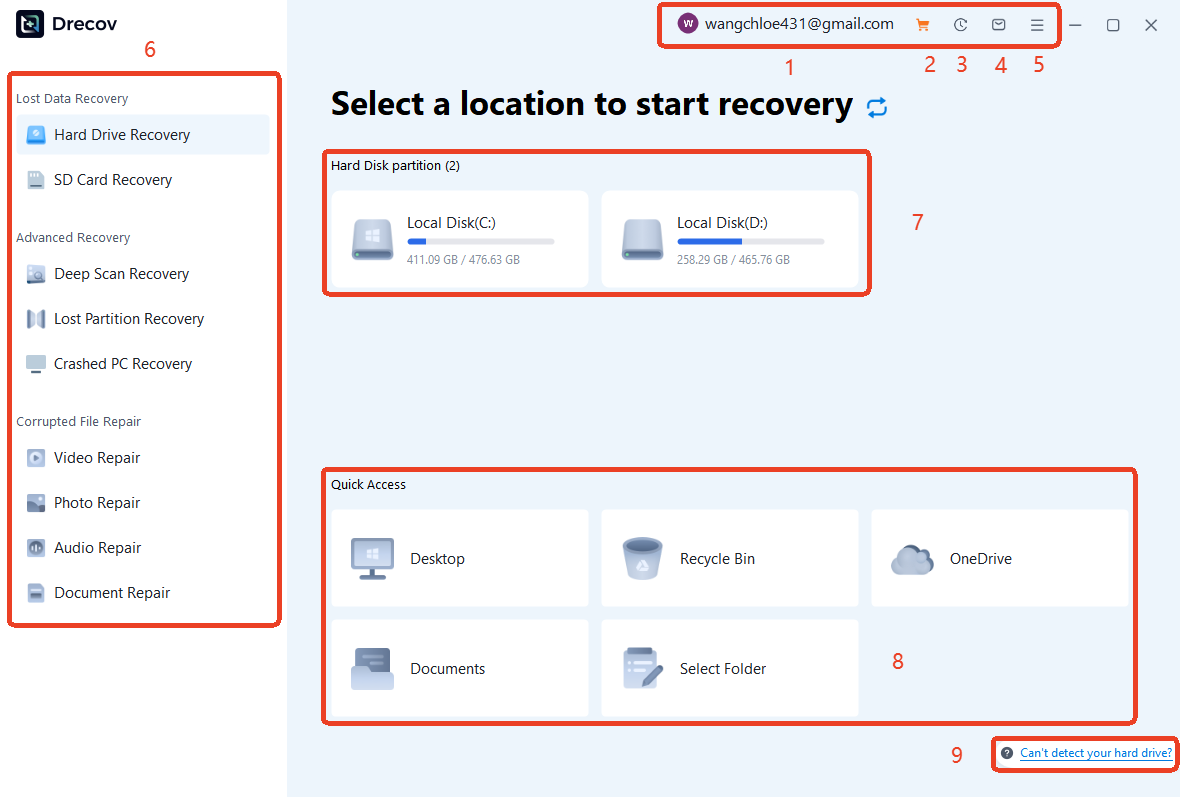
| 1- Account | Manage your profile and subscription status at a glance. |
| 2- Purchase | Go to the purchase page and view prices and packages. |
| 3- Scan history | Import previous results to save time and skip redundant scans. |
| 4- Support | For any questions, feel free to contact PandaOffice Drecov support team. |
| 5- More | Change your preferred language, check for Updates and know more about us. |
| 6- Feature Navigation | Toggle between standard recovery, advanced deep scans, and specialized file repair tools for videos or documents. |
| 7- Partition Selection | List of all detected drives or devices on your PC. |
| 8- Quick Access | Jump straight to common recovery hotspots like the Recycle Bin or Desktop. |
| 9- Troubleshooting | Instant solutions if your hard drive isn’t showing up. |
Feature Navigation
Once a scan is complete, use these tools to efficiently locate and restore your data.
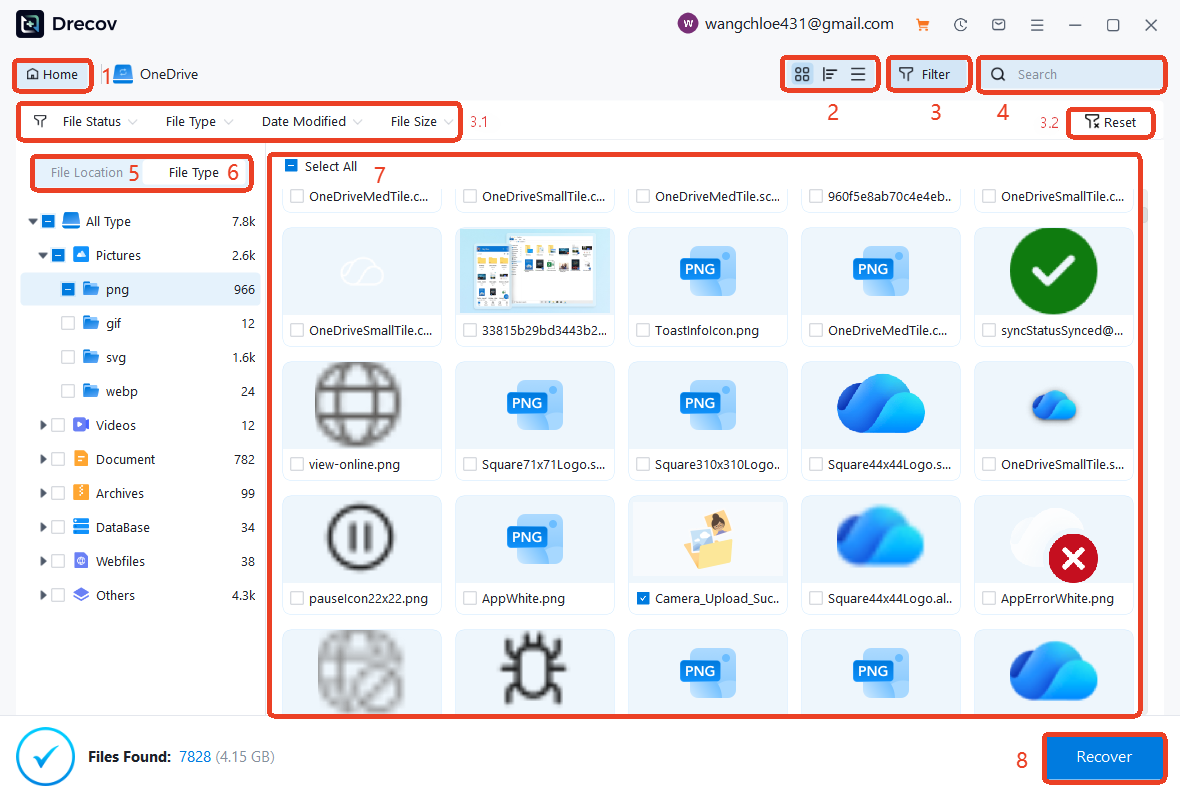
| 1- Home | Back to the main interface. |
| 2- Layout View | Toggle between Grid, List, or Detail views to find the most visually effective way to browse your files. |
| 3/3.1- Filters | Refine results by Status, Type, Date, or Size to pinpoint lost files. |
| 3.2- Reset | Instantly clear all active filters and search terms to return to the full list of discovered data. |
| 4- Search Bar | Use keyword matching to jump directly to a specific filename or extension. |
| 5- Location | Show scan result by tree structure. |
| 6- Type | Show scan results by file types. |
| 7- Preview | Preview up to know if you are choosing the right file to recover. |
| 8- Recover | Save the recovered files to a preferred location. |
Download step by step
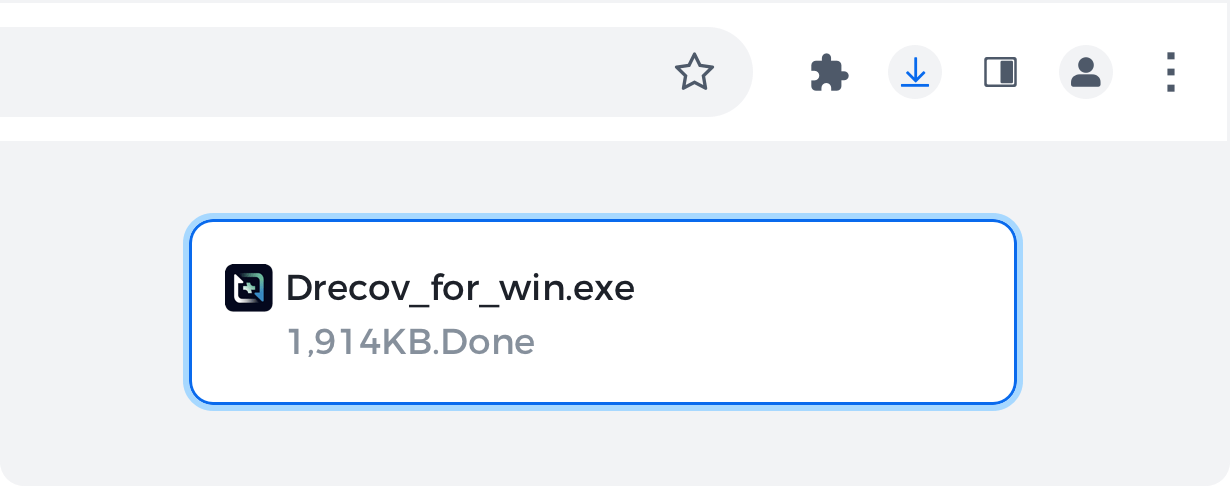
Step 1: Open
Open the Drecov.exe file by clicking the downloads icon on thetoolbar.
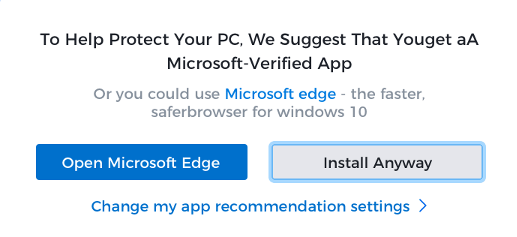
Step 2: Allow
lf prompted, click ‘Installanyway’ and ‘Yes’ on thesystem dialogues.
STEP 3: Install
Wait for the installation tofinish. Chrome will open itautomatically when it’sdone.

After installing PandaOffice products, the following situations may occur:
1. Reduced hard disk space:
Installing software will take up a certain amount of hard disk space, which may result in less available space.
2. Changes in system performance:
Software will take up some computing resources (such as CPU and memory).
3. Run with administrator privileges:
After installing the software, some software needs to be run with administrator privileges.
4. Automatic updates and notifications:
In order to give users a better experience, the software will automatically update and pop up preferential notifications from time to time, and run the update program in the background.
5. Changes in user interface and usage habits:
New software installed may bring new interfaces and usage methods, which may take some time to adapt. Especially for users who are not familiar with computers, it may be confusing.
Uninstall step by step
It is recommended to uninstall before updating to prevent possible version conflicts.
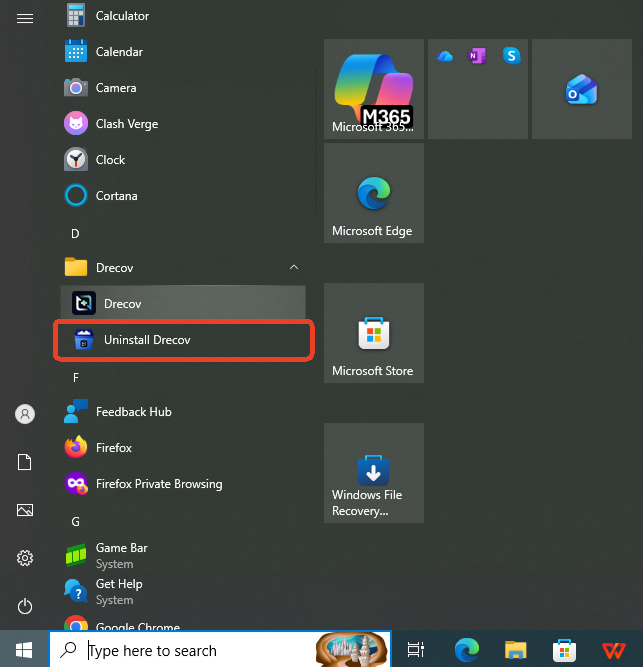
Step 1: Run the uninstaller for the PandaOffice program
Open the Start menu at the bottom of the desktop. Select All Programs, then find the PandaOffice program you want to uninstall.
Step 2: Complete the uninstall
Simply click the PandaOffice Uninstaller button to uninstall your installed PandaOffice product.