






Format Data Recovery
Recover lost files after formatting with our Format Data Recovery guide. Learn proven methods to restore data from formatted hard drives, SD cards, and USB devices quickly and safely.
TOP 4 Hot Articles
Top 4 hot articles will provide you reliable solutions to find crucial data with Drecov software.


Format Partition Guide: Complete Methods for Windows and Linux Users
This guide explains how to format a partition in Windows and Linux, fix errors, choose file systems, and recover data safely before formatting using PandaOffice Drecov.


How to Format Hard Drive Using DiskPart CMD: Complete Step-by-Step Guide
This guide explains how to format a hard drive using DiskPart CMD, Disk Management, and other tools. It covers step-by-step methods, data safety tips, and solutions for corrupted or unrecognized drives.
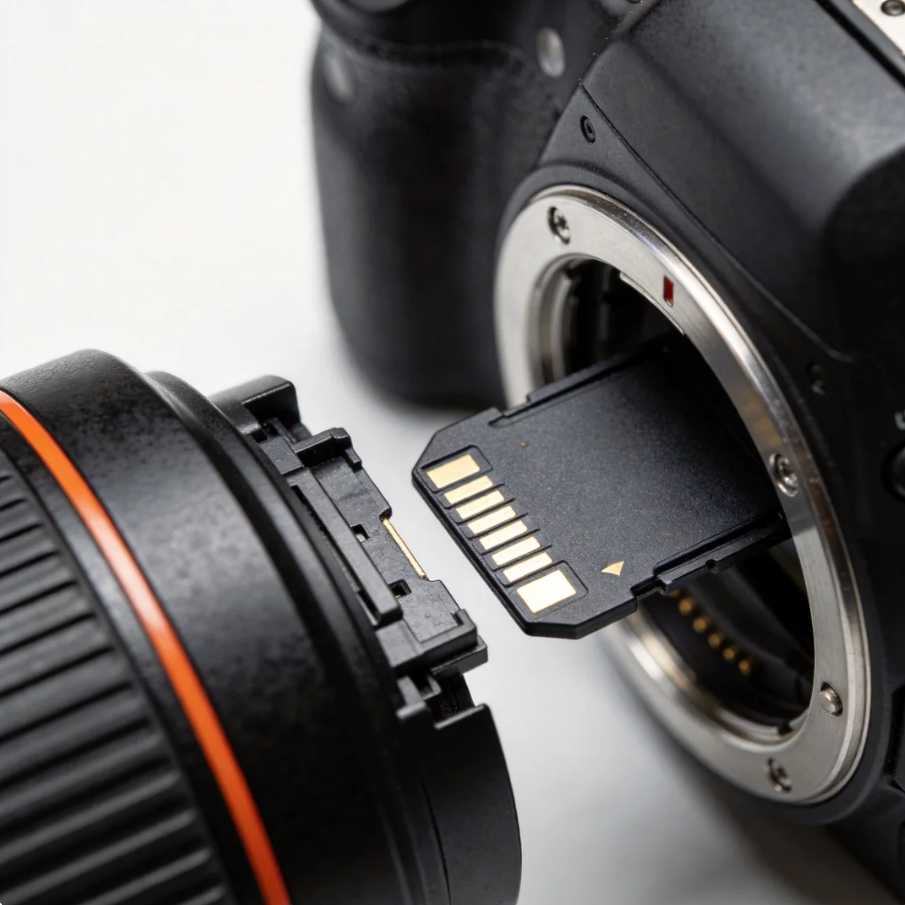

How to Format SD Card for Camera: Complete Sony SD Card Formatting Guide
This guide explains how to format SD cards for cameras, fix memory card errors, choose the right file system, and recover photos or videos using PandaOffice Drecov.
Find a solution that suits your case
Here are file recovery guidelines for all types of files. Just choose the most suitable situation for you to retrieve your data

Full Format vs Quick Format: Which Should You Use?
Read more →: Full Format vs Quick Format: Which Should You Use?Use quick format for a healthy drive that only needs a new file system; it replaces metadata and finishes faster. A full format also checks readable sectors and writes across more of the volume, which greatly reduces recovery chances. Recover important files before either option.

Format an External SSD: NTFS, exFAT, or APFS
Read more →: Format an External SSD: NTFS, exFAT, or APFSChoose NTFS for a Windows-only external SSD, APFS for Mac-only use, and exFAT when current Windows and Mac computers both need write access. Back up or recover files first, confirm the physical SSD, and use quick format for routine reuse.
Format a RAW Drive Safely After Recovering Files
Read more →: Format a RAW Drive Safely After Recovering FilesA RAW label means the operating system cannot mount the expected file system; formatting would create a new one and may overwrite recovery evidence. Stop using the drive, recover files to another disk, verify them, then format the confirmed source as NTFS, exFAT, or another required system.
Low-Level Format Explained: Risks, Limits, and Recovery
Read more →: Low-Level Format Explained: Risks, Limits, and RecoveryModern HDDs and SSDs are low-level formatted at the factory; ordinary users normally need a file-system format, not a true low-level operation. If data matters, do not run overwrite, Secure Erase, or sanitize commands before recovery.

Format a Mac Hard Drive for Windows: Safe Conversion Guide
Read more →: Format a Mac Hard Drive for Windows: Safe Conversion GuideCopy files from the Mac-readable volume before converting it. Use exFAT when the drive must remain writable on both Mac and Windows, or NTFS when it will become Windows-only; Windows may not read APFS or HFS+ without extra software.
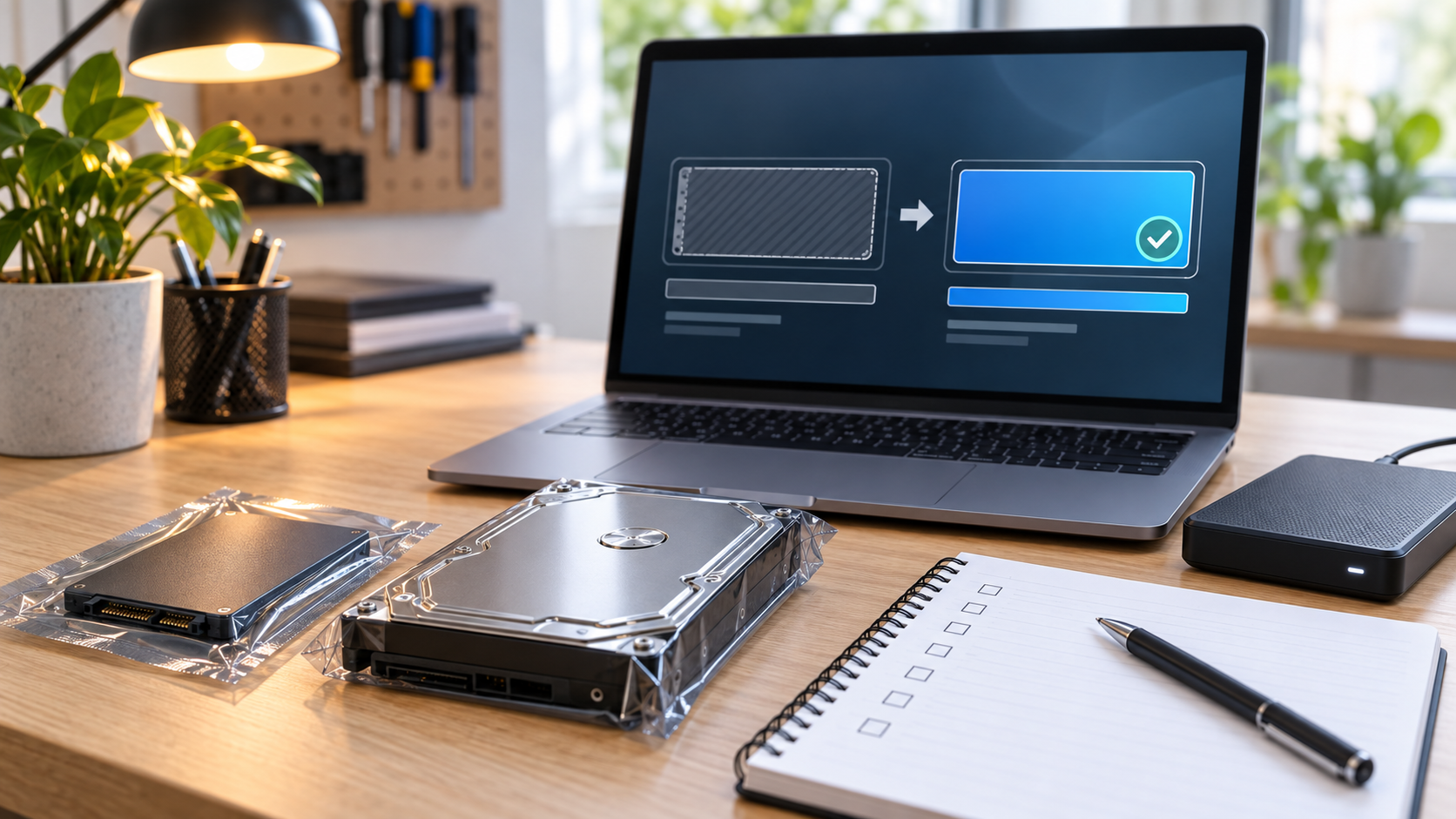
How to Format a New Hard Drive or SSD Safely
Read more →: How to Format a New Hard Drive or SSD SafelyA genuinely new drive normally needs GPT initialization, a volume, and a file system before use. Disconnect similar data drives first, then choose NTFS, APFS, exFAT, or a Linux-native system according to the computer and sharing needs.

Format a PC Drive for Mac: Compatibility and Safe Steps
Read more →: Format a PC Drive for Mac: Compatibility and Safe StepsIf the PC drive is NTFS, macOS may read it but normal write support is limited. Copy the files, then use exFAT for a drive shared by Mac and PC or APFS when the drive will become Mac-only.

Quick Format Explained: What It Erases and How to Recover
Read more →: Quick Format Explained: What It Erases and How to RecoverQuick format rebuilds file-system metadata but is not a secure erase; recovery may remain possible until new data overwrites old sectors. Stop using the drive, recover what matters, then quick-format only the verified target.

How to Format a Hard Disk in Linux Safely
Read more →: How to Format a Hard Disk in Linux SafelyIdentify the correct Linux device with lsblk, unmount its partition, then choose ext4 for general Linux use unless XFS or Btrfs features are specifically required. Recover missing files before running mkfs.
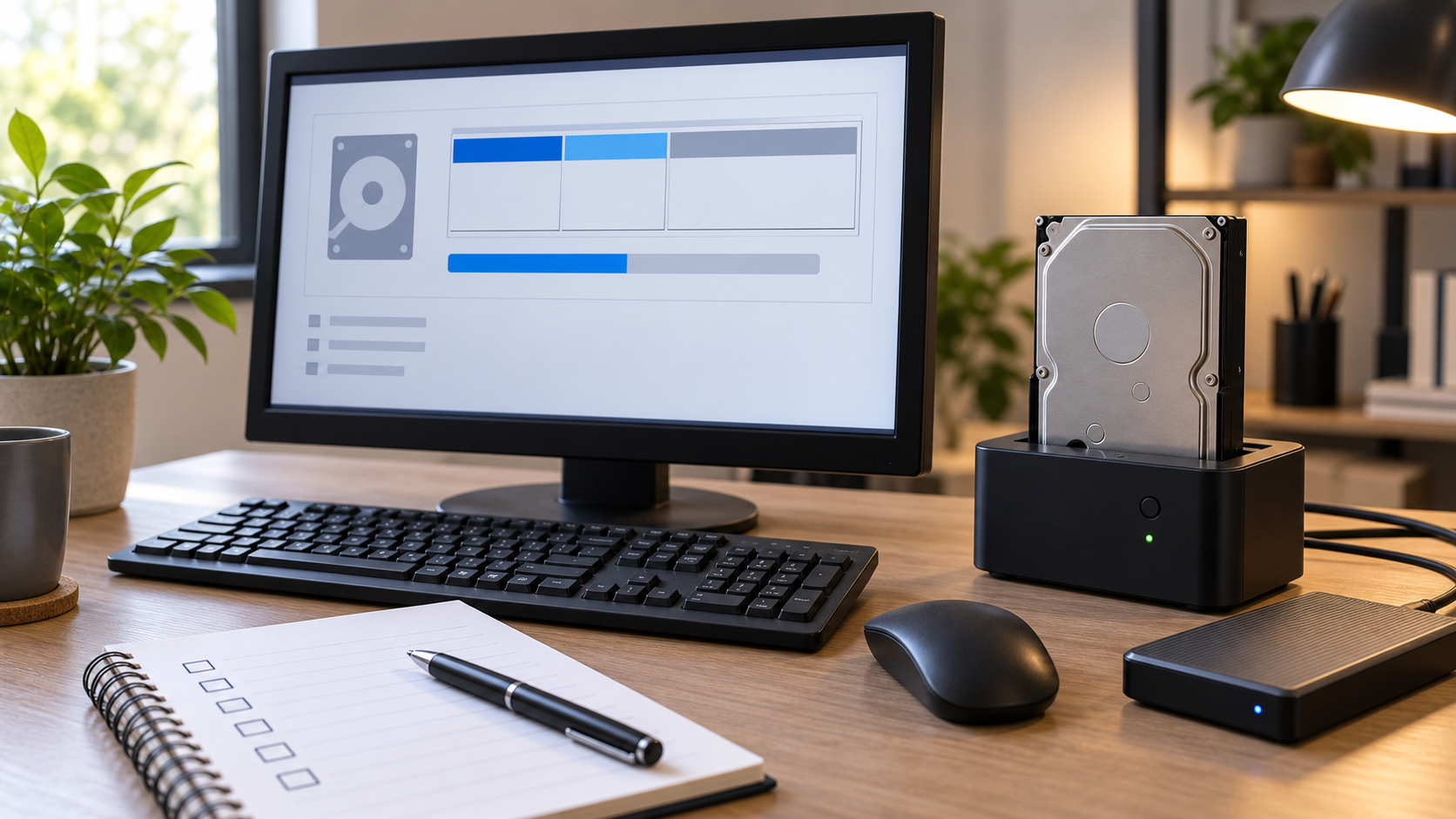
How to Format a Hard Drive for Windows 7 Safely
Read more →: How to Format a Hard Drive for Windows 7 SafelyFor a Windows 7 system drive, NTFS is the normal choice; for a removable drive shared with other devices, verify whether exFAT is supported. Back up first and format from Disk Management only after checking capacity and disk number.




Copyright © 2025 PandaOffice. All Rights Reserved. The order process, tax issue, and invoicing to end users are conducted by PandaOffice Limited.