






Introduction
SD cards are widely used in digital cameras, Android phones, drones, dashcams, and other portable devices. However, accidental deletion, formatting errors, virus attacks, or unexpected power failures can cause serious data loss. If you’re looking for a reliable way to perform SD card file recovery, Drecov offers a simple yet powerful solution.
In this guide, you will learn how to use Drecov step by step to recover lost Word, Excel, PDF, pictures, videos, and other files from your SD card
Step 1: Download Drecov and Select Your SD Card
First, download and install Drecov on your computer.
What to Do:
- Insert your SD card into your computer using a card reader.
- Launch Drecov.
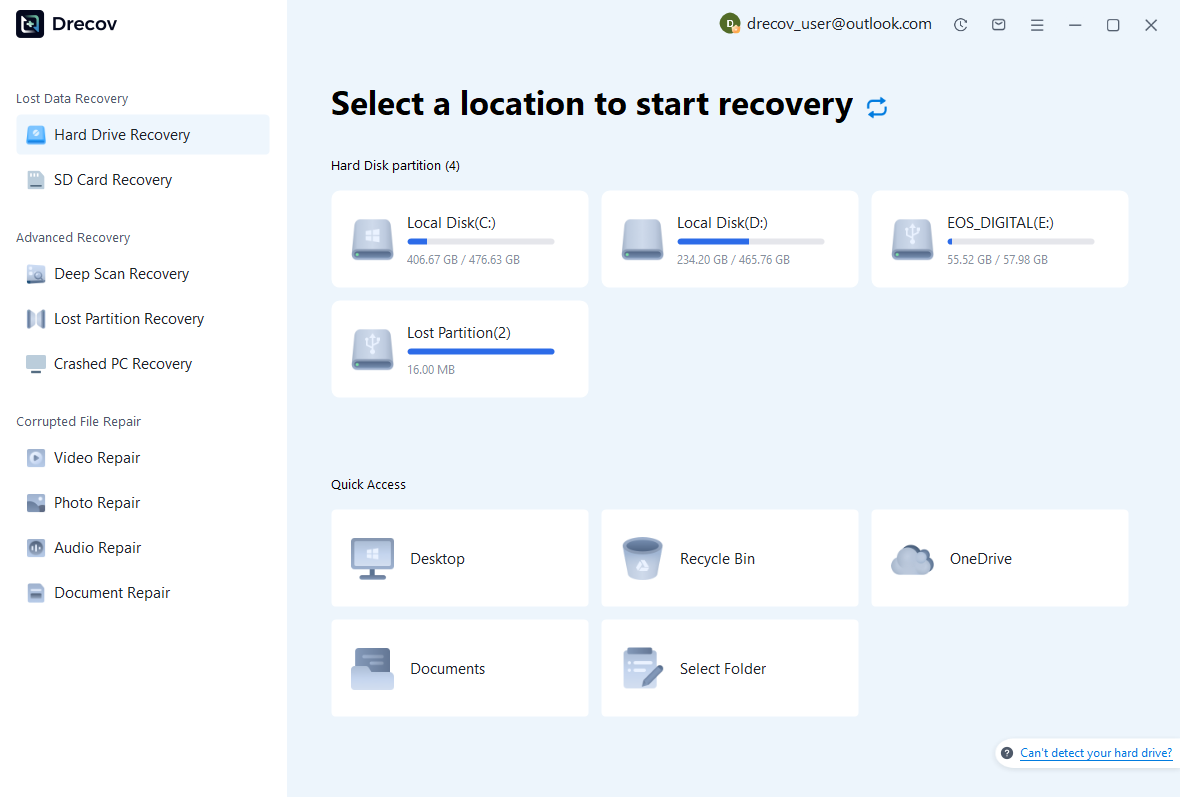
- On the main interface, you will see a list of available drives.
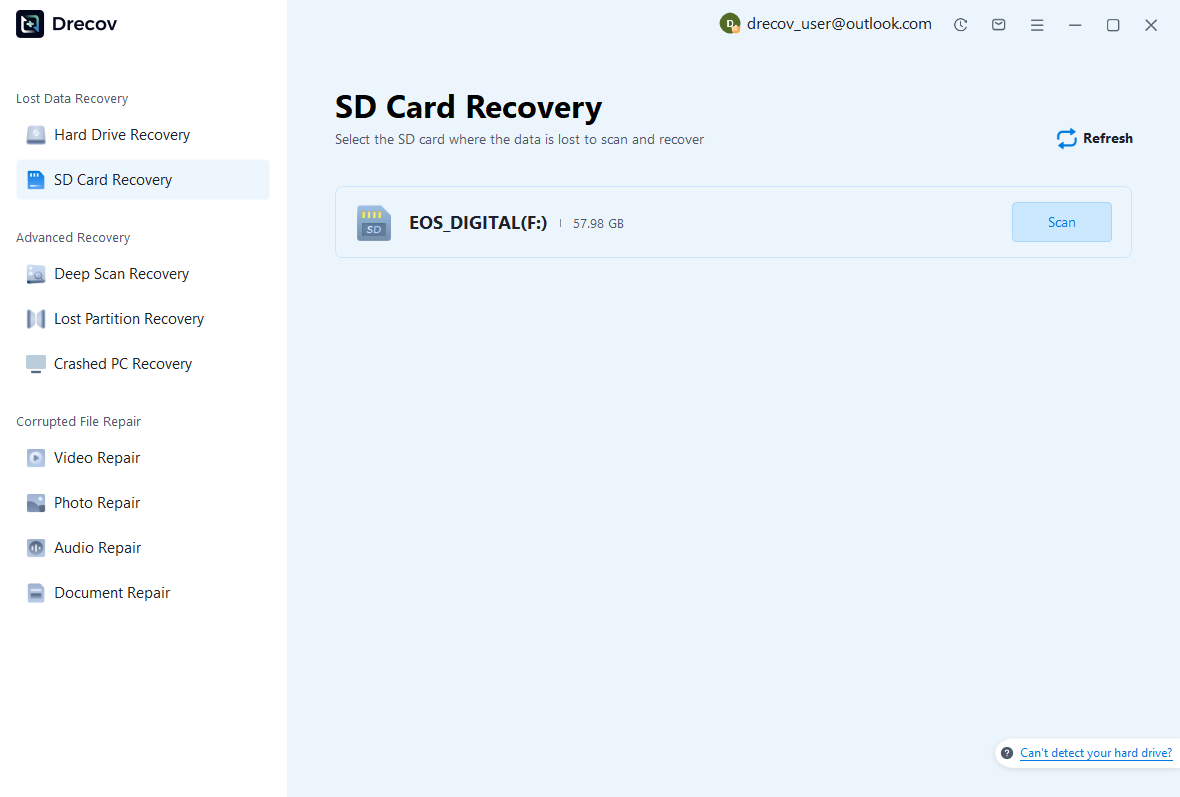
- Locate and select the inserted SD card from the drive list.
Step 2: Start Scanning the SD Card
After selecting the SD card:
- Click the Scan button.
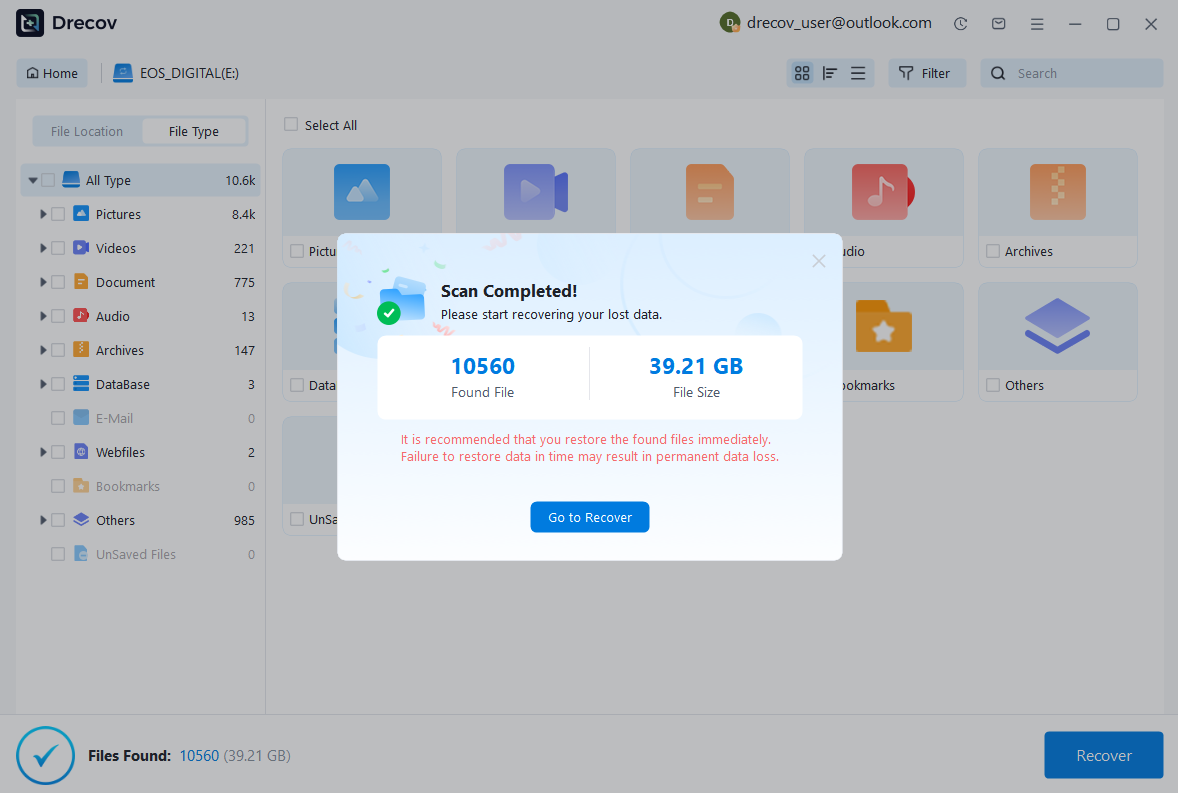
- A pop-up window will appear to remind you that the scanning process is complete after the scan is finished.
- The pop-up window will show how many files were found and their total size. Click “Go to Recover” to view and preview the files.
- If you can’t find the files you’re looking for, simply select Deep Scan Recovery to search more thoroughly.
Step 3: Preview Lost Files After Scanning
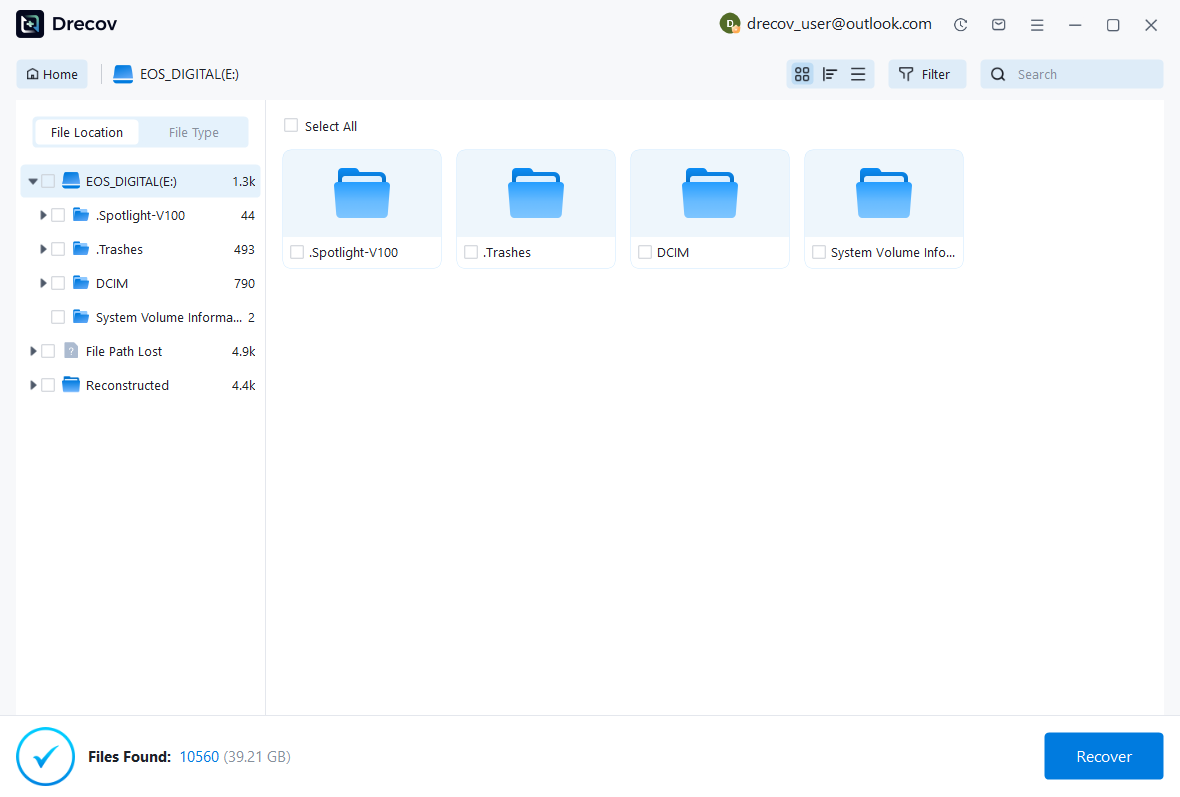
After scanning finishes, Pandaoffice Drecov will display all recoverable files stored on the SD card. You can find your file using File Location to search where it was saved, or use File Type to search by the kind of file, such as Word, Excel, or pictures.
File Location is uaually organized by:
File Type is usually organized by:
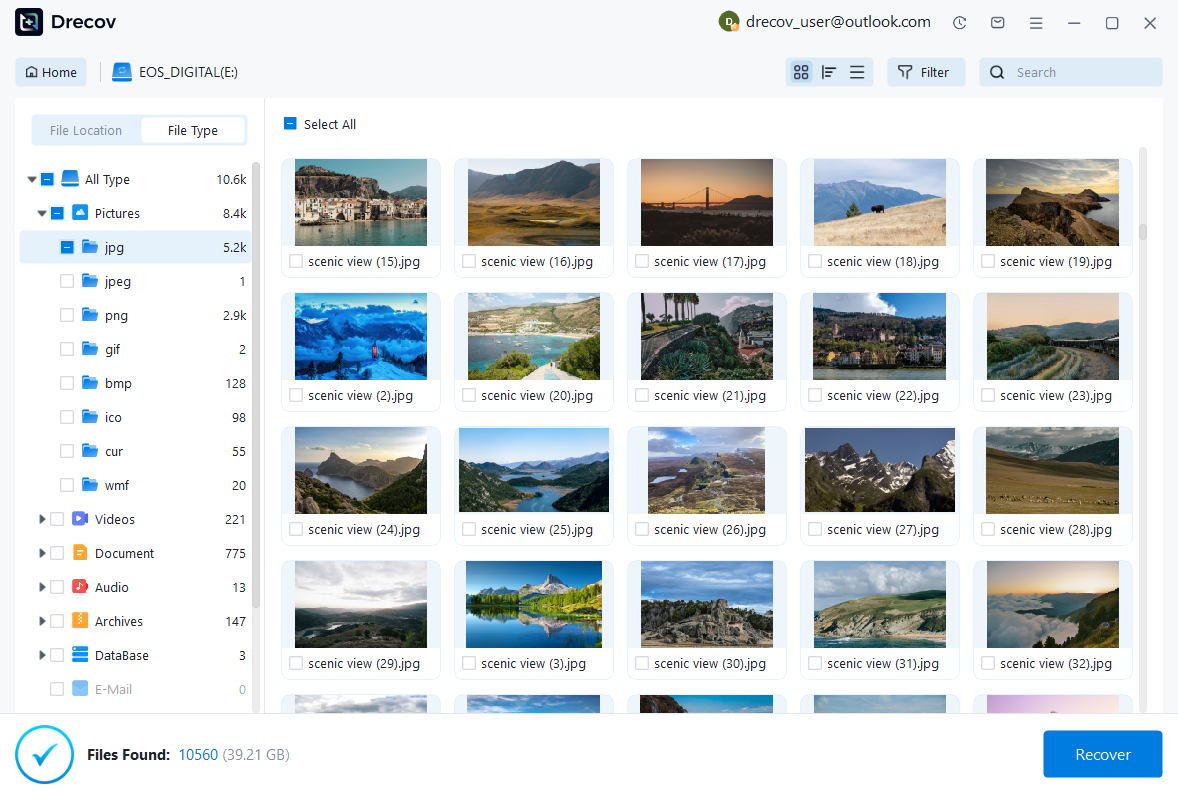
3.1 Browse Lost Word Documents
To find lost Word documents:
- Preview the document before recovery to confirm integrity.
- Click on the “Documents” category.
- Filter by .doc or .docx format.
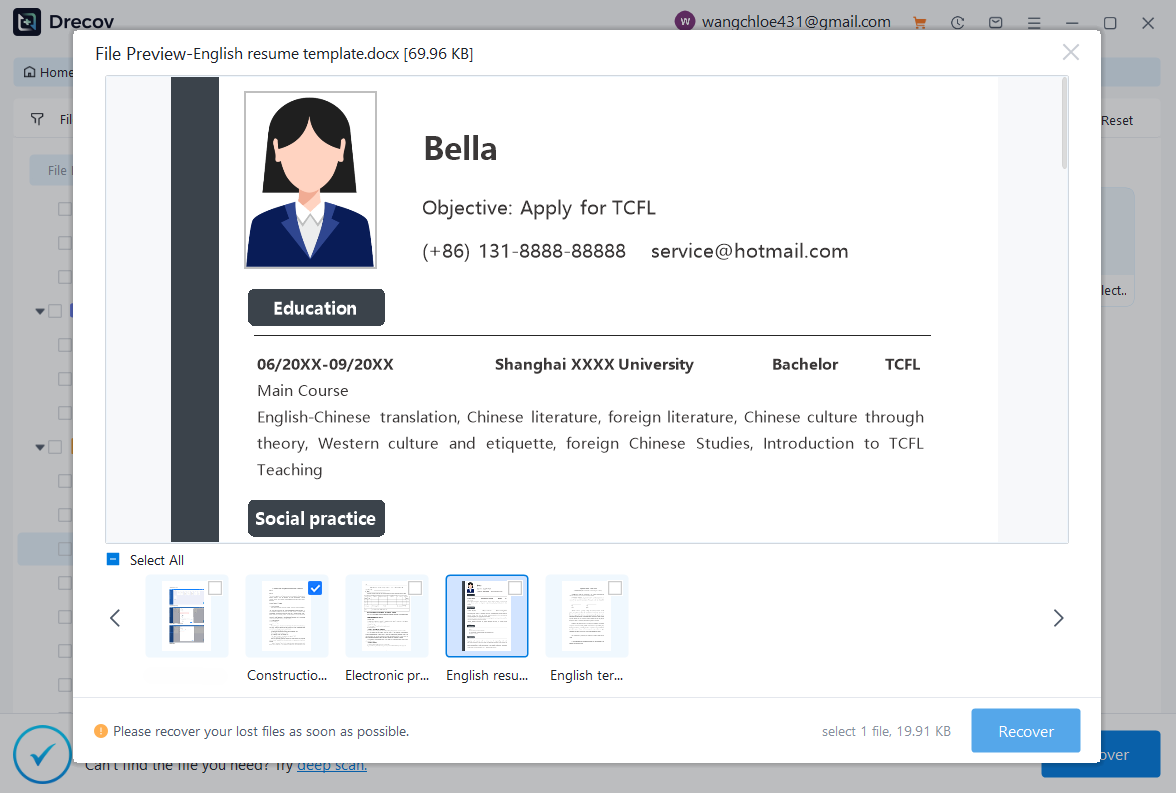
3.2 Browse Lost Excel Files
To recover Excel spreadsheets:
- Preview the spreadsheet to verify data accuracy.
- Navigate to the “Documents” section.
- Filter by .xls or .xlsx files.
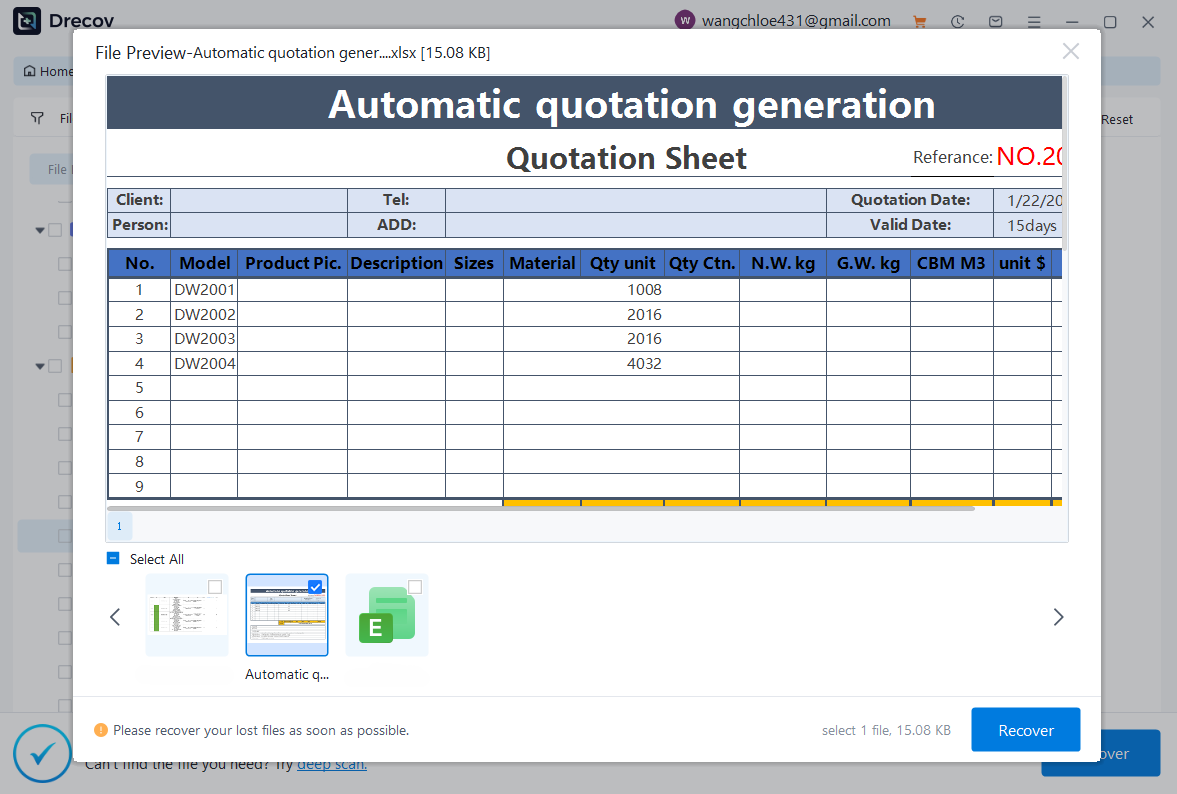
3.3 Browse Lost PDF Files
For PDF recovery:
- Use preview mode to ensure the file opens correctly.
- Select the “Documents” category.
- Filter by .pdf format.
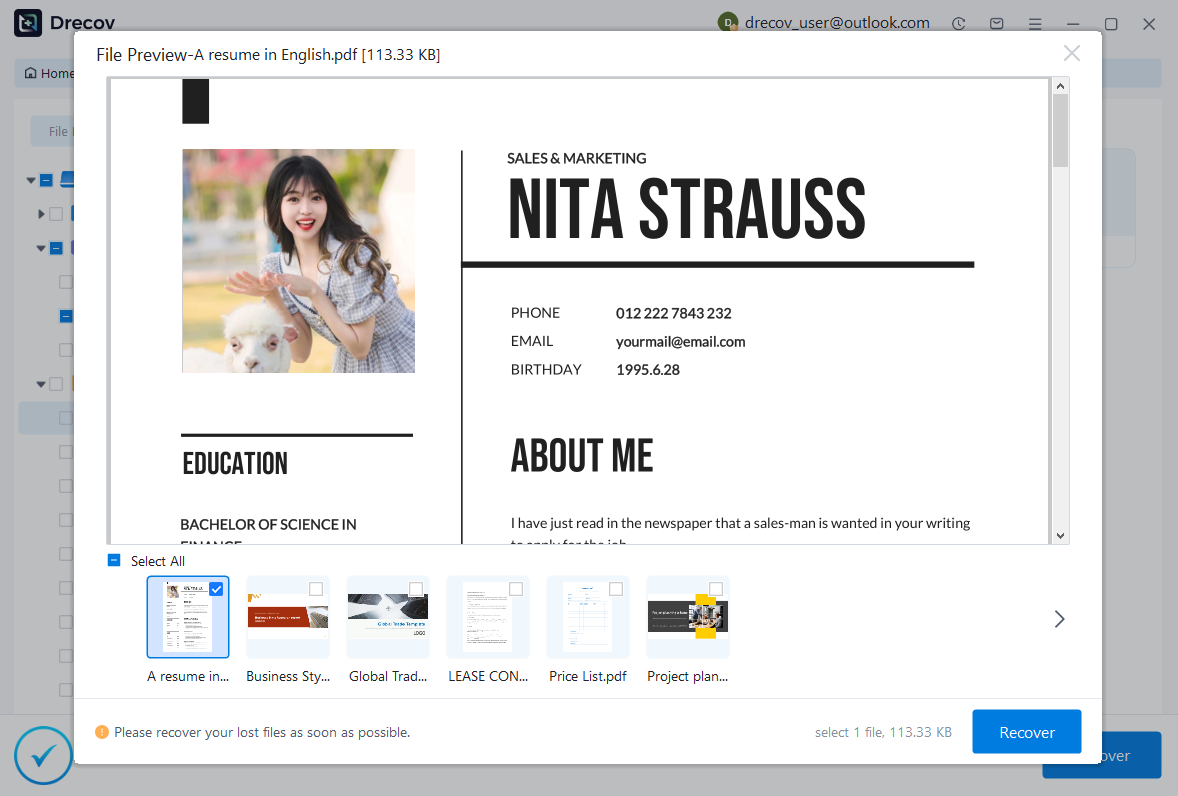
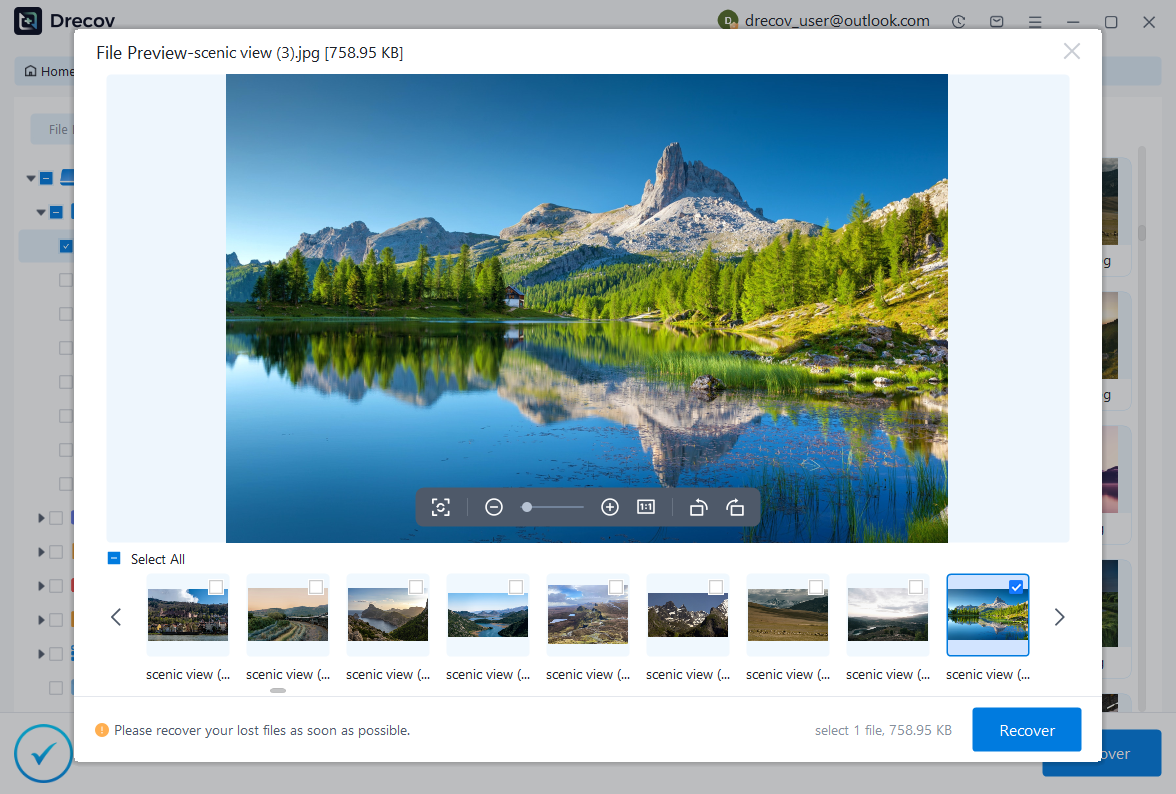
3.4 Browse Lost Pictures
To recover deleted images:
- Go to the “Pictures” or “Graphics” section.
- Filter by formats such as .jpg, .png, or .jpeg.
- Preview thumbnails to quickly identify your photos.
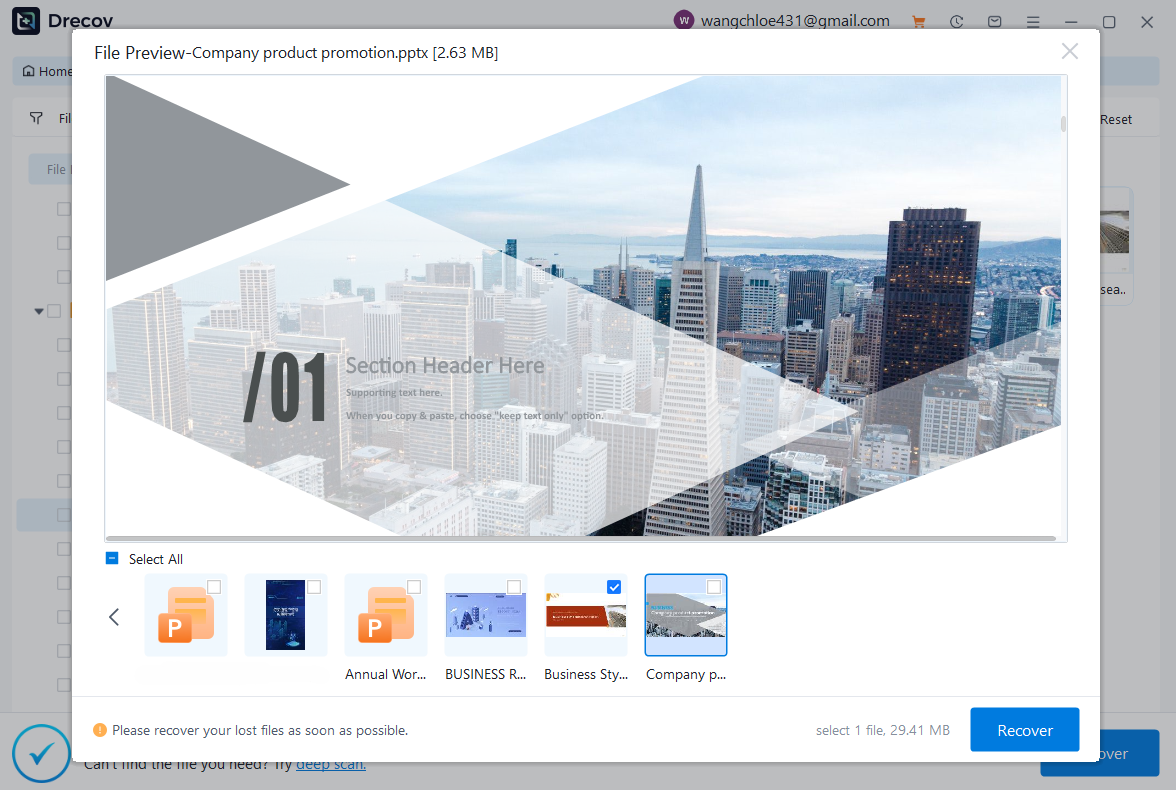
3.5 Browse Lost PowerPoint Files
For recovering presentation files:
- Preview slides to confirm they are complete.
- Navigate to the “Documents” category.
- Filter by .ppt or .pptx files.
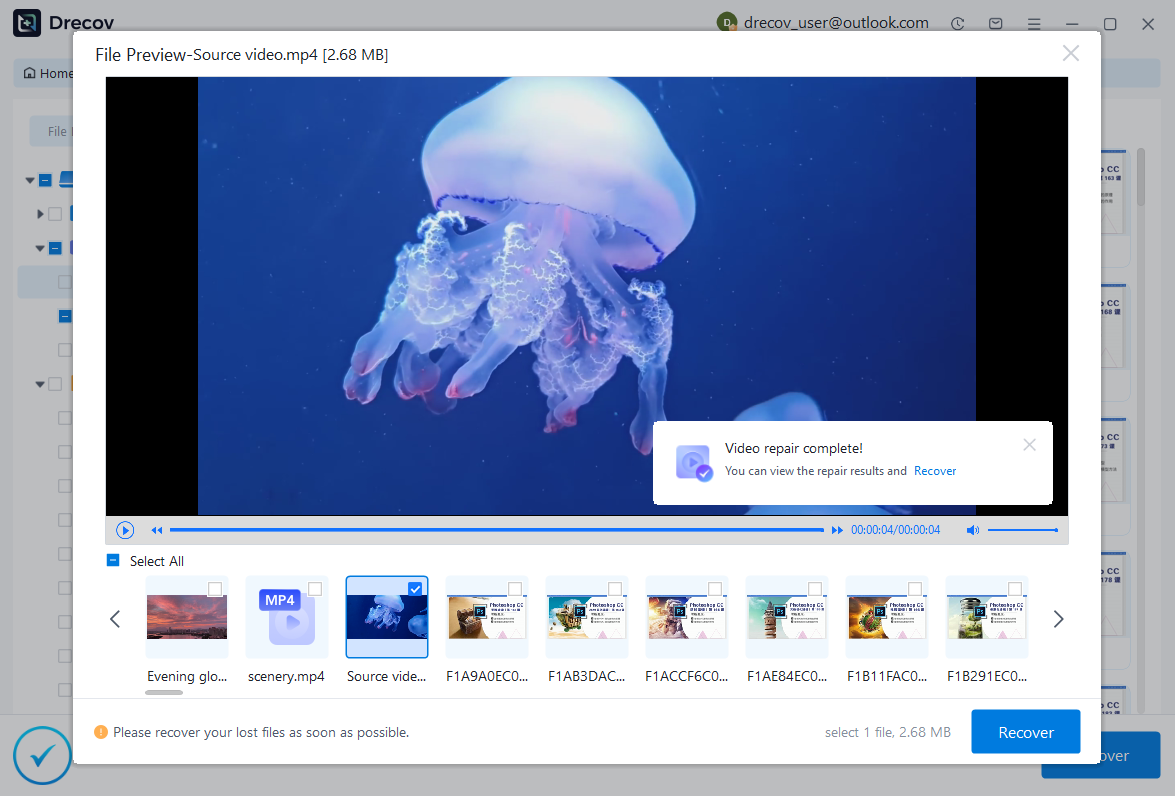
3.6 Browse Lost Videos
If you need to recover videos:
- Preview the video if supported.
- Go to the “Videos” category.
- Filter by formats like .mp4, .mov, or .avi.
Step 4: Recover the Selected Files
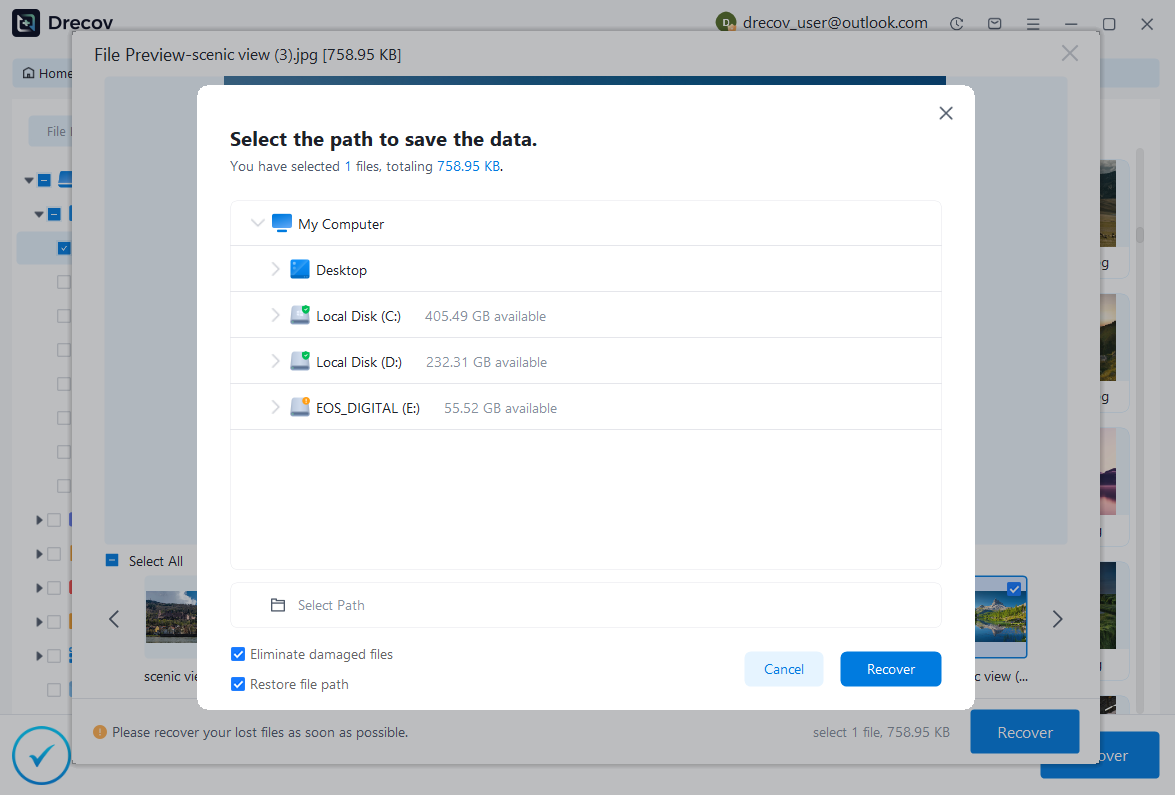
Once you have identified the files you want to restore:
- Select the checkboxes next to the desired files.
- Click the “Recover” button.
- Choose a safe location on your computer’s internal drive. Select the path to save the data.
- Files recovery completed!

Important Tips for Successful SD Card Recovery
To increase the recovery success rate:
- Stop using the SD card immediately after data loss.
- Avoid saving new files to the SD card before recovery.
- Use a reliable card reader to ensure stable connection.
- Perform recovery as soon as possible.
The earlier you attempt recovery, the higher the chance of restoring lost data.
Conclusion
Losing important files from an SD card can be stressful, but with the right tool, recovery is straightforward. Drecov provides a user-friendly interface, powerful scanning engine, and preview functionality to help you recover documents, photos, videos, and more.
By following the steps in this guide:
- Download and select the SD card
- Start scanning
- Preview lost files
- Recover needed data
You can successfully complete SD card file recovery in just a few clicks.
If you’re dealing with deleted, formatted, or corrupted SD card files, Drecov offers a practical and efficient solution.



