






Introduction
Losing an entire partition can be even more alarming than individual file loss, especially when important documents, photos, and work data suddenly become inaccessible due to partition deletion, corruption, or system errors. Fortunately, PandaOffice Drecov provides an effective way to recover from lost partition scenarios. With advanced scanning capabilities and an intuitive interface, it can detect missing partitions and retrieve data quickly and safely—allowing you to restore your files with just a few simple steps.
Step 1: Download PandaOffice Drecov and Select the Lost Partition
Start by downloading and installing PandaOffice Drecov on your computer.
After installation:
- Open PandaOffice Drecov.
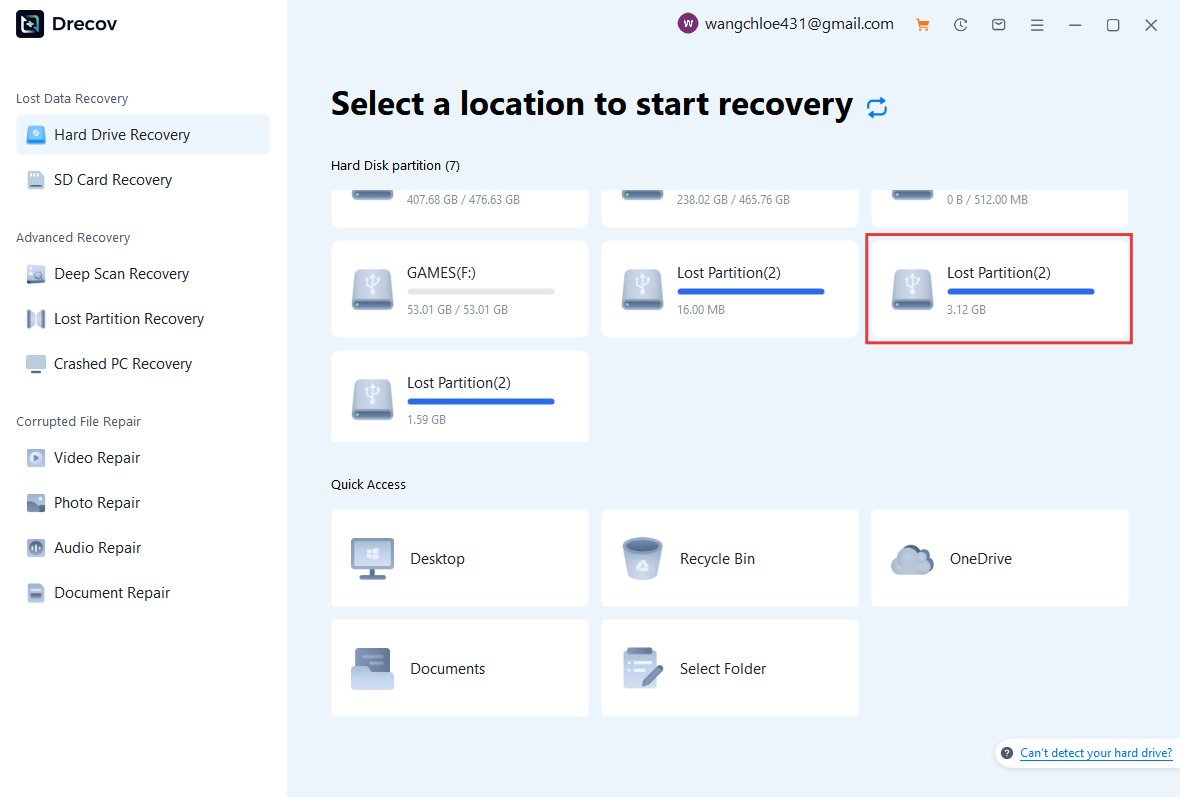
- On the main screen, all detected drives and partitions will be displayed.
- Choose the “Lost Partition” section.
- Select the target location and begin scanning to search for recoverable data from the missing partition.
Step 2: Scan the Lost Partition for Lost Files
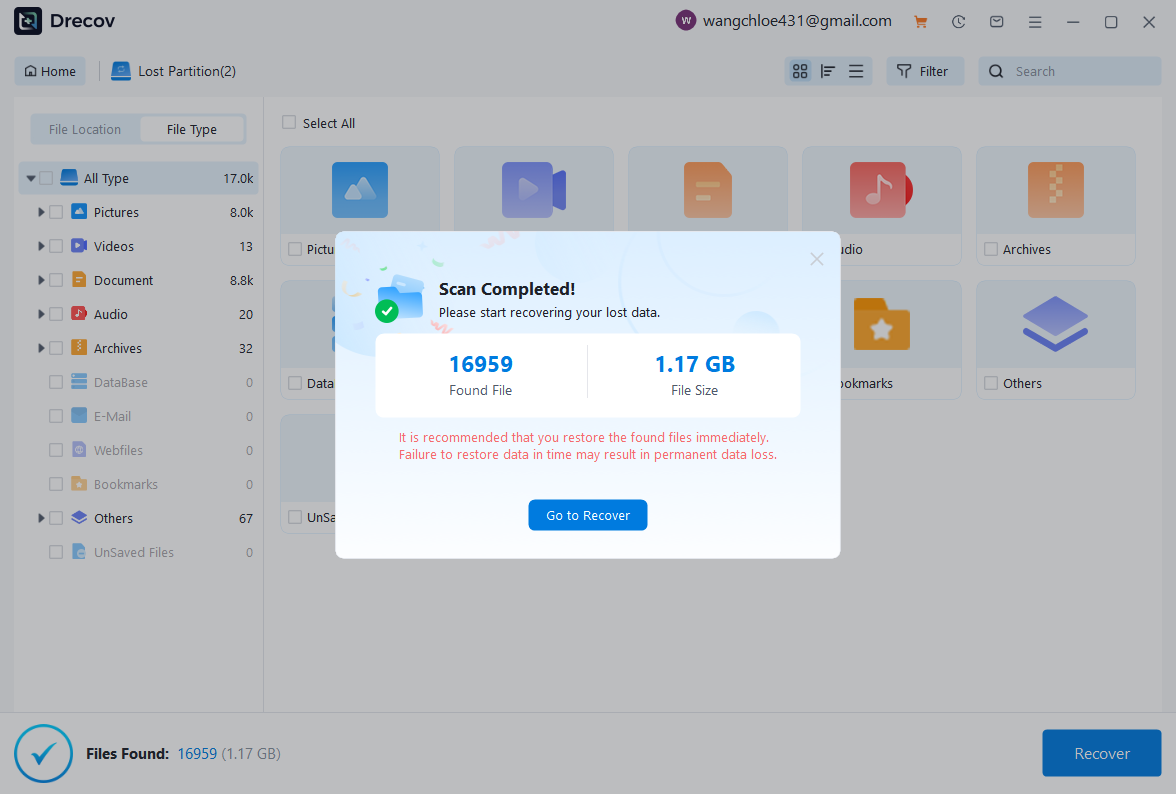
- After selecting the Lost Partition, PandaOffice Drecov will automatically begin scanning for lost data.
- Once the scan is complete, a notification window will appear showing the total number of files found and their overall size. Click “Go to Recover” to view the results and preview the recoverable files.
- If you don’t see the files you’re looking for, you can switch to Deep Scan Recovery to perform a more comprehensive search and locate additional data.
Step 3: Browse and Preview Files from the Lost Partition
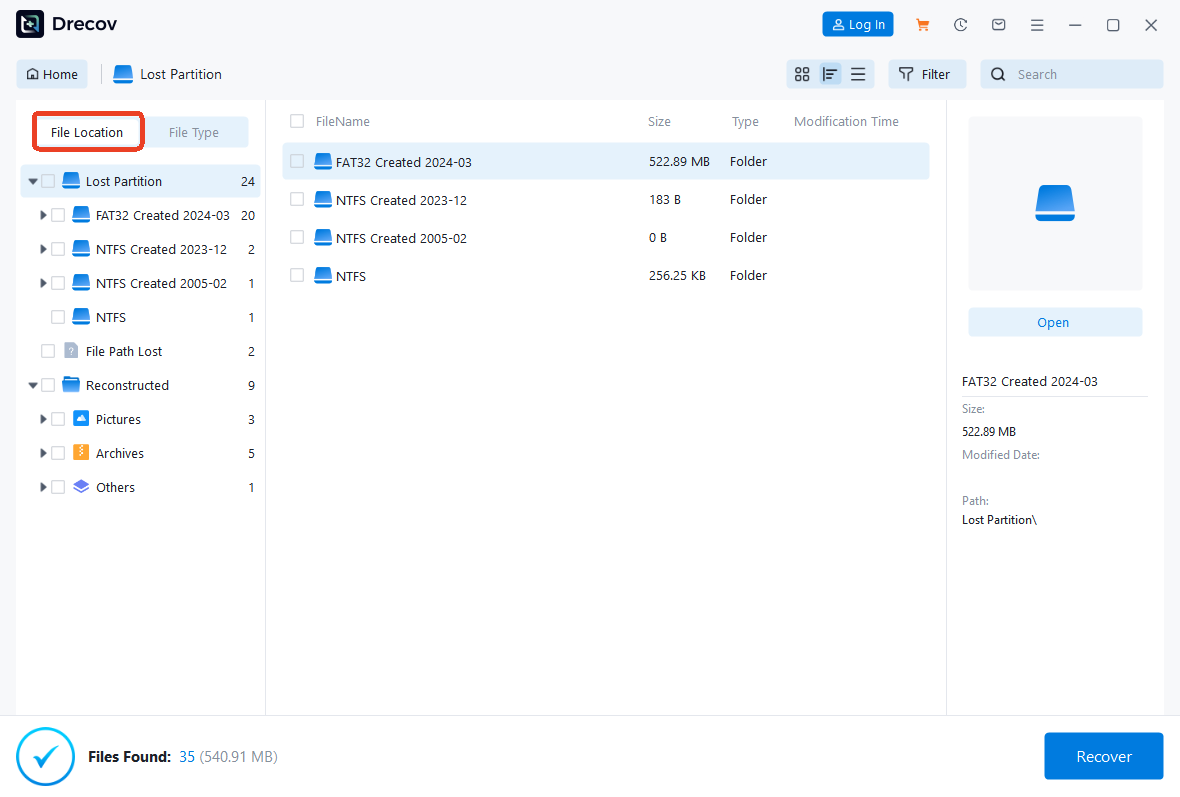
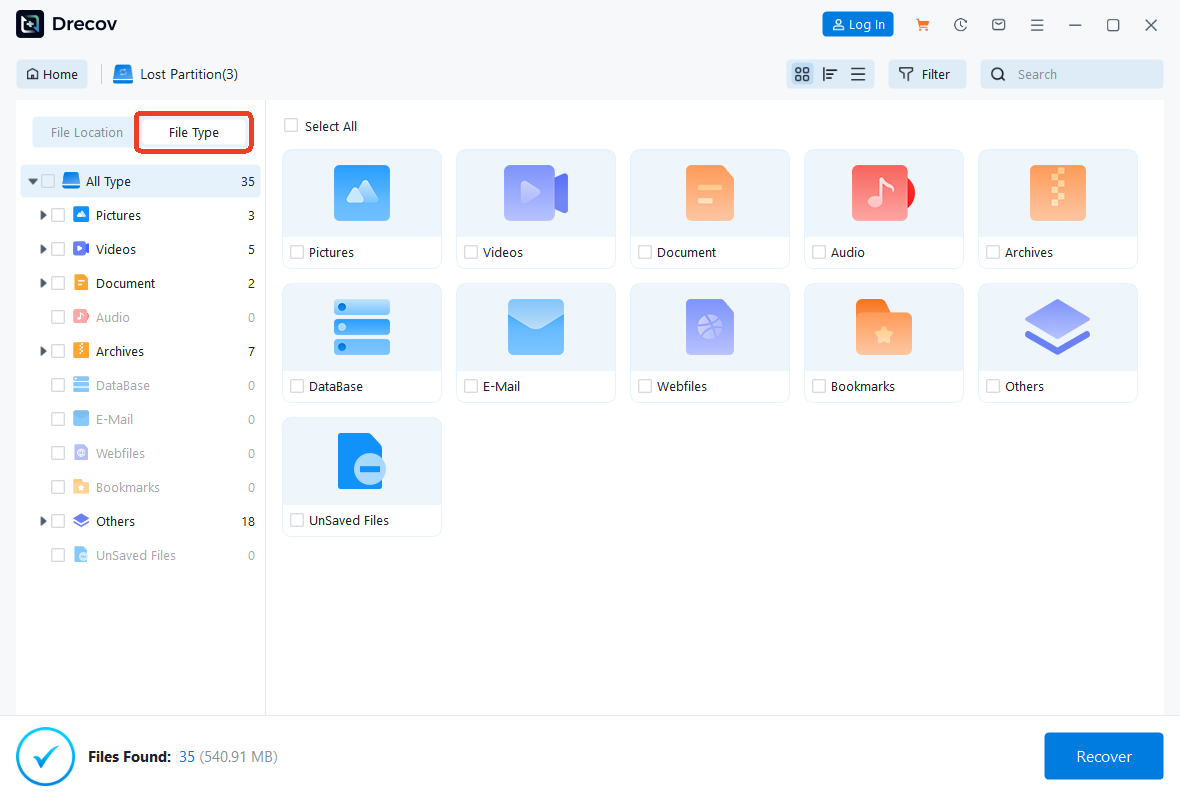
Once the scan is finished, PandaOffice Drecov will display all recoverable data found within the lost partition. You can quickly find what you need by using the File Path view to check original folder structures, or switch to File Type to sort files by formats such as documents, images, or videos.
The recovered data is usually grouped into categories like:
File Type is usually organized by:
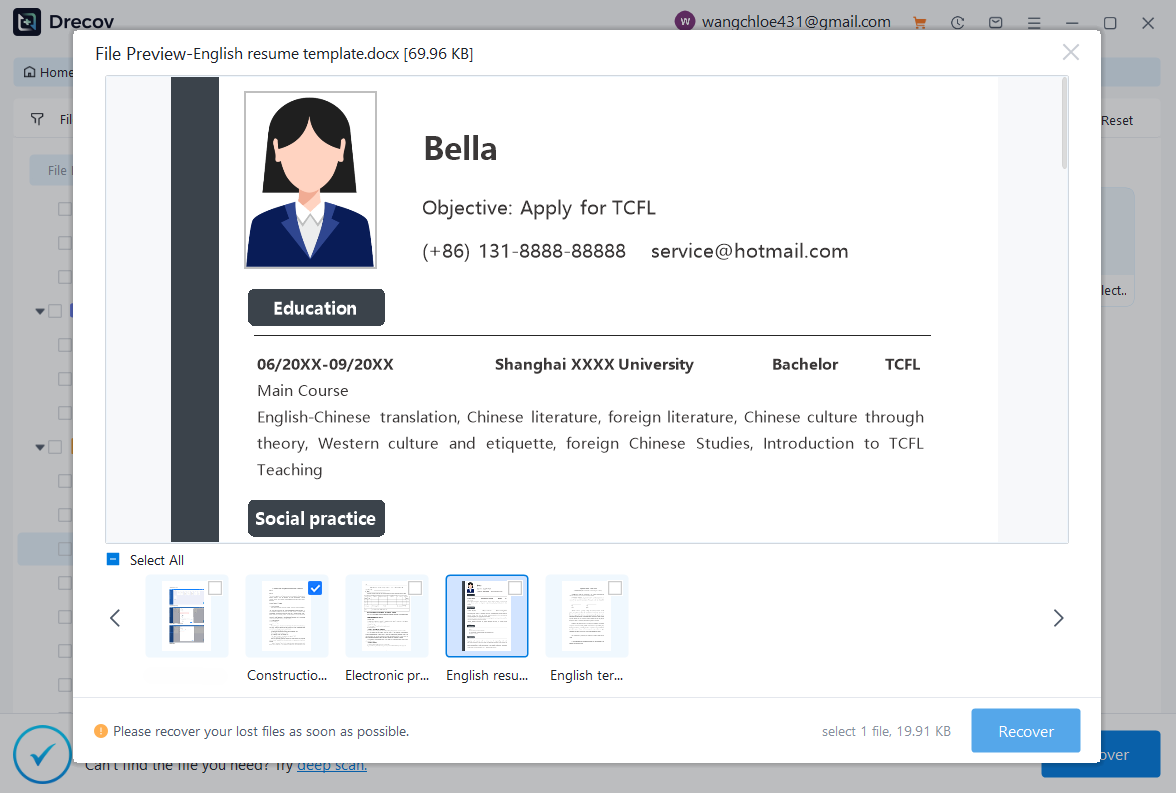
3.1 Browse Lost Word Documents
To find lost Word documents:
- Click on the “Documents” category.
- Filter by .doc or .docx format.
- Preview the document before recovery to confirm integrity.
3.2 Browse Lost Excel Files
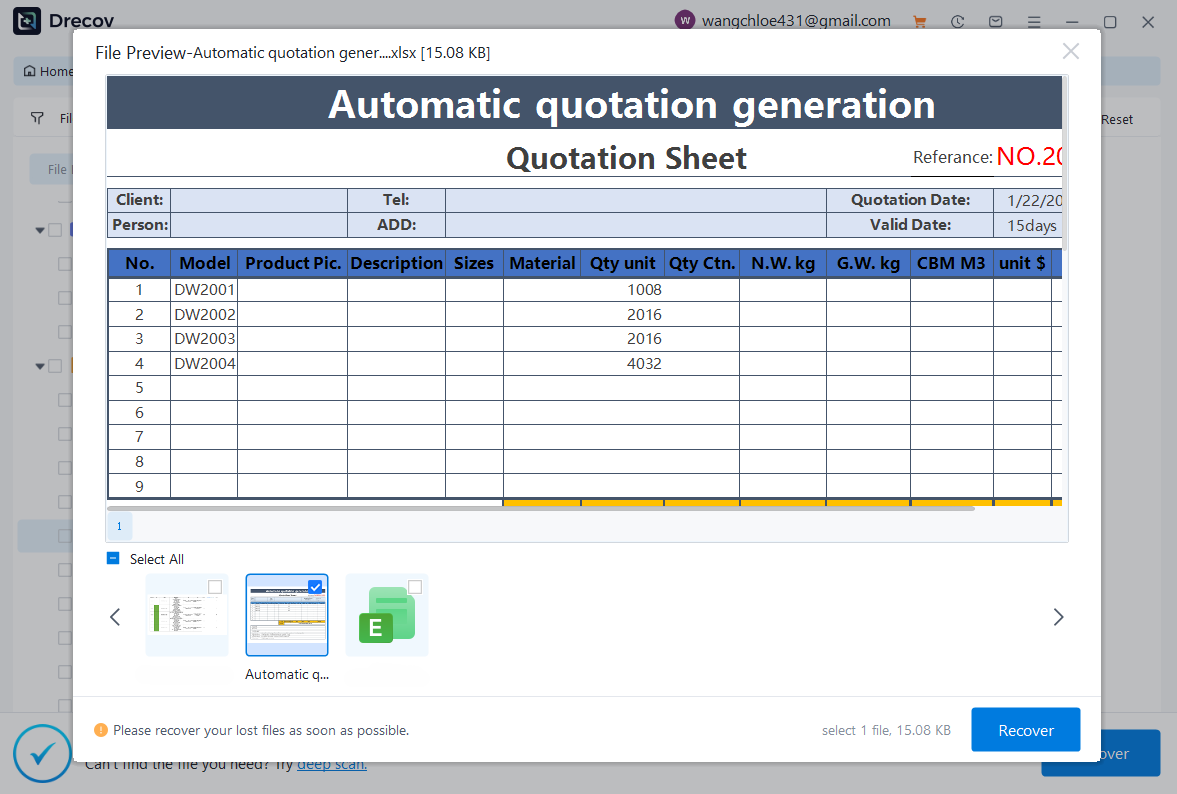
To recover Excel spreadsheets:
- Navigate to the “Documents” section.
- Filter by .xls or .xlsx files.
- Preview the spreadsheet to verify data accuracy.
3.3 Browse Lost PDF Files
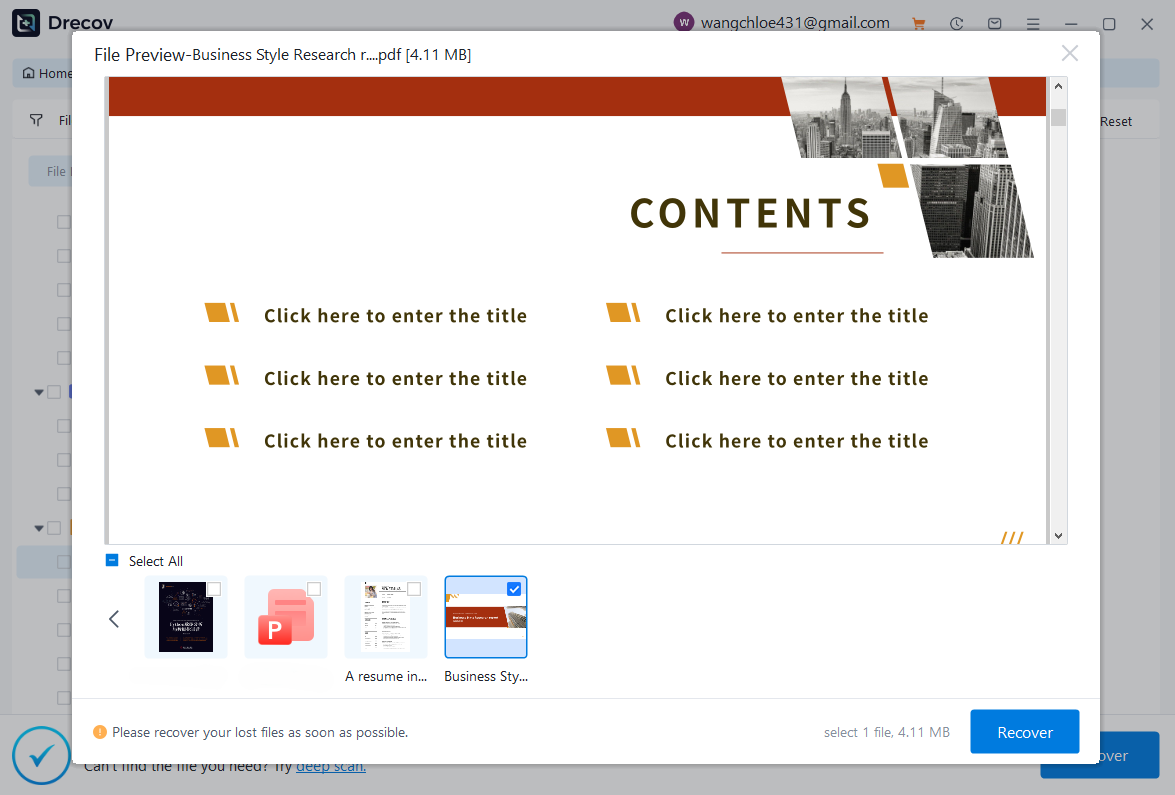
For PDF recovery:
- Select the “Documents” category.
- Filter by .pdf format.
- Use preview mode to ensure the file opens correctly.
3.4 Browse Lost Pictures
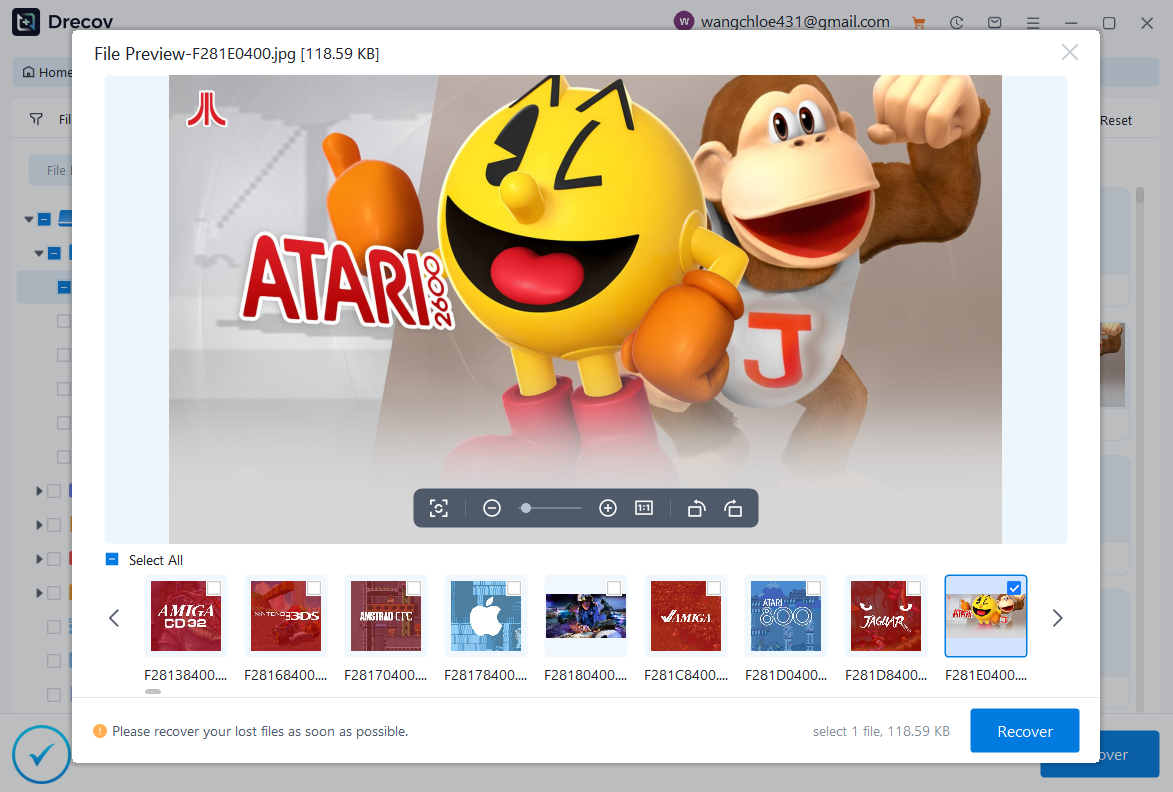
To recover deleted images:
- Go to the “Pictures” or “Graphics” section.
- Filter by formats such as .jpg, .png, or .jpeg.
- Preview thumbnails to quickly identify your photos.
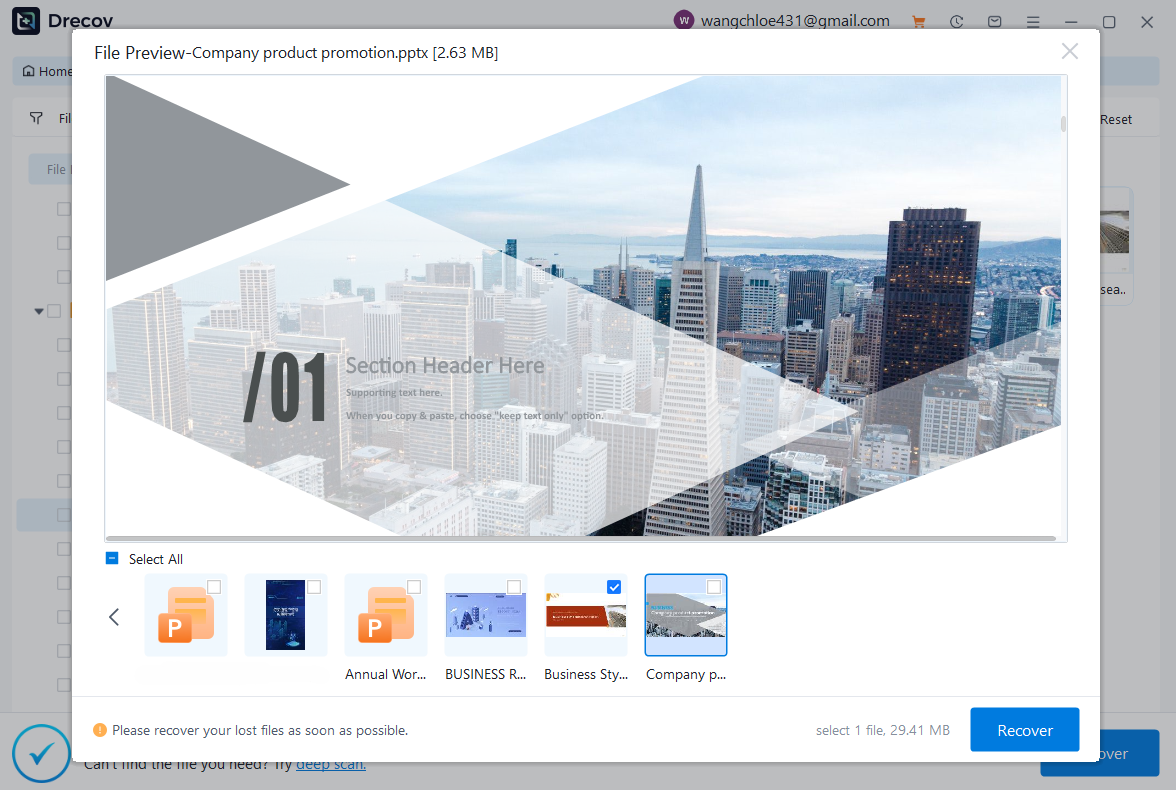
3.5 Browse Lost PowerPoint Files
For recovering presentation files:
- Navigate to the “Documents” category.
- Filter by .ppt or .pptx files.
- Preview slides to confirm they are complete.
3.6 Browse Lost Videos
If you need to recover videos:
- Go to the “Videos” category.
- Filter by formats like .mp4, .mov, or .avi.
- Preview the video if supported.

Step 4: Recover the Selected Files
Once you have identified the files you want to restore:
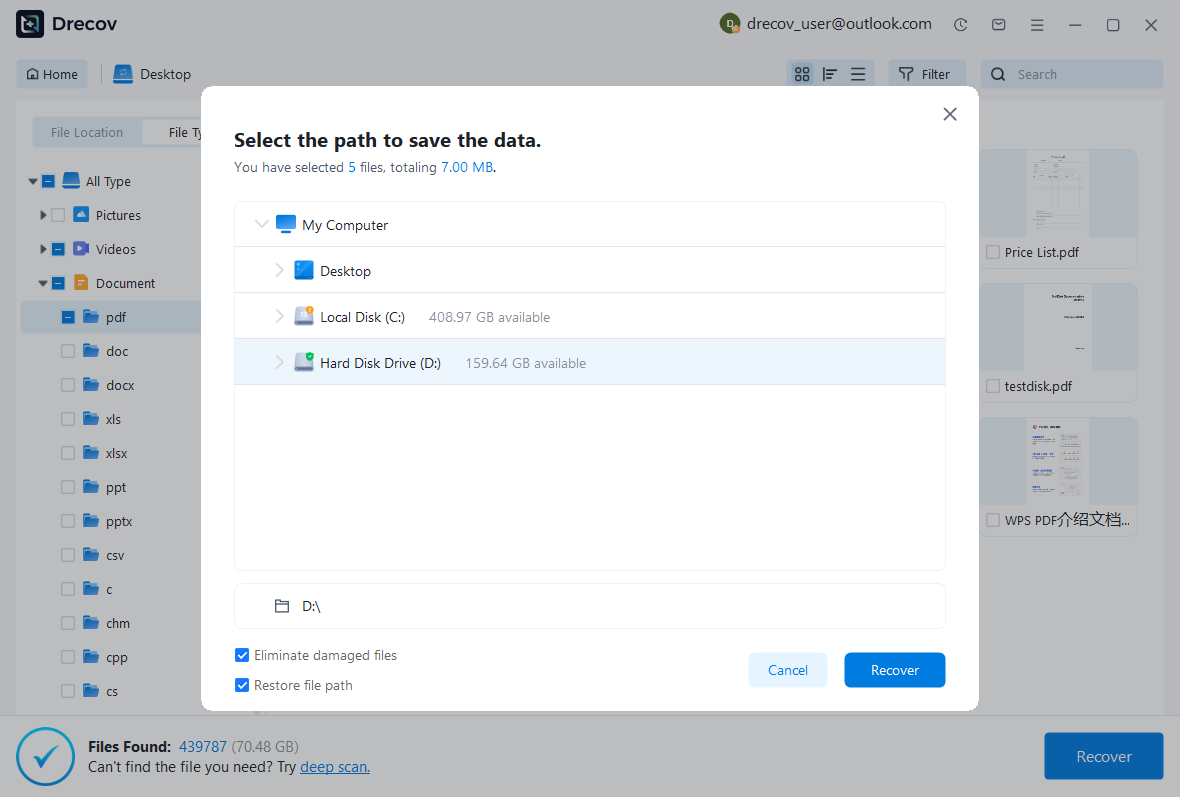
- Select the checkboxes next to the desired files.
- Click the “Recover” button.
- Choose a safe location on your computer’s internal drive. Select the path to save the data.
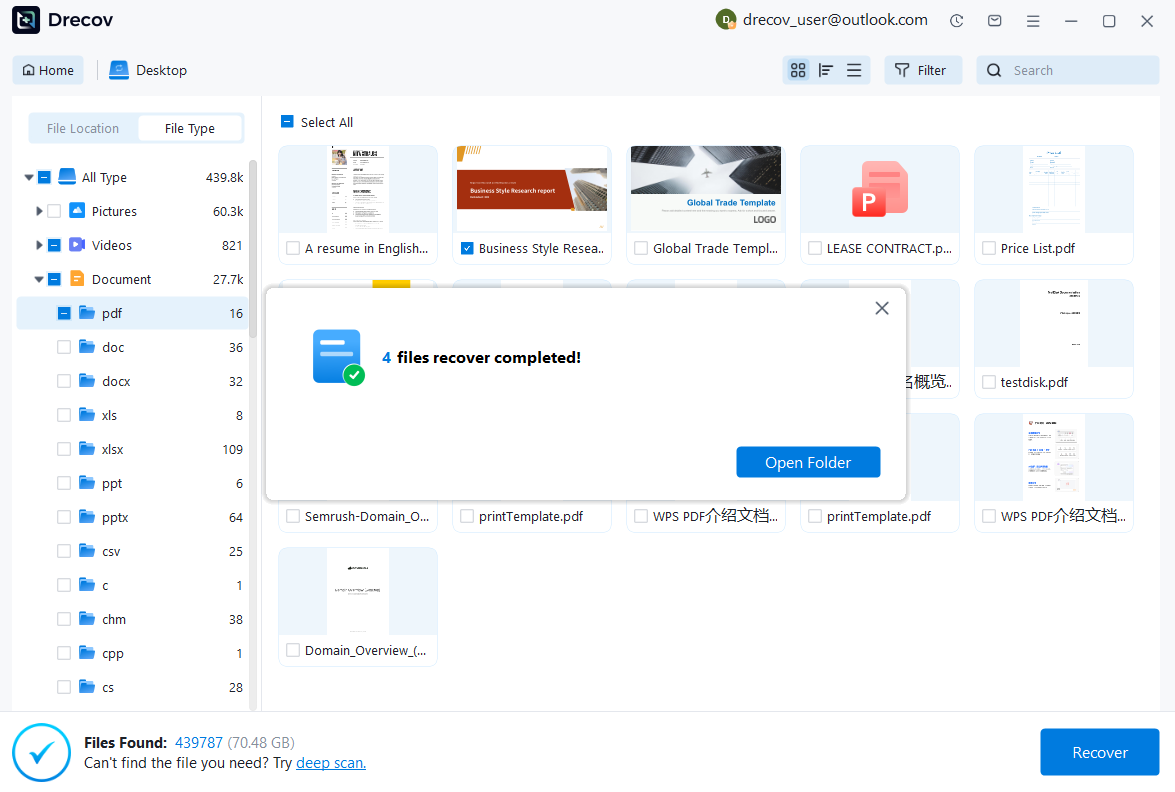
- Files recovery completed!
⚠️ Do not save recovered files back to the same place immediately. This may overwrite other recoverable data.
After recovery is complete, verify the files by opening them from the saved location.
Conclusion
Recovering data from a lost partition is simple with PandaOffice Drecov. By following a few clear steps—installing the software, scanning the affected drive, identifying recoverable files, and restoring the selected data—you can efficiently retrieve important documents, photos, videos, and more.
To improve recovery success:
Avoid writing new data to the drive where the partition was lost.
Do not recreate or modify the lost partition before recovery.
Always save recovered files to another drive or partition.
With proper precautions and a dependable tool like PandaOffice Drecov, most lost partition scenarios can be handled safely and effectively.



