






Master the PandaOffice Drecov dashboard to streamline your data recovery workflow.
Home Screen Features
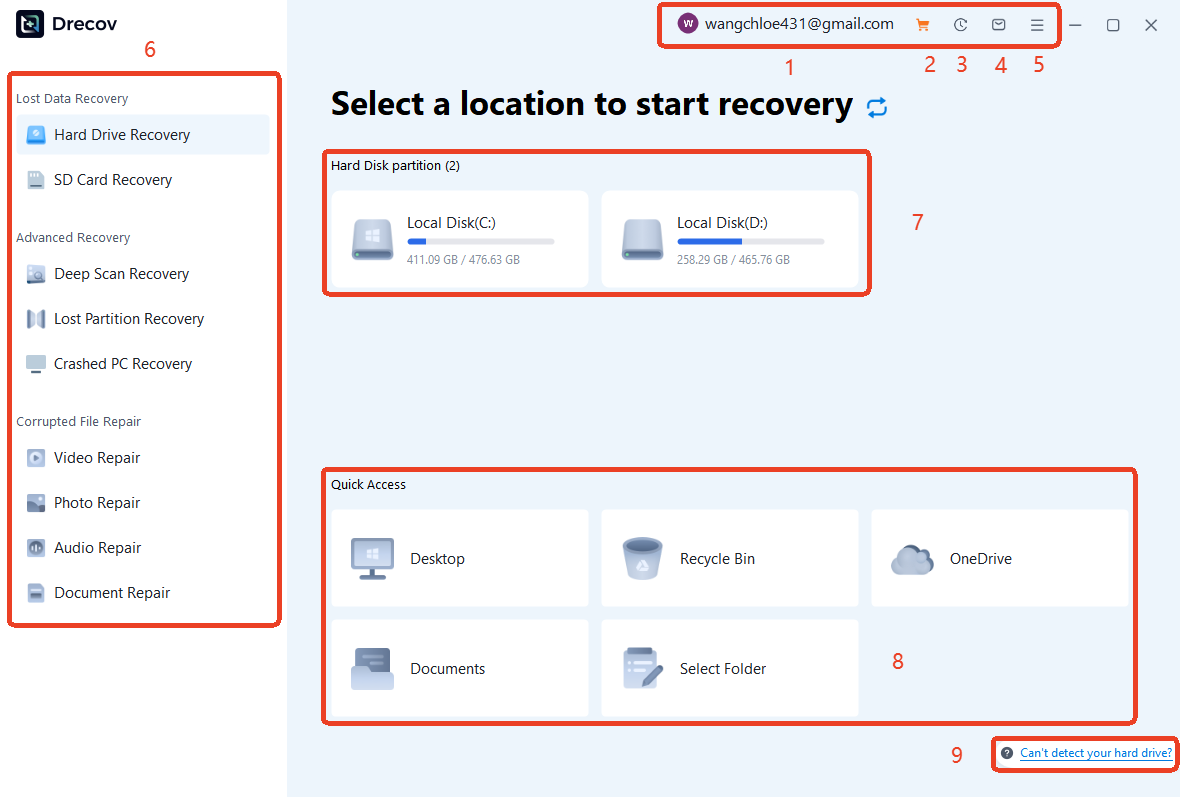
| 1- Account | Manage your profile and subscription status at a glance. |
| 2- Purchase | Go to the purchase page and view prices and packages. |
| 3- Scan history | Import previous results to save time and skip redundant scans. |
| 4- Support | For any questions, feel free to contact PandaOffice Drecov support team. |
| 5- More | Change your preferred language, check for Updates and know more about us. |
| 6- Feature Navigation | Toggle between standard recovery, advanced deep scans, and specialized file repair tools for videos or documents. |
| 7- Partition Selection | List of all detected drives or devices on your PC. |
| 8- Quick Access | Jump straight to common recovery hotspots like the Recycle Bin or Desktop. |
| 9- Troubleshooting | Instant solutions if your hard drive isn’t showing up. |
Feature Navigation
Once a scan is complete, use these tools to efficiently locate and restore your data.
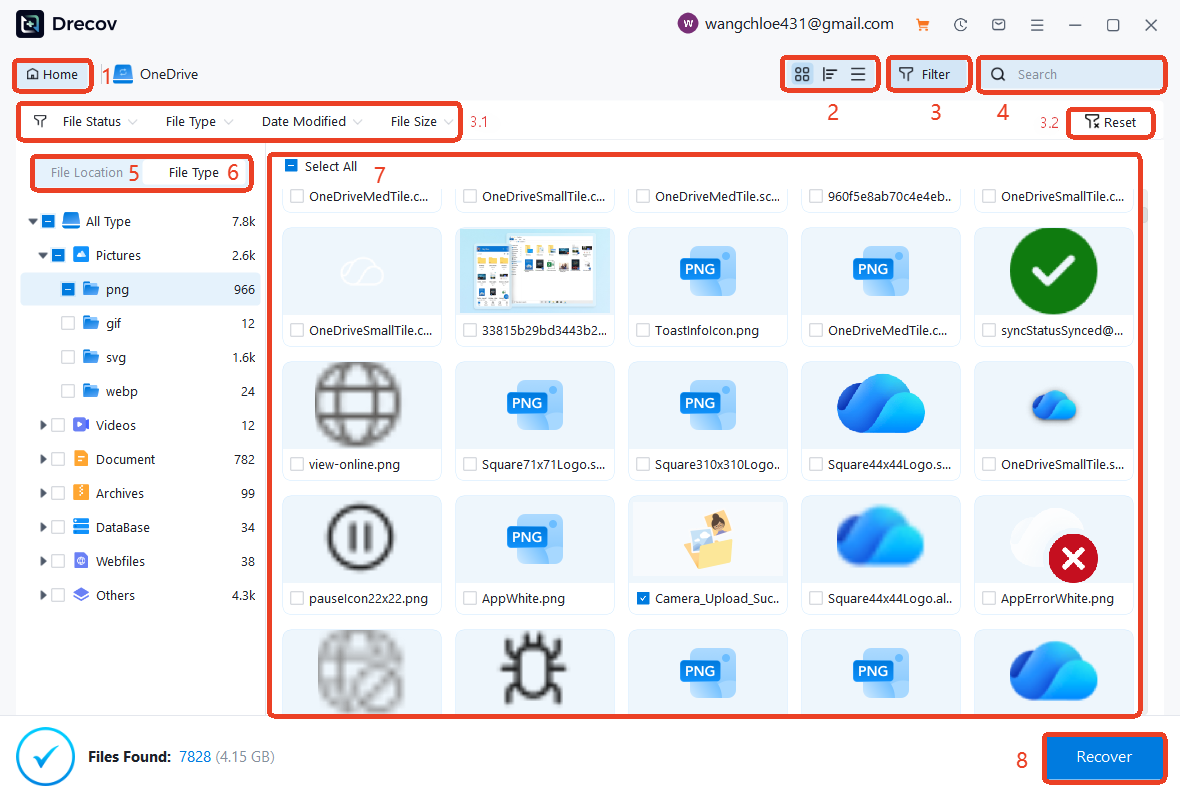
| 1- Home | Back to the main interface. |
| 2- Layout View | Toggle between Grid, List, or Detail views to find the most visually effective way to browse your files. |
| 3/3.1- Filters | Refine results by Status, Type, Date, or Size to pinpoint lost files. |
| 3.2- Reset | Instantly clear all active filters and search terms to return to the full list of discovered data. |
| 4- Search Bar | Use keyword matching to jump directly to a specific filename or extension. |
| 5- Location | Show scan result by tree structure. |
| 6- Type | Show scan results by file types. |
| 7- Preview | Preview up to know if you are choosing the right file to recover. |
| 8- Recover | Save the recovered files to a preferred location. |



