

Available on:

4.9/5
Rating
100% Safe



100% Safe

24/7 Support

Money-Back Guarantee

Scenarios
Common Photo
Loss Scenarios
No matter what causes your photo loss, PandaOffice Drecov delivers professional recovery solutions
Accidental

Accidental Deletion
Mistakenly hitting the delete button, emptying the Recycle Bin, or accidentally deleting entire photo folders.
Partitions

Lost or Damaged Partitions
Inaccessible photos due to hard drive partition loss, RAW-format partitions, or corrupted partition tables.
Formatting

Storage Device Formatting
Accidental formatting of USB drives, SD cards, external hard drives, or camera memory cards leading to photo loss.
Virus

Virus Attacks or Corruption
Photos hidden, encrypted, or corrupted after computers or storage devices get infected with viruses.
Photo Loss

Camera Photo Loss
Data loss can happen unexpectedly. Photos may be lost due to camera resets, memory card problems, accidental deletion, or errors when connecting to a computer.
Disconnection

Unexpected Power Loss or Disconnection
Unexpected interruptions can cause serious issues with your files. Photos may become damaged or lost due to sudden power cuts during transfer or unsafe device removal.
Reason
Why
Choose Us?
Comprehensive photo recovery solutions for different devices and scenarios


Multi-Device Support
Recovers photos from computers, phones, cameras, USB drives, SD cards, external hard drives, and more.

Wide Image Format Compatibility
Supports recovery of nearly all common image formats, including JPG, PNG, GIF, RAW, TIFF, and PSD.

Deep Scan Technology
Advanced deep scan algorithms locate deleted, hidden, or corrupted photo files.

Safe & Risk-Free
Read-only mode scanning—no secondary damage to original data, ensuring data security.
Device
Supported
Device Types
Drecov supports recovery for various devices and file types to meet your diverse needs.

Computers

Phones

Cameras

USB Drives

SD Cards

External Hard Drives
100% Safe
24/7 Support
Money-Back Guarantee
No Data Loss Risk
High Success Rate
Steps
3 Simple Steps
to Retrieve Lost Photos
PandaOffice Drecov photo recovery software is easy to use—no professional knowledge required, anyone can master it
setp 1
Download & Install
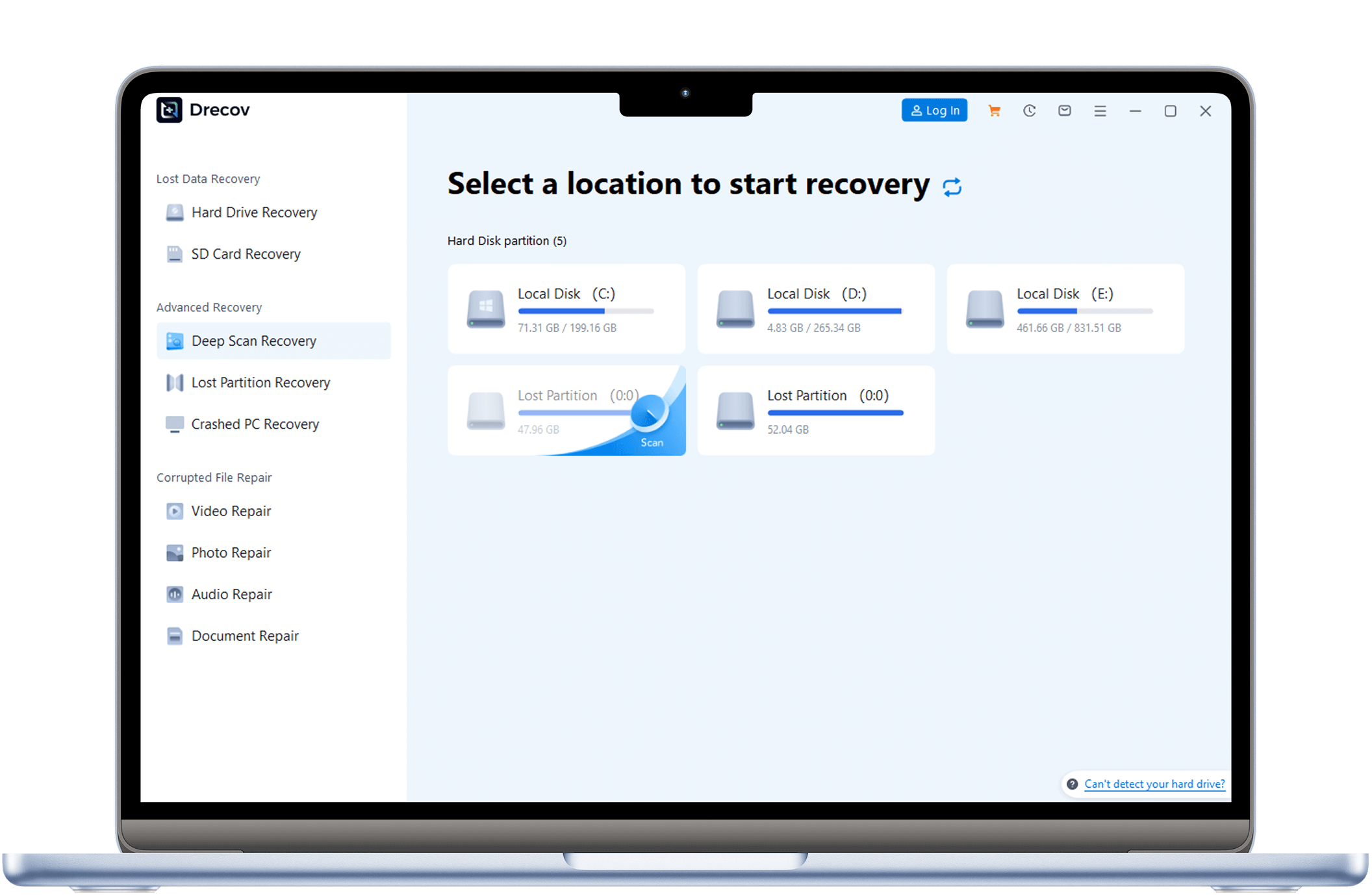
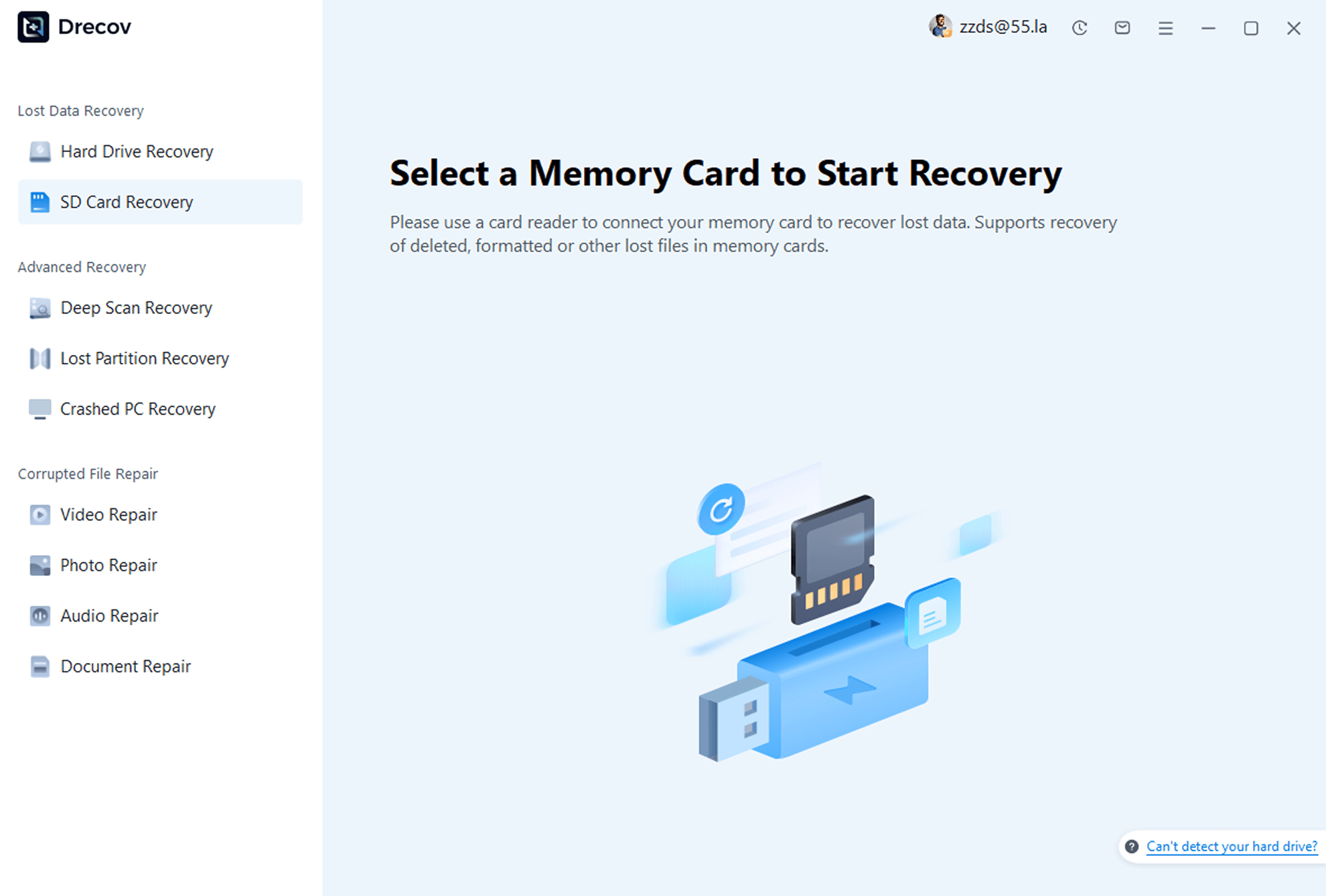
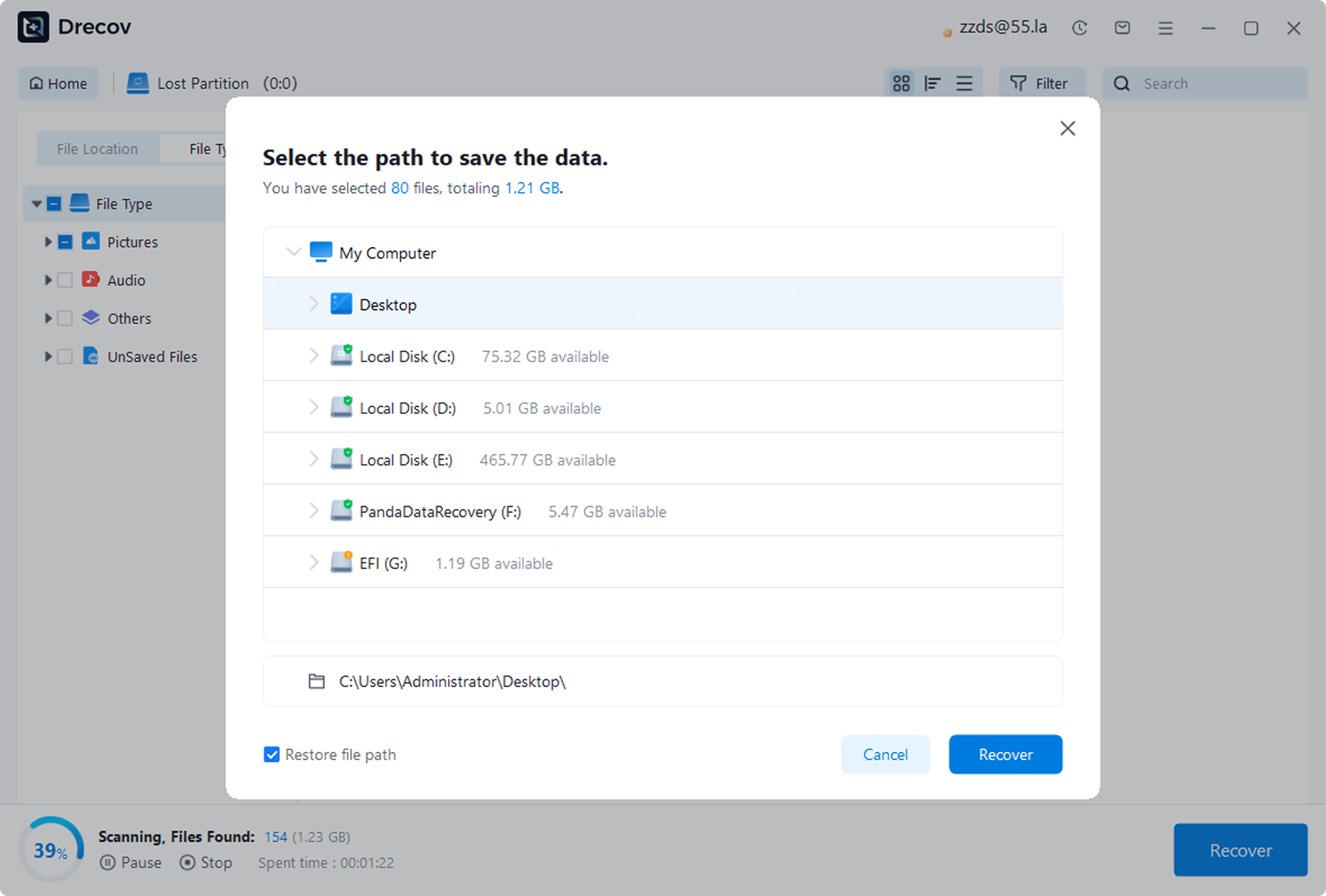
Download and install PandaOffice Drecov on your computer. Launch the program and select the “SD Card Recovery” feature.
setp 2
Select Device & Scan
Choose the storage device where photos were lost, start the scan, and the software will automatically scan for recoverable photos.
setp 3
Preview & Recover
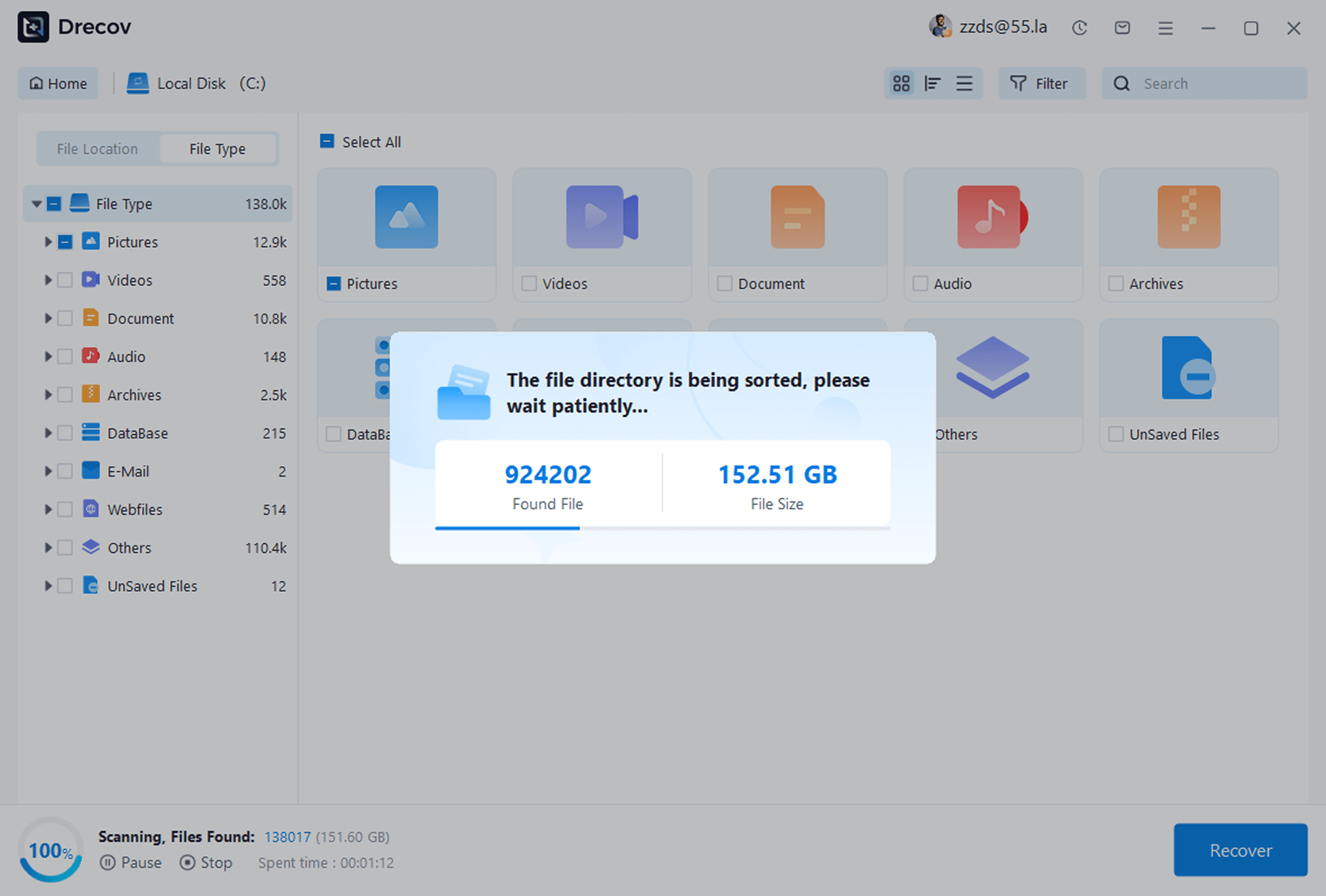
After scanning, preview the found photos, check the ones you need to recover, and click the “Recover” button to save them to a safe location.
Reviews
Real
Reviews User
See how other users retrieved their precious photos with PandaOffice Drecov
%
Success Rate
+
Happy Users
+
Photos Recovered
/
Expert Support

“I accidentally deleted my kid’s growth photos and panicked. A friend recommended PandaOffice Drecov, and it recovered hundreds of photos! Super easy to use—thank you!”

Lisa Martinez
Parent
“My SD card suddenly failed, and I thought I lost all my work photos. Luckily, a friend suggested PandaOffice Drecov—it recovered most of them! Not perfect, but a huge relief.”

Mark Wilson
Freelance Photographer
“After resetting my camera to factory settings, all photos were gone. I tried this photo recovery software on a whim, and it brought back three years of photos! The interface is simple, and it’s foolproof to use—highly recommend!”

Sarah Thompson
Travel Enthusiast
Recovery
Photo Deletion Recovery
Articles & Tutorials
Learn detailed photo recovery methods for different devices and scenarios to easily solve photo loss issues


Best Photo Data Recovery Software
Learn how to safely recover deleted photos from SD cards, cameras, and hard drives using system tools or photo recovery software. Perfect for beginners and intermediate users.


Canon Digital Camera Photo Recovery Software | Free Download
This guide explains Canon photo loss causes and step-by-step recovery methods, from free system tools to using Drecov for formatted SD cards.

How to recover deleted photos from an sd card?
This professional guide outlines how to recover deleted photos from an sd card using elite tools like PandaOffice Drecov, SanDisk, Sony, and Lexar. It combines step-by-step software instructions with essential forensic protocols—such as disk imaging and write-protection—to ensure maximum data restoration from formatted, corrupted, or accidentally erased memory cards.

How to Recovery Photos from USB?
This guide explains USB photo loss causes and shows step-by-step recovery methods, from free system tools to using Drecov for formatted USB drives.

Can I Recovery Photos after Format?
Accidentally formatted your storage device? Stop using it and recover lost photos safely with system tools or reliable software like Drecov, following simple step-by-step instructions.

How to Recover Lost Photos from Hard Drive?
Lost photos from your hard drive? PandaOffice Drecov helps you recover them easily with a fast, user-friendly process. This guide covers everything from scanning to previewing and restoring your photos. Get back your valuable memories today with PandaOffice Drecov!