






USB Recovery
USB data recovery tool to restore deleted or formatted files from USB flash drives. Fast scan, file preview, and safe recovery for Windows users.
TOP 4 Hot Articles
Top 4 hot articles will provide you reliable solutions to find crucial data with Drecov software.


How to Fix USB Flash Memory: 5 Easy Ways to Save Your Data
Don’t let a corrupted drive ruin your day. This comprehensive guide teaches you how to fix USB flash memory using proven techniques like CHKDSK and Diskpart. We also explore professional USB flash memory recovery programs like PandaOffice Drecov to restore lost data and fix USB storage visibility issues, ensuring your important files stay safe and…
Find a solution that suits your case
Here are file recovery guidelines for all types of files. Just choose the most suitable situation for you to retrieve your data
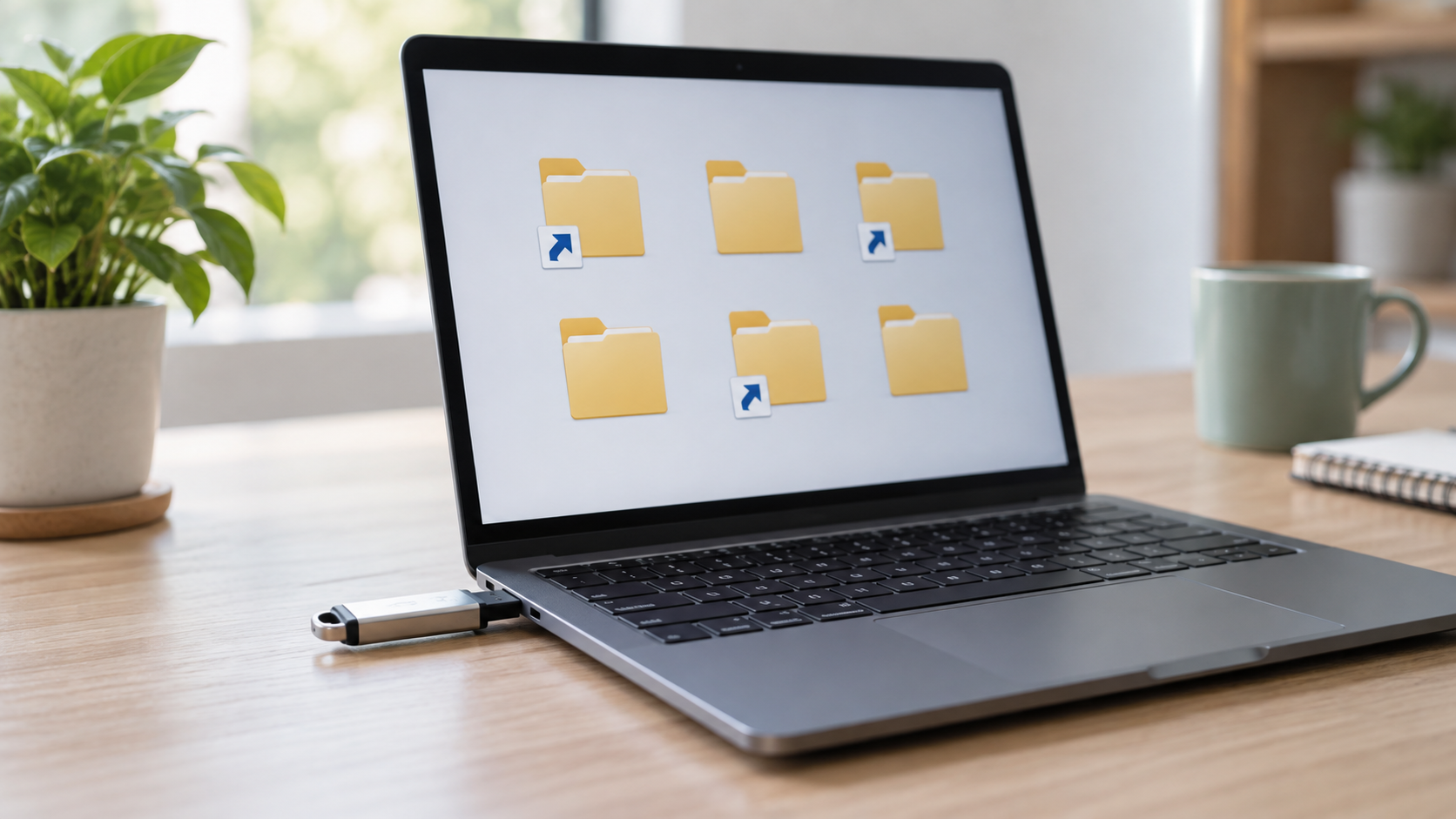

Files Turned Into Shortcuts on USB: Restore Them Safely
Read more →: Files Turned Into Shortcuts on USB: Restore Them SafelyDisconnect the computer from untrusted networks, stop opening shortcut files, and do not save anything new to the USB. Show hidden items, run Microsoft Defender on the computer, and use attrib only after preserving important files. Recover missing originals to a different disk.

USB Drive Shows Two Partitions: Recover and Rebuild Safely
Read more →: USB Drive Shows Two Partitions: Recover and Rebuild SafelyTwo partitions can be normal after making a bootable USB. First identify the physical device and copy or recover any needed files. Only then delete partitions and create a single new volume with the built-in disk tool; this erases existing contents.

Format a Bootable USB Drive Back to Normal Safely
Read more →: Format a Bootable USB Drive Back to Normal SafelyTo return a bootable USB to ordinary storage, first copy anything needed. Remove the boot partitions with a trusted disk utility only after verifying the physical USB, create one new volume, and format it as exFAT, FAT32, or NTFS according to the devices that will use it.
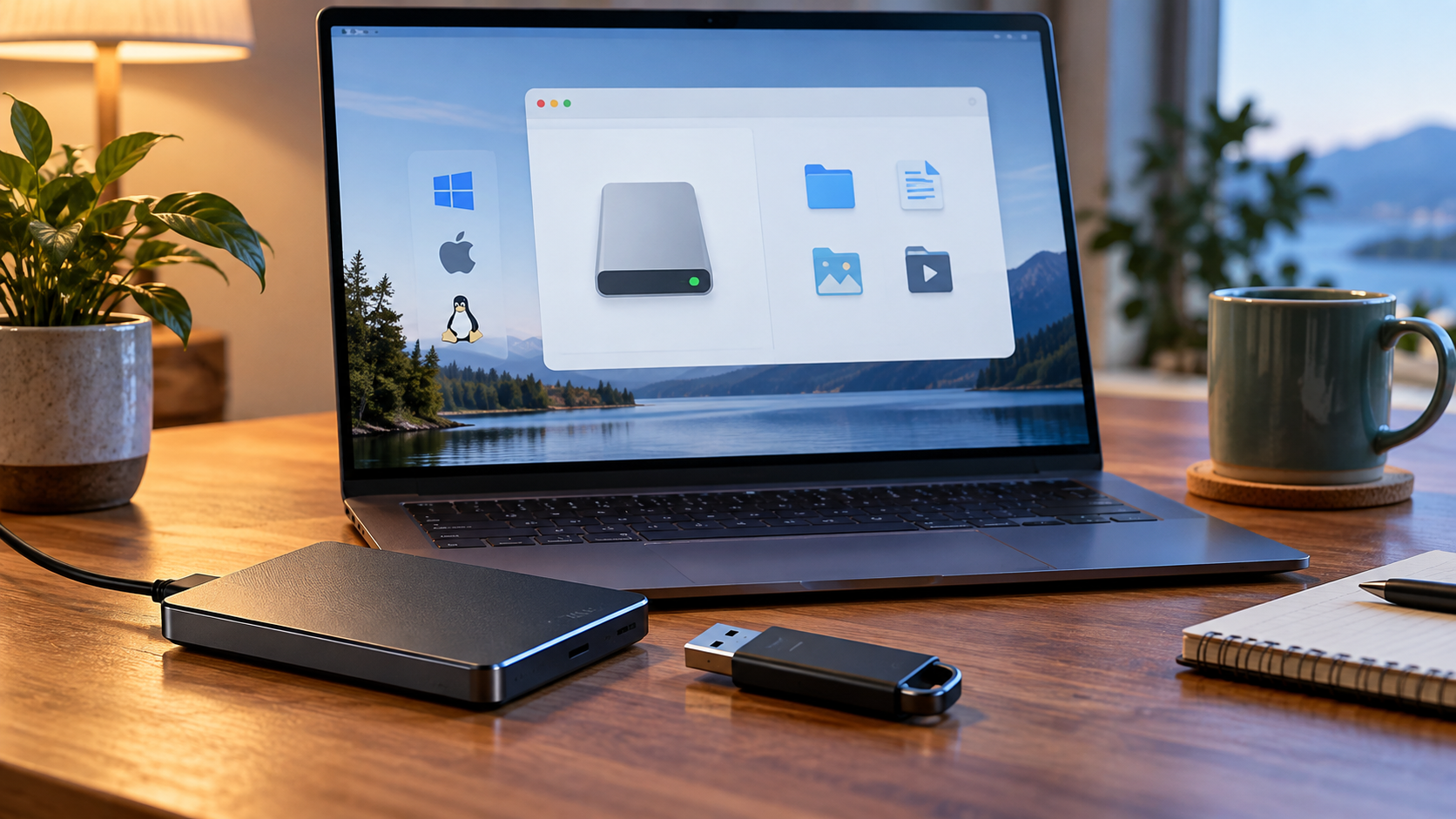
Format a USB Drive to exFAT Safely
Read more →: Format a USB Drive to exFAT SafelyUse exFAT when a removable USB drive must store files larger than 4 GB and remain writable on current Windows and Mac computers. Copy or recover files first, verify the exact device, then quick-format it as exFAT and test it on every intended device.
Format a USB Drive Without Losing Data: Safe Options
Read more →: Format a USB Drive Without Losing Data: Safe OptionsFormatting cannot preserve the only copy of files by itself. First copy readable data, restore a backup, or recover missing files to another physical disk; only then format the verified USB drive and copy the data back.

Cannot Format a Write-Protected USB Drive: Safe Fixes
Read more →: Cannot Format a Write-Protected USB Drive: Safe FixesDo not erase a write-protected USB drive until needed files are copied or recovered. Check a physical lock switch, try another port and computer, inspect read-only attributes, and consider media failure; repeated write protection can mean the flash memory is worn out.
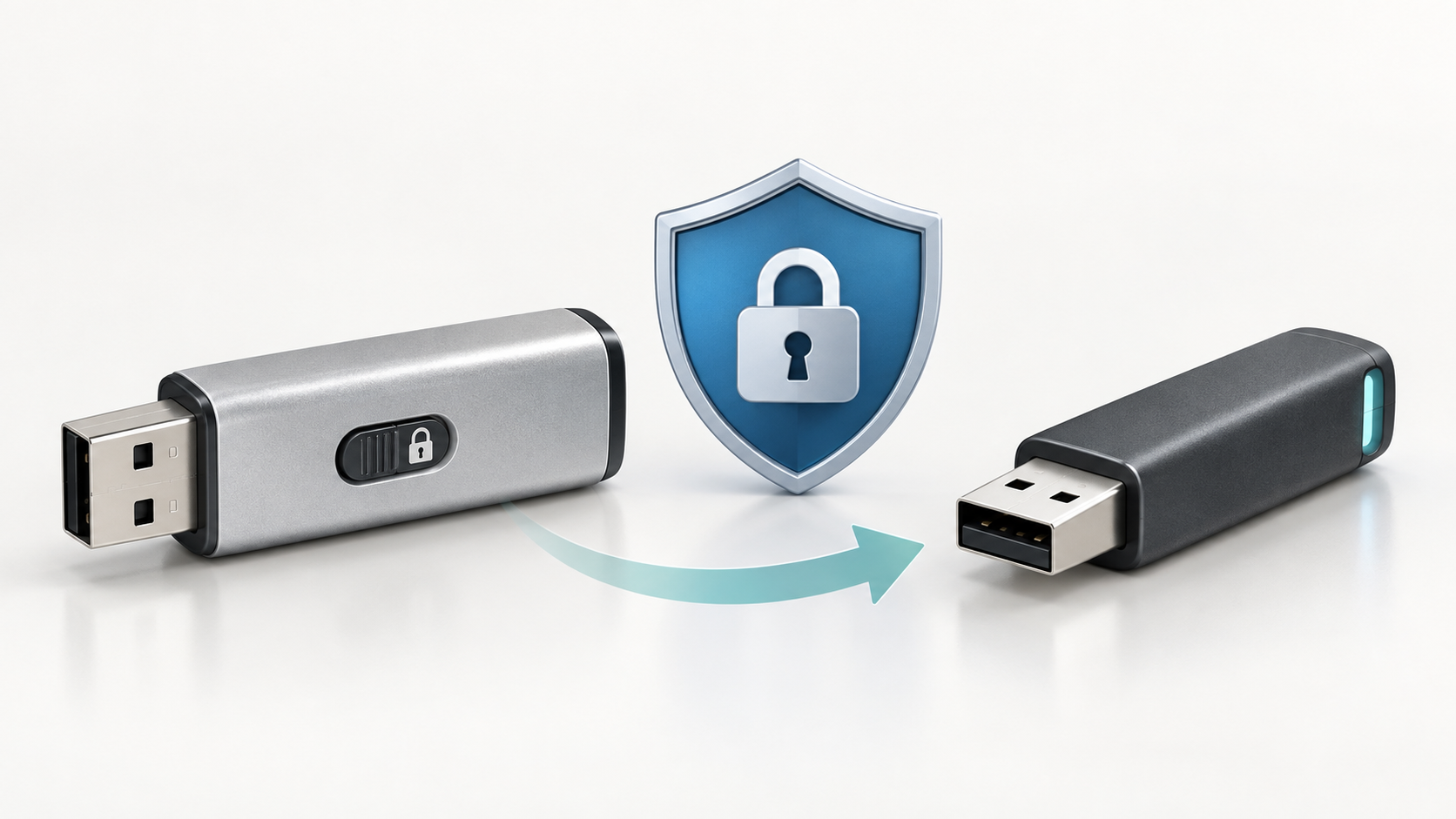
Flash Drive Write Protected: Safe Checks Before Formatting
Read more →: Flash Drive Write Protected: Safe Checks Before FormattingFlash Drive Write Protected: Safe Checks Before Formatting — The safe order is identify, protect, recover, verify, then repair or replace. Keeping those stages separate avoids turning a manageable logical problem into pe


ESD-USB Explained: Why Windows Renamed Your Flash Drive
Read more →: ESD-USB Explained: Why Windows Renamed Your Flash DriveUnderstand the ESD-USB label, boot files, Media Creation Tool behavior, reformatting consequences, and recovery options for erased personal data.


USB Recovery Drive for Surface Pro and File Safety
Read more →: USB Recovery Drive for Surface Pro and File SafetyCreate or use a Surface Pro USB recovery drive while protecting personal files.


Backing Up to USB Flash Drive and Recovering Files
Read more →: Backing Up to USB Flash Drive and Recovering FilesBack up files to a USB flash drive safely and recover missing copies with Drecov.




Copyright © 2025 PandaOffice. All Rights Reserved. The order process, tax issue, and invoicing to end users are conducted by PandaOffice Limited.